ARC Raiders’ launch on PC was quite smooth. Considering that the game uses Unreal Engine 5, it does not have shader compilation or traversal stutters. This means that ARC Raiders is a well-optimized game for PC. However, following a recent update, PC players are experiencing “Unhandled Exception: EXCEPTION_ACCESS_VIOLATION” crashes. I have compiled a list of fixes that will resolve the ARC Raider Unhandled Exception crashes on your Windows PC.
ARC Raiders Unhandled Exception Fixes That Work
PC users report that ARC Raiders is crashing at startup or during gameplay and displays the following error message:
Unhandled Exception: EXCEPTION_ACCESS_VIOLATION 0x00007ffc61e00001
runtime_7ffc61e00000
kernel32
ntdll
There are multiple reasons why you are experiencing the Unhandled Exception crash with ARC Raiders, like overclocked RAM, third-party peripherals interfering with the game, corrupt shader cache, and more. The following fixes will resolve the ARC Riaders Unhandled Exception: EXCEPTION_ACCESS_VIOLATION crash on your Windows PC.
Fix #1 – Delete steam_install.vdf (Confirmed Fix)
Based on community reports, ARC Raiders’ own file is crashing it with the Unhandled Exception error. You can fix the Unhandled Exception crash by deleting the steam_install.vdf file. Here is how you can delete the file to fix the error:
- Right-click ARC Raiders in your Steam library, hover the mouse cursor over “Manage”, and click the “Browse local files” option.
- A new Explorer window will open containing game files.
- Find steam_install.vdf and delete it.
- Launch Arc Raiders and the Unhandled Exception crash is fixed.
Fix #2 – Revert RAM Overclock or Disable XMP and EXPO
Unhandled Exception error is often caused by the hardware, not necessarily RAM, but it is one piece of hardware that can cause it. If you have overclocked your RAM, it is the reason ARC Raiders keeps crashing at startup on your PC with the Unhandled Exception: Exception_Access_Violation error. Revert the overclock, the error will be fixed, and ARC Raiders will launch without crashing.
However, if XMP or EXPO is enabled in the BIOS, it is crashing ARC Raiders on your PC. XMP and EXPO are Intel and AMD features, respectively. They allow PC users to ensure their RAM is being utilized to its full potential, without the need for manual overclocking.
To fix the ARC Raiders Unhandled Exception crash, disable XMP or EXPO in the BIOS. Here is how you can get into the BIOS to disable them and fix the Unhandled Exception crashes:
- Open Windows Settings, go to the Windows Update tab.
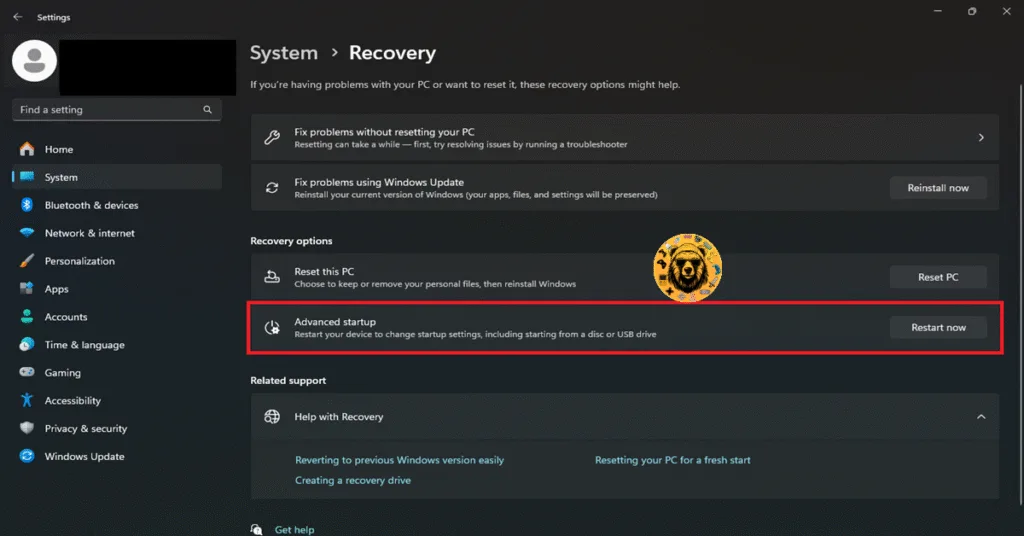
- Go to Advanced Options and then click the “Recovery” option.
- Click the “Restart Now” button in front of the “Advanced startup” option.
- Your PC will restart and you’ll be presented with multiple options.
- Select Troubleshoot, then click Advanced options, and then select the “UEFI firmware settings” option.
- The PC will restart and will boot into BIOS.
- Change the XMP or EXPO settings.
If disabling XMP or EXPO does not fix the Unhandled Exception crashes in ARC Raiders , then try underclocking your RAM a little bit. Don’t worry, it won’t have any tangible effect on the game’s performance. Enter the BIOS by following the steps I mentioned above and select a lower clock speed than the maximum your RAM supports. Play ARC Raiders and the Unhandled Exception Violation crash on startup will be fixed.
Fix #3 – Unplug Non-Essential Peripherals
PC allows users to plug in a variety of peripherals for gaming and work. While it is convenient, some peripherals’ drivers or software can conflict with games and crash them. If you have plugged in different peripherals on your PC, it is the reason ARC Raiders keeps crashing on your PC and displays the Unhandled Exception error.
You can fix the error by removing all the non-essential peripherals from your PC. Plug each device back in and launch ARC Raiders after each device. This way, you will find out which peripheral is crashing the game. Once identified, remove the peripheral when you play ARC Raiders, and the Unhandled Exception startup crash is now fixed.
Fix #4 – Recompile ARC Raiders’ Shaders and Increase Cache Size
Most game engines, including Unreal Engine, use shaders for their performance and visuals. Unreal Engine, however, relies heavily on shaders, which is why the game compiles shaders when you first launch ARC Raiders.
The shader cache for the game is either corrupt or is having compatibility issues, which is why ARC Raiders is crashing at startup with the Unhandled Exception error. You can fix these Unhandled Exception crashes by clearing the shaders cache, increasing the cache size, and recompiling shaders in ARC Raiders. Here is how you can apply the fix:
- Open the NVIDIA App.
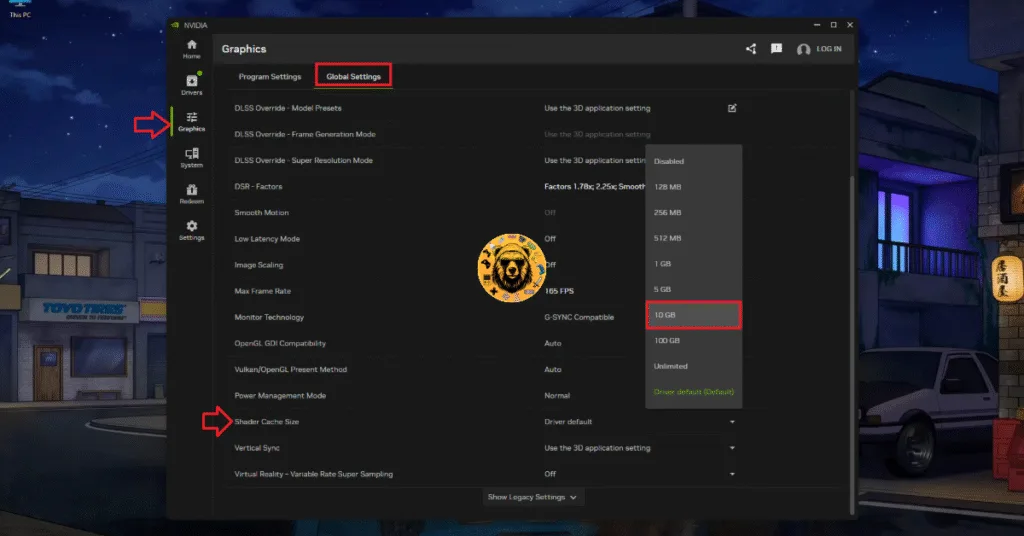
- Go to the “Graphics” tab and go to the “Global settings” tab.
- Scroll down to the “Shader Cache Size” setting and select the “Disable” option for it.
- Restart your PC.
- Go back to the “Shader Cache Size” setting and select 10 GB or a higher value.
- Play ARC Raiders, it will recompile shaders, and the Unhandled Exception crashes are fixed.
Fix #5 – Disable Ransomware Protection
Ransomware Protection is a Windows Security feature that restricts access to certain files and folders so protect them. However, this feature often restricts legitimate apps and programs from accessing required folders, which results in games and apps not launching.
The reason for ARC Raiders not launching on your PC and displaying the Unhandled Exception error is Ransomware Protection. You can fix the Unhandled Exception startup crashes on your PC by disabling Ransomware Protection.
Here is how you can disable Ransomware Protection on your PC and fix the Unhandled Exception crashes in ARC Raiders:
- Open Windows Settings and go to the “Privacy & Security” tab.
- Click the “Windows security” setting, and then click the “Virus & threat protection” setting.
- A new Window will pop up.
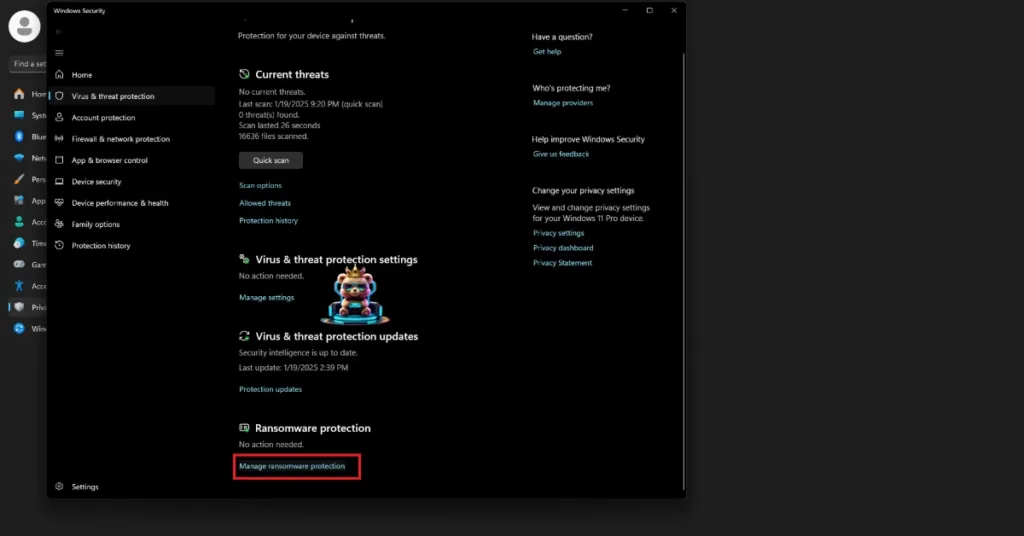
- Click the “Manage Ransomware Protection” option under the “Ransomware Protection” setting.
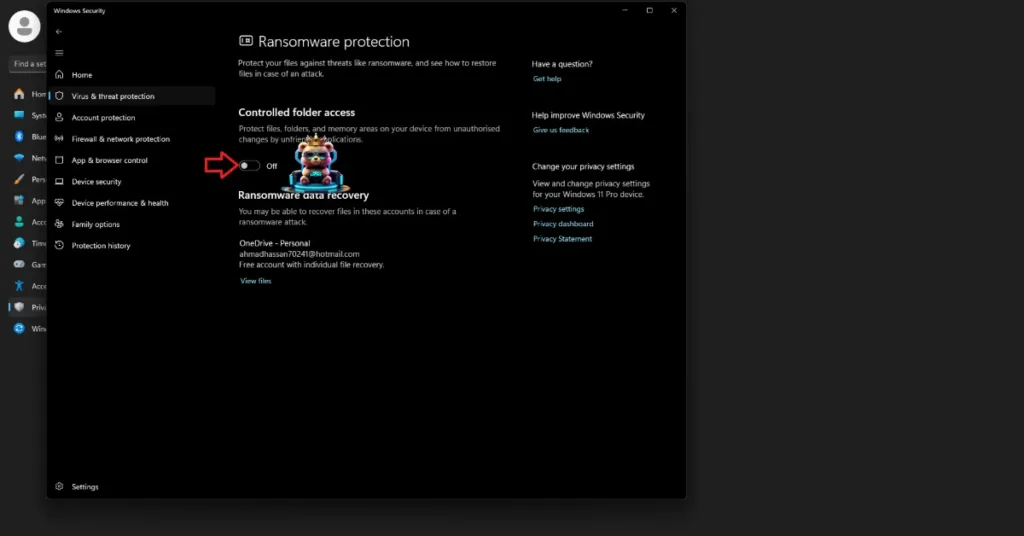
- Toggle the button under the “Controlled folder access” setting.
- Click the “Yes” button when prompted.
- Play ARC Raiders and the Unhandled Exception crash is fixed.

Fix #6 – Repair System Files and Install Missing Visual C++ Components
Corrupt or missing System and Visual C++ components are the reason ARC Raiders keeps crashing on your PC and displays the Unhandled Exception: Exception_Access_Violation error. You can fix these crashes by repairing System Files and installing Visual C++ components.
Here is how you can repair and install System Files and Visual C++ components to fix Unhandled Exception crashes on your PC:
Run DISM and SFC Scans
- Press the Windows key on your keyboard, type “cmd”, and run Command Prompt as an administrator.
- Type sfc /scannow and hit Enter.
- Windows will run a scan. Let it complete fully.
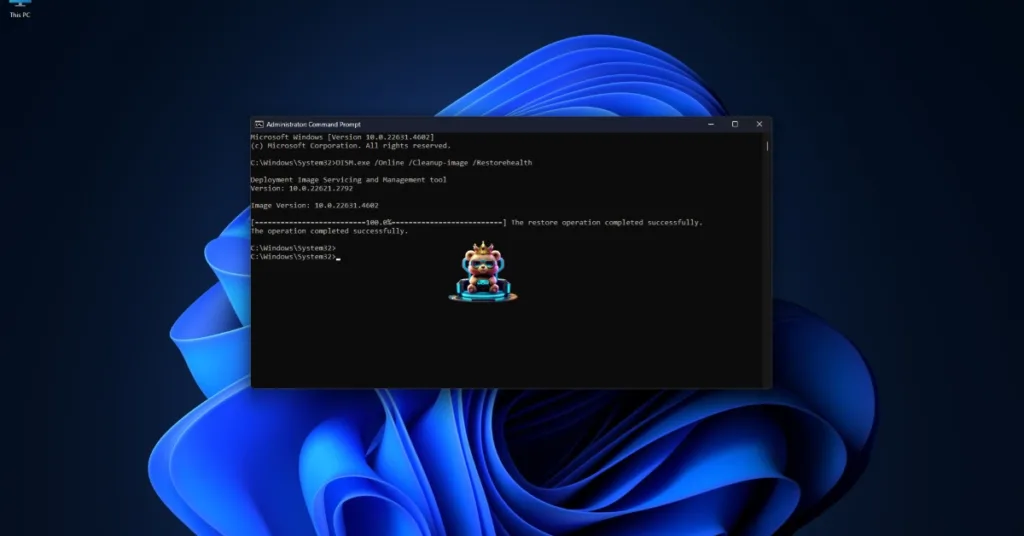
- After the first scan is complete, type DISM.exe /Online /Cleanup-image /Restorehealth and press Enter again.
- Let Windows complete this scan as well.
- Launch ARC Raiders, it will run without crashing, and the EXCEPTION_ACCESS_VIOLATION error is fixed.
Repair or Install Visual C++ Components
Visual C++ is necessary to run games on Windows. Install or repair Visual C++ components on your Windows PC to fix the ARC Raiders Unhandled Exception crashes.
- Go to the Steam Library and type “Steamworks” in the search bar.
- Right-click “Steamworks Common Redistributables” > Manage > click “Browse local files”.
- Open _CommonRedist\vcredist in the explorer window that opens on your screen.
- You will get a list of folders with names in years starting from 2010.
- Open each folder one by one and run the VC_redis for both x64 and x86 versions.
- Repair or install Visual C++ Redistributables.
- Launch ARC Raiders, and it won’t crash again with the EXCEPTION_ACCESS_VIOLATION error.


That is all for our ARC Raiders fixes for Unhandled Exception crashes on your Windows PC. If you are facing errors and issues while playing other games on PC and handhelds, head to our hub of commonly occurring PC errors and their fixes.