Players have taken a great liking to a recent tactical extraction FPS, Arena Breakout: Infinite. It provides a deep survival experience for the players.
However, errors and issues are part of every game, and this goes for Arena Blackout: Infinite as well. Reports claim that the game is crashing with the DX 12 not supported error. If you are also getting the same issue, then this guide is all you need.
Arena Breakout: Infinite DirectX Crash Fixes That Work
As I mentioned above, players are having a lot of trouble while launching the game. This issue has been experienced by several players on Steam and Reddit, and I know you are also a target. Players report the following error message:
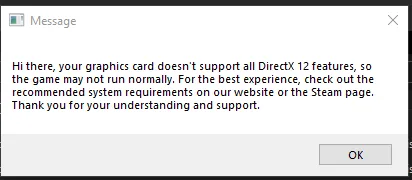
“Hi there, your graphics card doesn’t support all DirectX 12 features, so the game may not run normally. For the best experience, check out the recommended system requirements on our website or the Steam page. Thank you for your understanding and support.”
This is probably an issue related to your GPU. Follow this guide and Arena Breakout: Infinite won’t crash on your PC with the DX 12 error.
Fix #1 – Ensure Arena Breakout: Infinite Is Running on Dedicated Graphics Hardware
This fix is for our laptop players. If you are playing Arena Breakout: Infinite on your laptop, there is a chance that the integrated graphics card is being used instead of the discrete one. What happens is that Windows switches between both of them depending on the load. However, sometimes it fails to switch to the dedicated card, causing games to crash, in our case with Arena Breakout: Infinite. All you gotta do is ensure the game is running on the dedicated GPU to fix the DX12 error. Follow my lead:
- Open your Windows Settings and navigate to System.
- Click on Display, then scroll down and click on Graphics.
- Here, add Arena Breakout: Infinite.
- Set the Graphics Preference to High Performance and launch the game
- Launch Arena Breakout: Infinite, and it won’t crash with the DirectX 12 error.


Fix #2 – Delete DirectX Shader Cache
The first thing that comes to our mind when we are met with an error is to delete the game’s shader cache. After doing so, when we launch the game, a new shader cache will be created. This will fix the DX 12 not supported error while launching Arena Breakout: Infinite on your PC. Follow my lead:
- Press Windows + R to open the Run Dialog.
- Type %localappdata% to access the local app data folder.
- In the NVIDIA folder, open the GLCache and DXCache folders.
- Delete all contents from these folders.
- Bakctrack to the AppData\Local folder and navigate to the NVIDIA Corporation folder.
- Open the NV-Cache folder and delete its contents.
- Launch Arena Breakout: Infinite and the DirectX 12 error will be fixed.
Fix #3 – Revert RAM Overclock
Disable XMP and EXPO
We all want our components to be using their full potential. For the RAM, PC users often turn on the XMP and EXPO settings in their BIOS to overclock it. By doing so, you indeed get a performance boost, but also get faced with errors and issues. Disable this feature to fix the DX 12 not supported error on your PC. Here’s how to do that:
- In your Windows Settings, navigate to the Windows Update tab.
- Make your way to the Advanced Options and click on the “Recovery” button.
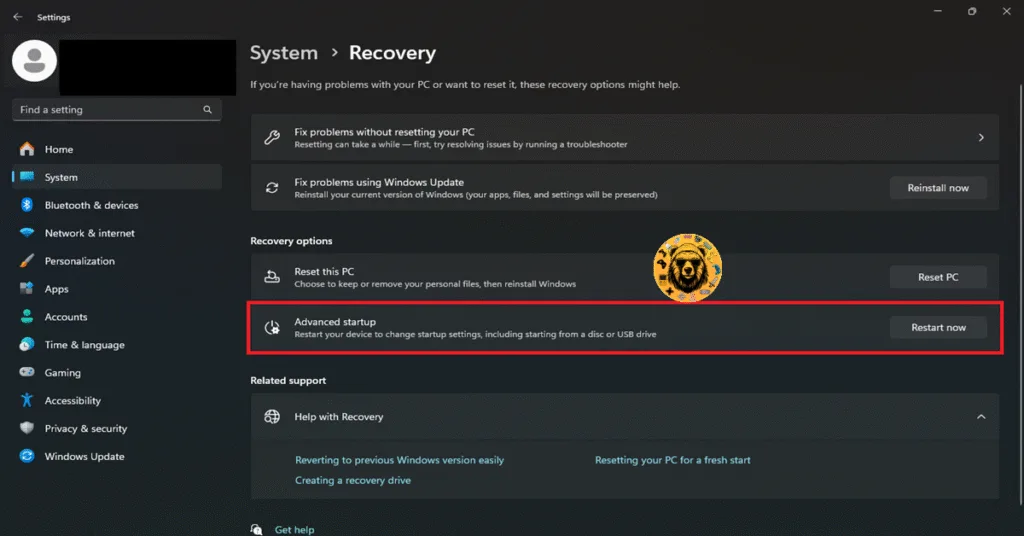
- Besides the Advanced Startup option, click the Restart Now button and let your PC restart.
- Now, select Troubleshoot and click Advanced options.
- Select the “UEFI firmware settings” option, wait for your PC to restart, and you will boot into BIOS.
- Your BIOS will most likely open in EZ Mode; press F7 to switch to Advanced Mode.
- In the OC (Overclocking) or Extreme Tweaker tab, look for the XMP Profile or EXPO Profile settings.
- Change the setting from Enabled to Disabled, press F10 to save the changes, leave the BIOS, and wait for the PC to turn on.
- Launch Arena Breakout: Infinite, and you won’t experience the DX12 not supported on your PC error.
Fix #4- Revert Factory Overclock of your Graphics Card
An overclocked GPU is the reason why Arena Breakout: Infinite is crashing on your PC with the DX 12 not supported error. So if you have overclocked your GPU, then revert it to the original settings. However, your GPU is most likely factory-overclocked. What I mean by that is that your graphics card is already slightly overclocked by Nvidia’s AIB partners like ASUS, Gigabyte, Zotac, etc. You will have to enable Debug Mode to ensure your GPU is running on Nvidia’s recommended clock speeds. Here’s how to enable Debug Mode:

- Open the Nvidia Control Panel and click the “Help” button in the top menu.
- Select the Debug Mode option.
- Launch Arena Breakout: Infinite and the DX12 error will be fixed.
Fix #5 – Clean Install GPU Driver
Corrupt or incompatible GPU drivers are the reason why Arena Breakout: Infinite is crashing on your PC with the DX12 error. To fix this, you will have to clean install your GPU drivers. I’ll take you through the process:
Install your current GPU driver from Nvidia’s official website.
- Launch the setup and, among the installation options, choose Custom and hit Next.

- Check the “Perform a clean installation” button and hit Next.
- Now, your GPU driver will have a clean install.
- Launch Arena Breakout: Infinite, and it won’t crash with the DX12 error.
And that should fix DirectX 12 not supported error while trying to launch Arena Breakout: Infinite on your PC. For more error fixes, make sure to check our fixes for common errors page.