Battlefield 6 on PC is an optimized game, which is a rarity in 2025. However, it shouldn’t be surprising since the last Frostbite engine game, Dragon Age: The Veilguard, was also well-optimized for PC. Despite that, Battlefield players are experiencing crashes and DXGI Device errors on PC. On top of that, a lot of players report high CPU usage while playing the game. Here is how you can fix the high CPU usage issue in Battlefield 6 on your PC.
Battlefield 6 Stuttering Fixes That Work
As per PC users’ feedback, Battlefield 6 stutters frequently, and the game’s FPS drops due to high CPU usage. Since the CPU has to schedule the GPU tasks, if the CPU is being fully utilized, it bottlenecks the GPU, and performance suffers in the form of low FPS and stuttering.
There are two ways you can lower the CPU usage in Battlefield 6: limit the FPS and use a custom config file. The following is how you can fix the max CPU usage in the game.
Fix #1 – Create a Custom Use.cfg File
Battlefield 6, using all of the CPU resources, gives the impression that it is fully utilizing your hardware. If that is the case, you wouldn’t be experiencing stuttering or low FPS issues with high CPU usage in BF6. To fix the CPU usage issue, create a custom user.cfg file. A lot of PC users in the community confirm that this fix resolves the CPU usage issue in the game. Here is how you can apply the fix:
- Open Notepad and paste the following lines:
Thread.ProcessorCount 8
Thread.MaxProcessorCount 8
Thread.MinFreeProcessorCount 0
Thread.JobThreadPriority 0
GstRender.Thread.MaxProcessorCount 16 - Save the file and name it “User.cfg”.
- Place the User.cfg file in the Battlefield 6’s install folder.
- For Steam users, right-click Battlefield 6 in your Steam library > Manage > click “Browse local files”.
- A new Explorer window will open. Paste the User.cfg file here.
- Play Battlefield 6, the CPU usage will be lowered, and the stuttering will be fixed.
The core and thread count you input in User.cfg file depends on your CPU. The vlaues I’ve given are for a CPU with 8 cores and 16 threads. If you have a CPU with 6 cores and 12 threads, your User.cfg file should have the following lines:
Thread.ProcessorCount 6
Thread.MaxProcessorCount 6
Thread.MinFreeProcessorCount 0
Thread.JobThreadPriority 0
GstRender.Thread.MaxProcessorCount 12
Fix #2 – Limit Max FPS
Another way to lower your CPU usage is to lower the game’s max FPS. Playing PC games at an unlocked or high FPS causes the CPU usage to spike along with the GPU. If the CPU doesn’t have enough headroom, the GPU usage will drop, resulting in lower FPS and stuttering.
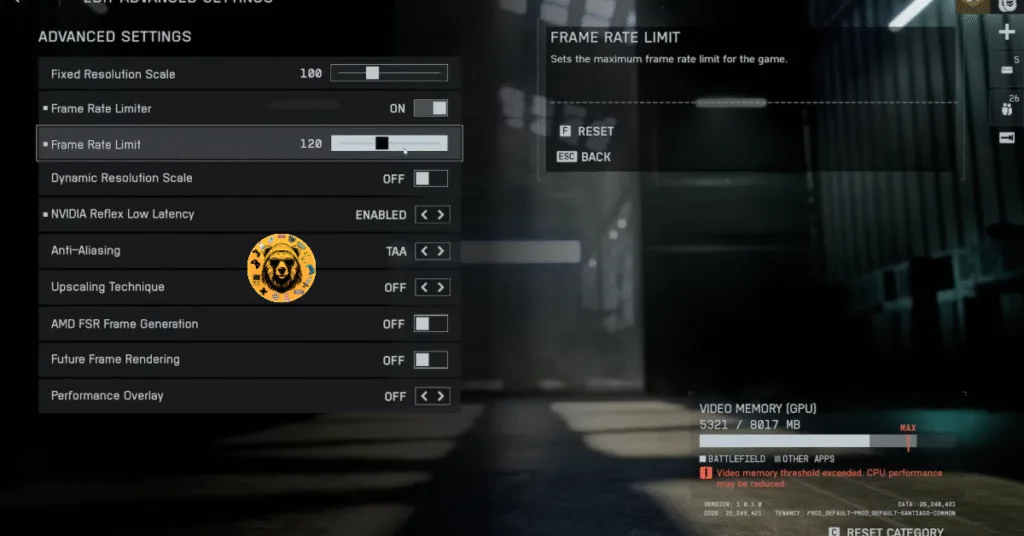
Limit the game’s max FPS to reduce the CPU load, and the processor usage will be reduced. Here is how you can limit Battlefield 6’s max FPS to reduce the processor usage:
- Open the options menu in Battlefield 6.
- Go to the “Graphics” tab and select the “Advanced” setting.
- First, toggle the “Frame Rate Limiter” setting on.
- Then use the “Frame Rate Limit” slider to adjust the FPS.
- Set a lower FPS value.
- Apply the changes, play Battlefield 6, and the CPU usage will drop due to a lower FPS target.
That is all for our Battlefield 6 fixes for the high CPU usage issue on Windows PC. If you are facing errors and issues while playing other games on PC and handhelds, head to our hub of commonly occurring PC errors and their fixes.