While I was looking forward to playing Black Ops 6 on Steam Deck, I’m happy I ended up booting it on Asus ROG Ally first. Overall, it is a really optimized game and runs well on Asus ROG Ally handheld.
You can push the game to 60 fps with the settings I used. You can follow these recommended settings which balance performance and visual quality.
Increase VRAM
Before we get into the meat of it; let’s first get the VRAM to auto. You need to go into the Armoury Crate and access the Settings tab, and then click on Performance. In the next menu click on GPU Settings.
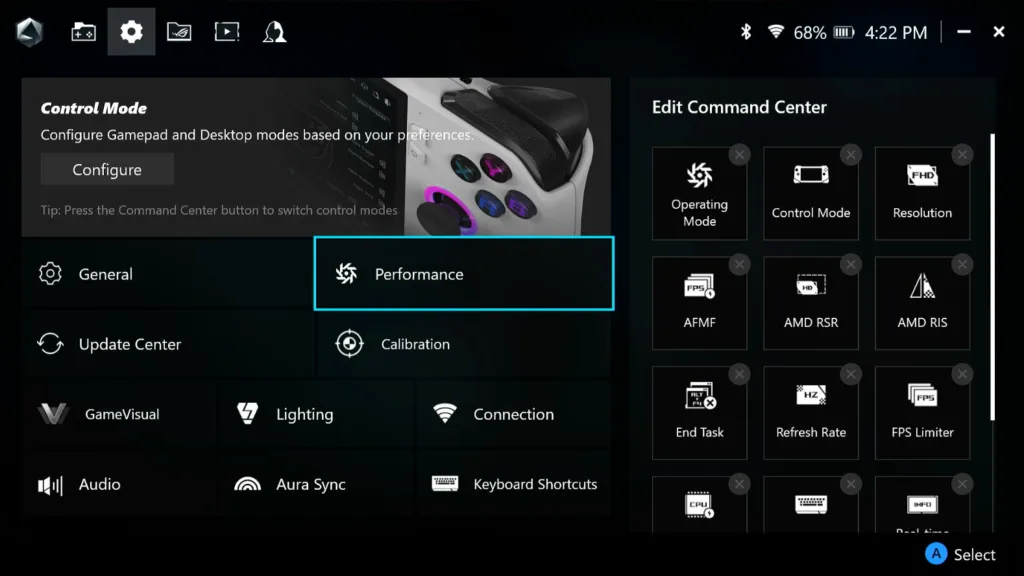
The ROG Ally allows you to choose to select from Auto to 8GB of VRAM. If you are on Ally X, you can select Auto and go to up 16GB. In this case, we are on the original ROG Ally to we can only go as far as 8GB.
Anyways, set your VRAM to auto.
Adjust TDP
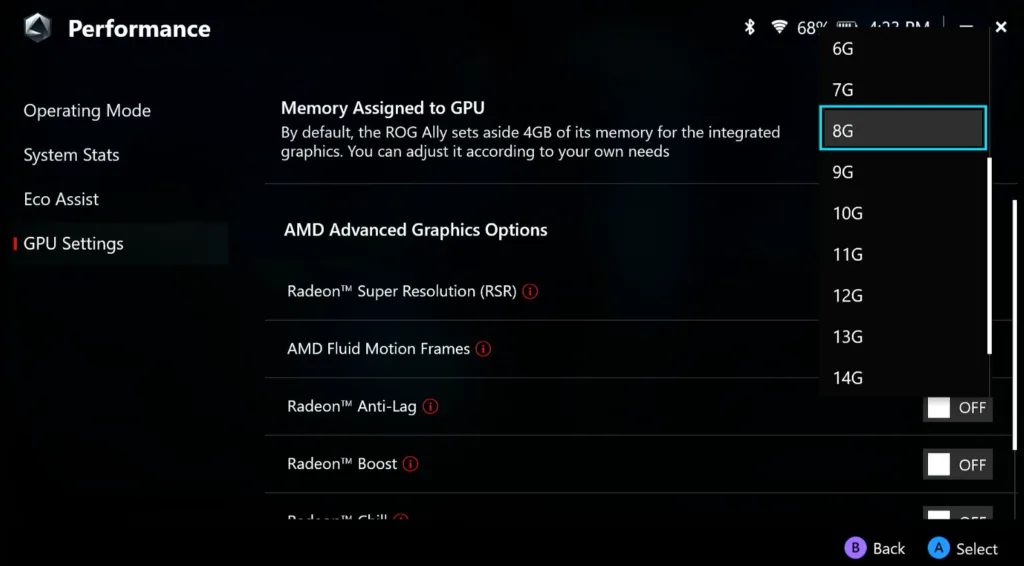
The next step is adjusting TDP and in the case of Black OPs 6 I highly recommend going all in, max out for full Turbo mode.
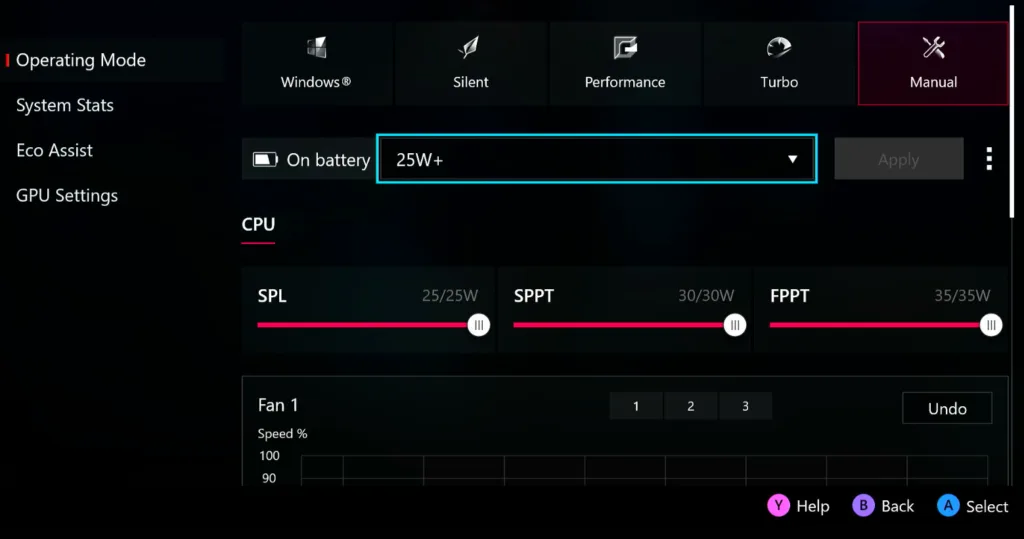
Go to the Armoury Crate and enter the Settings tab. Click on Operating Mode and then click on Manual mode to adjust TDP.
Now open the command center and max out the TDP.

Best Call of Duty Black Ops 6 Settings
| Display Settings | |
|---|---|
| Display Mode | Fullscreen Exclusive |
| Screen Refresh Rate | 120 Hz |
| Display Resolution | Dynamic Resolution |
| V-Sync | Off |
| Custom Frame Rate | 60 FPS |
| Render Resolution | 100% |
| Dynamic Resolution | On |
| Dynamic Resolution Frame Rate Target | 80 FPS |
| Upscaling | AMD FSR 3 |
| AMD FSR Preset | Balanced |
| Graphics Settings | |
|---|---|
| Texture Resolution | Normal |
| Texture Filter | Normal |
| Depth of Field | Off |
| Detail Quality Level | Low |
| Particle Resolution | Very Low |
| Bullet Impacts | On |
| Persistent Effects | Off |
| Shader Quality | Low |
| On-Demand Texture Streaming | Minimal |
| Shadow Quality | Low |
| Screen Space Shadows | Low |
| Screen Space Ambient Lighting | Low |
| Screen Space Reflections | Off |
| Static Reflection Quality | Low |
| Tessellation | Off |
| Volumetric Quality | Low |
| Deferred Physics Quality | Off |
| Weather Grid Volumes | Low |
| Water Quality | Off |
Best Settings for BO6 Multiplayer on Asus ROG Ally
| Display Settings | |
|---|---|
| Display Mode | Fullscreen Exclusive |
| Screen Refresh Rate | 120 Hz |
| Display Resolution | Dynamic Resolution |
| V-Sync | Off |
| Custom Frame Rate | 60 FPS |
| Render Resolution | 85% |
| Dynamic Resolution | On |
| Dynamic Resolution Frame Rate Target | 80 FPS |
| Upscaling | AMD FSR 3 |
| AMD FSR Preset | Performance |
| Graphics Settings | |
|---|---|
| Texture Resolution | Medium |
| Texture Filter | Medium |
| Depth of Field | Off |
| Detail Quality Level | Low |
| Particle Resolution | Very Low |
| Bullet Impacts | On |
| Persistent Effects | Off |
| Shader Quality | Low |
| On-Demand Texture Streaming | Optimized |
| Shadow Quality | Low |
| Screen Space Shadows | Low |
| Screen Space Ambient Lighting | Low |
| Screen Space Reflections | Off |
| Static Reflection Quality | Low |
| Tessellation | Off |
| Volumetric Quality | Low |
| Deferred Physics Quality | Off |
| Weather Grid Volumes | Low |
| Water Quality | Off |
How to Fix texture issues in Black Ops 6 on ROG Ally
The solution is to set VRAM to auto as I have suggested you do from the beginning. If by any chance you have not set it to auto and are experiencing BO6 texture issues on Asus ROG Ally, then settings VRAM to auto is the solution.