Running on Unity 6, Cairn is a rock-climbing adventure game that has gained favorable reviews from critics and players. Everybody seems to be loving the game. just not the errors and issues. If you have played the game for some time, you might have encountered crashes and errors, one being the Failed to load il2cpp error. In this guide, I have compiled some solutions that will fix Cairn not launching with the Failed to Load il2cpp error on your PC.
Cairn Failed to Load il2cpp Error Fixed
Reports are claiming that the game crashes with the failed to load il2cpp error on PC. This isn’t the first time that the game has troubled the players with problems and issues. However, the developers are helping the community as much as they can. The fix comes from the developers themselves, so the chances of it working are pretty high. Follow this guide to fix Cairn crashing at startup with the failed to load il2cpp error on PC.
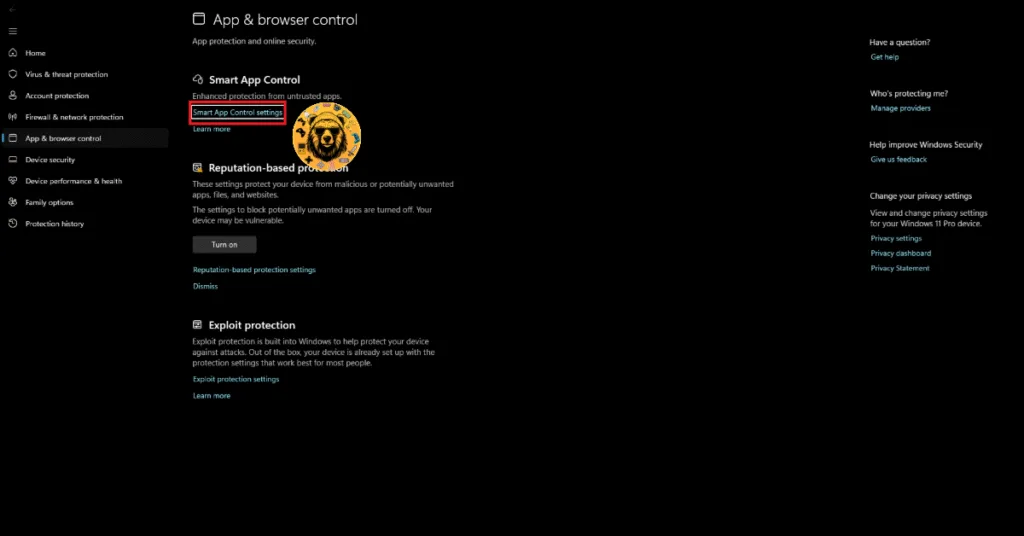
Fix #1: Disable Smart App Control in your Windows Defender
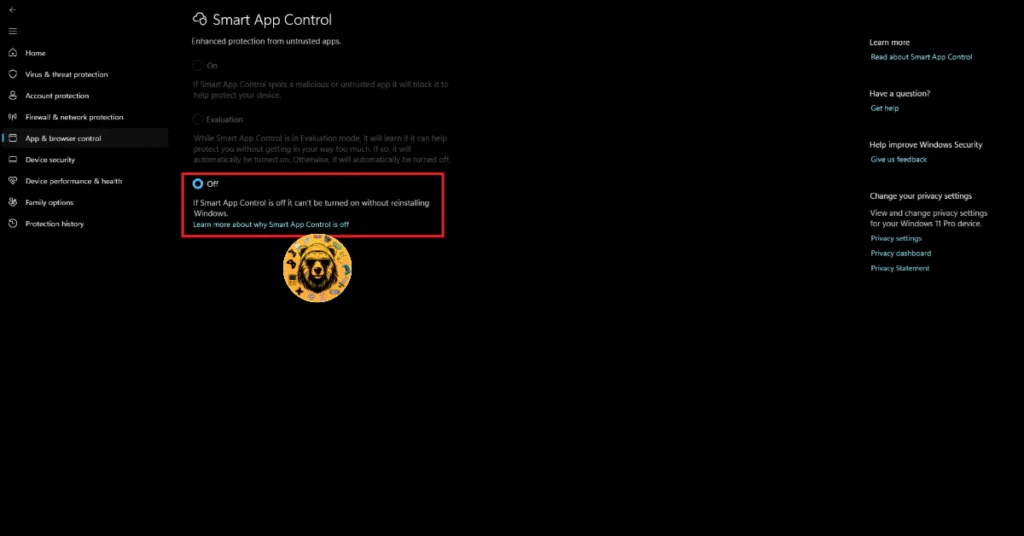
The developer has claimed that disabling Smart App Control in your Windows Defender has fixed the failed to load il2cpp error on PC. It’s pretty easy to do. All you have to do is follow these steps:
- Press the Windows Key and type Settings.
- Navigate to the Privacy and Security tab and click on Windows Security.
- Click on App and Browser control and press Smart App Control Settings.
- Disable it and restart your PC.
- Launch Cairn, and the failed to load issue will be resolved.

Fix #2: Launch Cairn as an Administrator
Have you tried running the game as an administrator? If not, then do that as Cairn is probably lacking some admin rights, which is causing it to crash on your Windows PC with the Failed to Load il2cpp error. Here’s how to run the game as an administrator:
- In your Steam Library, locate Cairn and right-click on it.
- Hover over Manage, then click Browse local files.
- A new window with all game files will appear.
- Right-click the game’s executable and select “properotes”.
- In the Compatibility tab, check the box for “Run this program as an administrator.”
- Click Apply to save the changes.
- Launch Cairn, and the failed to load il2cpp error will be fixed on your PC.
If nothing works, you can try the last resort, which is to reinstall the game.
And that should fix the failed to load il2cpp crashes while trying to play Cairn on your PC. Players were experiencing the same error while trying to play No Rest for the Wicked. We listed some fixes there that helped a lot of PC users out. If you are facing errors and issues while playing other games on PC and handhelds, head to our hub of commonly occurring PC errors and their fixes.