CODE VEIN II is the latest title from BANDAI NAMCO Studios, a sequel to the critically acclaimed 2019 CODE VEIN. The developers opted for Unreal Engine 5 (UE5) to develop CODE VEIN 2, an engine known for its shader compilation stutters and Out of Video Memory crashes on PC. PC users report the latter when launching the game, among other issues, like the UE Fatal Error crashes. I have compiled a list of fixes that will resolve the UE Fatal Error crash in CODE VEIN 2 on your Windows PC.
CODE VEIN 2 Unreal Engine Crash Fixes That’ll Help
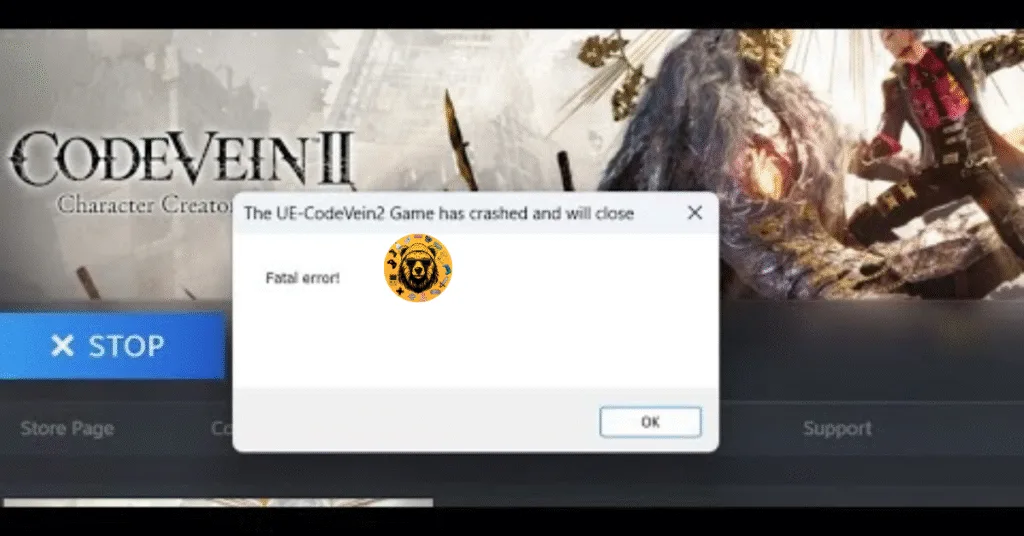
According to PC players, the game keeps crashing randomly during gameplay or when they continue to play it from the main menu, or when CODE VEIN 2 is compiling shaders and the following error message pops up:
The UE-CodeVein2 game has crashes and will close
Fatal error!
There are multiple factors that can cause CODE VEIN II to crash and display the Fatal Error message, like playing the game at an unlocked FPS, a damaged or small shader cache, technical issues with Intel 13th and 14th-generation CPUs, and more. The following fixes will resolve the UE-CodeVein2 Fatal Error crashes on your Windows PC.
Fix #1 – Check for BIOS Update or Reduce Performance Core Clock (Intel 13th and 14th Gen CPUs)
The most likely culprit for the Fatal Error crashes in CODE VEIN 2 is your CPU if you are using an Intel 13th or 14th Generation CPU. This is because these CPUs have an overvoltage issue that does not play well with Unreal Engine 5 games on PC.
PC players have reported multiple Unreal Engine 5 games that crash with Fatal Error or Out of Video Memory crashes due to these CPUs. Since CODE VEIN 2 uses Unreal Engine 5, we can’t rule this out. To fix the Fatal Error crashes in the game, update your motherboard’s BIOS, as the latest ones contain the microcode that fixes the overvoltage issue in Intel 13th and 14th-generation CPUs.
However, if the UE-CodeVein2 Fatal Error persists, then the damage to the processor might be permanent. In that case, to fix the error, you need to reduce the Performance Core Ratio of your processor or use Power Save Mode.
- Download and install Intel Extreme Tuning Utility.
- Open the application and set the Performance Core ratio to 53x (If 53x doesn’t fix the crash, reduce it to 50x).
- Play CODE VEIN II and the Unreal Engine crash is now fixed.
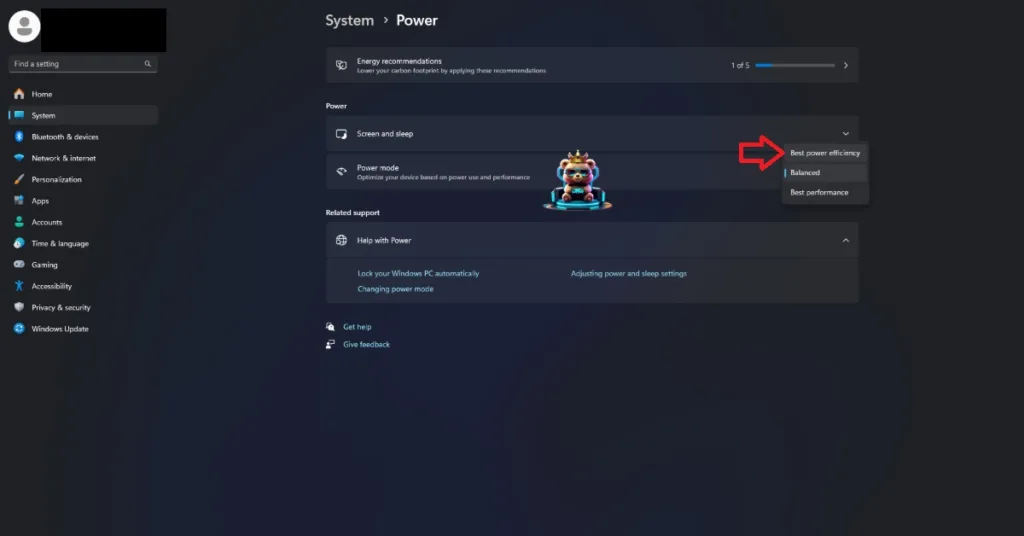
Alternatively, you can use Windows Power Efficiency mode, if yoy don’t want to mess with CPU Core clocks.
- Open Windows settings, select System, and go to Power.
- Select “Best Power Efficiency” for Power Mode.
Fix #2 – Rebuild CODE VEIN II’s Shader Cache and Increase Its Size
Being an Unreal Engine game, shaders are bound to become an issue one way or the other. The reason CODE VEIN 2 keeps crashing on your PC and displays the UE Fatal Error message is that the shader cache is either damaged or too small for the game.
Some players are experiencing Out of Video Memory crashes when compiling shaders or launching CODE VEIN II, due to the shader cache issues.
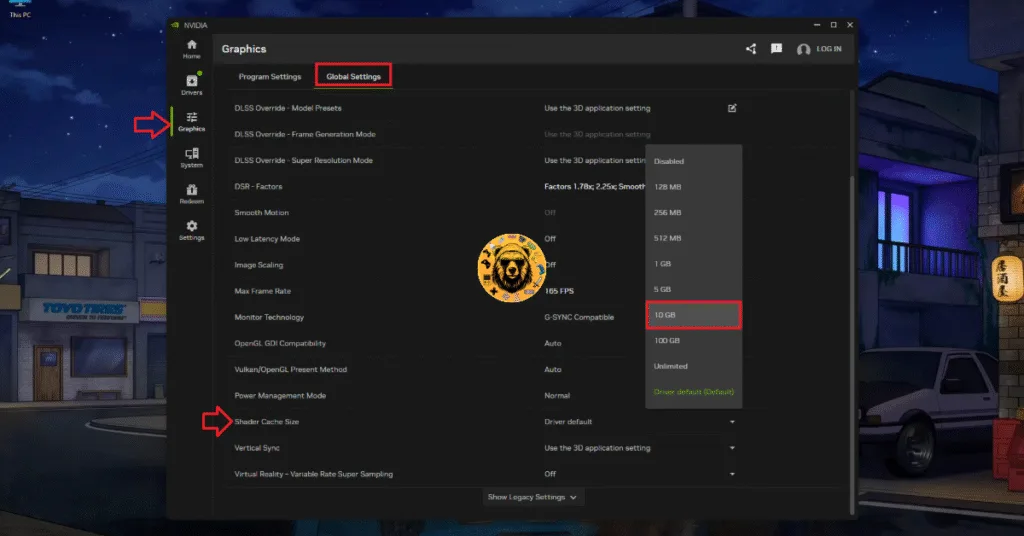
To fix the UE-CodeVein2 Fatal Error crashes on your PC, delete the shader cache, increase its size, and recompile the shaders. Here is how you can apply the fix:
- In the Nvidia App, go to the Graphics tab> Global Settings.
- Scroll down to the Shader Cache Size settings and select the Disable option.
- Restart your PC and backtrack to the Shader Cache Size setting.
- Select 10 GB or a higher value.
- Play CODE VEIN II, and the Fatal Error is fixed.
Fix #3 – Run CODE VEIN II in Compatibility Mode
Compatibility issues with the OS are one of the common reasons Unreal Engine games crash on PCs and display the Fatal Error message. These OS compatibility issues are the reason CODE VEIN 2 is crashing on your PC during shader compilation or during gameplay, and displays the Fatal Error message.
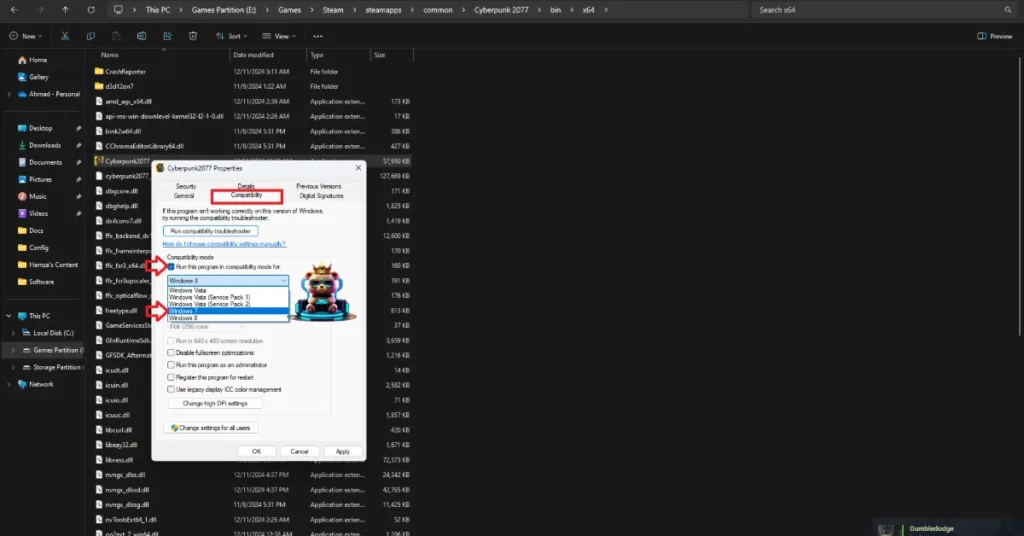
You can fix the Fatal Error crashes in CODE VEIN II by running it in compatibility mode for Windows 7 or 8. Here is how you can run the game in compatibility mode to fix the error:
- Right-click CODE VEIN II in your Steam library, hover the cursor over “Manage”, and click the “Browse local files” option.
- A new window will open containing StarRupture’s game files.
- Right-click the game’s executable file (.exe file).
- In the context menu, click on Properties.
- In the Properties window, find and click on the Compatibility tab.
- Check the box next to Run this program in compatibility mode for: and select Windows 7 or 8.
- Click Apply and then OK to save your settings.
- Play CODE VEIN 2 and the Unreal Engine Fatal Error crashes are fixed.


Fix #4 – Disable XMP or EXPO
Overclocking your hardware to squeeze more performance out of it is one of the advantages of PC gaming. But it can result in an unstable gaming experience if not handled properly. However, overclocking tools have become smart and require less user input.
If you have overclocked your RAM, this is the reason for the UE Fatal Error crashes in CODE VEIN 2 during shader compilation or gameplay. Revert the RAM overclock to fix the crashes.
However, even if you have not overclocked the RAM yourself, you are likely to be using XMP or EXPO profile in the BIOS for your RAM. XMP and EXPO are Intel and AMD CPU tech that ensure the RAM is utilized to its full potential. These profiles are the reason CODE VEIN II is crashing on your PC and displays the Fatal Error message.
To fix the UE Fatal Error issue, disable these profiles in the BIOS and manually select the clock speed supported by your installed RAM sticks. Here is how you can enter the BIOS and disable XMP or EXPO:
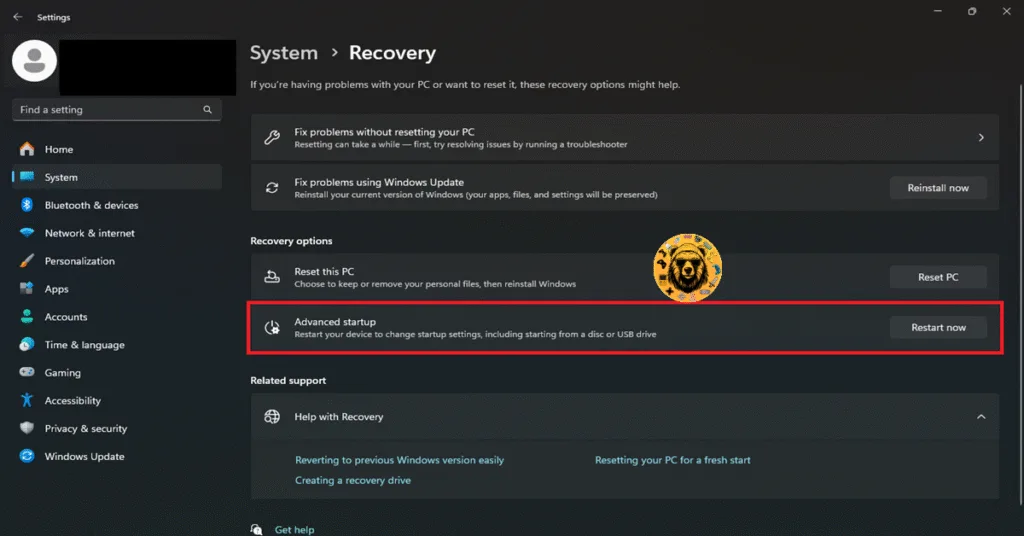
- Open your Windows Settings and go to the System tab.
- Click the “Recovery” setting.
- Click the “Restart now” button in front of the “Advanced startup” setting.
- Wait for your PC to restart and select Troubleshoot.
- Click Advanced Options and select the “UEFI firmware settings” option.
- After your PC restarts, it will boot into BIOS.
- To switch your BIOS from EZ Mode to Advanced Mode, press F7.
- Navigate to the OC (Overclocking) or Extreme Tweaker tab and look for the XMP Profile or EXPO Profile settings.
- Disable the setting and press F10 to save the changes.
- Leave the BIOS and wait for your PC to restart.
- Play CODE VEIN 2, and the UE Fatal Error crash is fixed.
Fix #5 – Limit CODE VEIN 2’s Max Framerate
Playing games at an unlocked framerate has its perks, you get reduced input latency, and the gameplay feels smooth. However, it also puts your GPU and CPU under significant stress, often causing games to crash to the desktop during gameplay.
If you are playing Code Vein II at a high framerate, this is why you are experiencing UE-CodeVein2 Fatal Error crashes. Limit the game’s max FPS to reduce the GPU and CPU load, which will fix the Fatal Error. You can do it through the in-game FPS limiter or use NVIDIA App’s FPS limiter.
Use CODE VEIN II’s In-Game Frame Rate Cap
- Open CODE VEIN 2’s graphics settings.
- In the “Basic settings” tab, use the “Frame Rate Cap” setting to select an FPS value. (Preferably a lower one)
- Continue playing Code VEIN II, and the UE-CodeVein2 Fatal Error crashes are now fixed.
Use NVIDIA App’s FPS Limiter
- Open the NVIDIA App and go to the “Graphics” tab.
- Select No Rest for the Wicked from the list. (If the game isn’t in the list, then go to the Global Settings tab)
- Scroll down to “Driver Settings” and use the “Max Frame Rate” setting.
- Set a lower FPS value and apply the changes.
- Continue playing CODE VEIN II and the UE Fatal Error is fixed.

Unless you are playing CODE VEIN 2 on a Gsync or Freesync display, the frame rate value should be 1/2, 1/3, or 1/4th of your display refresh rate, otherwise, the game will feel jittery. This only applies if you have V-Sync enabled on a fixed refresh rate monitor.
Fix #6 – Revert Graphics Card Overclock
If you have overclocked your graphics card, it is the reason for CODE VEIN 2 Fatal Error crashes on your PC. Revert your graphics card to its default GPU and Memory clocks to fix the error.
Even though you have not overclocked the graphics card yourself, its is stull using higher GPU and Memory clocks and even voltages. This is because NVIDIA and AMD AIB partners, like ZOTAC, ASUS, and MSI, use higher clocks and voltages than their respective reference models from NVIDIA.
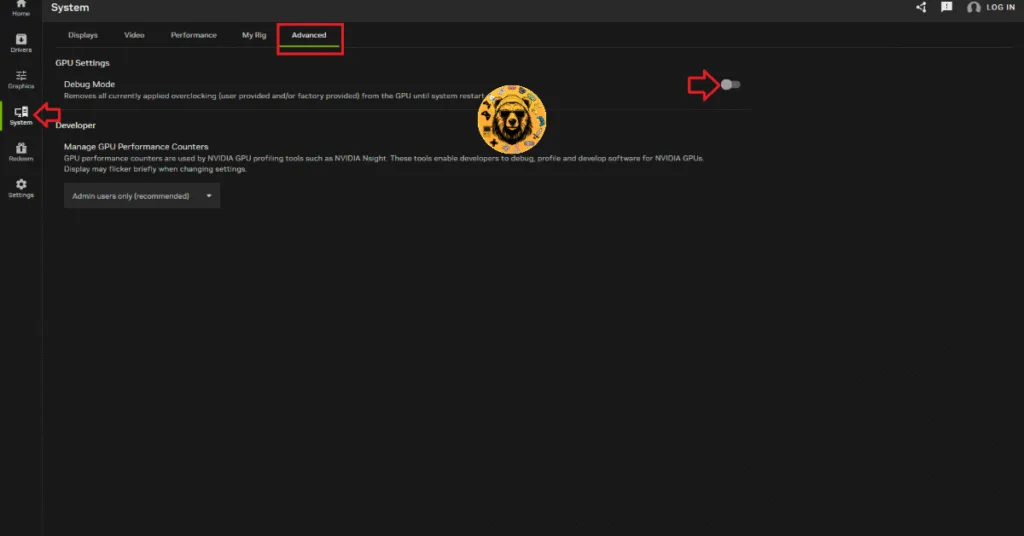
These higher clocks give a relative boost in performance, but are the cause of Fatal Error crashes in CODE VEIN 2 on your PC. Use the Debug Mode in the NVIDIA App to force your graphics card to use its reference clocks, and it’ll fix the UE-CodeVein2 Fatal Error crashes on your PC.
- Open the NVIDIA App.
- Go to the “System tab”.
- Click the “Advanced” tab and turn on Debug Mode.
- Restart your PC, then play CODE VEIN II, and the Fatal Error is now fixed.
These CODE VEIN II fixes will resolve the UE-CodeVein2 Fatal Error on your Windows PC. If any fix has worked for you, let us know in the comments. Also, if you are facing errors and issues while playing other games on PC and handhelds, head to our hub of commonly occurring PC errors and their fixes.