Crimson Desert offers a single-player action-adventure experience with a focus on visceral combat. Players looking for freedom of exploration have become fans of it. Although the game itself is fascinating, the errors and crashes are frustrating players. PC users are experiencing mid-game crashes in Crimson Desert. I have compiled some fixes that will resolve the in-game crash issue in Crimson Desert on your Windows PC.
4 Ways to Fix Crimson Desert Gameplay Crashes on PC
Reports claim that Crimson Desert keeps crashing to the desktop with no error whatsoever, and just randomly shuts off. The game is crashing due to several reasons, like an overclocked GPU, background apps and in-game overlays interfering with the game, and more. The following fixes will resolve the gameplay crash issue on your PC.
Fix #1: Disable DLSS (Confirmed Fix)
The Nvidia DLSS Frame Generation feature is indeed pretty useful, enhancing your overall gaming experience and providing a noticeable FPS boost. However, this feature is the reason Crimson Desert is crashing on your PC. You will have to disable this in your game’s settings to fix the crashes. Follow my lead:
- Open Crimson Desert’s settings > Others > Video.
- Here, disable the “NVIDIA DLSS Frame Generation” setting.
- Play Crimson Desert, and it won’t crash on your PC.
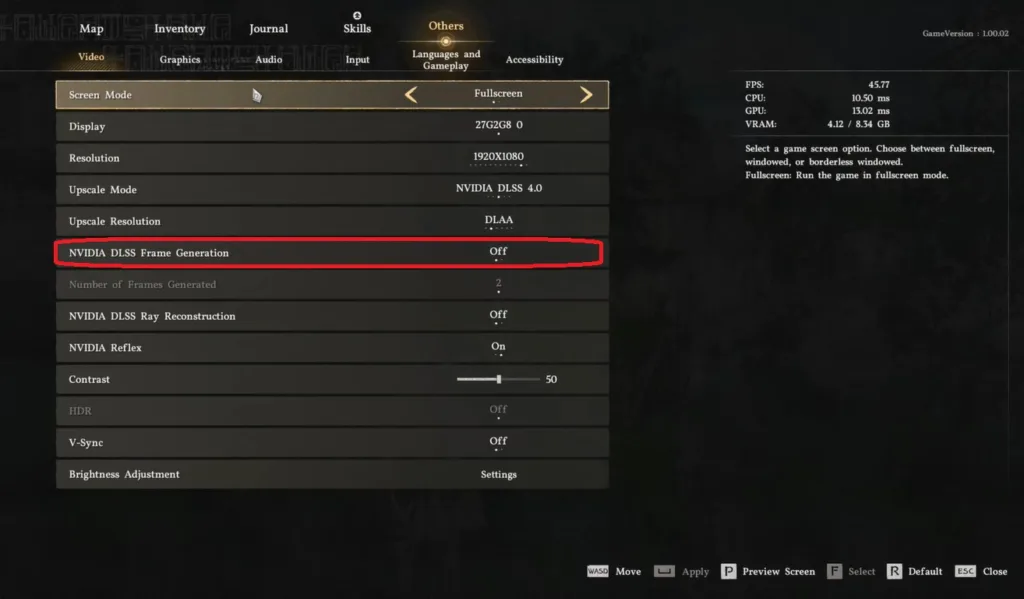
This fix has been tested by several players and will definitely work for you as well.
Fix #2: Disable In-Game Overlays
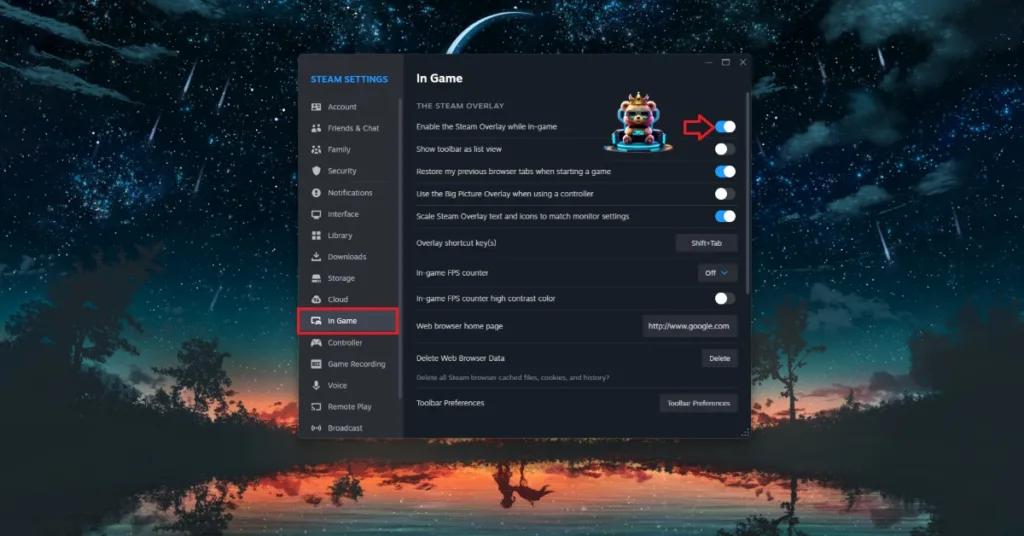
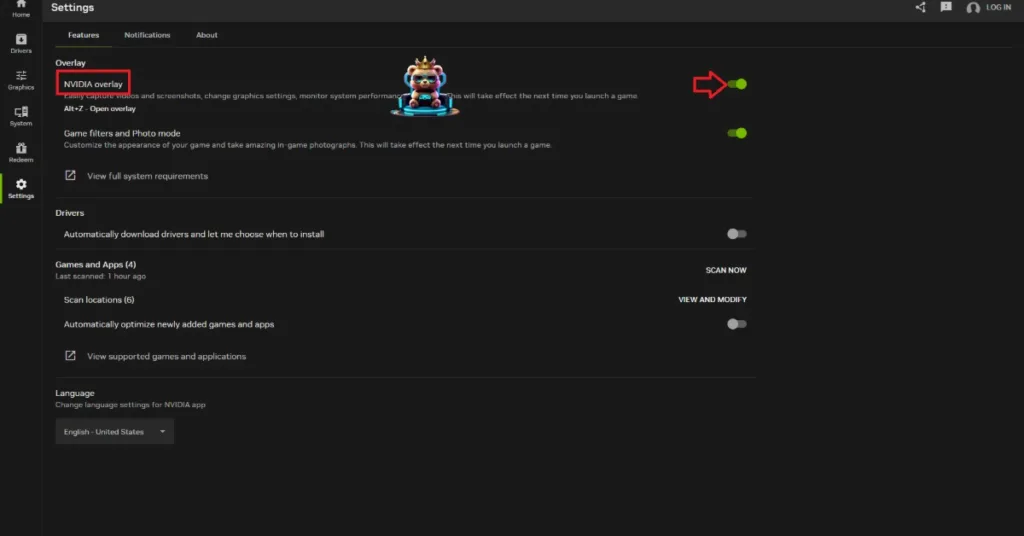
Although in-game overlays can make your gaming experience a whole lot easier and fun, they can also interfere with the game, becoming the cause for several errors and issues, like games randomly crashing on your PC. You will have to disable them to fix Crimson Desert crashing on your PC. Here’s what to do:
Steam
Open Steam Settings and navigate to the “In-Game” tab. Uncheck the box next to the “Enable the Steam overlay while in-game” option.
NVIDIA App
Open the NVIDIA App and go to the “Settings” tab. Under the “Features” tab, disable “Nvidia Overlay”.
Discord
- Open User settings and go to the Game Overlay tab.
- Toggle off the “Enable In-game overlay” option.
Fix #3: Limit Crimson Desert’s Max Frame Rate
Most high-end PC owners play their games on an unlocked FPS. This can be a fun experience, but not when it becomes the cause of issues and errors. You are playing Crimson Desert on an unlocked or high FPS, which is putting a ton of stress on your PC’s hardware, which is causing it to crash mid-game. You will have to limit the game’s max frame rate to fix the crashes.
Since the game doesn’t have an in-game FPS limiter, at the time of writing, you’ll have to use NVIDIA App or NVIDIA Control Panel to limit the frame rate. I’ll guide you through the process:

- In the Nvidia Control Panel, navigate to “Manage 3d Settings.”
- Click on “Program Settings” and choose Crimson Desert.
- Scroll down a little bit and enable Max Frame Rate.
- Choose a suitable framerate, launch Crimson Desert, and it won’t crash on your PC.
For NVIDIA APP users, open the app, go to the “Graphics” tab, and select Crimson Desert. Scroll down and use the “Max Frame Rate” setting to cap the game’s FPS and fix the crashes.

Fix #4: Make Sure Your Graphics Card Isn’t Overclocked
An overclocked GPU is usually the root cause of in-game crashes. If you have overclocked your GPU, revert it to the default settings.
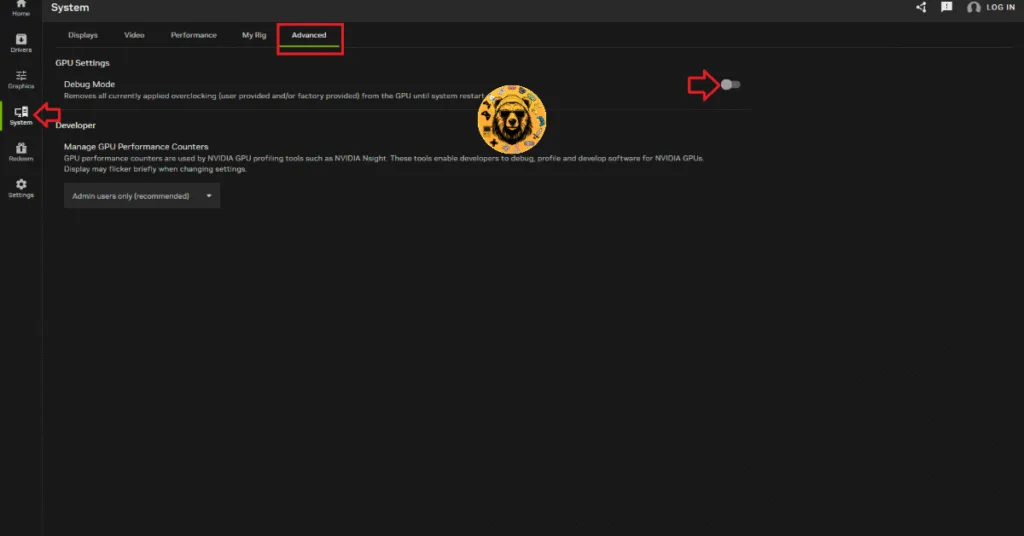
But chances are that your GPU is already factory-overclocked by NVIDIA or AMD AIB partners like ASUS, GigaByte, MSI, etc. Overclocked GPUs run on high clocks, enhancing the overall system’s performance. But due to high stress and load, it causes your games to crash. Enable the Debug Mode to ensure your GPU runs on NVIDIA’s recommended clock speeds, and the crashes will be fixed. Follow these steps:
Through the NVIDIA APP:
- Open the NVIDIA app.
- Go to the “System” tab and click the “Advanced” tab.
- Turn on Debug Mode and restart your PC.
- Play Crimson Desert to enjoy a smooth experience.
Through NVIDIA Control Panel:
Open the NVIDIA Control Panel, click the “Help” button from the top menu, and select “Debug Mode”.

You can disable the Debug Mode at any time you want, and the graphics card will start using its factory-overclock settings.
That’s how you can fix Crimson Desert crashing on your PC. I hope that you found this guide helpful. If you are experiencing errors and crashes in games, also see our fixes hub for commonly occurring errors for PC and handhelds.