Running on the BlackSpace Engine, Crimson Desert is an action-adventure that not only looks incredible but also runs well across various PC configurations. As we all know, no one is completing the game in one sitting, so knowing how to save and where to find those save files is extremely important. This Crimson Desert guide will take you through the game’s save file location on your PC.
Where Can I Find Save Files for Crimson Desert?
| Client | Location |
| Windows | C:\Users\<Username>\AppData\Local\Pearl Abyss\CD\save |
In <Username>, enter your own username.
Once you are in the folder, you will see two subfolders, with the numbered folder containing all the save files that you’ll create inside the game. You can also make backups of your save files by copying and pasting them somewhere else. If, for some reason, you mess with your game files, you will always have backups to rely on.
How to Save in Crimson Desert?
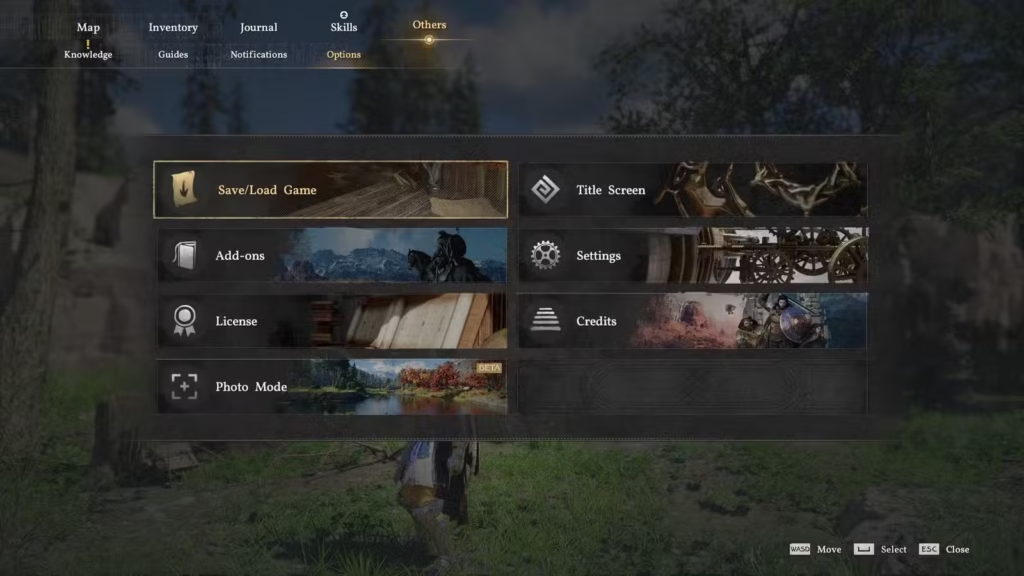
To save your game, follow these steps:
- Press and hold Escape/Start/Options
- Navigate to the Others menu by using your scroll wheel or D-Pad button
- Here, you will see a bunch of options, including one that shows all of your save files.
You can always save your game if you’re in a precarious or dangerous spot, like falling or in the middle of a fight. Load that specific save file, and you will be transported somewhere safe and quiet.
Under the Others tab, you will see three Auto-Save slots as well as a bunch of empty slots for manual saves. Remember, you can’t overwrite any of your Auto-Save slots. However, you’re free to save in any of the empty slots, and you can overwrite them as you wish.
That’s all for this Crimson Desert guide on where you can find the game’s save file. I hope that you found this guide helpful.