Death Stranding 2: On the Beach is an incredible PlayStation exclusive that has now released for PC. On top of that, it might be the last PlayStation exclusive to release on PC, as Sony has moved on from porting its games to PC. The first Death Stranding was an optimized title for PC, and the sequel is no exception. Despite the optimization, PC users are experiencing crashes followed by the “0x887A0006: DXGI_ERROR_DEVICE_HUNG” error. To help you fix the Death Stranding 2 DXGI ERROR DEVICE HUNG crashes on your PC, I have compiled the following fixes.
Death Stranding 2: ON THE BEACH 0x887A0006 DXGI Crash Fix
PC users report that Death Stranding 2 keeps crashing during gameplay or cutscenes and displays the following error:
0x887A0006: DXGI_ERROR_DEVICE_HUNG
NIXXES Software is SONY’s studio that ports all its PlayStation games to PC, and Death Stranding 2 is no exception. Also, this isn’t the only PC port that crashed with the “DXGI_ERROR_DEVICE_HUNG” error, as The Last of US Part 2, Marvel’s Spider-Man 2, and Ghost of Tsushima also experienced the same error.
There are multiple reasons why you are experiencing the DXGI_ERROR_DEVICE_HUNG crashes in Death Stranding 2 (DS2), like compatibility issues with your current OS version, playing DS2 at an unlocked FPS, and more. The following fixes will resolve the DXGI DEVICE HUNG crashes in Death Stranding 2 on PC.
Fix #1 – Disable Hardware-accelerated GPU Scheduling
Hardware-accelerated GPU Scheduling is a Windows 10 and 11 feature that allows the GPU to schedule its own tasks rather than wait for the CPU to schedule them for it. Not to mention, enabling this feature is required to use Frame Generation in PC games.
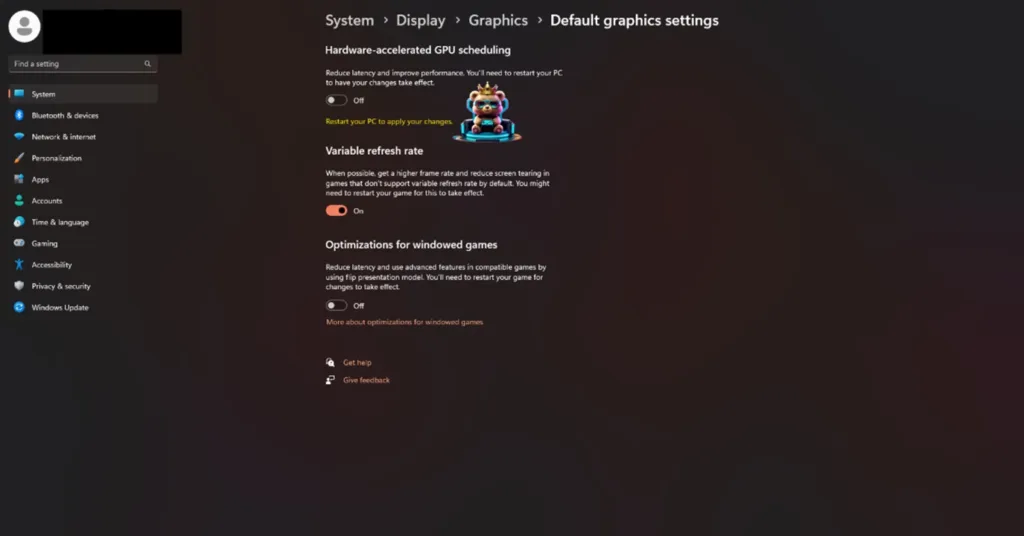
Hardware-accelerated GPU Scheduling is the reason Death Stranding is crashing on your PC and displays the “0x887A0006 DXGI_ERROR_DEVICE_HUNG” error. You can fix this DXGI error by disabling Hardware-accelerated GPU Scheduling. Here is how you can disable it:
- Open Windows Settings, and go to the “System” tab.
- Click the “Display” setting, and select Graphics.
- Under Default Settings, you will find the option “Change default graphics settings”, click it.
- Turn off the “Hardware-accelerated GPU Scheduling” option.
- Continue playing Death Stranding 2 and the DXGI DEVICE HUNG crashes are fixed.
As stated, Hardware-accelerated GPU Scheduling is required for Frame Generation to work in PC games. So, as an alternative fix, you can disable Frame Generation in Death Stranding 2 to fix the 0x887A0006 error.
Fix #2 – Run Death Stranding 2 in Windows 7 or 8 Compatibility Mode
Microsoft regularly rolls out updates for its Windows OS. These updates can cause compatibility issues with games and apps. Compatibility issues with your current Windows version are the reason Death Stranding 2 is crashing on your PC during gameplay or cutscenes and displays the “0x887A0006 DXGI_ERROR_DEVICE_HUNG” error.
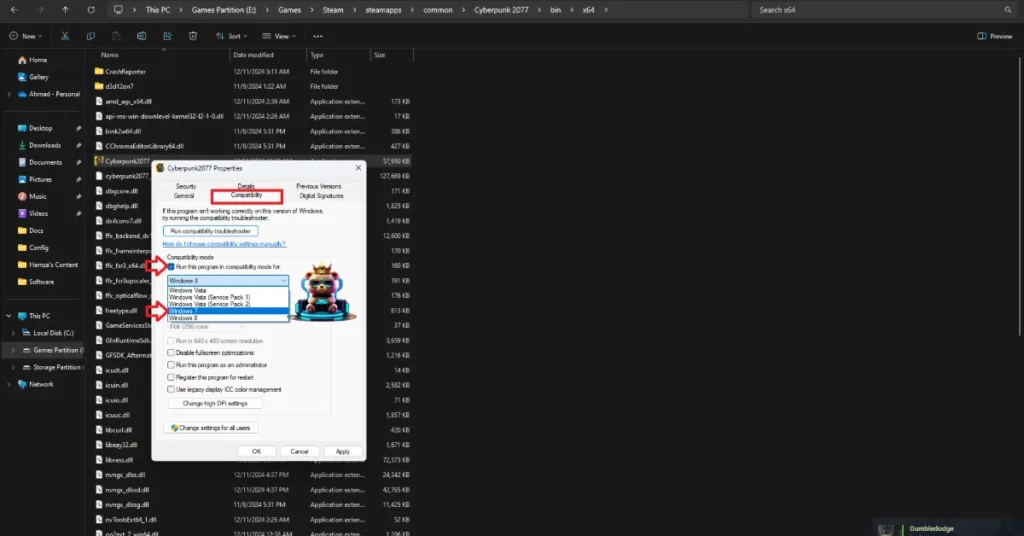
To fix the DXGI DEVICE HUNG crash, run Death Stranding 2 in Windows 7 or 8 compatibility mode. Here is how you can run the game in compatibility mode:
- Right-click Death Stranding 2 in your Steam library, hover the cursor over “Manage“, and click “Browse local files“.
- A new Windows Explorer tab will open, containing DS2 game files.
- Right-click the executable and click “properties”.
- In the small window that opens, go to the “Compatibility” tab.
- Check the box next to Run this program in compatibility mode for: and select Windows 7 or 8.
- Apply the changes.
- Continue playing Death Stranding 2 on your PC, and it won’t crash again.


Fix #3 – Reduce GPU Load
DXGI crashes are GPU-specific errors, and Death Stranding 2 is putting your GPU under a lot of stress, which is why the game is crashing during cutscenes or gameplay.
You can fix the DXGI ERROR DEVICE HUNG crashes in Death Stranding 2 by reducing the GPU load, which can be done in two ways. You can either lower the graphics settings or limit DS2’s max FPS. The latter can be done through the in-game FPS limiter or the NVIDIA App’s FPS limiter.
I recommend that you limit Death Stranding 2’s FPS using NVIDIA App’s FPS limiter to fix the DXGI DEVICE HUNG crash. Here is how you can limit the FPS:
- Open the NVIDIA App.
- Go to the “Graphics” tab.
- Select “Death Stranding 2: On the Beach” from the list of games.
- Scroll down to “Driver Settings”.
- Use the “Max Frame Rate” setting to set a lower FPS value for the game.
- Continue playing Death Stranding 2, and the DXGI crashes are fixed.

Fix #4 – Ensure Your Graphics Card is Using Stock Clocks and Voltage
One of the many advantages PC gaming has over consoles is the ability to overclock your hardware to get more performance. But it can make gaming an unstable experience. If you have overclocked your graphics card, it is crashing Death Stranding 2 on your PC and displays the “0x887A0006 DXGI_ERROR_DEVICE_HUNG” error. Revert the graphics card to its default clocks and voltages to fix the DXGI crashes in the game.
However, even if you haven’t overclocked your graphics card, it is likely using higher clock speeds and voltages than its reference model. Most graphics cards from third-party AIB partners, like Zotac, MSI, and ASUS, use higher clocks and voltages, which is the reason for Death Stranding 2’s DXGI DEVICE HUNG crashes on your PC. You can fix these DXGI crashes by forcing the graphics card to use its stock clocks.
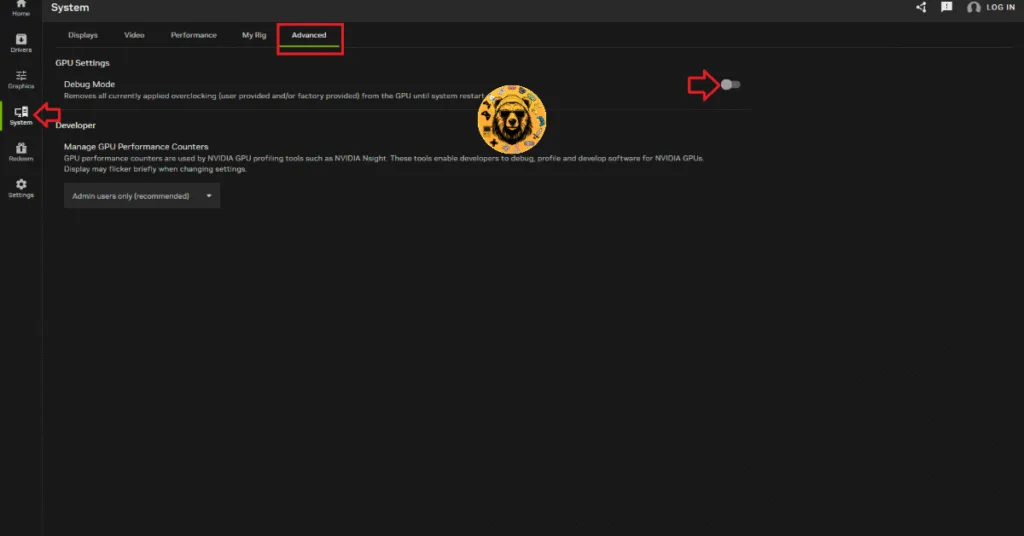
For NVIDIA graphics cards, you can enable the Debug Mode through the NVIDIA App or NVIDIA Control Panel. Enabling it forces the graphics card to use its recommended GPU and Memory clocks, and fixes the DXGI ERROR DEVICE HUNG crash in Death Stranding 2. Here is how you can enable the Debug Mode:
- Open the NVIDIA App
- Go to the “System” tab.
- Click the “Advanced” tab.
- Toggle the “Debug Mode” on.
- Play DS2, and the DXGI DEVICE Hung crashes are fixed.
For AMD graphics cards, you’ll have to manually underclock the GPU clocks and voltages to their stock values, as Adrenalin software doesn’t have a setting that would provide the same effect as the Debug Mode.
Fix #5 – Override Windows Timeout Detection and Recovery
Timeout Detection and Recovery (TDR) is a Windows feature that detects issues with the GPU driver and tries to recover it. While useful, it isn’t a perfect system and sometimes shuts down the driver when it detects a stall.
This is why Death Stranding 2 keeps crashing on your PC and displays the DXGI ERROR DEVICE HUNG error, and to fix it, you’ll have to tweak Windows TDR, so it resets the driver instead of shutting it down.
Here is how you can change Windows TDR settings to fix the crashes in Death Stranding 2: One the Beach:
- Open “regedit” and run it as an administrator.
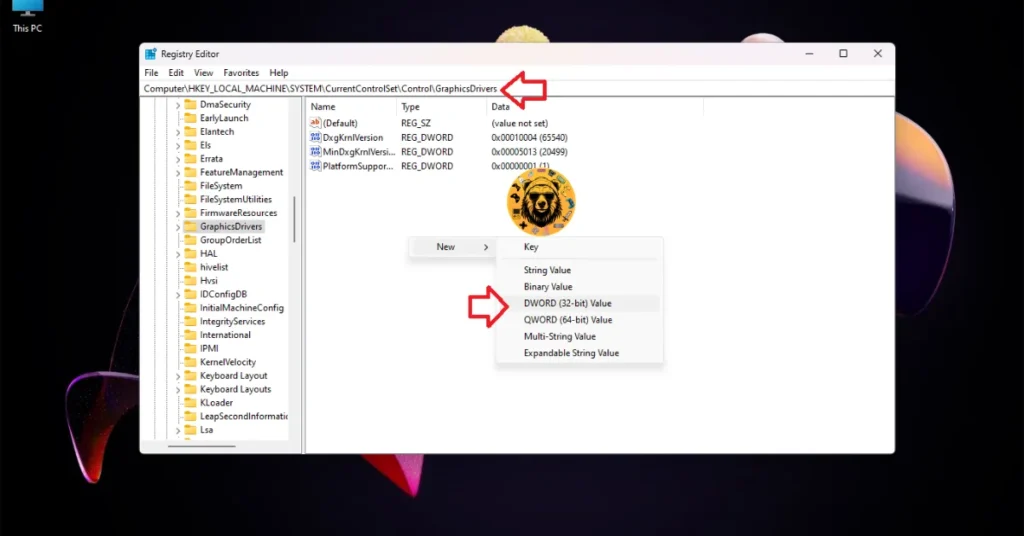
- Go to “HKEY_LOCAL_MACHINE -> SYSTEM -> CurrentControlSet -> Control -> GraphicsDrivers”.
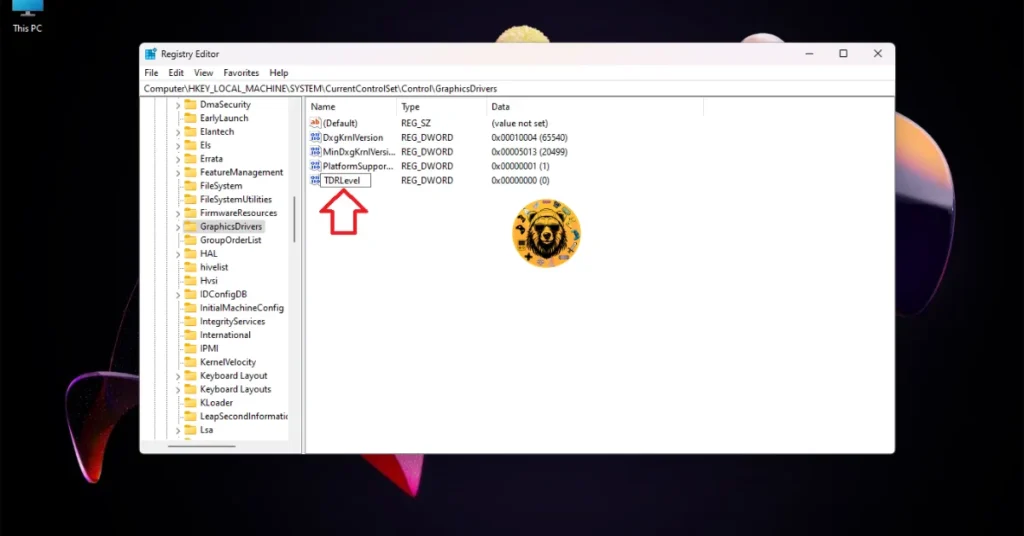
- Right-click in the right panel in the blank space, hover the mouse cursor over “New”, select the “DWORD (32-bit) Value” option, and name the file TdrLevel.
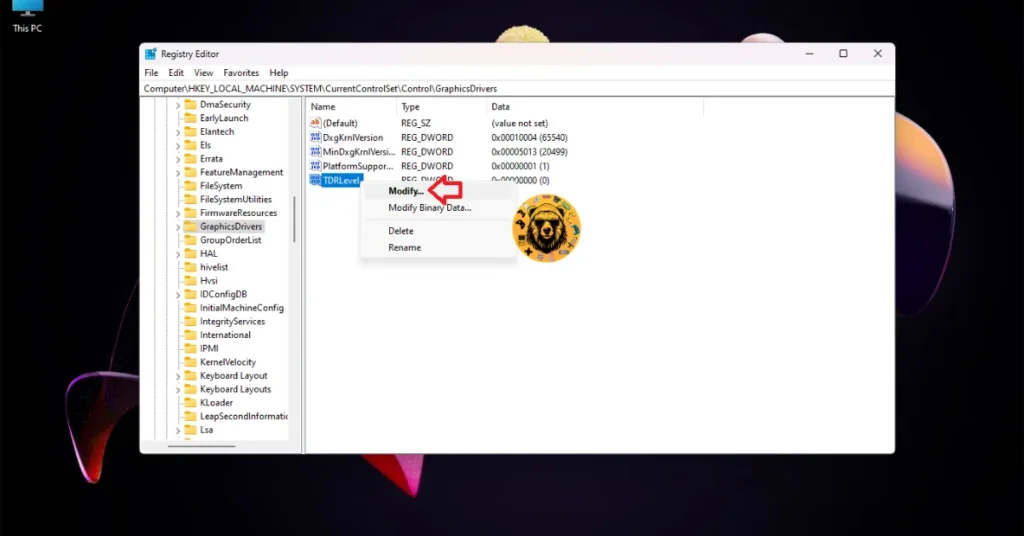
- Right-click the “TdrLevel” file and select Modify.
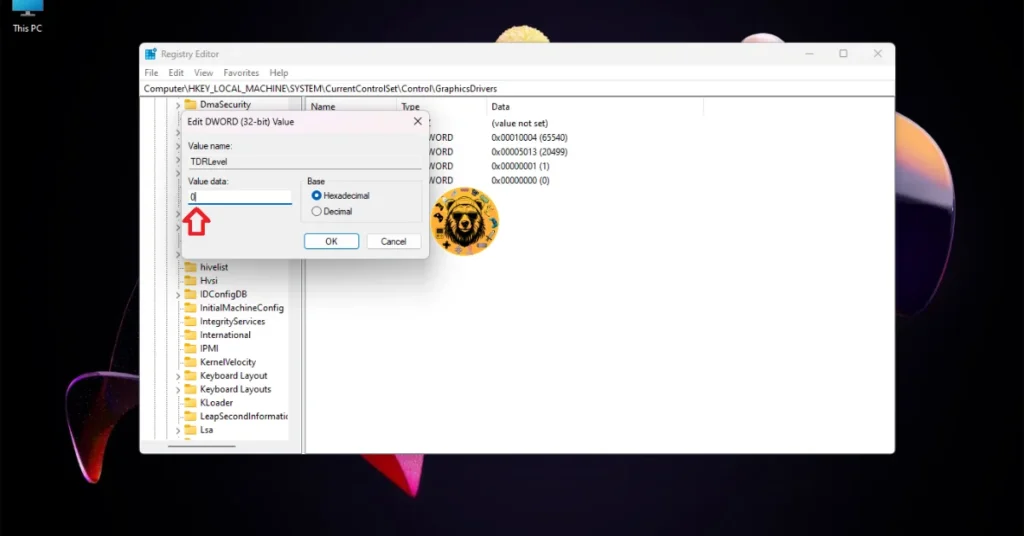
- Confirm that the value is 0 under “Value data”.
- Restart your PC.
- Continue playing Death Stranding 2, and the 0x887A0006 error is fixed.
Fix #6 – Disable XMP/EXPO
XMP or EXP are Intel and AMD CPU-specific settings in the BIOS that ensure your installed RAM is being utilized to its full potential. It is sort of a smart overclock for your RAM, and is the reason Death Stranding 2 is crashing on your PC. You can fix these crashes by disabling XMP or EXPO, depending on which CPU you use. Here is how you can do it:
- Open your Windows Settings and go to the System tab.
- Click the “Recovery” setting.
- Click the “Restart now” button in front of the “Advanced startup” setting.
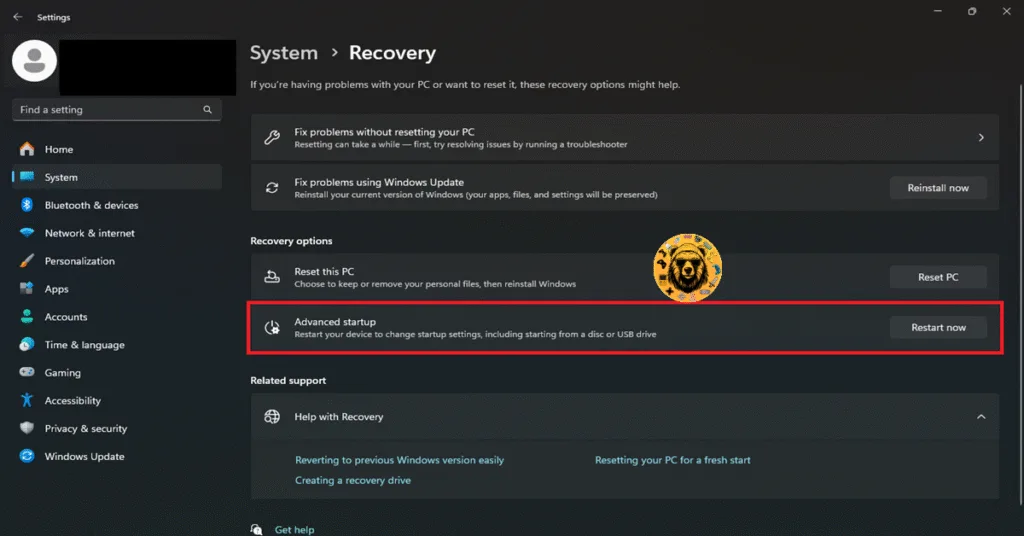
- Wait for your PC to restart and select Troubleshoot.
- Click Advanced Options and select the “UEFI firmware settings” option.
- After your PC restarts, it will boot into BIOS.
- To switch your BIOS from EZ Mode to Advanced Mode, press F7.
- Navigate to the OC (Overclocking) or Extreme Tweaker tab and look for the XMP Profile or EXPO Profile settings.
- Disable the setting.
- Save the changes and restart your PC.
- Play Death Stranding 2, and the 0x887A0006 error is now fixed.
This is how you can fix the 0x887A0006: DXGI_ERROR_DEVICE_HUNG crashes in DS2. If you are experiencing errors and crashes in games, also see our fixes hub for commonly occurring errors for PC and handhelds.