Delta Force is a free-to-play tactical FPS developed by Team Jade. The game provides a large-scale PvP warfare, an extraction shooter mode, and a remake of the 2003 campaign, Black Hawk Down. The latest patch, Season Morphosis, has seemed to be making several players frustrated with the Out of Video Memory error. In this Delta Force guide, I help you fix the Out of VRAM crash on PC so you can get back to enjoying the game.
Verified Fixes for Delta Force Out of Video Memory Error
The game runs on Unreal Engine 5, a game engine notorious for out-of-video-memory errors and several more. After doing some research, I have found the fixes, which I have compiled here, that will definitely fix the Out of Video Memory crash while trying to play Delta Force on your Windows PC.
Fix #1: Run Delta Force on DX 11 (Confirmed Fix)
Running the game on dx 11 will fix the out-of-VRAM crash while trying to play Delta Force on your PC. How am I so confident? It’s because a player on Steam has tried it, and it worked for other players too. So, why not give it a try? Here’s what to do:
- Open your Steam Library and right-click Delta Force.
- Select Properties> General> Launch Options.
- Type -dx11 in the launch options box.
- Launch Delta Force, and the out-of-VRAM crash will be fixed.

Fix #2: Ensure that there is free space on your disk (Confirmed Fix)
Check if there’s any free space on the disk where you installed Delta Force. If not, then that’s a reason why the game is crashing with the Out of Video Memory error on your PC.
It could be that the game was engaged in some paging with the SSD because it didn’t have enough RAM available and was using the drive as a Paging File or Virtual Memory to compensate. But later ran out of disk space and crashed. So, make some space in the drive where you installed Delta Force, and the issue Out of Video Memory crash will be resolved. This fix is also confirmed by a player on Steam and will work for you as well.
Fix #3: Revert GPU overclock and update to the newest drivers (Confirmed Fix)
Updating to the latest GPU drivers has worked for some players to fix the out-of-video memory issue while trying to play Delta Force. So do that if you haven’t yet.
However, if that doesn’t work, then make sure your GPU is on its default settings. Have you overclocked your GPU? If so, then that’s the reason Delta Force is crashing on your PC. Revert your GPU to its default settings to fix the issue.
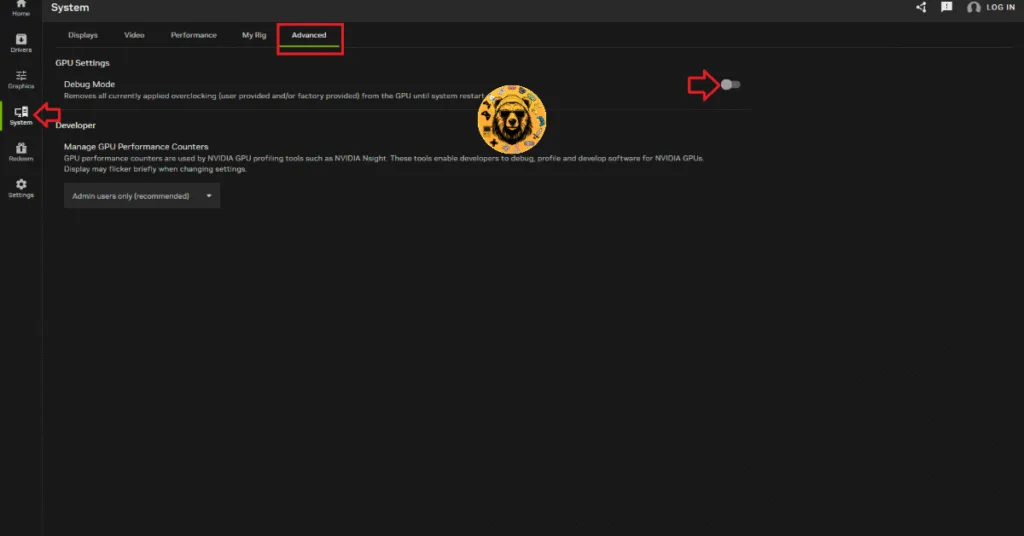
However, there are pretty high chances that your GPU is already overclocked by Nvidia’s AIB partners like ASUS, MSI, Gigabyte, Zotac, etc. These GPUs run on high memory clocks, causing your games to crash. You will have to enable debug mode to fix the Out of Video Memory crash in the game. Here’s how to do that:
Through the NVIDIA App:
- Launch the NVIDIA app on your PC.
- Make your way to the System tab and click on the Advanced tab.
- Enable Debug Mode and restart your PC.
- Launch Delta Force, and the out-of-video memory error shall be resolved.
Through Nvidia Control Panel:
- Open the Nvidia Control Panel.
- Click on Help in the top menu.
- Select Debug Mode and enable it.
- Launch Delta Force to enjoy a crash-free experience.

Fix #4 – Rebuild Delta Force’s Shaders and Increase the Shader Cache Size
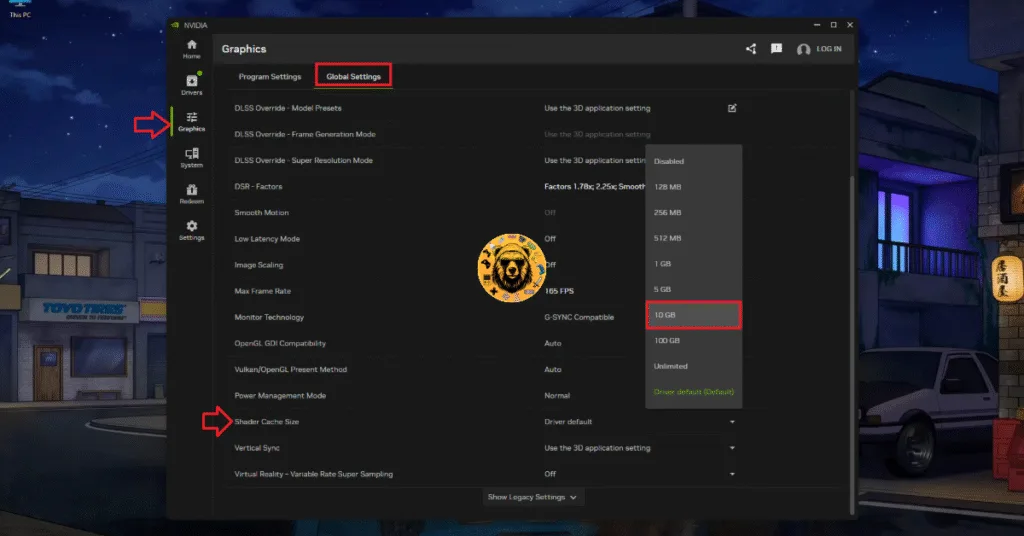
Being an Unreal Engine 5 game, Delta Force relies on shaders for its visuals and performance. This is why the game compiles shaders in a cache when it first launches in your PC. The reason Delta Force keeps crashing on your PC with the Out of Video Memory error is a small shader cache. To fix the error, delete the cache, increase its size, and rebuild shaders in Delta Force. Here is how you an apply it:
- Open the NVIDIA App and go to the “Graphics” tab.
- Go to the “Global Settings” tab.
- Scroll down to the “Shader Cache Size” setting.
- Select the “Disable” option.
- Restart your PC.
- Go back to the “Shader Cache Size” setting and select 10GB or a higher value.
- Play Delta Force, and the Out of Video Memory crashes are fixed.
Fix #5 – Use CUDA – Sysmem Fallback Policy For Delta Force (NVIDIA)
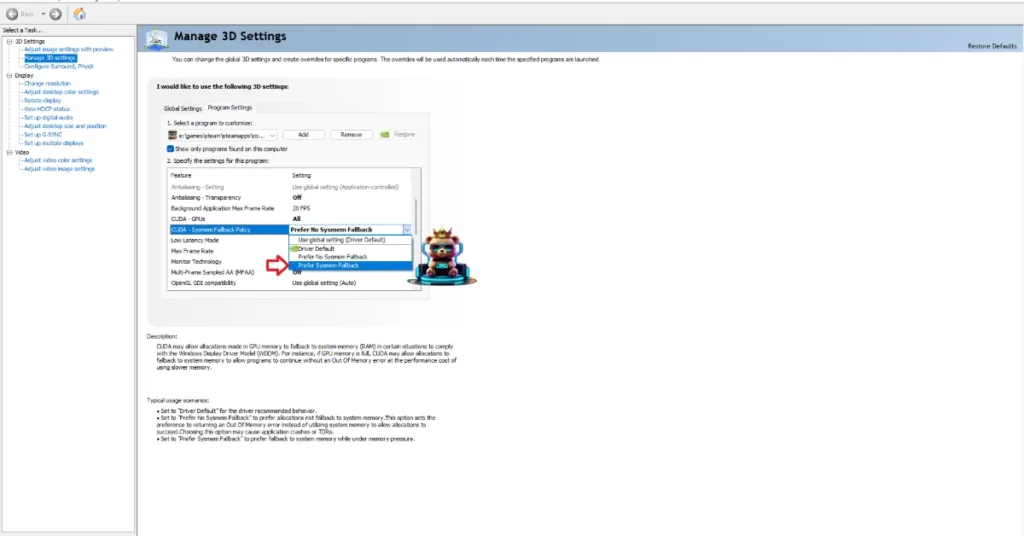
The CUDA – Sysmem Fallback Policy setting in the NVIDIA Control Panel and NVIDIA App exists specifically to fix errors like the Out of Video Memory. To fix the error in Delta Force, enable the CUDA – Sysmem Fallback Policy setting in the NVIDIA Control Panel. Here is how you can do it:
- Open the NVIDIA Control Panel and click the “Manage 3D Settings” option from the left menu.
- Go to the “Program settings” tab.
- Select “Delta Force” from the drop-down menu.
- Scroll down to the “CUDA – Sysmem Fallback Policy” setting, select the “Prefer Sysmem Fallback” option, and apply the changes.
- Continue playing the game, and the Out of Video Memory crashes are now fixed.
And that should fix the out-of-VRAM issue for you while trying to play Delta Force on your PC. The latest patch has introduced this issue, and I hope that the developers do something about it in future updates and patches. If you are facing errors and issues while playing other games on PC and handhelds, head to our hub of commonly occurring PC errors and their fixes.