

Here we are again, a new problem has just been troubling the EA SPORTS FC 26 players. Players are experiencing in-game crashes non-stop, and it’s pissing them off. After the launch of the first patch for the game, there has been no end to the numerous problems and errors in EA SPORTS FC 26. EA still hasn’t decided to do anything about these issues. If you are also experiencing the EA Sports FC 26 crash issue on your PC, then this guide will fix it.
Working Fixes for EA Sports FC 26 Keeps Crashing on PC
As stated, players are experiencing EA SPORTS FC 26 gameplay crashes on their PC without any warning. No error, just the game randomly crashing after playing for some time. Although there have not been many confirmed fixes, the following are some that have proven to fix EA Sports FC 26 crashing on PC.
Fix #1 – Disable Third-Party Apps and In-Game Overlays
While playing a game, you would never want your hardware to break a sweat. In-game overlays can often prove to be beneficial, but also put a lot of stress on your system’s components. Also, in-game overlays are enabled by default and are the reason EA SPORTS FC 26 is constantly crashing on your PC. To fix these crashes, all you gotta do is just disable them, and you will be good to go. Follow my lead:
Disable Windows Game Bar
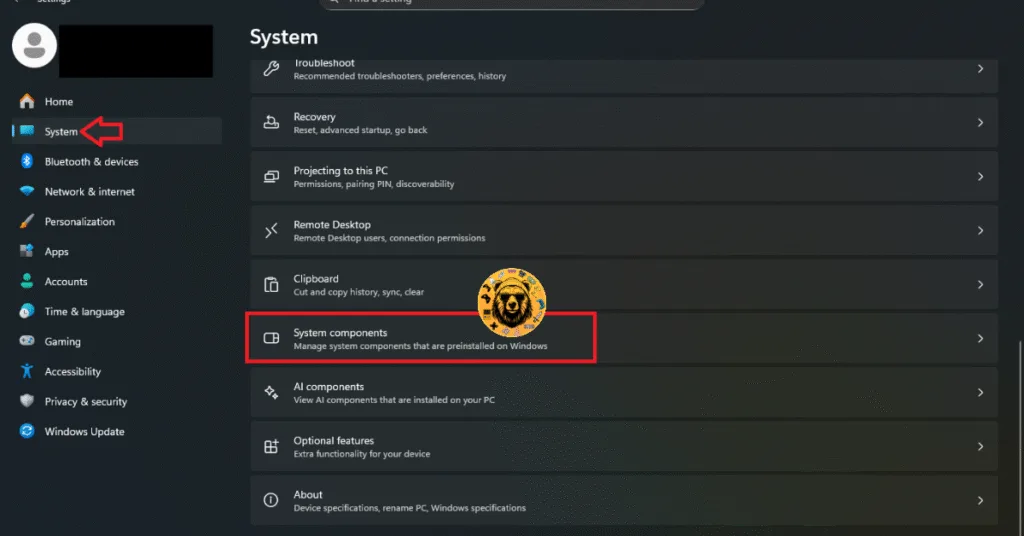
- In Windows Settings, navigate to the System tab.
- Scroll down a little and click the “System components” settings.
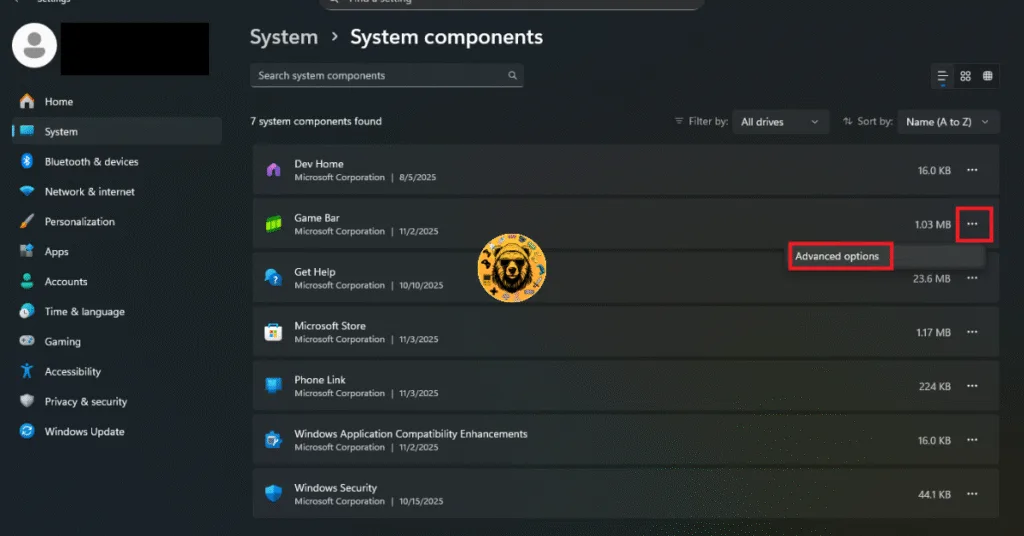
- See the three dots in front of the “Game Bar” option? Click them and select “Advanced option.”
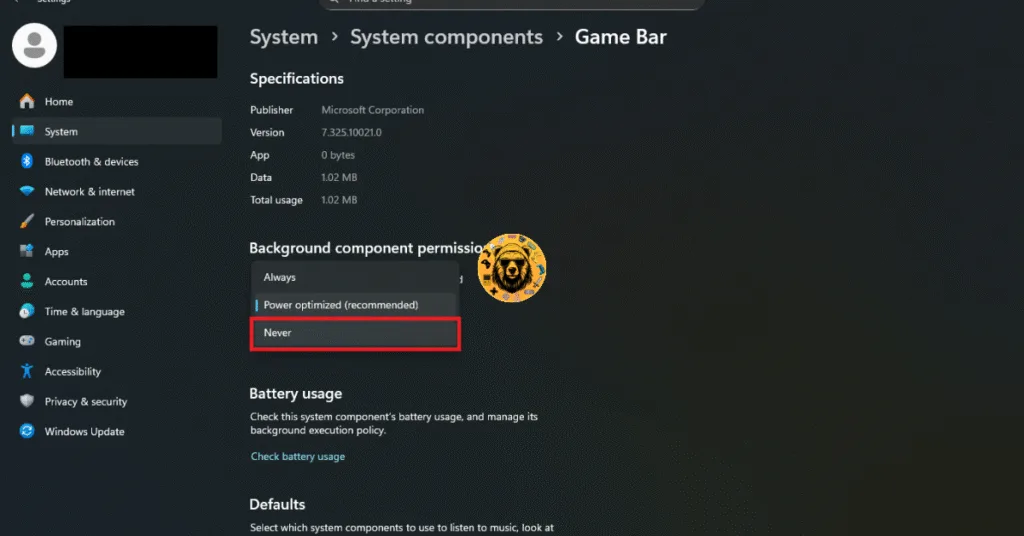
- Select the “Never” option under “Let this system component run in the background” and click the “Terminate” button.
- Now, Game Bar will be disabled on your Windows 11 PC.
How to Disable 3rd Party In-Game Overlays?
Discord: User Settings> Game Overlay tab> turn the “Enable In-game overlay” option off.
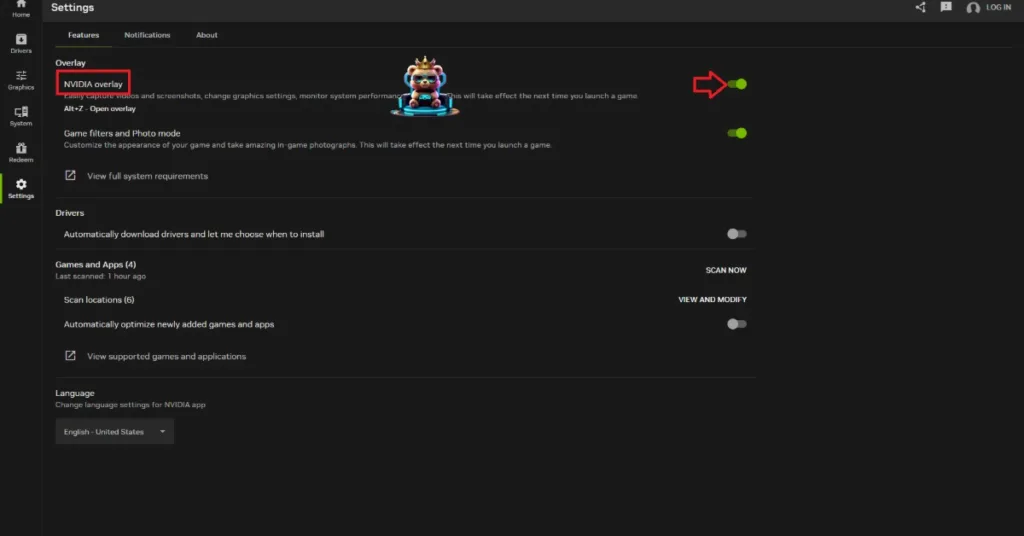
NVIDIA App: Open NVIDIA App> Settings> Features tab> disable NVIDIA Overlay.
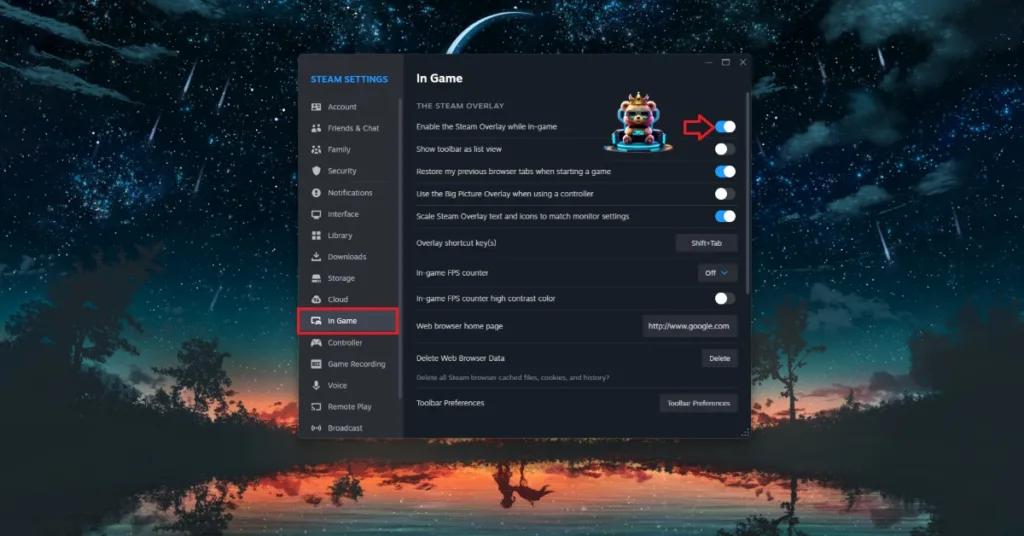
Steam: Open Steam settings>In-Game tab> uncheck Enable the Steam overlay while in-game> press OK.
Fix #2 – Uninstall and Reinstall FC 26 Through EA Anticheat (Confirmed Fix)
Reinstalling FC 26 through EA Anticheat has seemed to fix the in-game crashes for some people on Reddit, and it will fix the issue for you as well. Follow my lead:
Steam
- Open your Steam Library and right-click on EA Sports FC 26.
- Select “Properties” and go to the Local Files tab.
- Click on Browse Local Files to open the folder where the game is installed.

EA Client
- Search for the game’s local files in the library.
- Right-click on it and select “Manage.”
- Click on “Browse Local Files” to access the game’s installation directory.
Now, all you gotta do is run EAAnticheat.installer, choose FC26, uninstall it, and then reinstall it again. Continue playing EA Sports FC 26, and the in-game crashes are fixed.
Fix #3 – Update BIOS
Intel’s 13th and 14th-generation CPUs are notorious for their overvoltage issues. Due to this, EA Sports FC 26 is crashing on your PC without any error. To fix this, you will have to update the BIOS. The process can vary depending on the manufacturer, but I’ll guide you with general steps to help you update your motherboard’s BIOS.
- Head over to the motherboard manufacturer’s website, like MSI, ASUS, GigaByte, etc, and search for your motherboard model.
- In the “Support” or “Download” section, find the latest BIOS download.
- Download it and unzip the folder in a USB.
- Restart your PC and open up the BIOS.
- Select the Q-Flash option and follow the onscreen prompts.
- Select the BIOS update from your USB when prompted.
- When you are waiting for the update to complete, make sure that the PC doesn’t shut down in any case.
- Once the update is completed, wait for the PC to restart.
- Launch EA Sports FC 26, and it won’t crash randomly while playing.
Fix #4 – Manually Increase Virtual Memory
Increasing the VRAM can also help to fix EA Sports FC 26 crashing on your PC. The process is pretty easy, so just follow my lead:
- Type “View advanced system settings” in the Windows Search Bar and hit Enter.
- Click on the Advanced tab> Performance> click on Settings.
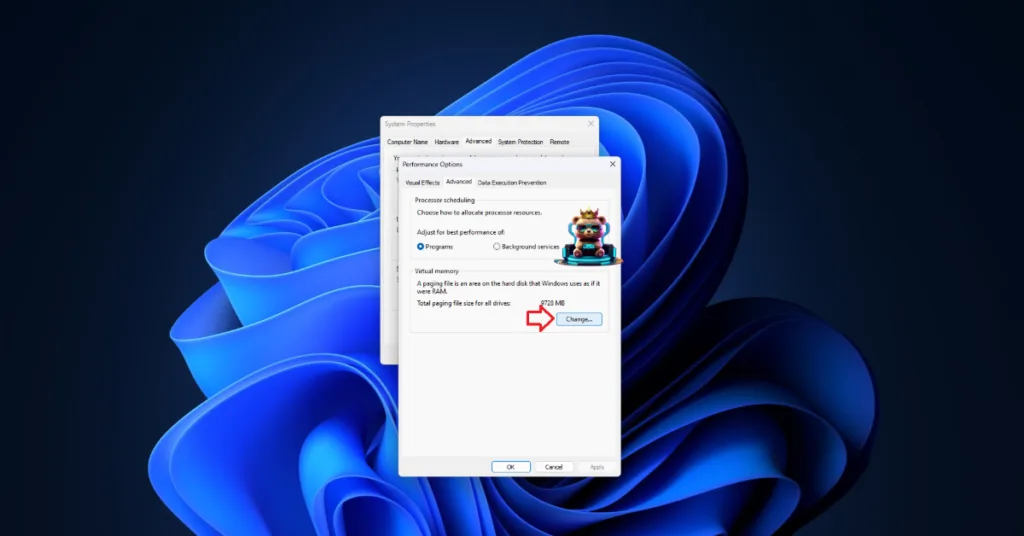
- In the Performance Options window, switch to the Advanced tab.
- Click on “Change” under the Virtual Memory section.
- Set the Initial size to 2048 and the max to 8192.
- Apply the settings and restart your PC.
- Continue playing EA Sports FC 26, and it won’t crash while playing on your Windows PC.


Fix #5 – Disable XMP or EXPO
Those RAM sticks installed in your motherboard might be overclocked, which is causing EA Sports FC 26 to constantly crash on your PC. There are high chance that XMP or EXPO is enabled on your PC. We will have to disable them to fix the issue, and I will take you through the process.
- Open Windows Settings, go to the Windows Update tab.
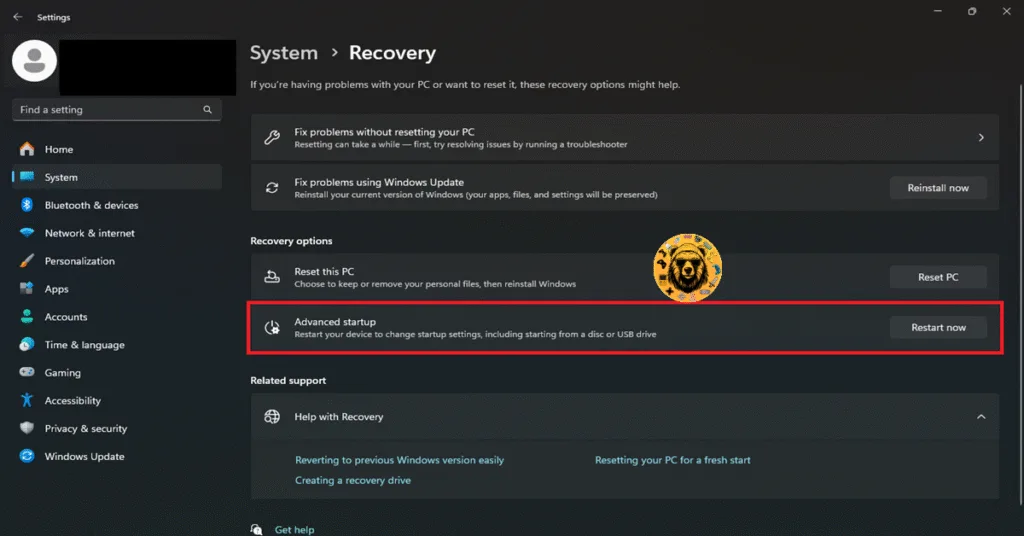
- Go to Advanced Options and then click the “Recovery” option.
- Click the “Restart Now” button in front of the “Advanced startup” option.
- Your PC will restart and you’ll be presented with multiple options.
- Select Troubleshoot, then click Advanced options, and then select the “UEFI firmware settings” option.
- The PC will restart and will boot into BIOS.
- If the BIOS opens up in EZ Mode, then press F7 to switch to the Advanced Mode.
- Navigate to the OC (Overclocking) or Extreme Tweaker tab in the BIOS menu, where you will find options related to memory profiles.
- Without messing around with other stuff, look for the XMP Profile or EXPO Profile setting.
- Change it from Enabled to Disabled and press F10 to save the changes.
- Wait for the PC to boot up and launch EA SPORTS FC 26 to enjoy a crash-free experience.
Fix #6 – Limit EA EA SPORTS FC 26’s Max FPS
Playing on an unlocked FPS is all fun until it stresses out your GPU and CPU, resulting in games crashing on your PC. This is the same case with EA Sports FC 26, and that’s why you are experiencing in-game crashes. You will need to limit the game’s FPS. You can do this through the game’s settings, but for more precise control, I suggest using NVIDIA Control Panel. I’ll take you through both methods:
Through In-game Settings
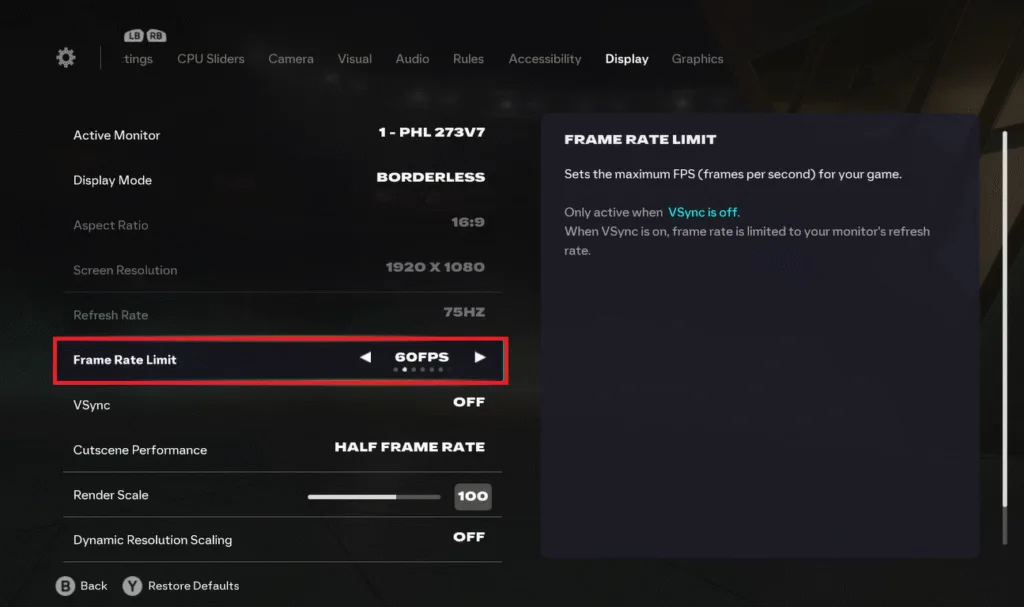
- In the main menu, go to Settings.
- Now, click on Game Settings.
- Navigate to the Display tab.
- Set the Frame Rate Limit option to a lower FPS than your current one.
- Continue playing FC 26, and the random crashes are now fixed.
Through the Nvidia Control Panel
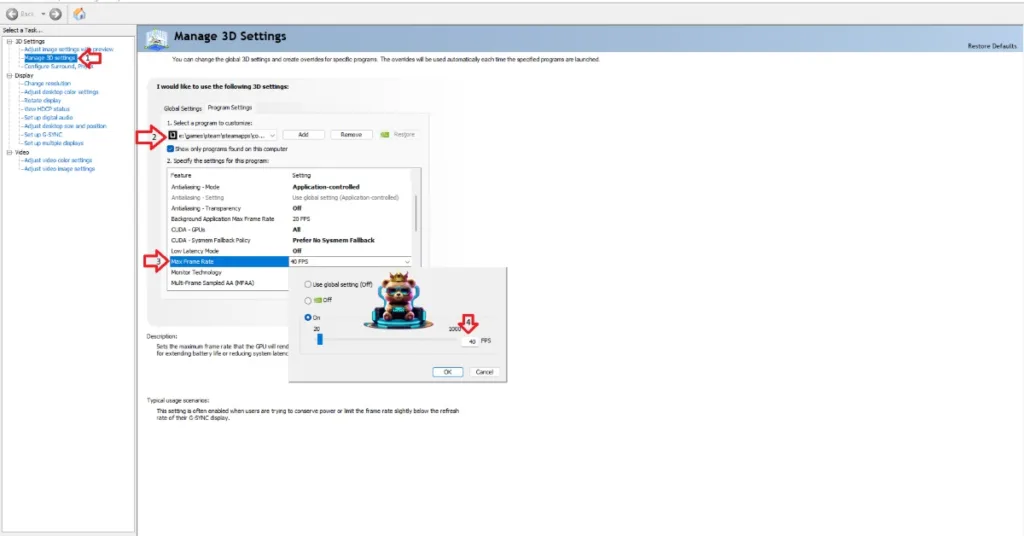
- In the Nvidia Control Panel, navigate to “Manage 3d Settings.”
- Click on “Program Settings” and choose EA Sports FC 26.
- Scroll down a little bit and enable Max Frame Rate.
- Select your desired framerate (preferably something low), play FC 26, and it won’t crash on your PC.
Fix #7 – Revert Graphics Card Overclock
Your graphics card is most likely stressed out, causing EA Sports FC 26 to crash on your PC. This can also happen when your GPU is overclocked, which it probably is, by Nvidia’s AIB Partners like ASUS, Gigabyte, Zotac, etc. What happens is your GPU runs on higher clocks than Nvidia’s recommended ones, which indeed gives you a performance boost, but also stresses out the GPU, resulting in several errors and crashes. You will have to make sure the GPU is running on Nvidia’s recommended clock speeds to fix the in-game crashes in EA Sports FC 26. Here’s what to do:
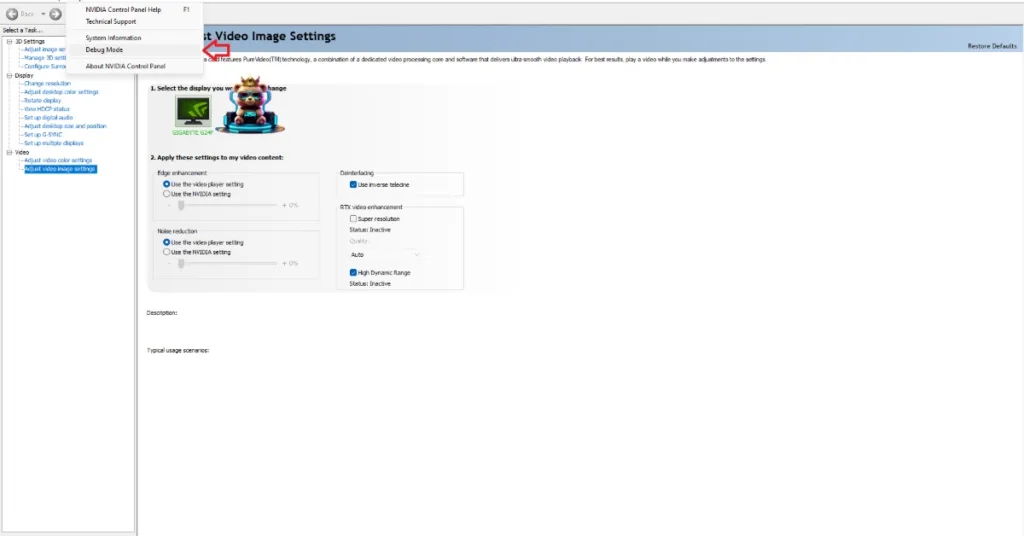
- Open Nvidia’s Control Panel and click the “Help” button from the top menu.
- Select the Debug Mode option.
- Now, your GPU will be running on its normal clock speeds, and the EA SPORTS FC 26 in-game crashes will be fixed.
And that should fix EA Sports FC 26 crashing on your Windows PC. All we can do is just wait for EA to do something about their game. I hope that this guide has helped you. If you are experiencing errors and crashes in games, also see our fixes hub for commonly occurring errors for PC and handhelds.



i enjoy reading this great article, i have shared it many times on my website and started following you, Do you post more often ?? i am the owner of https://toplinkbuildingagenturen.de/ a webdesign agency in Germany, webdesign agentur bayreuth, you can link up if you are interested. Thank you