Running on the Holistic Engine, Enshrouded is a survival action RPG developed by Keen Games. Numerous players have been reporting that the game has a ton of issues and bugs. For some players, the game doesn’t even start and just crashes at startup. After digging through some fixes, I have found some that will fix the Enshrouded not launching issue on your Windows PC.
Working Fixes for Enshrouded Crash at Startup
Tried several fixes, but still can’t launch on your PC? Don’t worry, as the fixes I have listed here have been tested by the community and will definitely work for you as well. Without further ado, let’s get right into fixing the Enshrouded keeos crashing at startup.
Fix #1: Manually Increase Virtual Memory (Confirmed Fix)
Increasing the virtual memory in the advanced system settings of Windows has fixed the startup crash for several players. This fix will definitely fix the Enshrouded not launching issue on your PC. How am I so sure? Well, a player on Steam has found this fix, and it helped other PC users out. Let’s take a look at what to do:
- Open Windows Settings > System > About > Advanced System Settings.
- Under the Performance section, click on the “Settings” button in the Advanced tab.
- In the Performance Options window, switch to the “Advanced” tab.
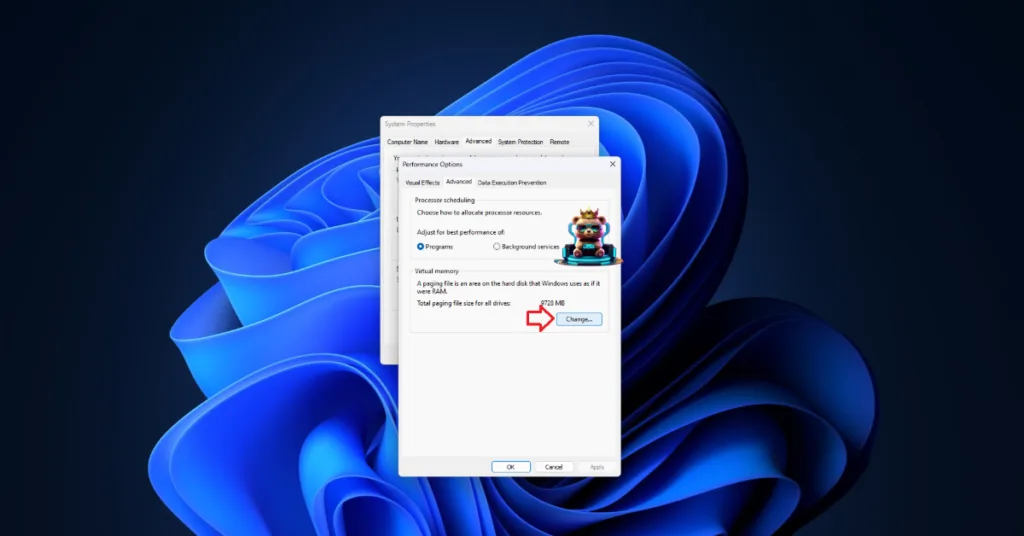
- Under the Virtual Memory section, click on the Change button.
- Now, set the Initial size to 2048 and the max to 8192.
- Apply the settings and restart your PC.
- Launch Enshrouded, and it will successfully launch on your PC.



Fix #2: Ensure that Enshrouded is Running on the Dedicated GPU
If you are using a gaming laptop, there are chances that Enshrouded is using the integrated GPU instead of the dedicated one, which is causing the startup crash. To fix this, all you gotta do is ensure that Enshrouded is running on the dedicated GPU. How do we do that? Let’s find out:
- Open Settings and navigate to System.
- Click on Display and scroll down to click on Graphics.
- Now, add Enshrouded and set the Graphics Preference to High Performance.
- Save the changes and launch Enshrouded to enjoy a crash-free experience.


Fix #3: Run Enshrouded As an Administrator
Enshrouded is lacking admin rights, which is preventing it from executing some commands, which is why it is not launching on your PC. To fix this, you have to run Enshrouded as an administrator. Here’s how to do that:
- Open your Steam Library and right-click on Enshrouded.
- Select Properties and then click on Local Files.
- Select Browse Local Files to open the game’s folder.
- Right-click the game’s .exe. file, select Properties and go to the Compatibility tab.
- Check the box for “Run this Program as an Administrator” and save the changes.
- Launch Enshrouded, and it won’t crash at startup.


Fix #4: Disable XMP or EXPO
There are chances that your RAM is overclocked, which is causing Enshrouded to crash on your PC. Revert the RAM overclock to fix the startup crashes in Enshrouded.
However, if you are using XMP or EXPO in the BIOS, it is the reason Enshrouded is not launching on your PC. XMP and EXPO are Intel and AMD-specific features, respectively. These features ensure the RAM is utilized to its full potential. You’ll have to mess just a little bit with your BIOS and Disable XMP or EXPO to fix the startup crashes. Follow my lead:
- Open Windows Settings, go to the Windows Update tab.
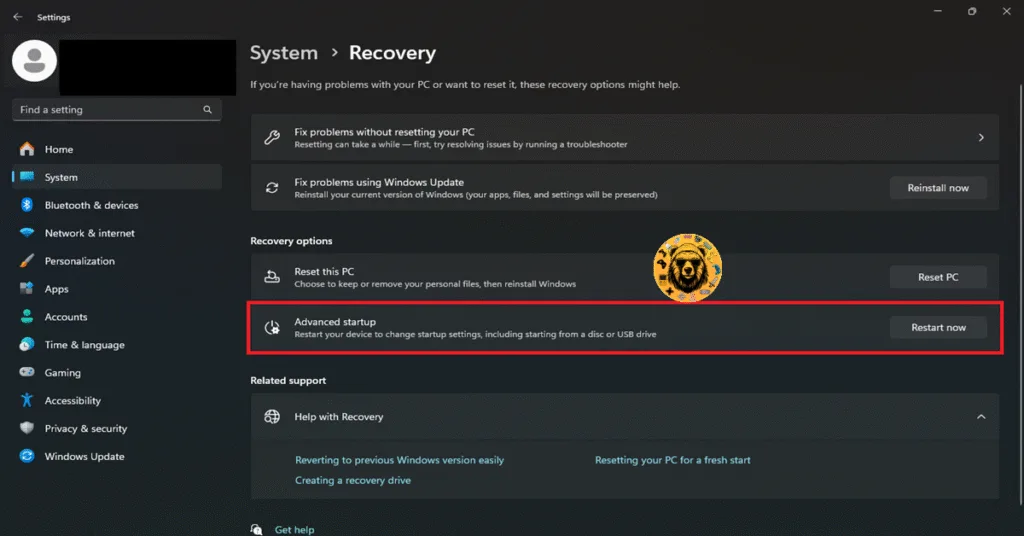
- Go to Advanced Options and then click the “Recovery” option.
- Click the “Restart Now” button in front of the “Advanced startup” option.
- Your PC will restart and you’ll be presented with multiple options.
- Select Troubleshoot, then click Advanced options, and then select the “UEFI firmware settings” option.
- The PC will restart and will boot into BIOS.
- If your BIOS opens in EZ Mode, press F7 to switch to Advanced Mode.
- Make your way to the OC (Overclocking) or Extreme Tweaker tab in the BIOS menu.
- Look for the XMP Profile or EXPO Profile settings.
- Change the setting from Enabled to Disabled and press F10 to save your changes.
- Leave the BIOS and wait for the PC to turn on.
- Launch Enshrouded, and it will launch without any problems.
And now Enshrouded will be running on your PC just fine. Errors and issues are part of every video game, so if you are ever troubled by them, feel free to check our site for the latest game errors and their fixes.