
Lies of P is one of the few well-optimized Unreal Engine 4 games on PC in the past few years. With the launch of the Overture expansion, a prequel to the main game, fans can’t be happier. However, a lot of PC players report errors and crashes with the game, like random gameplay crashes to the desktop with the Fatal Error message. I have compiled a list of fixes that will resolve the Lies of P Overture Fatal Error crashes on your Windows PC.
Working Fixes for UE4 Lies of P Fatal Error Crashes on PC
As per community feedback, Lies of P keeps crashing during gameplay, and the following error message pops up:
The UE4-LiesofP Game has crashed and will close
Fatal error!
There are multiple reasons for the Fatal Error crashes, like compatibility issues with Windows or DirectX, playing Lies of P at an unlocked FPS, cache size for the shaders being too small, and more. The following fixes will resolve the Lies of P Overture Fatal Error crashes.
Fix #1 – Run Lies of P With DirectX 11
Lies of P uses DirectX 12 by default, and it is the reason for the Fatal Error issues on your Windows PC. You can fix the error by forcing the game to use DirectX 11, and here is how you can do it:
- Right-click Lies of P in your Steam library and select the “properties” option.
- In the “General” tab, type -dx11 under “LAUNCH OPTIONS”.
- Close the window, play Lies of P, and the random Fatal Error crashes are now fixed.

Fix #2 – Limit Lies of P’s Max Framerate
Lies of P is a game that benefits a lot from an unlocked framerate, as the input latency is reduced, which allows players to parry and attack without any lag. However, playing games at an unlocked FPS puts the CPU and GPU under a lot of stress, which can cause gameplay crashes.
If you are playing Lies of P at an unlocked FPS, then it’s the reason for the Fatal Error crashes. You can fix the error by limiting the game’s max framerate, which reduces the GPU and CPU load. You can limit the FPS by enabling vertical synchronization (vsync), using the in-game FPS limiter, or through NVIDIA App or NVIDIA Control Panel.
Enable Vsync (If disabled)
Some PC users like to play games with vsync off, as it allows the game to run with unlocked FPS. This reduces the input latency but at the cost of screen tearing. Disabling vertical synchronization is the reason Lies of P Overture is crashing with the Fatal Error. Enable vsync, and the game’s FPS will be capped to your monitor’s refresh rate. This will reduce the GPU and CPU load and will fix the Fatal Error.
- Go to the game’s settings.
- Select the “Graphics” tab.
- Enable the “VSync” option.
- Play the game, and it won’t crash with the Fatal Error.

You might experience a slight increase in input latency after enabling VSync in Lies of P.
Alternatively, you can use the NVIDIA Control Panel for more vsync options.
- Open the Nvidia Control Panel.
- Click the “Manage 3D settings” option from the left menu.
- Open the “Program settings” tab, and select “Lies of P” from the drop-down menu.
- Scroll through the options and find the “Vertical Synchronization” option. Select the desired option
- Apply the changes, and the Fatal Error crashes are now fixed.

In the NVIDIA Control Panel, you have four vertical sync options.
“Adaptive (half refresh rate)” locks the game’s framerate to half the value of your monitor’s refresh rate. Meaning, if you are using a 120 Hz monitor, enabling Adaptive (half refresh rate) will lock the game at 60 FPS.
“Fast” allows the game to render as many frames as it can, just like it would with vsync disabled, but without screen tearing. However, it’ll only display the frames that your display supports; the rest are wasted. Meaning, if you have a 60 Hz display and Fast Sync is rendering 80 FPS, only 60 FPS will be displayed; the rest of the 20 frames will be wasted.
“On” forces vsync at all times when running the game.
“Adaptive” options activate when the FPS and refresh rate at matched. If the FPS drops below the refresh rate, vsync disables, and you get screen tearing.
Use Lies of P’s In-Game FPS Limiter
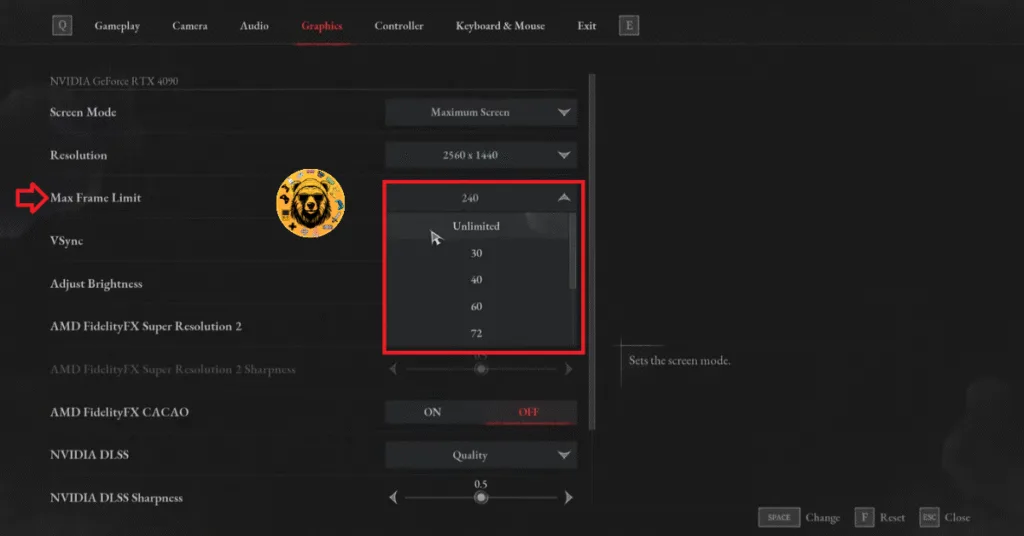
If you are using a Variable refresh rate (VRR) monitor or don’t want to enable vsync, then you can use the in-game FPS limiter to fix the Fatal error. Open the game’s settings, go to the “Graphics” tab, and select the FPS value. Apply the changes, and the Lies of P Fatal error crash is now fixed.
Use NVIDIA App or NVIDIA Control Panel to Limit FPS
Another way you can limit the game’s FPS to fix the Fatal Error is by using the NVIDIA App or NVIDIA Control Panel. They offer a more granular control of the game’s FPS. Here is how you can limit the game’s FPS using the NVDIA App:
- Open the NVIDIA App and select the “Graphics” tab.
- Select “Lies of P” from the list of games.
- Scroll down the options and click on “Max Frame Rate”.
- Turn it on and set a value for it.
- Play the game, and the Fatal Error is now fixed.
If you don’t have the NVIDIA App installed on your PC, then use the NVIDIA Control Panel to limit the game’s max framerate.
- Open the Nvidia Control Panel.
- Click the “Manage 3D Settings” option from the left menu.
- Click the “Program settings” tab.
- Select “Lies of P” from the list.
- Scroll through the options and find the “Max Frame Rate” option.
- Enable it and set a value for it.
- Play the game, and the Fatal Error crashes are now fixed.

Unless you are playing Lies of P on a Gsync or Freesync display, the frame rate value should be 1/2, 1/3, or 1/4th of your display refresh rate, otherwise, the game will feel jittery.
Fix #3 – Increase Shader Cache Size
As stated, Lies of P runs on Unreal Engine 4, which relies on shaders for its visuals and performance. The reason the game is crashing with the Fatal Error is that the default shader cache size isn’t enough for it. You can fix these crashes by increasing the shader cache size. Here is how you can increase it:
- Open the Nvidia Control Panel.
- Go to the “Manage 3D Settings” tab.
- Click on the “Global settings” tab.
- Select the “Shader cache size” option and set it to “driver default” or select a higher value.
- Apply the changes, and the Fatal Error crashes are fixed.

Fix #4 – Troubleshoot Lies of P’s Compatibility
Compatibility issues with the current Windows version are crashing the game with a Fatal Error. You can fix the issue by troubleshooting the game’s compatibility. Here is how you can troubleshoot it:
- Right-click Lies of P in your Steam library > Manage > click the “Browse local files” option.
- A new explorer window will open containing the game files.
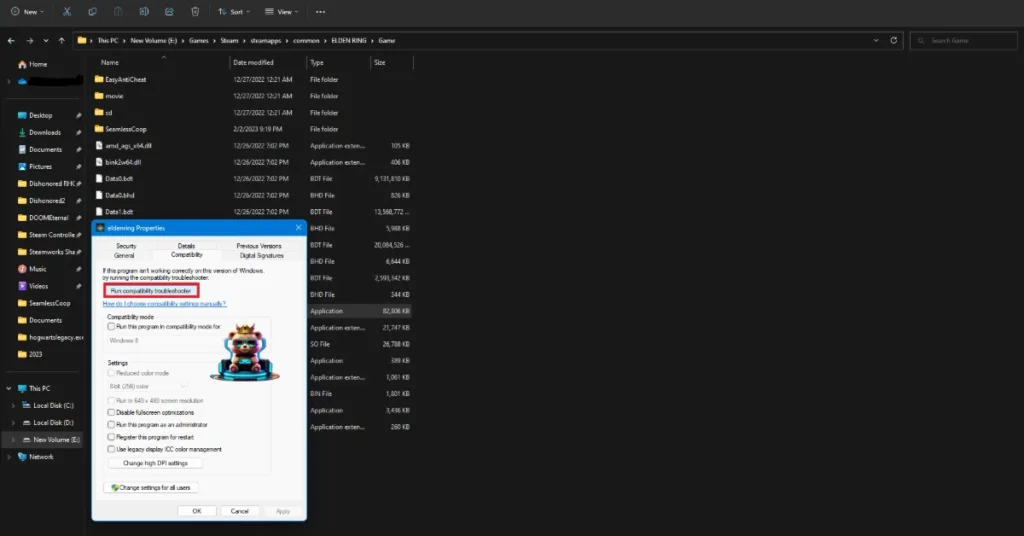
- Right-click the game’s executable and select “properties”.
- Go to the “Compatibility” tab and click “Run compatibility troubleshooter”.
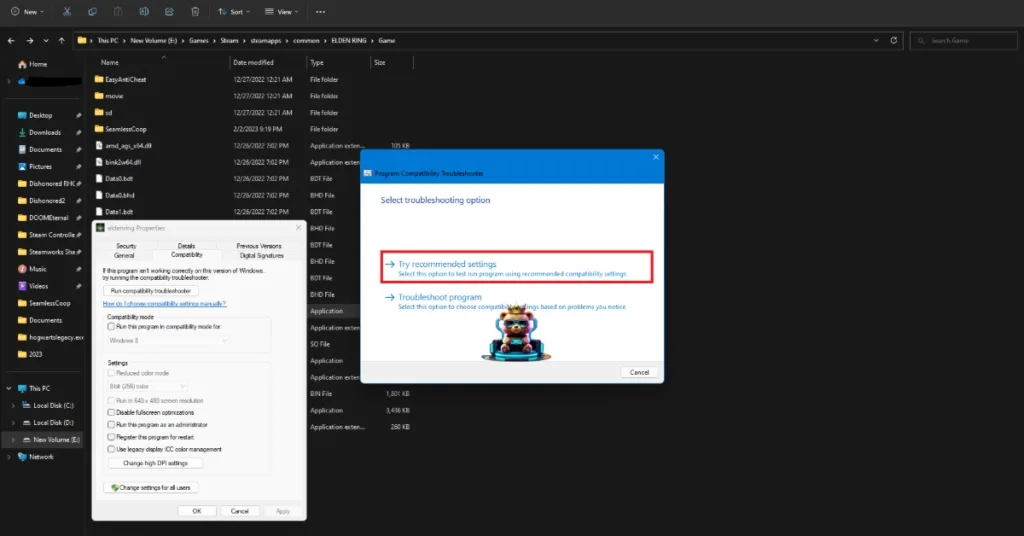
- Windows will run the troubleshooter.
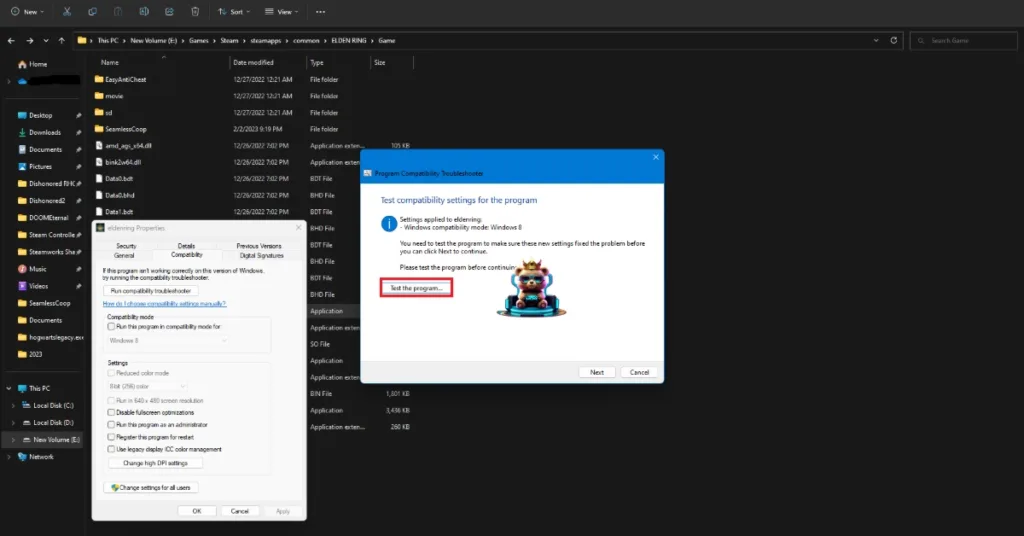
- Click “Try recommended settings” and apply them.
- Play the game, and the Fatal Error is now fixed.

Fix #5 – Run Lies of P in Windows 7 Compatibility Mode
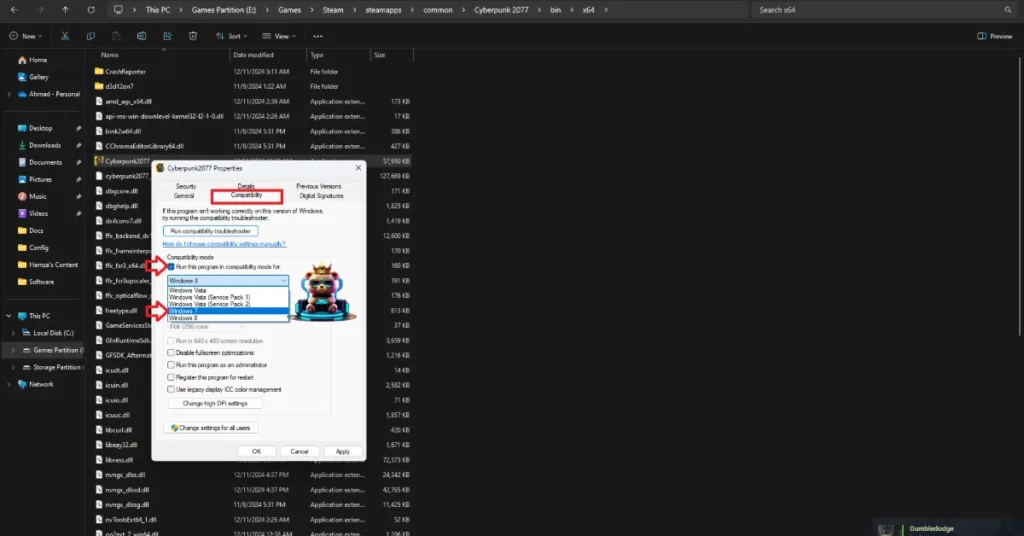
If the troubleshooting compatibility didn’t fix the Fatal Error crash in Lies of P, then you can fix it by running the game in compatibility mode for Windows 7. Here is how to run the game in compatibility mode:
- Open Steam Library and right-click Lies of P > Manage > click “Browse local files”.
- This will open a new Windows Explorer window containing the game files.
- Right-click the game’s executable and click properties.
- Click the “Compatibility” tab and check the option “Run this program in compatibility mode for”. Click the dropdown button below this option and select Windows 8.
- Launch the game, and the Fatal Error is fixed.
Fix # 6 – Repair System Files and Visual C++ Components
Missing or corrupt Visual C++ components and System files are the reason Lies of P keeps crashing during gameplay with the Fatal Error. You can fix the error by running the SFC and DISM scans and installing or repairing Visual C++ components.
Run Installers for Visual C++ Redistributables
Visual C++ Redistributables are necessary to run games on Windows. Since they are missing or damaged, it is crashing the game randomly with a Fatal error. You can fix the error by installing the missing components and repairing the damaged ones.
- Go to the Steam Library and type “Steamworks” in the search bar.
- Right-click “Steamworks Common Redistributables” > Manage > click “Browse local files”.
- Open _CommonRedist\vcredist in the explorer window that opens on your screen.
- You will get a list of folders with names in years starting from 2010.
- Open each folder one by one and run the VC_redis for both x64 and x86 versions.
- Repair or install Visual C++ Redistributables.
- Restart your PC, play Lies of P, and the Fatal Error crash is fixed.


Helpful Tip: Steam deletes installers after a certain time, and you might find some folders empty. In that case, you can manually download installers for Visual C++ Redistributables and install them. Ensure that you download and install both x86 and x64 versions.

Run SFC and DISM Scans to Repair System Files
SFC and DISM are built-in tools for Windows PCs that scan for any missing or corrupt system files and attempt to recover them. Run these scans to fix the Lies of P in-game crashes on your Windows PC.
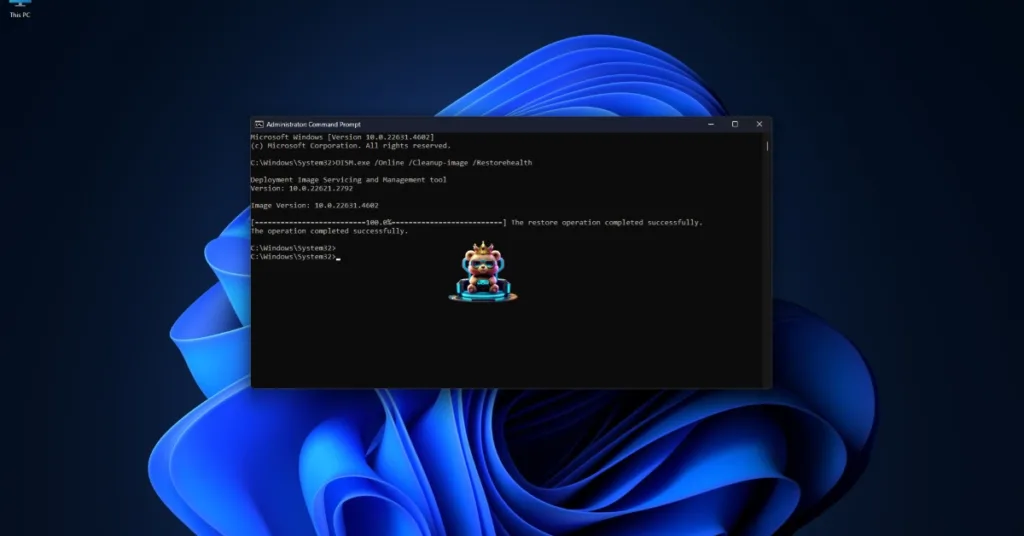
- Open Command Prompt (CMD) and run it as an administrator.
- Type sfc /scannow and press Enter. Let the scan complete.
- Once the SFC scan is complete, type DISM.exe /Online /Cleanup-image /Restorehealth and press Enter.
- Let the scan complete.
- Play Lies of P, and the Fatal error is now fixed.
Fix #7 – Revert Graphics Card to its Default Clocks
If you have overclocked your graphics card, it is crashing Lies of P to the desktop with the Fatal Error. Fix the issue by reverting your graphics card to its default GPU and Memory clocks.
In case you haven’t overclocked your graphics card, it is likely that it’s factory overclocked. Most graphics cards from NVIDIA or AMD AIB partners, like MSI, ASUS, or Zotac, are either factory overclocked or use higher GPU and Memory clocks. The difference is not that much, it’s often between 50 – 100 Hz, but these higher clocks keep crashing Lies of P with the Fatal Error on your Windows PC. You can fix this by using the Debug Mode for NVIDIA or by underclocking your AMD graphics card.
Enable Debug Mode (NVIDIA)
Go to NVIDIA Control Panel, click Help, and select Debug Mode. This will fix the in-game crash issue with the game.

The Debug Mode forces the graphics card to use NVIDIA’s recommended GPU and Memory clocks for the particular model. This reduces the GPU load a bit and fixes crashes. You can disable it any time you want.
Underclock Your Graphics Hardware (AMD)
AMD Adrenalin Software does not offer an option that would force the factory-overclocked graphics card to use the recommended GPU and Memory clocks. This means that you’ll have to manually underclock your AMD graphics card to fix the in-game crashes.
The difference in clock speeds between the reference model and the third-party AIB model is small, somewhere between 50 – 100 MHz. So you won’t be losing a lot of performance, but your gaming session won’t be interrupted due to random crashes.
- First, look up the recommended GPU and Memory clocks for your graphics card.
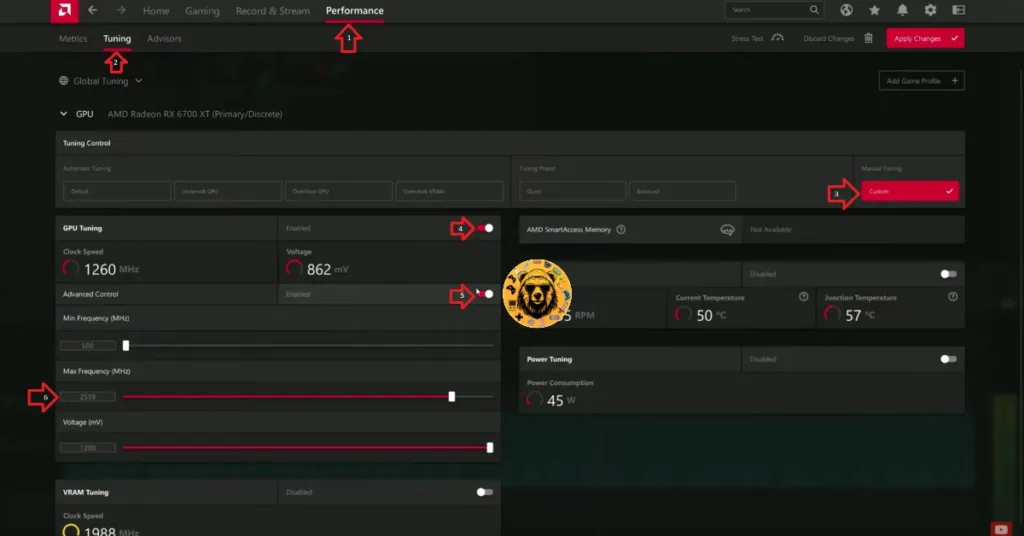
- Open AMD Adrenalin Software.
- Go to the “Performance” tab.
- Click the “Tuning” tab.
- Click on “Custom” under “Manual Tuning”.
- Enable “GPU Tuning” and also enable “Advanced control”.
- Three sliders will appear: Minimum Frequency, Maximum Frequency, and Voltage.
- You only need to adjust the “Maximum Frequency” slider.
- Slide it a little bit to the left to lower it, and click the “Apply Changes” button at the top right. (Use the value that you find online.)
- Play Lies of P, and the Fatal Error crash issue is now fixed.
These fixes will resolve the Fatal Error crash in Lies of P on your Windows 11 PC. If you are experiencing errors and crashes in other games, also see our fixes hub for commonly occurring errors for PC and handhelds.