High on Life 2 is another Unreal Engine 5 game experiencing errors and crashes on PC, which is aside from traversal and shader compilation stutters. PC users report that High on Life 2 is crashing randomly while playing. Some players don’t get any error message after the crash, while some report Fatal Error pops up. I have compiled some verified fixes that will resolve the High on Life 2 crashes on your PC.
Proven Fixes for High On Life 2 Fatal Error Crash on PC
What seems to be the main culprit that is causing general gameplay crashes and Fatal Error crashes in High On Life 2 is the lack of optimization. Other than that, there are multiple reasons why the game is crashing on your PC, like compatibility issues with your current OS version, certain graphics settings putting too much load on the GPU, and more. The following fixes will resolve the in-game crash issue in High on Life 2 on your Windows PC.
Fix #1 – Run High on Life 2 in Windows 7 Compatibility Mode (Confirmed Fix)
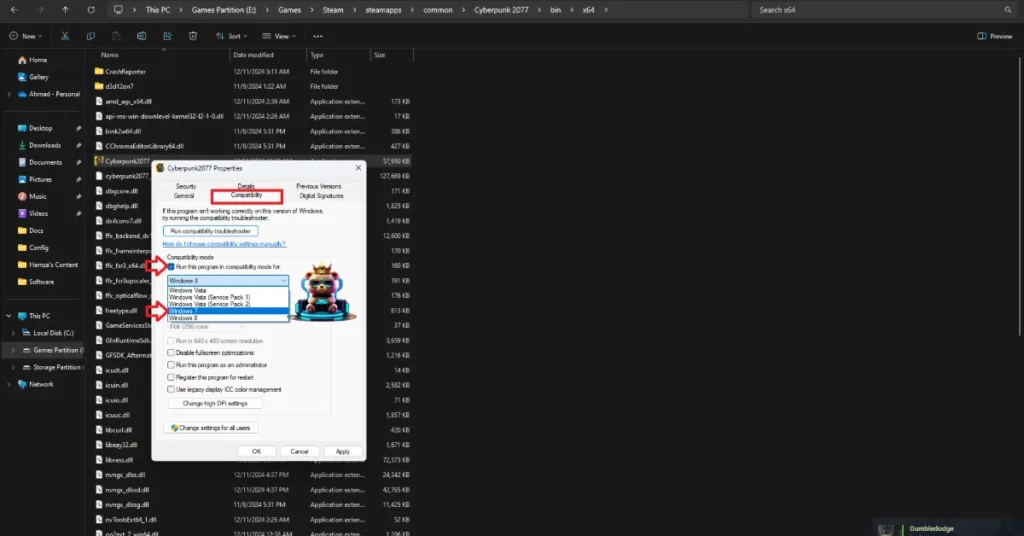
Compatibility issues with the current Windows version are the reason High on Life 2 is crashing on your PC. You can fix the crashes by running the game in Windows 7 compatibility mode. As per user feedback, running the game in compatibility mode fixes crashes on PC. Here’s how you can run the game in Win 7 compatibility mode:
- Right-click High on Life 2 in your Steam library, hover the cursor over “Manage”, and click the “Browse local files” option.
- A new Explorer window will open containing High on Life 2’s game files.
- Find the executable (exe), right-click it, and select “properties”.
- A small window will open. Go to the “Compatibility” tab, check the box next to Run this program in compatibility mode for: and select Windows 7.
- Apply the changes, play High on Life 2, and the Fatal Error crash is now fixed.


Fix #2 – Lower Global Illumination Setting (Confirmed Fix)
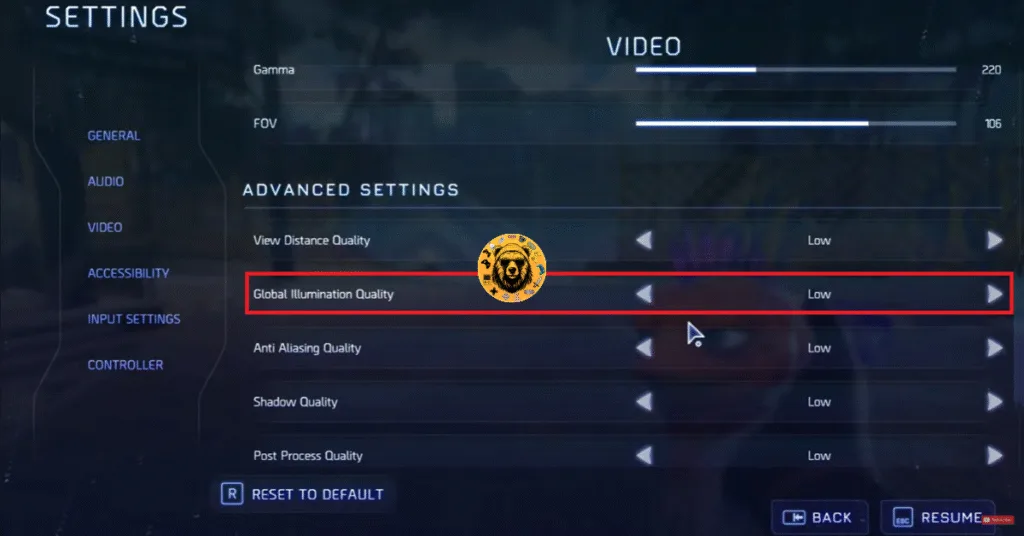
Your current graphics settings are crashing High on Life 2 with the Fatal Error. To fix the Fatal Error crash, lower the Global Illumination quality. PC users confirm that lowering the Global Illumination setting fixed the Fatal Error on their PC.
- Open the game’s Settings menu.
- Go to the “Video” tab.
- Scroll down to “ADVANCED SETTINGS”.
- Lower the “Global Illumination Quality” settings.
- Apply the changes, continue playing High on Life 2, and the Fatal Error crash is fixed.
If lowering the Global illumination Quality setting didn’t fix the Fatal Error crash, then run High on Life 2 with optimized graphics settings. Here is how you can use the optimized settings:
- Open the NVIDIA App.
- Go to the “Graphics” tab.
- Select “High on Life 2”, and click the “Optimize” button on the right.
- Play the game, and the Fatal Error crashes are fixed.

Fix #3 – Clear Shader Cache and Increase its Size
Being an Unreal Engine game, High on Life 2 is reliant heavily on shaders for its visuals and performance. Which is evident from all the traversal and shader compilation stutters in the game. The game compiles shaders in a cache to use them again when needed to avoid stutters.
The shader cache is the reason High on Life 2 keeps crashing on your PC and displays the Fatal Error message. The cahce either damaged or its default size is too small for the game. To fix the High on Life 2 crashes on your PC, clear the cache and increase its size.
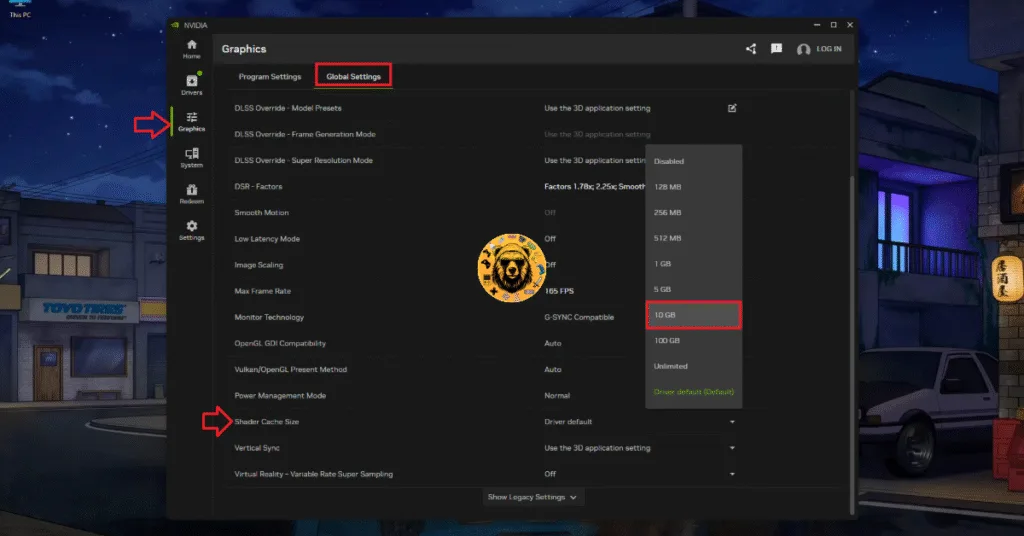
- Open the NVIDIA App.
- Go to the “Graphics” section and then open the “Global Settings” tab.
- Scroll down and find the “Shader Cache Size” setting.
- Select the “Disable” option for it and restart your PC.
- Go back to the “Shader Cache Size” setting and select 10 GB or a higher value.
- Continue playing High on Life 2 and the crashes are fixed.
Fix #4 – Limit High on Life 2’s Max Framerate
It’s not like High on Life 2 is an optimized game, at the time of writing, but if you have the PC to push through it, you might be playing it at an unlocked frame rate. The unlocked FPS is the reason the game is crashing on your PC and displaying the Fatal Error, as it puts the GPU and CPU under a lot of stress.
To fix the High on Life 2 crashes on your PC, limit the game’s max frame rate, as it reduces CPU and GPU load. This fix is also an alternative if you don’t want lower the game’s graphics settings to fix the Fatal Error crash.
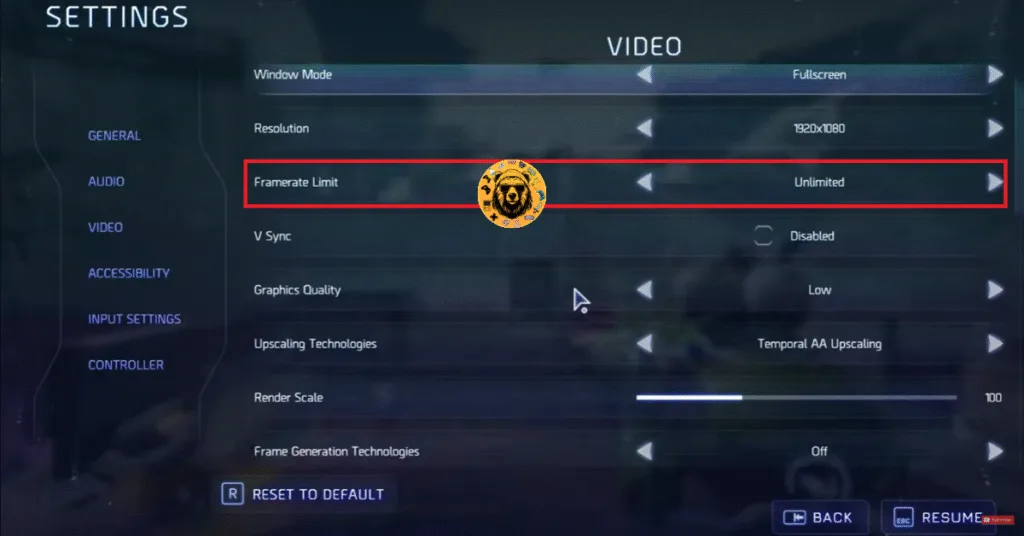
- Open the game’s Settings menu.
- Go to the “Video” tab.
- Use the “Framerate Limit” setting to set a lower FPS target for High on Life 2.
- Continue playing the game, and the crashes are now fixed.
Fix #5 – Ensure Your Graphics Card is Using Stock Clock (NVIDIA)
If you have overclocked your graphics card, that is the reason High on Life 2 keeps crashing on your PC during gameplay and displays the Fatal Error message. To fix these crashes, revert your graphics card to its default clocks and voltages.
Even though you have not overclocked your graphics card, it is very likely that it’s using slightly higher clock speeds and voltages. NVIDIA and AMD AIB partners, like MSI or ASUS, feature higher clocks and voltages than their reference models.
These higher clocks are the reason for Fatal Error crashes during gameplay in High on Life 2, and you can fix these crashes by forcing your graphics card to use its stock clocks. Here is how it can be done:
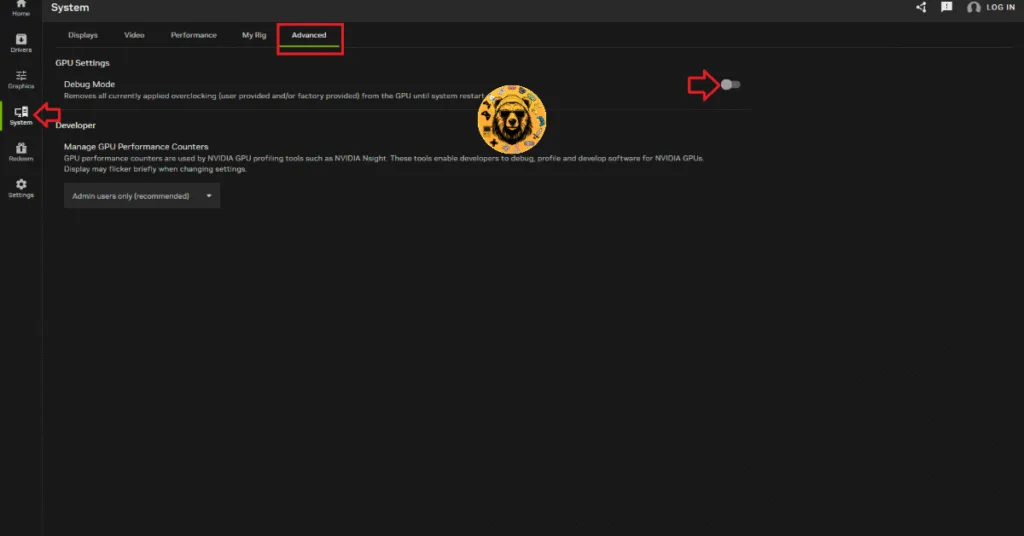
- Open the NVIDIA App, and go to the “System” tab.
- Go to the “Advanced” tab and enable the Debug Mode.
- Play High on Life 2, and it won’t crash during gameplay again.
There you have it, our High on Life 2 fixes for the Fatal Error crashes on your PC. If you are facing errors and issues while playing other games on PC and handhelds, head to our hub of commonly occurring PC errors and their fixes.