The new PVP raider shooter, Highguard, isn’t off to a great start, as players are experiencing crashes and errors. Players are experiencing the ERROR: 0x60670402 error on their PC while trying to play Highguard. This guide is all you need to do if you want to fix the error on your Windows PC.
Highguard Secure Boot Error Fixes That Work
To be honest, I was expecting such errors, considering Highguard is an Unreal Engine 5 game. Players report the 0x60670402 error while trying to play the game on their PC. Players get the following error message.
ERROR: 0x60670402 One or more files in your installation are corrupted or missing. Please reinstall the game.
As we can see from the message, a file is missing or corrupt. Follow this guide to fix the 0x60670402 error while trying to play Highguard on your Windows PC.
Fix #1: Verify System Files
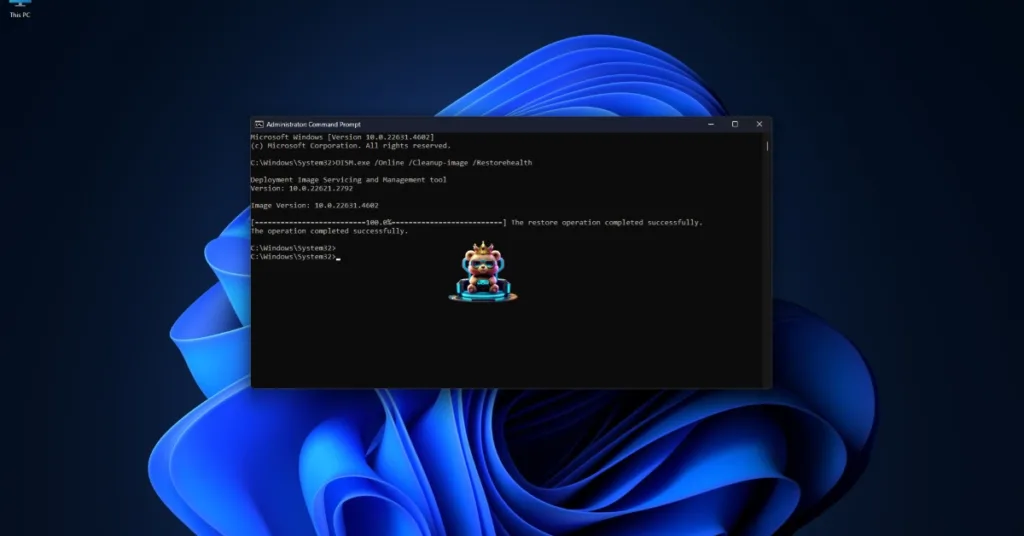
The system’s DLL file is likely missing, causing Highguard to crash on your Windows PC. You will have to verify system files, a pretty common way to restore a missing sysmain.dll. Follow these steps:
- In your Windows Search bar, type Command Prompt and run it as an Administrator.
- Type the sfc /scannow command and run it.
- If the issue persists, run DISM /Online /Cleanup-Image /RestoreHealth.
- Restart your PC and launch Highguard, and the issue will be fixed.
Fix #2: Repair Windows performance counter registry entries
Your Windows performance counter registry entries are corrupted, which is causing the Highguard secure boot error. You will have to repair them by running some commands in the CMD. Here’s what to do:
- Open your Command Prompt as an Administrator.
- Type lodctr /R and hit Enter.
- If it says “Error: Unable to rebuild… code 2,” then type: resyncperf (if available) or simply restart the WMI service by typing: net stop winmgmt net start winmgmt.
- Launch Highguard, and the crash at startup will be fixed.
Fix #3: Ensure Debloater Tools aren’t Blocking SysMain
To remove the AI tools from Windows installation, people use Deblater tools. They remove those AI tools, but along with them, some system files as well. These Debloater tools are disabling SysMain, causing Highguard to crash on your PC at startup and display the ERROR: 0x60670402. You will have to follow these steps to fix the error:
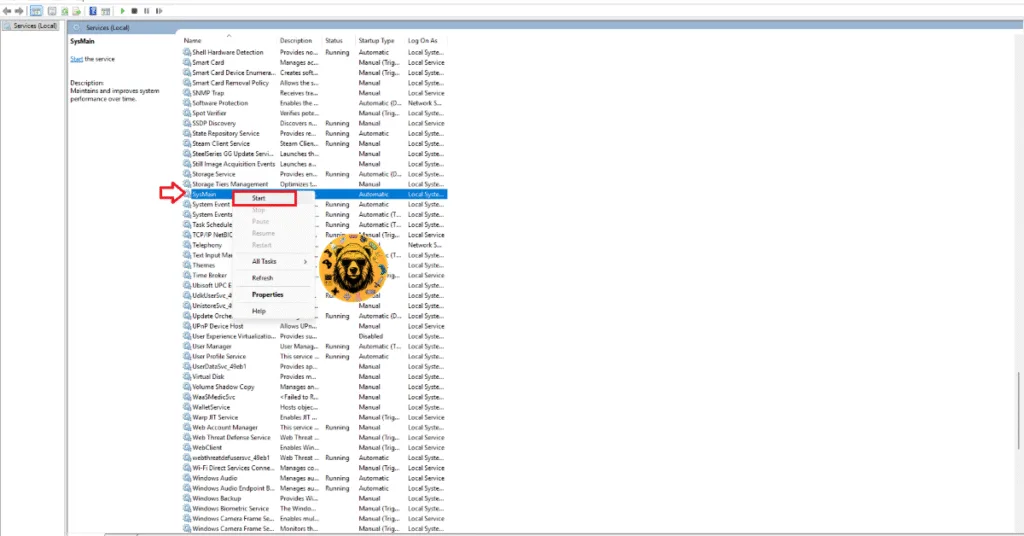
- Press Win + R and type “services.msc”.
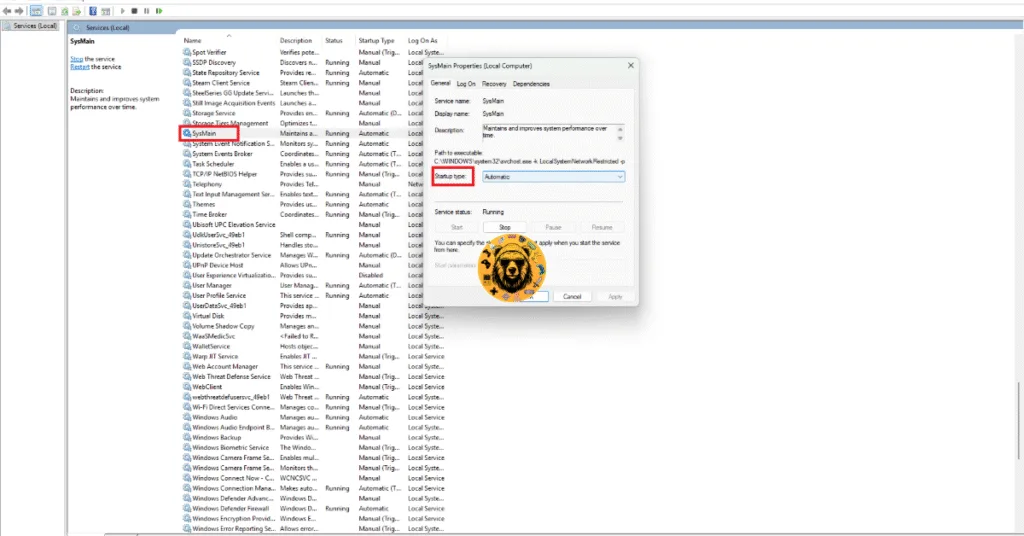
- Look for SysMain in the list.
- Make sure it is set to Startup Type: Automatic and that it is currently running.
- If it isn’t running, right-click “SysMain” and click “Start”.
- Play Highguard, and the ERROR: 0x60670402 will be fixed.
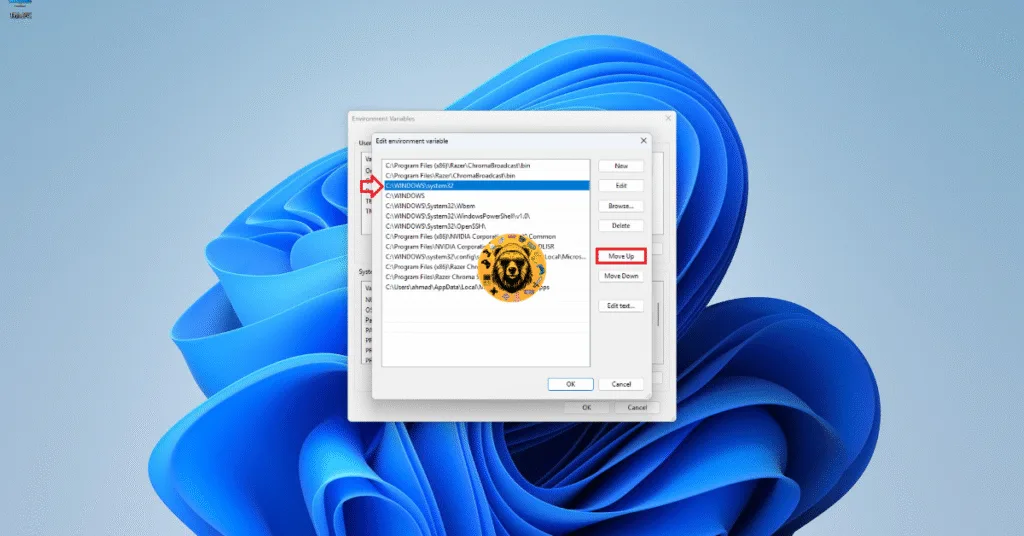
However, if sysmain.dll exists in C:\Windows\System32 but Windows says it can’t find it, your System Path is most likely corrupt. Here’s how to address this issue:
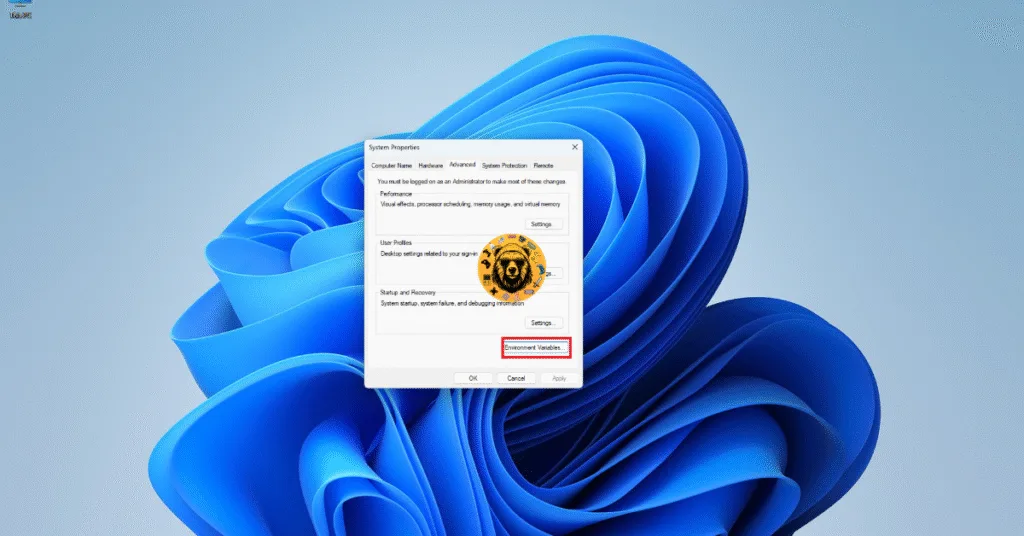
- Type “Edit the system environment variables” in Windows search and press Enter.
- At the bottom, click Environment Variables.
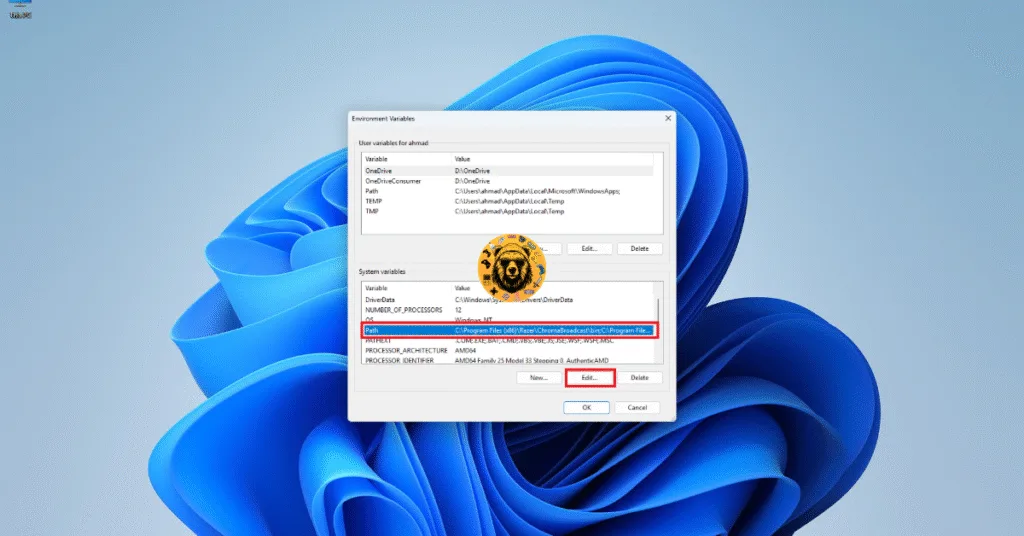
- Under System variables, find Path and click Edit.
- You will have to make sure that %SystemRoot%\system32 is at the top of the list.
- Launch Highguard, and the crash at startup should be fixed.
And that’s how to fix the Highguard 0x60670402 error on your PC. If you are facing errors and issues while playing other games on PC and handhelds, head to our hub of commonly occurring PC errors and their fixes.