We are back with another issue, this time being Highguard not launching on your PC. If you have played the game for some time, you might have encountered several other errors and issues, such as the Fatal Error crashes. Highguard doesn’t seem to be doing well, considering the errors and problems. Players are reporting that the game crashes on startup with no error whatsoever. I have compiled some fixes that will definitely resolve the Highguard not launching issue on your Windows PC.
Working Fixes for Highguard Crashing at Startup
Reports indicate that Highguard crashes at startup without warning. This could be due to several reasons. Follow this guide to make sure that the game doesn’t crash at startup on your PC.
Fix #1: Ensure Highguard is running on the Dedicated Graphics Card
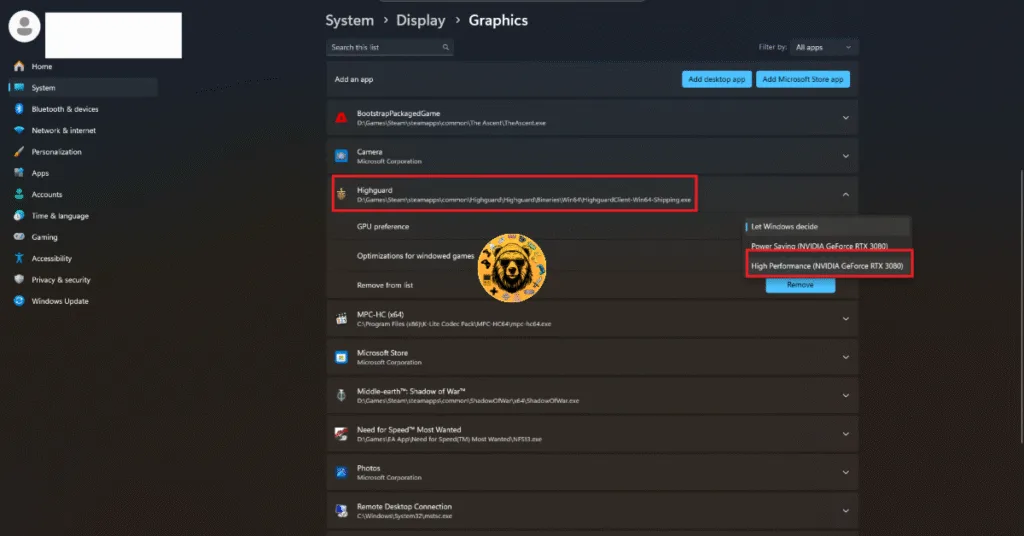
Playing Highguard on agaming laptop? The thing is, they come with both integrated and dedicated graphics cards. Your system switches between both depending on the load. However, it sometimes bugs out and just forgets to switch to the dedicated GPU. That’s what’s causing Highguard to crash on your Windows PC at startup. To fix this, you will have to ensure that the game is running on the discrete GPU. Here’s how to do that:
- In your Windows Settings, navigate to System> Display> Graphics.
- From the apps and programs list, choose “Highguard.”
- Click on Options and select “High Performance.”
- Launch Highguard, and the crash at startup issue will be fixed.
Fix #2: Disable XPM or EXPO
Enabling XMP or EXPO makes your RAM run at its full potential. This basically works like an overclock, but sometimes becomes the cause of several issues and errors. In our case, Highguard is not launching. To resolve the issue, you will have to make sure that these settings are disabled. After that, your RAM sticks will be running on their default speeds. You can do it through your BIOS. First, we open the BIOS, and here’s how to do that:
- In your Windows Settings, go to the System tab and click on the Recovery settings.
- After that, click on the Restart Now button beside the Advanced startup settings.
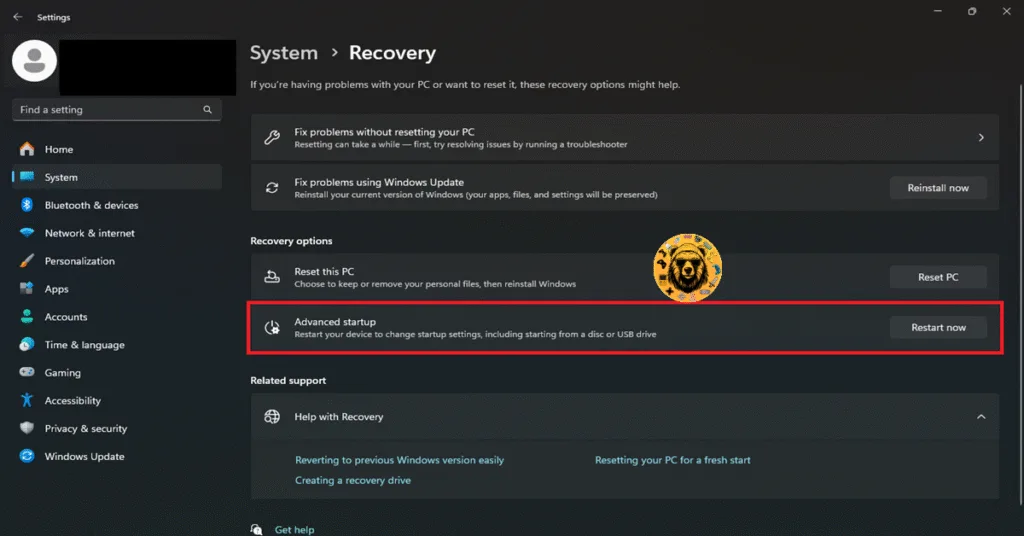
- Now, wait for your PC to restart and choose Troubleshoot.
- In the Advanced Options, select the “UEFI firmware settings” option and wait for your PC to boot into BIOS.
Now that we are in the BIOS, we can disable the XMP or EXPO settings.
- Press F7 and switch your BIOS from EZ Mode to Advanced Mode.
- Find the OC (Overclocking) or Extreme Tweaker tab and look for the XMP Profile or EXPO Profile settings.
- Disable it and press F10 to save the changes.
- Exit the BIOS and let your PC restart.
- Launch Highguard and it will launch without any problem.
Fix #3: Revert GPU Overclock
Just like the RAM, an overclocked GPU can also give you a great performance boost. However, that puts a lot of stress on the card, resulting in your games crashing at startup. That’s the reason why Highguard is not launching on your PC. To fix that, revert your GPU to its default settings to fix the problem.
However, chances are that your GPU is already factory-overclocked by Nvidia’s AIB partners like ASUS, GigaByte, Zotac, MSI, etc. They do that to differentiate their GPUs from Nvidia’s founder edition GPUs. To ensure that your GPU runs on Nvidia’s recommended clock speeds, you will have to enable Debug Mode. Let’s take a look at how to do that:
Through Nvidia App
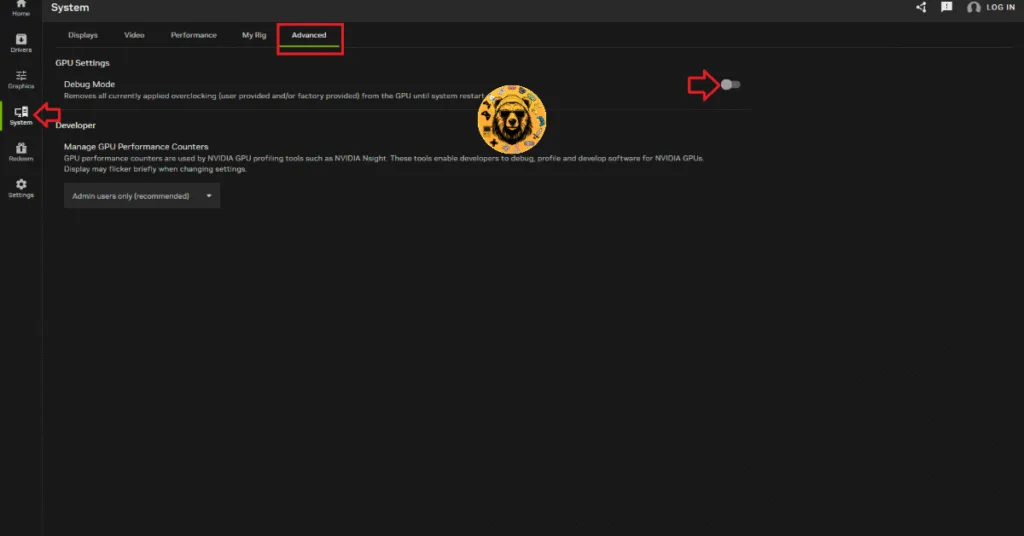
- Open the NVIDIA app.
- Navigate to the System tab and click the Advanced tab.
- Turn on Debug Mode and restart your PC.
- Play Highguard and it will launch without any issues.
Through Nvidia Control Panel
- Open the Nvidia Control Panel.
- Click on Help in the top menu.
- Select Debug Mode and enable it.
- Launch Highguard, and it will not crash at startup.

Fix #4: Run Highguard as an Administrator
Highguard is lacking some administrative rights, which is stopping from executing crucial commands. That’s the reason why it’s not launching on your PC. You will have to ensure that the game is running as an administrator. Follow these steps to do so:
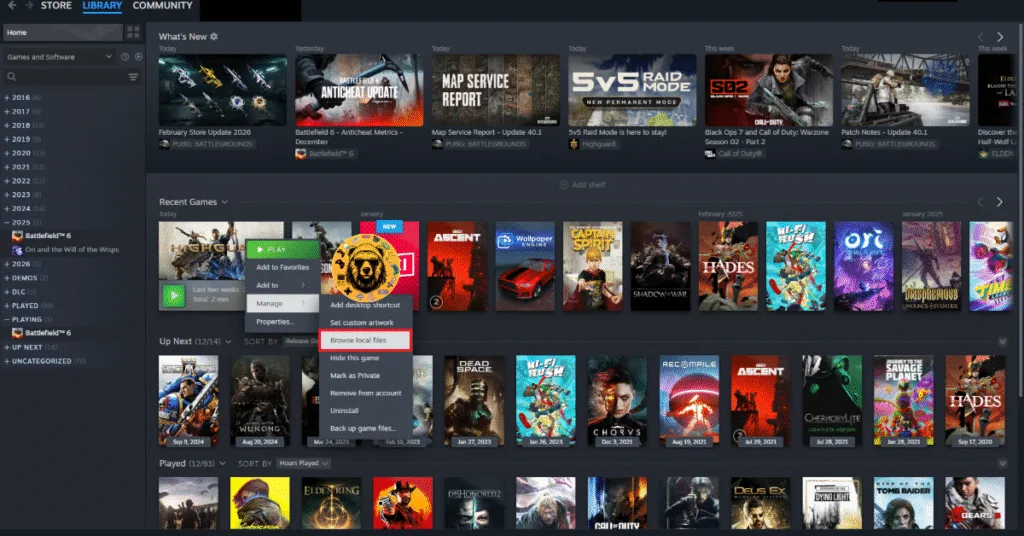
- In your Steam Library, right-click Highguard and go to Manage.
- After that, click the Browse local files option.
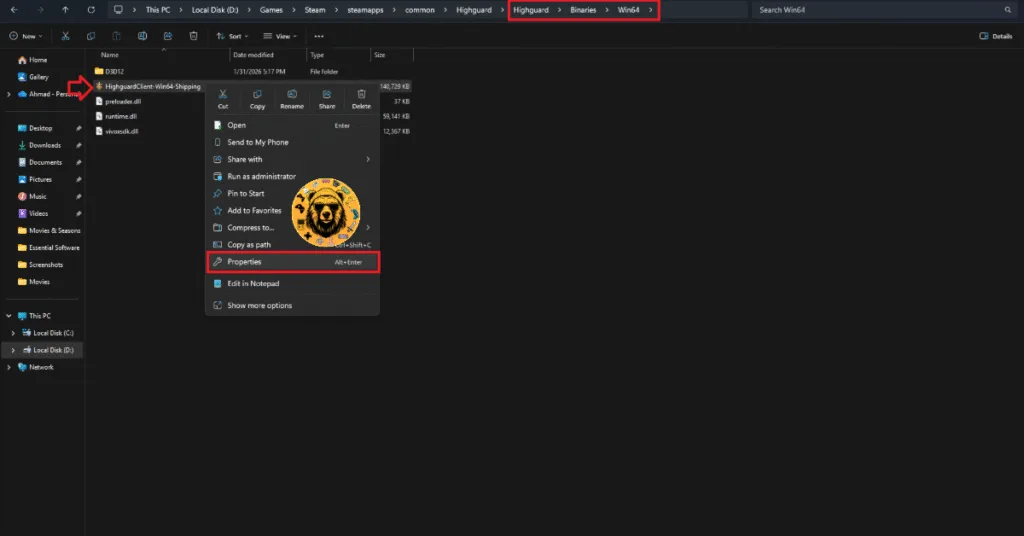
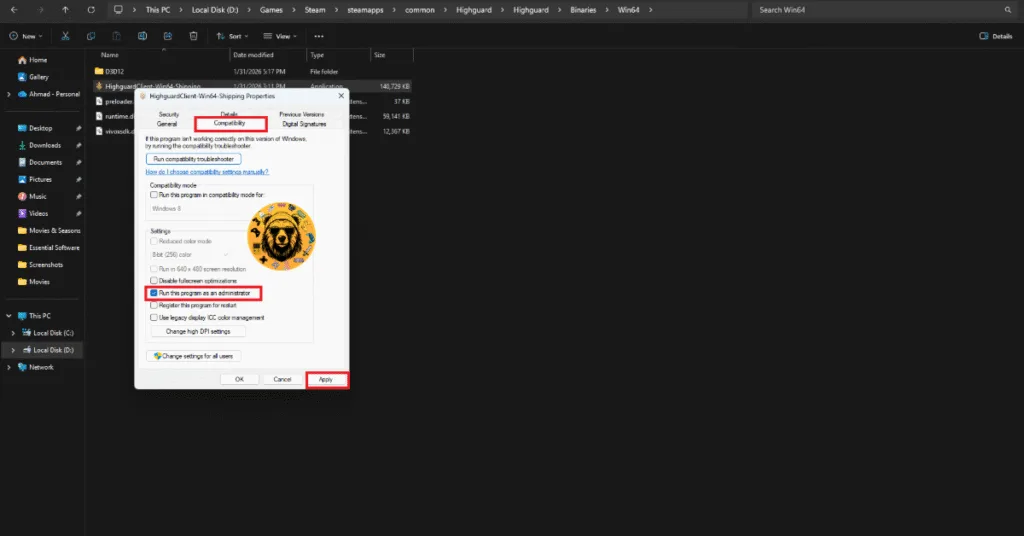
- In the new explorer window that just popped up, navigate to Highguard\Binaries\Win64.
- Right-click the HighguardClient-Win64-Shipping and select Properties.
- Head to the Compatibility tab and check the “Run this program as an administrator” option.
- Play Highguard and the issue will be resolved.
Fix #5: Run Highguard in Windows 7 or 8 Compatibility Mode
Tried everything, but still facing Highguard not launching on your PC. Why not try running the game in Windows 7 or 8 Compatibility Mode? That should resolve your issue. Follow my lead:
- Right-click Highguard in your Steam Library and go to Manage.
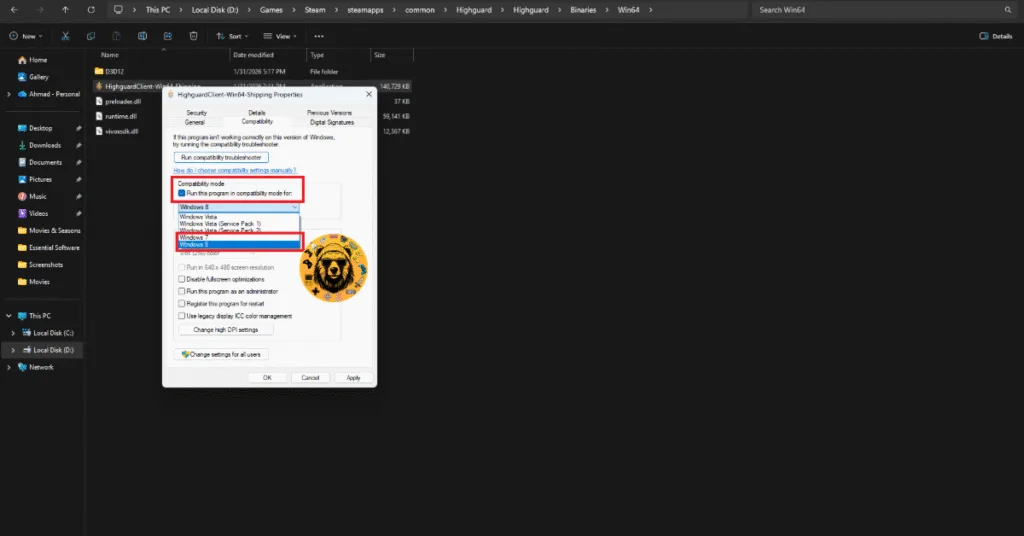
- Click on the Browse local files option and click on the game’s executable in the new window that just appeared.
- Click on Properties and navigate to the Compatibility tab.
- Check the box next to Run this program in compatibility mode for: and select Windows 7 or 8.
- Click Apply and then OK to save the settings.
- Launch Highguard and it will launch without any issues on your PC.
There you have, ultimate fixes for Highguard not launching on your PC. This is a newly released game, so it’s normal for it to annoy players with problems. You can always check our website for the latest errors and their fixes.