Battlefield 6 (BF6) is a return to form for the franchise, which is also reflected in the game’s incredible reception. Running on the latest Iteration of the Frostbite engine, the game’s visuals look amazing, despite no Ray Tracing support. Despite being a well-optimized game, Battlefield 6 is crashing on PC for many players. Here, I have curated some fixes that will resolve the Battlefield 6 crash on your Windows PC.
Verified Fixes for BF6 Crash on PC
PC users report that Battlefield 6 keeps crashing randomly during gameplay and no error message is displayed. For some, the game is crashing at startup. There are multiple reasons for these crashes to occur, like playing BF6 at an unlocked FPS, Intel Raptor Lake overvolt issue, and more. The following fixes will resolve the BF6 crash on your PC.
Fix #1 – Update BIOS (Confirmed Fix)
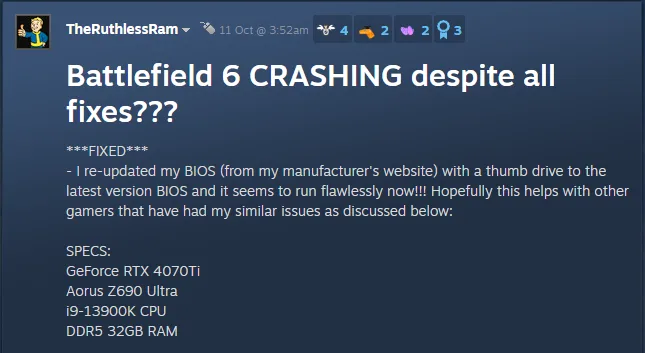
Intel Raptor Lake (13th and 14th Generation) CPUs have a well-documented overvoltage issue, and are the reason you are experiencing random Battlefield 6 crashes on your PC. You can fix these gameplay crashes by updating the BIOS, as it contains the microcode that resolves the overvoltage issue on Intel Raptor Lake CPUs.
PC users have confirmed over at Reddit and Steam forums that updating the BIOS for their Intel Raptor Lake CPUs fixes the gameplay crash issue on Battlefield 6.
The steps to update the BIOS vary depending on the manufacturer, but here are general steps to help you update your motherboard’s BIOS to fix the crashes in BF6:
- Go to the motherboard manufacturer’s website, i.e, MSI, Gigabyte, or ASUS.
- Search for your motherboard model.
- Find the latest BIOS download in the “Support” or “Download” section.
- Download the BIOS and unzip the folder in a USB.
- Restart your PC and go into the BIOS.
- Select the Q-Flash option.
- Follow the onscreen prompts and select the BIOS update from your USB when prompted.
- Let the update complete. (Ensure the PC doesn’t shut down due to a Power outage, and don’t unplug)
- After the BIOS update, the PC will restart.
- Play Battlefield 6 and the crashes are now fixed.
Fix #2 – Increase Virtual Memory (Verified Fix)
Battlefield 6 keeps crashing on your PC because the current Virtual Memory size isn’t enough for the game. At the time of writing, BF6 has a memory leak issue, and the current Virtual Memory size on your PC isn’t able to cope with it, which is causing stuttering, freezing, and crashes in Battlefield 6.
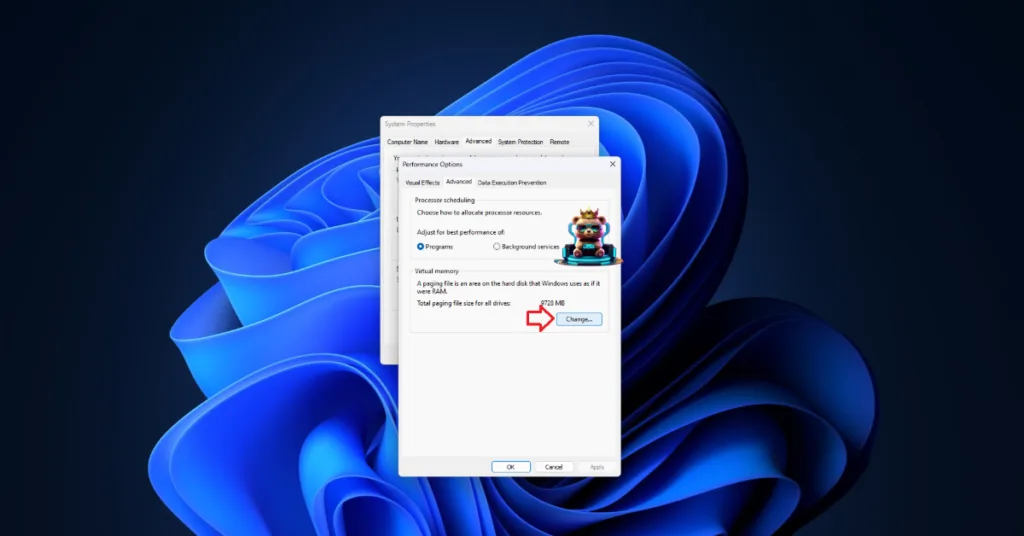
You can fix these crashes by manually increasing the Virtual Memory size, as Windows automatically adjusts it by default. As per community feedback, increasing its size actually fixes the BF6 gameplay crashes on PC. Here is how you can increase the Virtual Memory on your Windows PC to fix the crashes:
- Open Windows Settings > System > About > Advanced System Settings.
- Click “Settings” under Performance, and go to the Advanced tab in Performance Options.
- Click on “Change” under Virtual memory.
- Uncheck “Automatically manage paging file size for all drives.”
- Select the drive with at least 32 GB of available space.
- Check the Custom size option.
- Input ‘16,384’ for the Initial size and ‘32,768’ for the Maximum size and press OK*.
- Restart your PC, play Battlefield 6, and the in-game crash issue is now fixed.
*The values I’ve given are generalized and will work for mose users. However, as a general rule of thumb, the Intial size should be the 1.5 times of installed RAM in your PC, and 3 times for the Maximum size. Meaning, if you have a 32 GB RAM, then the Initial and Maximum size would be would be “49,152” and “98,304”, respectively. Also, make sure the selected drive for Virtual Memory has enough free space.



Fix #3 – Disable XMP or EXPO (Confirmed Fix)
XMP or EXPO is a RAM overclock feature in BIOS for Intel and AMD CPUs, respectively. These features ensure that your RAM is used to its full potential with little hassle. However, if you have enabled XMP or EXPO, it is the reason Battlefield 6 keeps crashing on your PC. You can fix these in-game crashes by disabling the XMP or EXPO through the BIOS. PC users confirm that disabling XMP or EXPO fixes the in-game crash issue on BF6.
Fix #4 – Limit Battlefield 6’s Maximum Framerate
Being primarily a mutiplayer game, playing Battlefield 6 at an unlocked or high FPS provides a slight edge due to low latency. However, the unlocked or high FPS is the reason BF6 is crashing on your PC, as it puts the CPU and GPU under a lot of stress. You can fix the in-game crash issue by limiting Battlefield 6’s max FPS, as it will reduce the CPU and GPU load. Here is how you can limit Battlefield 6’s max frame rate on your PC:
- Open the options menu in Battlefield 6.
- Go to the “Graphics” tab and select the “Advanced” setting.
- First, toggle the “Frame Rate Limiter” setting on.
- Then use the “Frame Rate Limit” slider to adjust the FPS.
- Set a lower FPS value.
- Apply the changes, play Battlefield 6, and the crashes are now fixed.
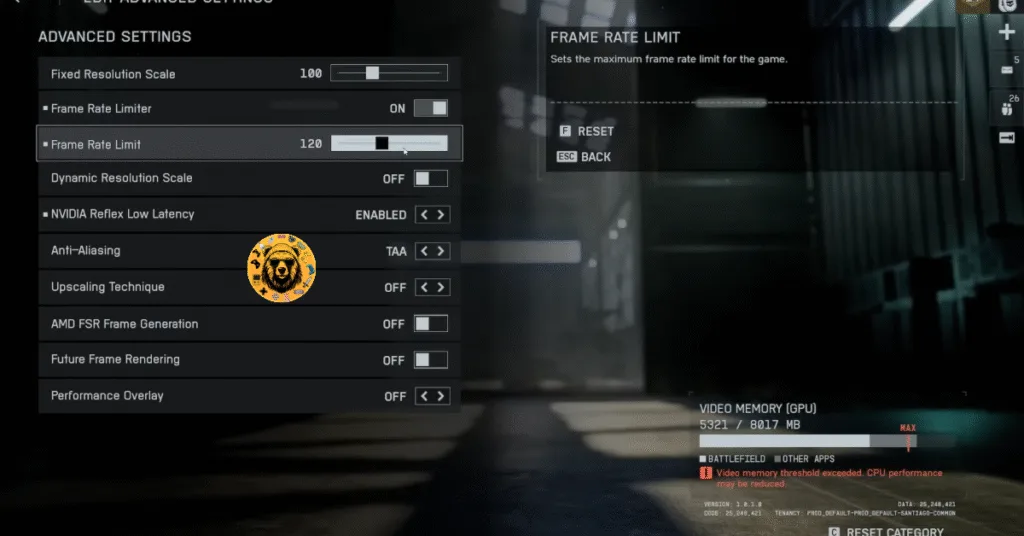
The frame rate value you set for Battlefield should be 1/2, 1/3, or 1/4th of your display refresh rate, otherwise, the game will feel jittery. This means that, if you have a 120 Hz monitor, the FPS values should be 60, 40, or 30, respectively. This only applies if you have V-Sync enabled on a fixed refresh rate monitor.
Fix #5 – Disable Background Apps and In-Game Overlays
Many PC users install third-party apps and tools, like MSI Afterburner, Discord, RGB software, and more, to monitor in-game performance, tweak hardware settings, or chat. However, these third-party apps often interfere with games and crash them to the desktop.
If you are using any background apps while playing Battlefield 6, it is the reason for the crashes in the game. You can fix these BF6 crashes by disabling all the background apps and tools.
Also, disable in-game overlays for apps like Steam, Discord, and the NVIDIA app. In-game overlays are enabled by default and allow PC users to chat and access app features without minimizing or quitting the game. However, they can also interfere with games and crash them. Here is how you can disable in-game overlays for Discord, Steam, and the NVIDIA app to fix the in-game crash issue in Battlefield 6:
How to Disable Discord Overlay?
- Go to User Settings and open the Game Overlay tab.
- Turn off the “Enable In-game overlay” options.
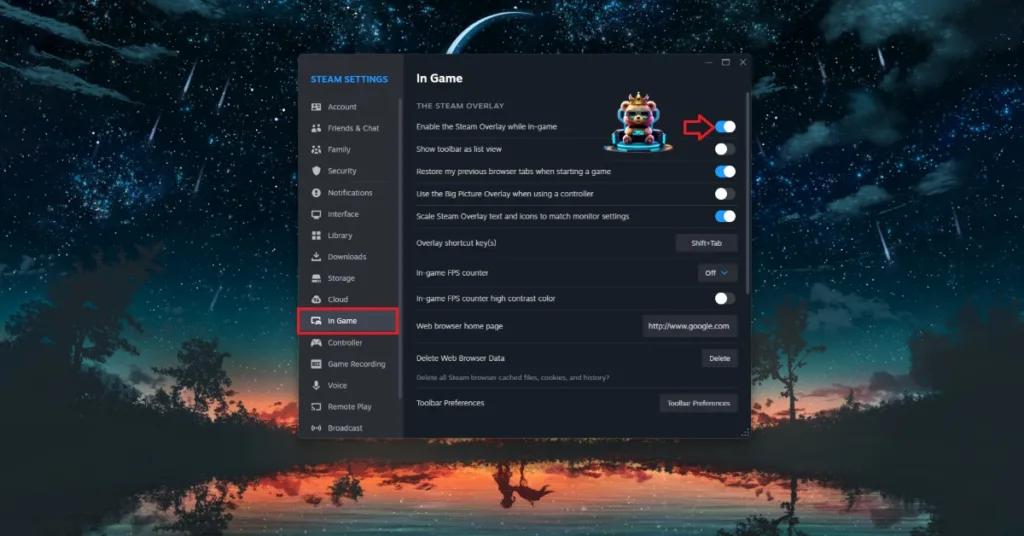
How to Disable Steam Overlay?
- Open Steam settings and go to the In-Game tab.
- Uncheck “Enable the Steam overlay while in-game” and press OK.
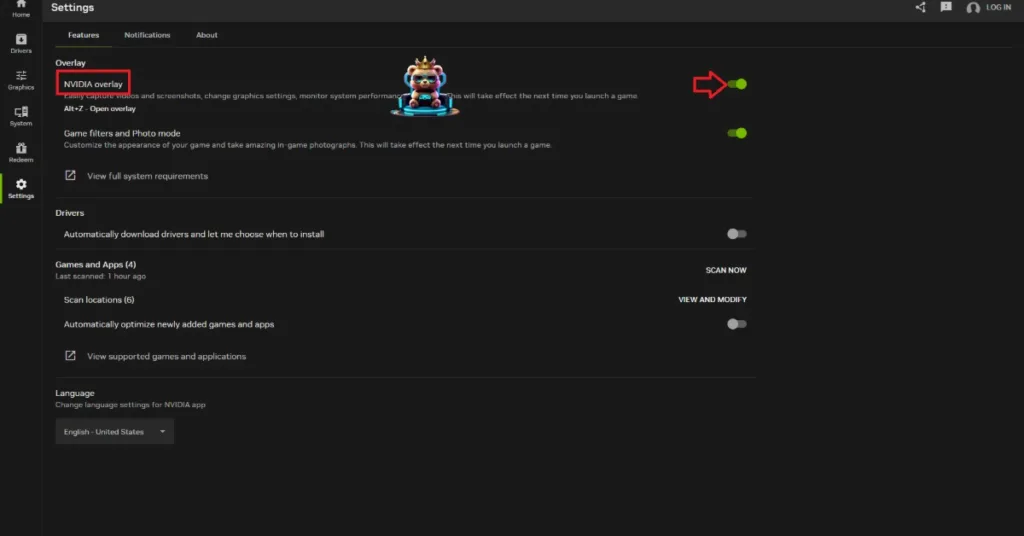
How to Disable NVIDIA App Overlay?
- Open the Nvidia App and open Settings.
- Go to the “Features” tab.
- Disable “Nvidia Overlay”.
There you have it, our Battlefield 6 fixes for the gameplay crashes on your Windows PC. If you are facing errors and issues while playing other games on PC and handhelds, head to our hub of commonly occurring PC errors and their fixes.