


CODE VEIN II has seen a mixed reception from players and critics alike, unlike its 2019 predecessor, which garnered mostly favorable reviews. Aside from that, the PC version of the game is also not in the best of states, as players are experiencing Out of Video Memory and Fatal Error crashes. On top of that, PC users are reporting that CODE VEIN II is crashing and displaying the “LowLevelFatalError Could Not Decompress Shader” error. I have compiled a number of fixes that will resolve the CODE VEIN 2 LowLevelFatalError crash on your Windows PC.
CODE VEIN 2 LowLevelFatalError Shader Compilation Crash Fix
According to PC players, the game is crashing at startup or during shader compilation and displays the following error message:
LowLevelFatalError [File:C:\Chronos\Master-102\UE\Engine\Source\Runtime\RenderCore\Private\ShaderCodeArchive.cpp] [Line: 413]
DecompressShaderWithOodleAndExtraLogging(): Could not decompress shader group with Oodle. Group Index: 445 Group IoStoreHash:0292040d62fe17760dcb8209 Group NumShaders: 16 Shader Index: 3824 Shader In-group Index: 445 Shader Hash: 1DB767BDDACE29B29E83573BFA53780924E1EE40. The CPU (13th Gen Intel(R) Core(TM) i7-13700KF) may be unstable; for details see http://www.radgametools.com/oodleintel.htm
There are multiple reasons why you are experiencing LowLevelFatalError crashes, but Intel 13th- and 14th-generation CPUs seem to be the major ones. These CPUs are known to have overvoltage issues that cause various errors and crashes in games, especially those that run on Unreal Engine 5. On top of that, Oodle has confirmed that Intel 13th and 14th-generation CPUs are responsible for various errors in Unreal Engine games.
The following fixes will resolve the LowLevelFatalError Could Not Decompress Shader error in CODE VEIN 2 on your Windows PC.
Fix #1 – Limit CPU Cores and Threads for CODE VEIN II
As I mentioned earlier, Intel’s 13th and 14th-generation CPUs are notorious for their voltage issues. They often become the cause for various issues, in our case, being Code Vein II LowLevelFatalError. Update your BIOS, and the issue shall be fixed. However, if it persists, then the damage might be permanent. You will have to limit the CPU Cores and Threads for Code Vein II, and the LowLevelFatalError will be fixed. Here’s what to do:
- Launch Code Vein II on your Windows PC.
- Open your Task Manager and click on Details.
- Right-click Code Vein II and select the Set Affinity option.
- All of your CPU cores will be enabled, so ensure only 8 of them are being used (0 to 7).
- After that, play Code Vein II, and the error should be fixed.
Fix #2 – Rebuild CODE VEIN 2’s Shaders and Increase Cache Size
Increasing the shader cache size is a pretty common fix for Fatal error crashes. If you are experiencing Code Vein II crashing on your PC with the LowLevelFatalError, then it’s probably because of a small cache size. The solution for that will obviously be to delete the cache first and increase its size. After that, launch the game and let it rebuild the shaders. I’ll take you through the process:
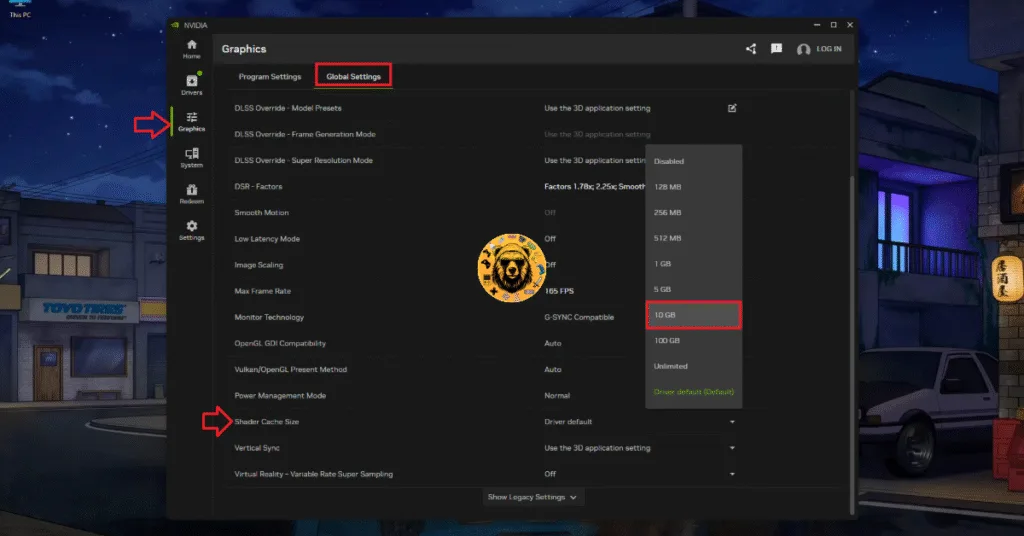
- Launch the NVIDIA App on your PC and navigate to the Graphics tab.
- In Global Settings, scroll down to the Shader Cache Size option.
- Choose the Disable option and restart your PC.
- Backtrack to the Shader Cache Size setting and select 10GB or a higher value.
- Play Code Vein II to enjoy a crash-free experience.
Fix #3 – Tweak Engine.ini and GameUserSettings.ini Files
Most Unreal Engine games on PC pre-compile shaders for a smooth gameplay experience; otherwise, the shaders are compiled mid-gameplay, which results in shader compilation stutters. However, in the case of CODE VEIN II, the pre-compilation is the cause of the LowLevelFatalError: Could Not Decompress Shader error on your PC.
You can fix the error by disabling the shader pre-compilation, which you can do by tweaking the config files. Here is how you can apply the fix.
- Open the Windows Explorer and navigate to C:\Users\”your name”\AppData\Local\CodeVein2\Saved\Config\WindowsNoEditor
- Open Engine.ini file in notepad.
- Paste the following at the bottom of the Engine.ini file:
[/script/engine.renderersettings]
r.ShaderPipelineCache.Enabled=0
r.ShaderPipelineCache.Precompile=0
r.ShaderPipelineCache.StartupMode=0
r.D3D12.PSO.DiskCache=0
r.D3D12.PSO.DriverOptimizedDiskCache=0
r.VirtualTextures=0
r.Streaming.PoolSize=2048
- Save the changes, close the file.
- Right-click Engine.ini, select “properties”, and check the “Read-only” option at the bottom.
- Apply the changes.
- Now open the GameUserSettings.ini file in Notepad from the same folder.
- Paste the following at the bottom of the file:
[/script/engine.gameusersettings]
bUseVSync=False
ResolutionSizeX=1280
ResolutionSizeY=720
LastUserConfirmedResolutionSizeX=1280
LastUserConfirmedResolutionSizeY=720
FullscreenMode=1
PreferredFullscreenMode=1
- Right-click GameUserSettings.ini, select “properties”, and check the “Read-only” option at the bottom.
- Launch CODE VEIN II, and the LowLevelFatalError crash is now fixed.
The WindowsNoEditor folder or the GameUserSettings.ini and Engine.ini file might not be there when you open the Config folder. These files are created when you mange to run CODE VEIN II. If the folder isn’t there, then you’ll have to first make the WindowsNoEditor folder and then create Engine.ini and GameUserSettings.ini files in that folder. You can create these files by creating a text file and saving it as Engine.ini and GameUserSettings.ini, respectively.
Fix #4 – Disable Hardware-accelerated GPU Scheduling
Hardware-accelerated GPU scheduling is a feature in Windows that allows your GPU to manage its own scheduling, leading to enhanced performance and lower latency in graphics-intensive tasks. These settings are all good until it becomes the cause for issues and errors like the Code Vein II LowLevelFatalError. Disable it, and the issue will be resolved. Follow my lead:
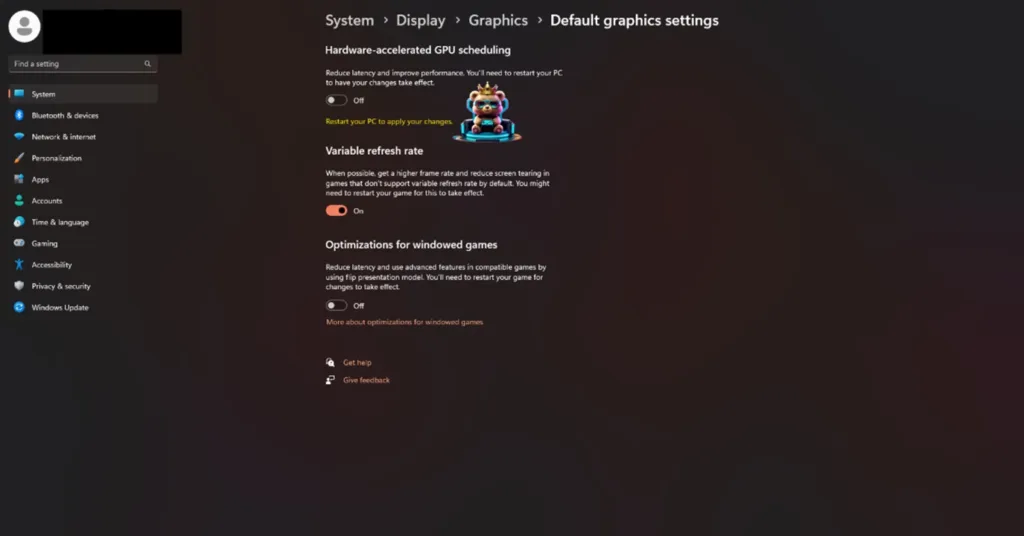
- Open your Windows Settings and go to the System tab.
- Click on Display and scroll down to find the Graphics option.
- There, click on Change Default Graphics settings.
- Find the Hardware-Accelerated GPU Scheduling option and toggle it to Off.
- Restart your computer to apply the changes.
- Launch Code Vein II, and the error will be gone.
There you have it, our CODE VEIN II fixes for the LowLevelFatalError crashes and Shader Compilation crashes on your Windows PC.






Hello there! This post couldn’t be written any better! Reading this post reminds
me of my good old room mate! He always kept chatting about this.
I will forward this post to him. Fairly certain he will have a good
read. Thanks for sharing!