Running on Unreal Engine 5, Highguard is a PVP raid shooter that offers a fun and unique experience for players. At this point, I don’t even need to tell you how notorious Unreal Engine 5 is for the errors and issues on PC. You know you are in for some problems when the game runs on UE5. Players are complaining that Highguard crashes on them with a Fatal Error, and this guide will take you through how to resolve the error.
Highguard Fatal Error on Startup Fixed on PC
Players are getting the following error message while trying to launch Highguard on their PC:
The UE-Highguard Game has crashed and will close. Fatal Error!
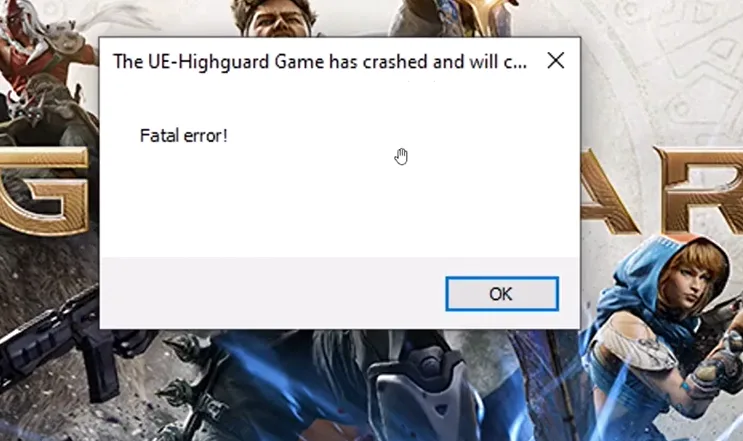
After displaying the message, the game shuts down. Follow this guide, and the Fatal error will be fixed on your PC while playing Highguard.
Fix #1: Enable Secure Boot or TPM/PPI
After doing some research, I found out that enabling safe boot and the TPM/PPI setting has solved the Fatal error crash on a ton of players and will resolve the issue for you as well. You can do it in your BIOS. Follow my lead:
- Open the Windows Settings> System tab > Recovery.
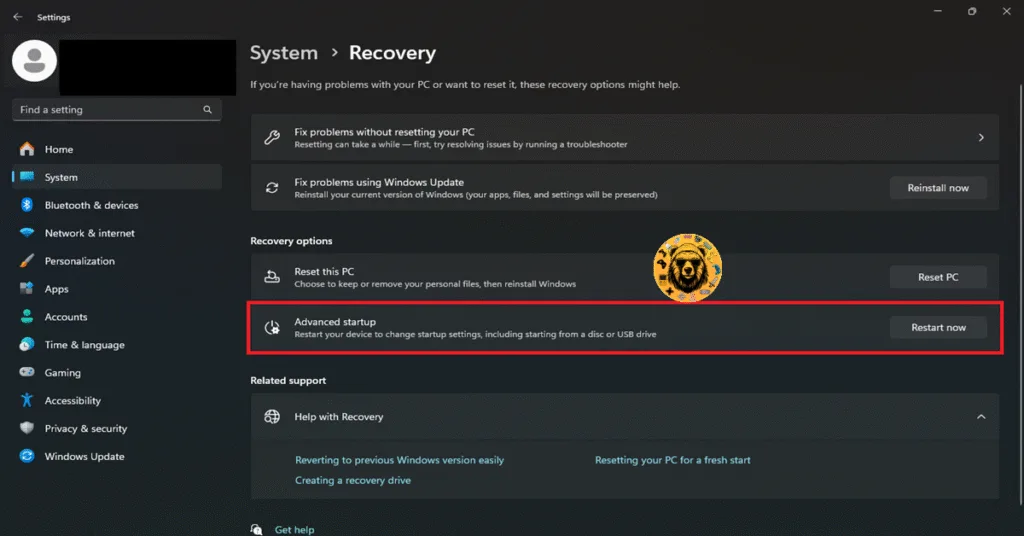
- Click on Restart Now and let your PC restart.
- You will get some options, from which you will have to choose Troubleshoot> Advanced Options> UEFI firmware settings.
- After that, your PC will boot into the BIOS.
- Click on Boot Configuration and scroll down to find the Secure Boot option.
- Enable that option and apply changes.
- Navigate to the Security section and enable the TPM or PPI Settings.
- Save the changes and leave the BIOS.
- Once your PC has restarted, launch Highguard, and the Fatal Error will be gone.
If Secure Boot is already enabled on your PC, then go tot the BIOS, disable it, restart your PC, then re-enable it in the BIOS. I’ve found that in some cases Secure Boot doesn’t work properly even when it is enabled, and have to the disabled and then re-enabled, often multiple times, to make it work.
Fix #2: Run EasyAntiCheat_EOS_Setup File
This one is pretty simple and straightforward. All you have to do is run the game’s anticheat file, and the Fatal Issue error will be gone.
- In your Steam Library, right-click on Highguard, click Manage, and then select Browse Local Files
- Open the EasyAntiCheat folder.
- Run the EasyAntiCheat_EOS_Setup File and see it if the Fatal error persists.
Fix #3: Install DirectX End-User Runtime Web Installer
The DirectX End-User Runtime Web Installer is a tool designed by Microsoft that installs a number of runtime libraries from the legacy DirectX SDK. Installing it has fixed the Highguard Fatal Error for several players, so why not give it a try?
- Go to this link and install the DirectX End-User Runtime Web Installer
- Wait for the setup to finish downloading.
- Once that’s done, launch Highguard on your PC to enjoy a crash-free experience.
Fix #4: Run the game on DX11/DX12
For this solution, you will have to modify Highguard’s game launch option. Running the game on DX11/DX12 will fix the Fatal Error while trying to play the game. Don’t know you to do that? Don’t worry, I have got you covered.
- Open your Steam Library and locate Highguard.
- Right-click the game and select Properties.
- In the Launch Option, type -dx11 and play Highguard.
- If the Issue persists, remove that and type -dx12 instead.

Fix #5: Run Highguard as an Administrator
Highguard is lacking some admin rights, which is stopping it from executing crucial commands. This is causing Highguard to crash on your PC with a fatal error. To fix this, you will have to run as an Administrator. Follow these steps:
- Open your Steam Library and right-click on Highguard.
- Select Manage and click on Browse Local Files.
- Right-click the game’s executable and select “Properties.”
- In the Compatibility section, check the box for “Run this program as an administrator.”
- Click Apply and save the changes.
- Launch Highguard, and it won’t crash on startup with the Fatal Error.


I hope that fixed the Highguard Fatal error for you on your PC. Everyone is looking forward to future updates and patches where the developers fix the issues in their game. All we can do is just wait for that time to come.