

The immersive tactical FPS, Arena Breakout: Infinite, has a lot of players annoyed with its countless errors and issues.
First crash at startup, now in-game crashes. The developers aren’t up to any good, so players have to come up with solutions themselves. Reports claim that the game keeps crashing randomly.
Luckily, players have found the fix. This Arena Breakout: Infinite guide will take you through how to fix the in-game crashes on PC.
How to Fix Arena Breakout: Infinite In-game Crashes on PC?
There could be several reasons why the game crashes in-game with no error at all. Players on Reddit have come up with a solution to fix the in-game crashes on PC. Is Arena Breakout: Infinite crashing on your PC as well? Don’t worry, you are not alone. Just follow this guide, and you will be good to go.
Fix #1: Uninstall the Game’s Anti-Cheat (Confirmed Fix)
Uninstalling ACE, the game’s anti-cheat system, has fixed the problem for players. You can either use Revo Uninstaller or use it from the command prompt. Open Windows PowerShell / CMD as admin and type the following commands:
- sc delete ACE-GAME
- sc delete ACE-BASE
- sc delete “AntiCheatExpert Service”
- sc delete “AntiCheatExpert Protection”
After that, type:
- sc query ACE-BASE
- sc query “AntiCheatExpert Service”
Now, if it says these services are running, then restart the command prompt and run it as an administrator again. After that type, these commands one after the other to remove them:
- sc delete “AntiCheatExpert Service”
- sc delete “ACE-BASE”
To permanently delete them, find these files and folders and press Shift+Delete. Here’s the path:
- Program Files/AntiCheatExpert
- ProgramData/AntiCheatExpert (This one is a hidden folder, so you have to make sure to select “show hidden” in the View Panel.)
- ACE-BASE.sys in system32/drivers
Now, all you gotta do is reinstall the anticheat to fix Arena Breakout: Infinite crashing on your PC.
Fix #2: Reset the BIOS (Confirmed Fix)
You might have made some changes in your BIOS. To fix Arena Breakout: Infinite crashing on your PC, you will have to make sure that your BIOS is on its default settings. Just revert any changes you have made to fix the issue. This fix has worked for several players and will work for you as well.
Fix#3: Disable XMP or EXPO (Confirmed Fix)
You want your RAM to be working at its full potential. For that, players often enable XMP or EXPO, which overclocks their RAM. This feature can give you a performance boost, but it can often become the main cause of issues, such as in-game crashes, crashes at startup, etc. To fix this, you will have to make sure that XMP and EXPO are disabled in your BIOS. Here’s how to do it:
- In the Windows Settings, go to the Windows Update tab> Advanced Options> Recovery> Restart Now.
- Now, your PC will restart, and you will be met with some options, from which you have to select Troubleshoot> Advanced options> UEFI firmware settings.
- Your PC will restart, and you will be in the BIOS menu.
- If the BIOS opens in EZ Mode, you have to switch to Advanced Mode by pressing F7.
- In the OC (Overclocking) or Extreme Tweaker tab, look for the XMP Profile or EXPO Profile settings.
- Change the setting from Enabled to Disabled and press F10 to save your changes.
- Now, leave the PC and let your PC to be turned on.
- Launch Arena Breakout: Infinite, and it won’t crash while playing.
Fix #4: Revert GPU Overclock
Just like the RAM, if you have overclocked your GPU, then that’s the reason why Arena Breakout: Infinite is crashing on your PC. All you gotta do is revert the overclock to fix the issue. However, your GPU is most likely factory-overclocked by Nvidia’s AIB partners like ASUS, GigaByte, Zotac, etc. To ensure that your GPU is running on Nvidia’s recommended clock speeds, you will have to enable debug mode. Here’s how to do that:
- Open Nvidia’s Control Panel.
- Click “Help” in the top menu.
- Select Debug Mode and enable it.
- Launch Arena Breakout: Infinite to enjoy a crash-free experience.

Fix #5: Limit Arena Breakout: Infinite’s Framerate
Playing the game on an unlocked FPS? Pretty fun, I know, but that’s the reason why Arena Breakout: Infinite is crashing mid-game. Playing a game on an unlocked FPS puts a ton of load on your computer’s hardware, which often leads to errors and issues. To fix this, you have to limit the game’s max frames. You can either do it from the game’s menu or through the Nvidia Control Panel. I suggest the second method for more precision. But worry not, I’ll explain both:
From the Game’s Settings:
- Open Arena Breakout Settings.
- Navigate to the Graphics tab.
- In the Max FPS settings, choose a framerate lower than your current one.
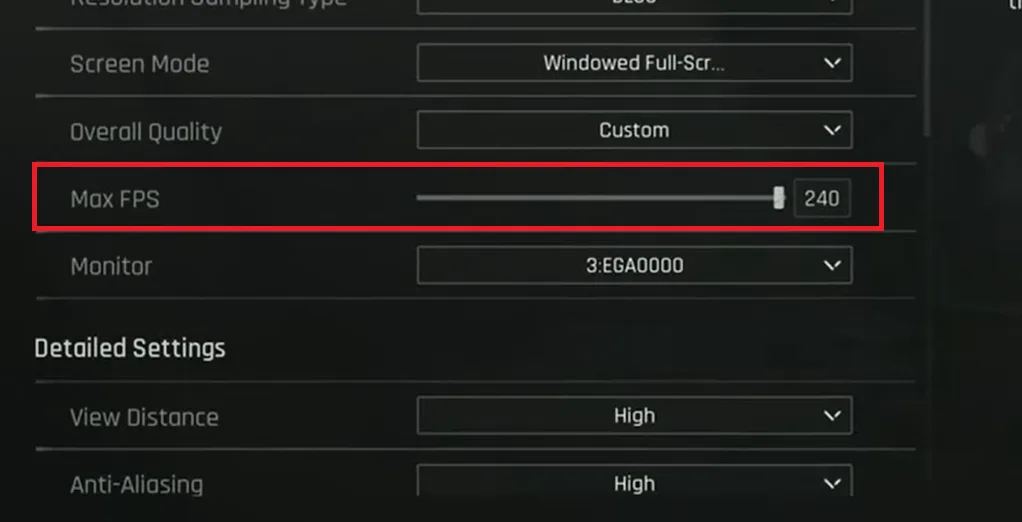
- After selecting a suitable framerate, launch the game, and it won’t crash during gameplay.
From the Nvidia Control Panel
- Open Nvidia Control Panel> Manage 3D Settings> Program Settings> Arena Breakout: Infinite.
- Scroll down and enable Max Frame Rate.
- Choose a suitable frame rate (preferably low), launch Arena Breakout Infinite, and the in-game crashes will be fixed.

And that’s how you fix Arena Breakout: Infinite’s in-game crashes. I hope that this guide has helped you.



i enjoy reading this great article, i have shared it many times on my website and started following you, Do you post more often ?? i am the owner of https://webdesignagenturbayreuth.de/ a webdesign agency in bayreuth Germany, webdesign agentur bayreuth, you can link up if you are interested. Thank you
i enjoy reading this great article, i have shared it many times on my website and started following you, Do you post more often ?? i am the owner of https://webdesignagenturbayreuth.de/ a webdesign agency in bayreuth Germany, webdesign agentur bayreuth, you can link up if you are interested. Thank you