NIOH 3is the latest entry in the Nioh franchise. Running on the Katana Engine, a proprietary tech from Team Ninja, the game scales well across various PC configurations and consoles. However, the PC version of the game is experiencing errors and crashes, such as the fatal error dxgi device removed crashes. Commonly, this is a GPU-related error, and various fixes can help you resolve it. Here, I have compiled multiple fixes that will help you resolve the NIOH 3 DXGI Device Removed Fatal Error crashes on your Windows PC.
NIOH 3 Fatal Error Crash Fixes That Work
According to PC players, NIOH is crashing randomly during gameplay or at startup and displays the following DXGI Fatal error:
Fatal Error
DXGI_ERROR_DEVICE_REMOVED: 0x887A0006
There are multiple reasons why you are experiencing these fatal error crashes on your PC, the most prominent reason being that it is related to your graphics card, it is either overclocked or is using a higher GPU and Memory clock than its reference model, or you are playing the game at an unlocked frame rate. The following fixes will resolve the nio 3 dxgi device removed errors on your PC
Fix #1 – Disable Hardware-accelerated GPU Scheduling
Hardware Accelerated GPU Scheduling is a Windows 10 and 11 feature that allows the graphics card to schedule its own tasks rather than relying on the CPU to do so. However, it is the reason the game is crashing on your PC and displaying the DXGI device removed fatal error, and to fix it you have to disable hardware-accelerated GPU scheduling on your PC.
Here is how you can disable Hardware-accelerated GPU Scheduling to fix the DXGI Fatal Error crash in NIOH 3:
- Open Windows Settings, click System, go to Display, and select Graphics.
- Under Default Settings, you will find the option “Change default graphics settings”; click it.
- Turn off the “Hardware-accelerated GPU Scheduling” option.
- Restart your PC, play NIOH 3, and the DXGI Device Removed error is now fixed.
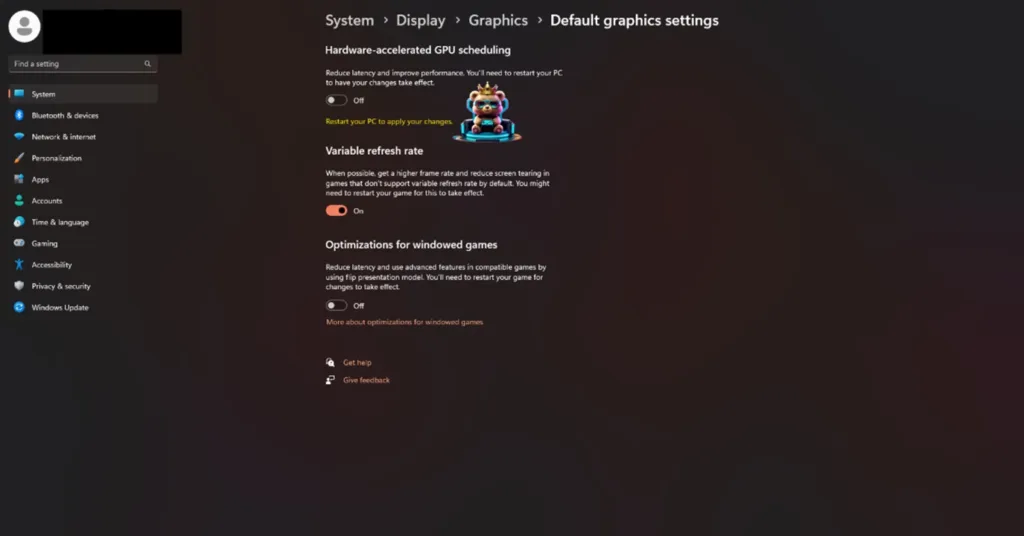
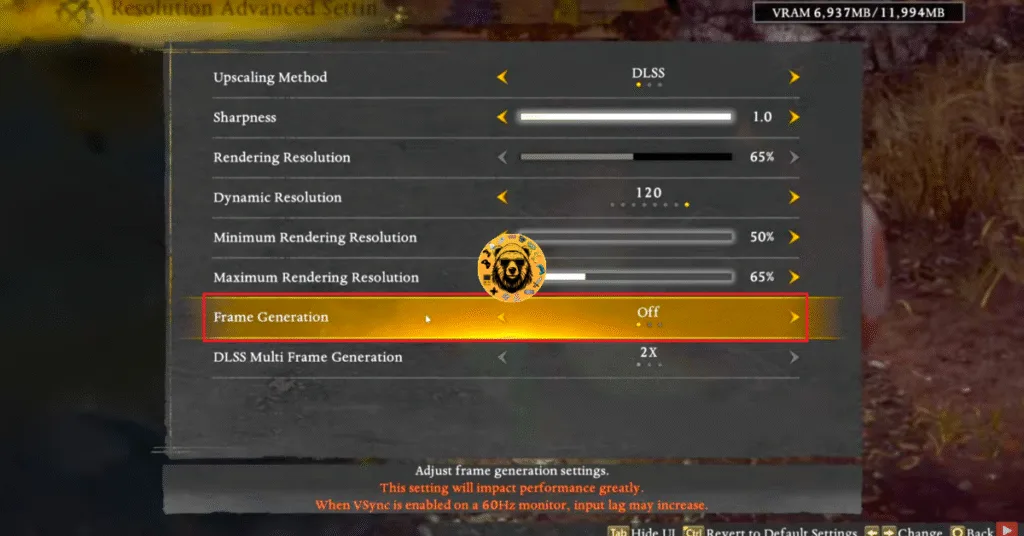
Hardware-accelerated GPU Scheduling is required to enable Frame Generation in PC video games. Disabling it might result in Frame Generation being disabled in NIOH 3. Alternatively, you can try to disable Frame Genration on NIOH 3 on PC to fix the DXGI Fatal Error. Here is how you can disable it:
- Open NIOH 3’s settings menu.
- Go to the “Visuals” setting.
- Select “Resolution Advanced Settings”.
- Disable the “Frame Generation” setting.
Fix #2 – Limit NIOH 3’s Max Framerate
Playing games at an unlocked FPS has its advantages, such as reduced latency, and the gameplay feels smooth. However, playing games at a high FPS puts the GPU and CPU under a lot of stress, which results in the games often crashing with DXGI Device Removed crashes and fatal errors.
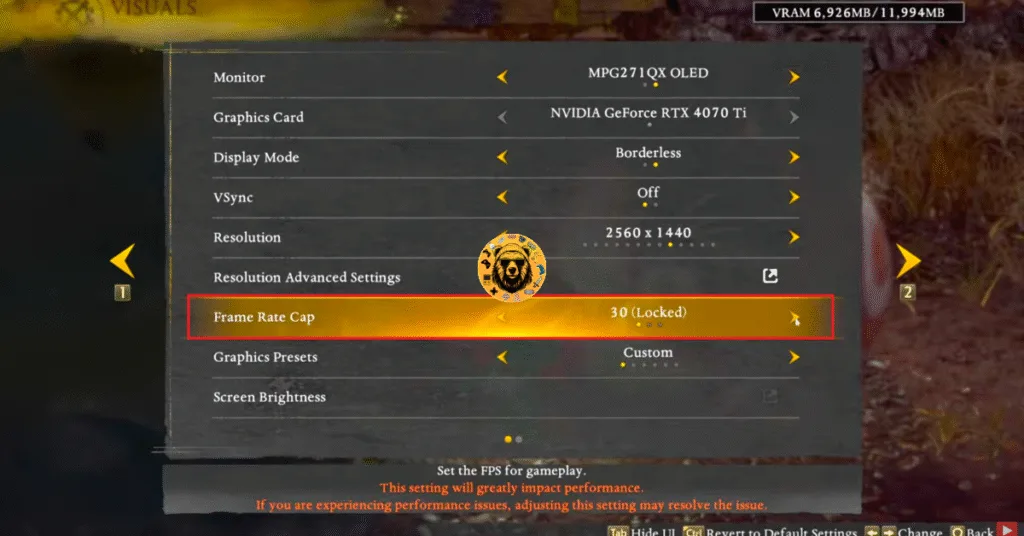
If you were playing NIOH 3 on a high refresh rate monitor or at an unlocked frame rate, then it is the reason you are experiencing the DXGI fatal error crashes on your PC. To fix these crashes, you’ll have to limit NIOH 3’s maximum frame rate so it reduces the GPU and CPU load. You can either use the in-game FPS Limiter or the Nvidia app to limit the game’s maximum framrate.
NIOH 3 In-Game FPS Cap
- Open the game’s settings menu.
- Go to the “Visuals” tab.
- Use the “Frame Rate Cap” setting to lower the game’s FPS.
- Play NIOH 3, and the Fatal Error crashes are now fixed.
Fix #3 – Ensure Your Graphics Card is Running Stock Clocks
PC gaming is quite vesatile, as you can overclock your hardware to gain more in-game performance, providd you do it correctly. However, it often results in an unstable gaming expereince, as games start to crash and isplay DXGI errors. If you have overclocked your graphics card, it is the reason NIOH 3 is crashing on your PC with the DXGI Device Removed error. You can fix this Fatal error by reverting the graphics card to its default clocks.
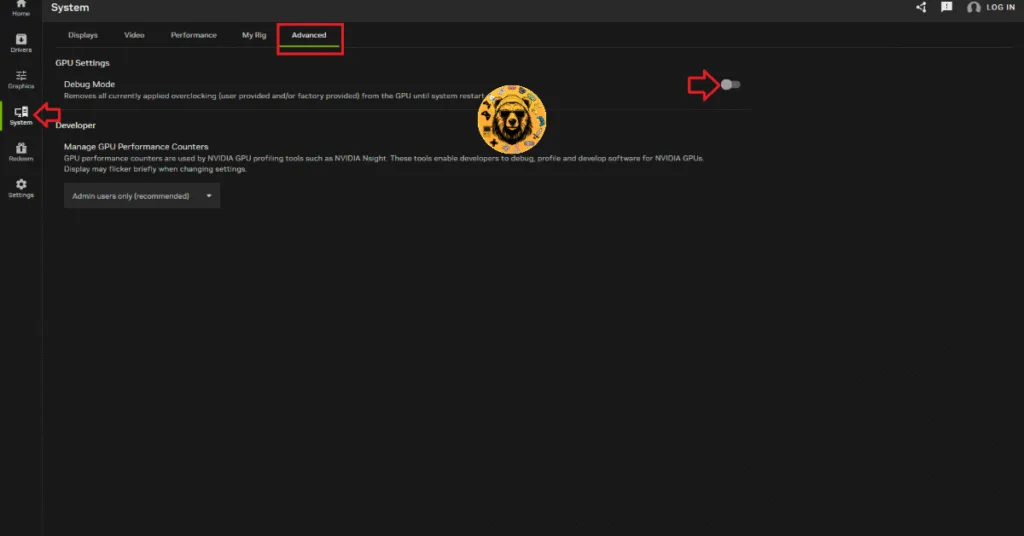
Even if you have not overclocked the graphics card yourself, it is still very likely that it is overclocked. Most graphics cards from NVIDIA and AMD AIB partners use higher voltages and clocks speeds. These higher clocks speeds are the reason NIOH 3 keeps crashing on your PC with the DXGI Device Removed errors. You can fix the DXGI Fatal Error by forcing your NVIDIA graphics card to use its stock clocks by enabling the Debug Mode.
- Open the NVIDIA App and go to the “System” tab.
- Then open the “Advanced” tab.
- Turn on the Debug Mode.
- Continue playing NIOH 3 and the DXGI Fatal Error is now fixed.
Fix #4 – Change Windows Timeout Detection and Recovery Settings
Timeout Detection and Recovery (TDR) is a Windows setting that monitors issues with GPU drivers and tries to recover the driver. However, in the case of NIOH 3, Windows TDR is shutting down the GPU driver when it detects it stalling, instead of reseting it, which is causing the DXGI Device Removed crashes on your PC.
You can fix the DXGI Fatal Error by changing Windows TDR settings, so it resets the GPU driver instead of shutting it down. Here is how you can do it:
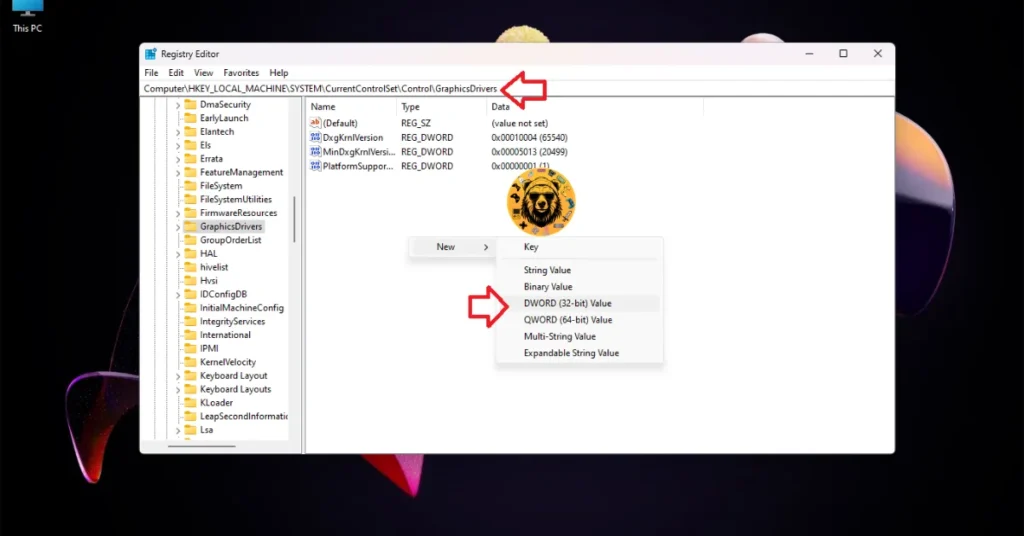
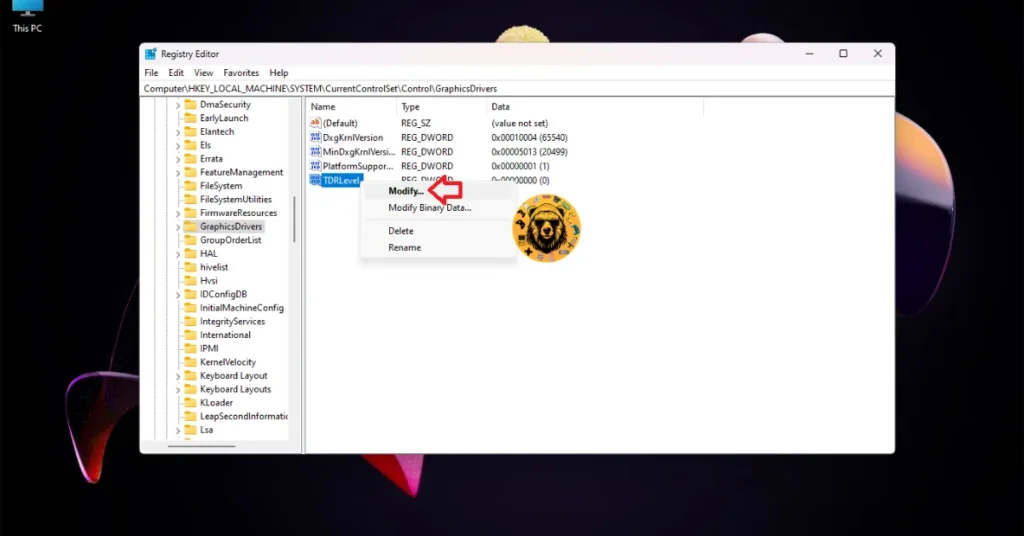
- Open “regedit” and run it as an administrator.
- Go to “HKEY_LOCAL_MACHINE -> SYSTEM -> CurrentControlSet -> Control -> GraphicsDrivers”.
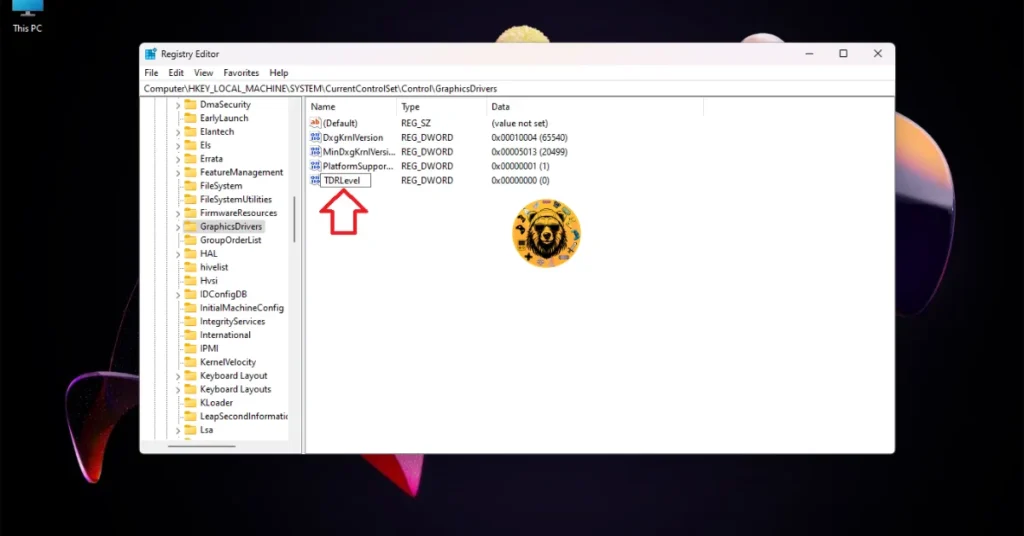
- Right-click in the right panel in the blank space, hover the mouse cursor over “New”, select the “DWORD (32-bit) Value” option, and name the file TdrLevel.
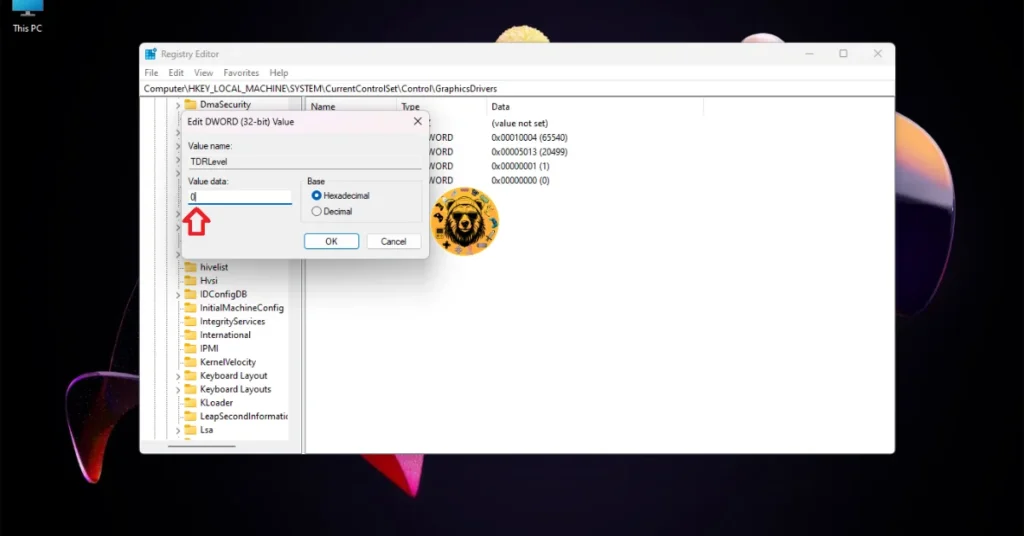
- Right-click the “TdrLevel” file and select Modify.
- Confirm that the value is 0 under “Value data”.
- Restart your PC.
These fixes will help you resolve the DXGI Device Removed Fatal Error crashes on your PC while playing NIOH 3. If you are facing errors and issues while playing other games on PC and handhelds, head to our hub of commonly occurring PC errors and their fixes.