Marvel Rivals, published by NetEase Games, is a free-to-play multiplayer game for PC and consoles. The game was an instant success at launch and scales well across various PC configurations, which is surprising since it runs on Unreal Engine 5. However, many players report that the game keeps crashing on their Windows PC with or without error messages. I have personally experienced such problems while playing Marvel Rivals, and it is quite frustrating, especially in games with a team-based mechanism. I have compiled a list of the reasons that are causing the Marvel Rivals gameplay crash error.
6 Ways to Fix Marvel Rivals Constantly Crashing on PC
Just like many other games, Marvel Rivals runs on Unreal Engine 5. The engine has quite a reputation for being the reason behind errors, like the “Out of Video Memory” error, shader compilation crashes, Fatal Errors, and more.
Marvel Rivals in-game crashes occur due to various reasons, such as an incompatible NVIDIA GPU driver, issues with Intel 13th and 14th gen CPUs, a small shader cache size, playing Marvel Rivals with an uncapped FPS, and others. The following fixes will help you prevent Marvel Rivals from crashing on Windows PC.
Fix #1 – Clean Install a Compatible NVIDIA GPU Driver
Many PC users in the community have mentioned that unstable GPU drivers are the reason behind Marvel Rivals keeps crashing on Windows 11 PC.
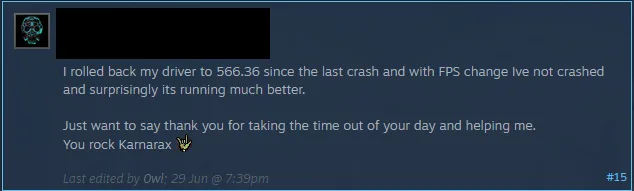
Roll back to the NVIDIA GPU driver version 561.09 to fix the in-game crashes. Make sure you do a clean installation so the files from the previous version don’t interfere with the new one. In case the GPU driver version 561.09 doesn’t work for you, download the GPU driver version 566.36. Community feedback and our internal testing have revealed that 566.36 is a stable driver, period.
I have also tested two other NVIDIA GPU drivers, 572.83 and 576.28 versions. Both of them fix the random Marvel Rivals gameplay crash.
Fix #2 – Update Intel 13th and 14th Generation CPUs BIOS or Underclock It
PC users using Intel 13th and 14th generation CPUs frequently report in-game crashes and other errors in games running in Unreal Engine 5. The problems with these CPUs have been acknowledged by Intel, and all the issues are well-documented.
Marvel Rivals keeps crashing on PC during shader compilation or gameplay due to technical problems with these CPUs. You can fix this error by updating your PC’s BIOS. If the error persists, you need to reduce the Performance Core Ratio. Here is how you can apply this fix:
- Download Intel Extreme Tuning Utility and install it.
- Open the application and tweak the performance core ratio to 50x.
- Play Marvel Rivals, and it will not crash while playing.
If Marvel Rivals is crashing during shader compilation. Reduce the Performance Core Ratio, launch the game, compile shaders, and then revert the CPU to its default Performance Core Ratio. The game won’t crash again.
Fix #3 – Rebuild Marvel Rivals Shaders Cache and Increase Its Size
If you are experiencing Marvel Rivals crashes during the shader compilation process, then the reason is a small shader cache size. The game runs on Unreal Engine 5, which relies heavily on shaders.
The default shader cache size set by the GPU isn’t big enough for the game, and this is the reason Marvel Rivals keeps crashing on PC. You can fix this error by allocating more space to the NVIDIA shader cache and recompiling shaders. Here is how you can apply this fix:
- Open NVIDIA Control Panel and go to Manage 3D Settings.
- Select the Global tab and click the “Shader cache size” option.
- Select Disabled and apply the changes.
- Restart your PC and open the NVIDIA Control Panel again.
- Go to the “Shader cache size” option and click the dropdown button next.
- Select 10 GB or a higher option from the list.
- Play Marvel Rivals now, and the game will not crash while playing.

Fix #4 – Put a Max FPS Limit on Marvel Rivals
PC users often opt to play games with an uncapped FPS, as it results in smoother gameplay and reduced input latency, which is crucial in a multiplayer game. However, it also puts your CPU and GPU under a lot of stress. This is the reason behind the Marvel Rivals in-game crash on your Windows PC.
You can stop the game from crashing by limiting its max FPS by enabling V-sync, using the in-game FPS limiter, or using the FPS limiter in the NVIDIA app or Control Panel.
Enabling Vertical Synchronization (If Disabled)
Many PC users opt to play Marvel Rivals with an uncapped FPS by turning off vertical synchronization. It lets them play the game with a low latency, but causes screen tearing. If you have turned off V-sync, turn it on, and the Marvel Rivals gameplay crash will be fixed. Here is how you can turn on VSync:
- Open the Marvel Rivals’ settings menu.
- In the “Display” tab, turn on “V-Sync” and apply changes.
- Play Marvel Rivals, and it will not crash while playing.

Use In-Game Limiter to Cap Max FPS
PC users using a Variable Refresh Rate (VRR) or a high refresh rate monitor can use the in-game FPS limiter to fix the gameplay crashes. Simply go to the Marvel Rivals’ settings menu, select the “Display” tab, enable the “Limit FPS” settings, and set max FPS using the “FPS Cap” slider. After that, play Marvel Rivals, and it won’t crash during gameplay.

The frame rate value for a G-Sync or FreeSync display should be 1/2, 1/3, or 1/4 of your display refresh rate; otherwise, the game will feel jittery. This will only apply if you have V-Sync enabled.
Fix #5 – Revert Graphics Card Overclock and Ensure Stock Clock Usage
Many PC users in the community have mentioned that Marvel Rivals is crashing because you are using an overclocked graphics card. Many third-party graphics cards from NVIDIA and AMD AIB partners are either overclocked by default or use higher GPU and Memory clocks. These higher clocks are the reason Marvel Rivals keeps crashing on a Windows 11 PC.

If you have manually overclocked your graphics card, revert it to its default GPU and Memory clocks to fix the crashes. If not, here is how you can fix in-game crashes on both NVIDIA and AMD graphics cards.
Enable Debug Mode for NVIDIA GPUs
Go to NVIDIA Control Panel and click “Help” in the top bar. Select “Debug” mode, and your NVIDIA graphics card will be forced to use NVIDIA-recommended GPU and Memory clocks. Play Marvel Rivals now, and it will not crash anymore.

Tweak Settings in AMD’s Adrenalin Software for AMD Graphics Cards
Unlike NVIDIA Control Panel, AMD’s Adrenalin Software doesn’t have a specific setting to force the graphics card to use the recommended GPU and Memory clocks. However, you can apply reference clocks manually to prevent Marvel Rivals from crashing in-game. Before applying this fix, look for the recommended GPU settings for your specific model online. Here is how you can do it:
- Open Adrenalin Software, go to the “Performance” tab, and select the “Tuning” tab.
- You will find an option “Custom” under “Manual Tuning”. Click it, enable “GPU Tuning,” and also enable “Advanced Control.”
- You will see three sliders now: Minimum Frequency, Maximum Frequency, and Voltage.
- You have to work with only the Maximum Frequency slider.
- Move it slightly to the left to reduce it as per the reference frequency you found online.
- Apply the changes and play Marvel Rivals now, and it will not crash while playing.
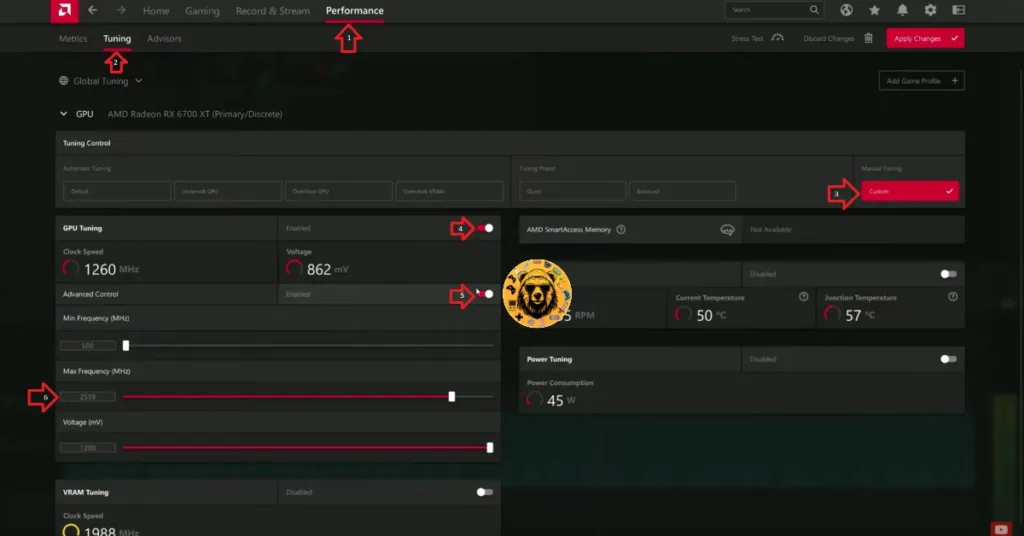
The difference in clock speeds between the reference model and the third-party AIB model is small, somewhere between 50 and 100 MHz. The performance loss should be negligible, and your gaming session won’t be interrupted due to random crashes.
Fix #6 – Turn Off All In-Game Overlays on Your PC
Marvel Rivals is constantly crashing while playing on your PC because of the in-game overlays. While these in-game overlays in apps and gaming software like Discord, Steam, GeForce Experience, and NVIDIA App are quite useful, they often force games to crash whether you are using them or not, as they are enabled by default.
These in-game overlays let PC players access various features without requiring them to minimize or close the game. Here is how you can turn them off and stop Marvel Rivals from crashing.
- Discord: Open User Settings and select the “Game Overlay” tab. Disable the “Enable In-game Overlay” option.
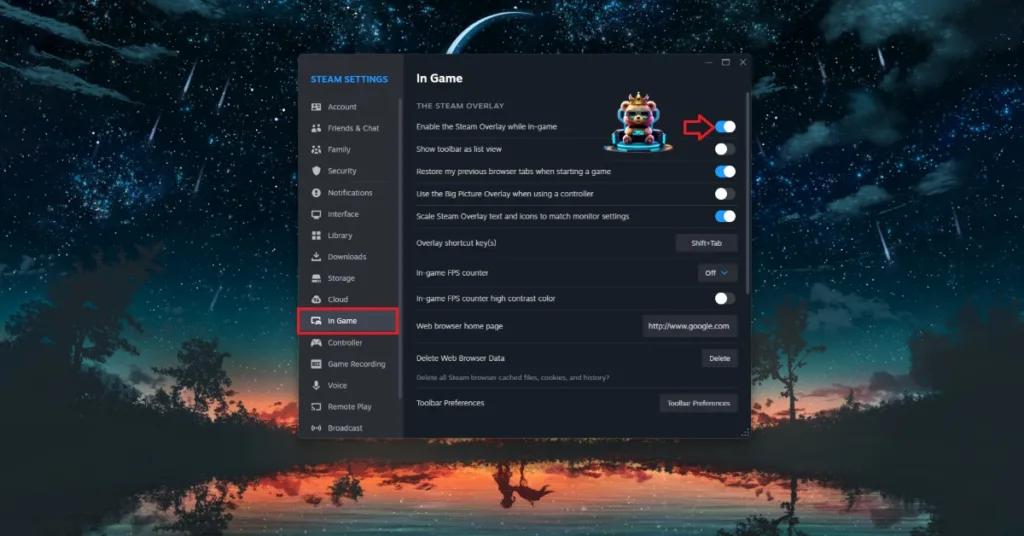
- Steam: Open Steam settings, click the “In-game tab”, and toggle off the “Enable the Steam overlay while in-game” option.
- GeForce Experience: In GeForce Experience, click the gear icon next to your username. Click General and disable the “IN-GAME OVERLAY” option.
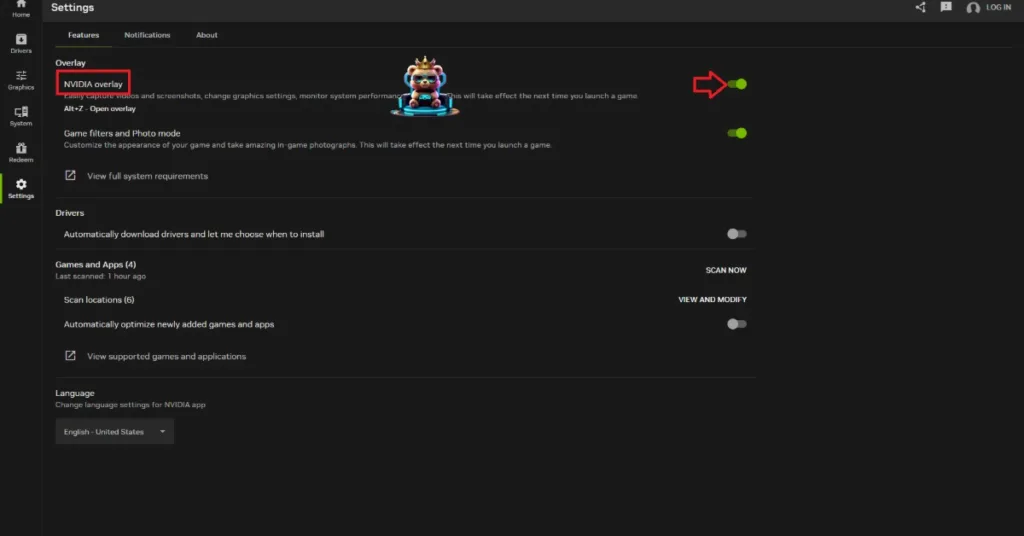
- NVIDIA App: Open the NVIDIA App, click Settings, select the “Features” tab, and turn off the “NVIDIA Overlay” option.
There you have it, my fellow PC gamers. I have listed the 6 working fixes for Marvel Rivals’ in-game crashes on PC. If you are looking for fixes for other common errors for PC games, head over to our hub for commonly occurring PC errors and their fixes.