Mewgenics took PC gamers by surprise, as it saw an incredible reception at launch. The game can run on practically any PC, as it is not hardware-demanding. Despite that, PC users are experiencing crashes at startup or the Mewgenics not launching on PC issue. It took me a while, but I have found fixes that will resolve the Mewgenics not launching issue on your Windows PC.
Verified Fixes for Mewgenics Stuck on Loading
PC users report that Mewgenics keeps crashing at startup or gets stuck at loading when they run the game. There are multiple reasons why the game isn’t working, such as Mewgenics not having administrative rights. The following fixes will resolve the Mewgenics not launching issue on your PC.
Fix #1 – Wait for Loading To Complete (Verified Fix)
The game can take a lot of time during the initial loading. If Mewgenics is stuck at loading, then wait a while, as PC users confirm that the game can take a long time to load. Eventually, the game will load and you can play it.
Fix #2 – Move Mewgenics to C Drive (Verified Fix)
PC users confirm that moving Mewgenics to the C drive, if you have installed it in another drive, fixes the stuck at loading issue, and the game launches. So move Mewgenics to the C drive, and the game not launching issue will be fixed.
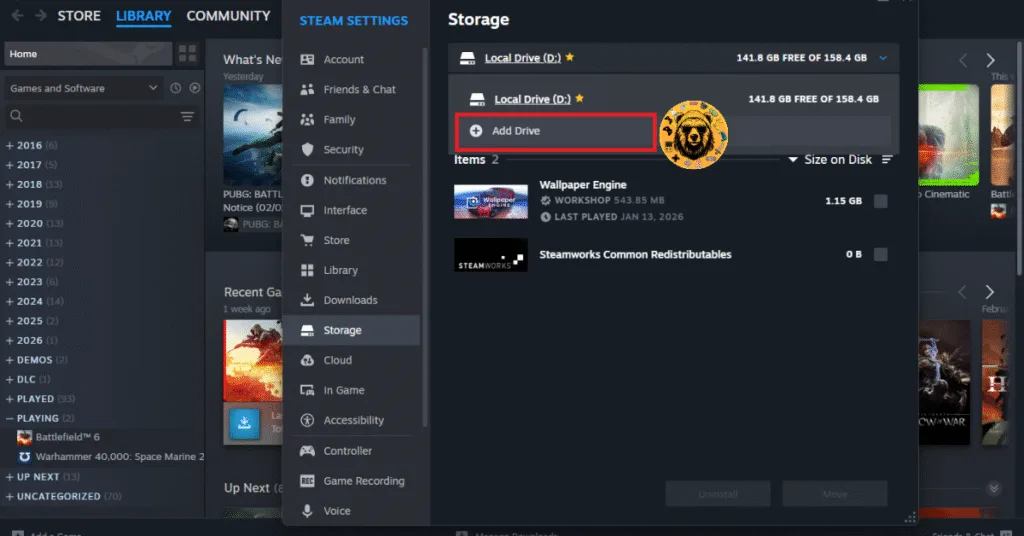
You can move Mewgenics to the C drive through Steam and fix the game not launching issue. Here is how you can move the game:
- Open Steam settings and go to the “Storage” tab.
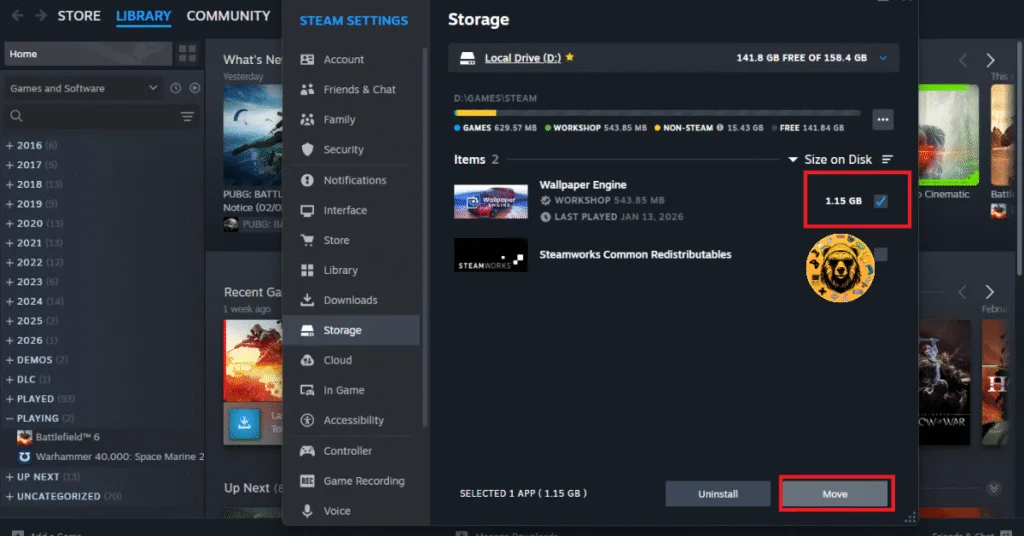
- Here, you’ll see the list of games installed on your PC.
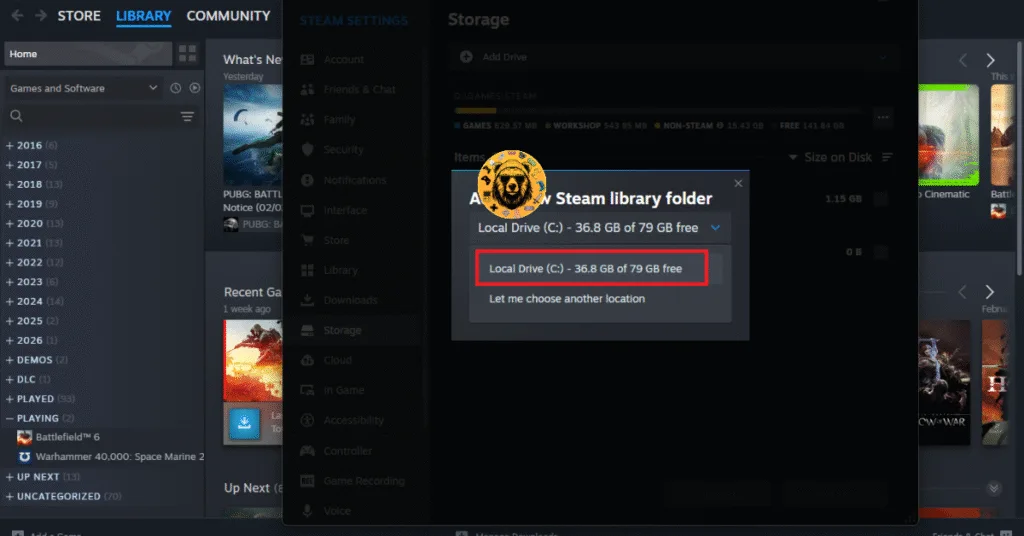
- Before you move the game, you’ll have to add the C drive as a library.
- Click the “Add Drive” option (check image below), and select the C drive.
- After that, check Mewgenics and click the “Move” button.
- Once Mewgenics is moved to the C drive, launch it, and the stuck at loading issue is now fixed.
Fix #3 – Run Mewgenics as an Administrator and Disable Fullscreen Optimizations (Confirmed Fix)
The lack of administrative rights and Fullscreen Optimizations being enabled are the reasons Mewgenics is crashing at startup on your PC. You can fix the Mewgenics not launching issue on your PC by running the game as an administrator and disabling Fullscreen Optimizations. PC players confirm that doing this fixes the Mewgenics not launching issue on their PC. Here is how you can run Mewgenics as an administrator and disable the Fullscreen Optimizations:
- Right-click Mewgenics in your Steam library > Manage > click the “Browse local files” option.
- A new Explorer window will open containing Mewgenics’ game files.
- Find the executable, right-click it, and select “properties”.
- Go to the “Compatibility” tab.
- Check the “Run this program as an administrator” and “Disable Fullscreen Optimizations” options.
- Apply the changes and launch Mewgenics.
- The game will run without getting stuck at the loading screen or crashing.
Fix #4 – Add Mewgenics To Windows Defender Exclusion List
For many PC users, Windows Defender is blocking the executable from running, which is crashing Mewgenics at launch. Windows Defender is the default anti-virus for Windows 10 and 11. To fix the Mewgenics not launching issue on your PC, add the game to Windows Defender’s exclusion list. Here is how you can apply this fix:
- Open Windows Settings, go to the “Privacy & security” tab, and then click “Windows Security.”
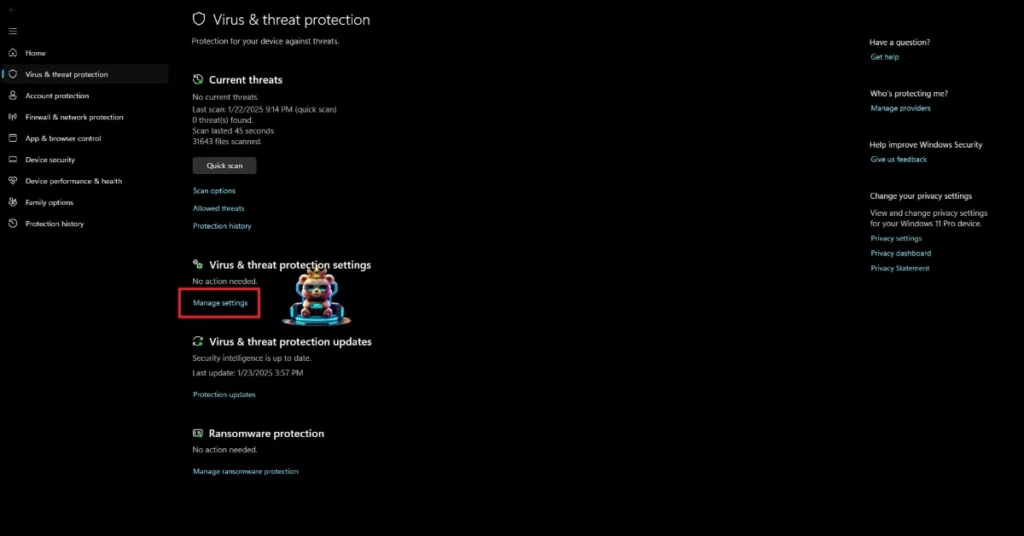
- Click “Virus & threat protection” under “Protection areas”, and a new window will open.
- In this window, click “Manage settings” under “Virus & threat protection settings”.
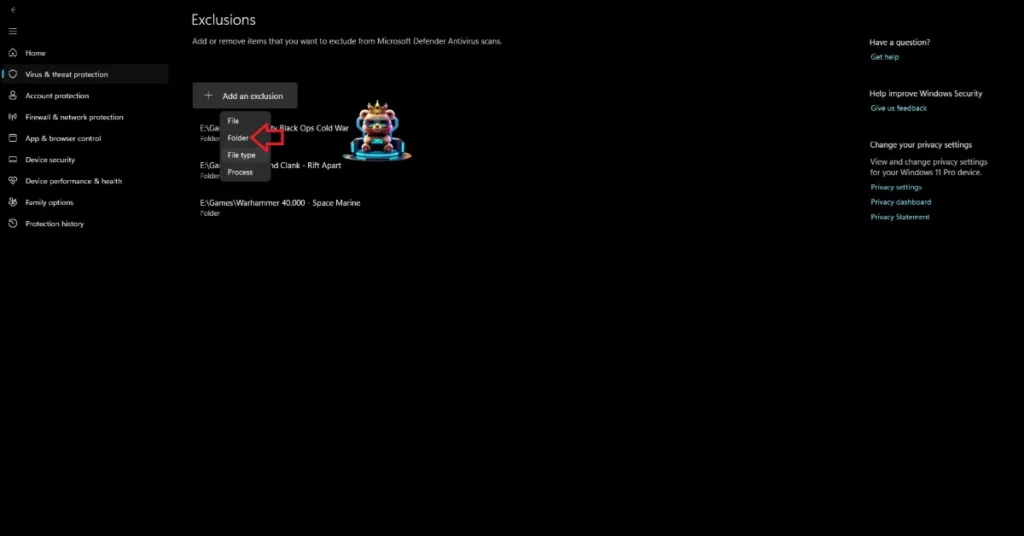
- Scroll down to the bottom and click “Add or remove exclusions” under the “Exclusions” option.
- Click the “Add an Exclusion” button and select the “Folder” option.
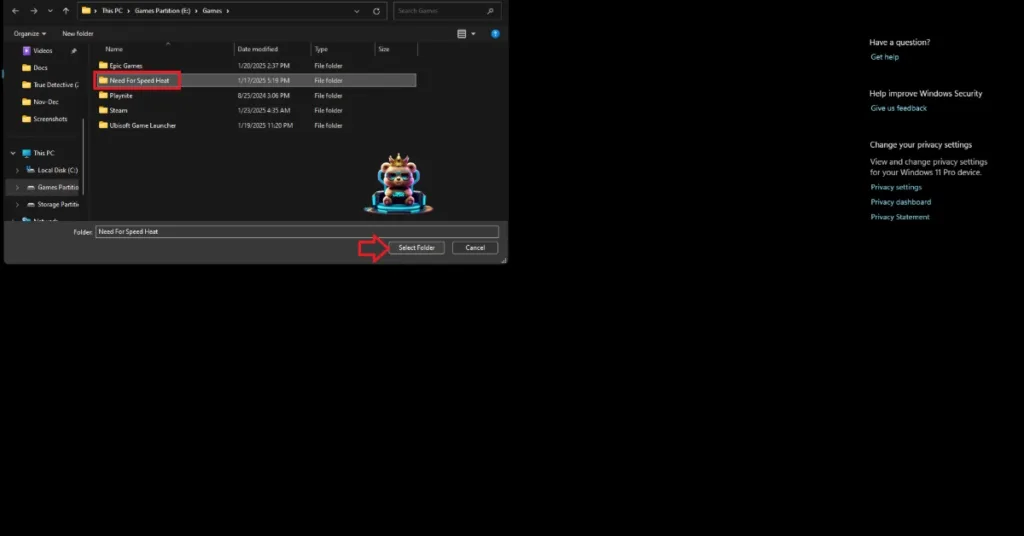
- Browse to the game folder and add it.
You can find the folder path by right-clicking Mewgenics in your Steam library > Manage > Browse Local Files. A new Explorer window will open, copy the path from the address bar, and use it to add Mewgenics to the exclusion list.


Fix #5 – Reinstall Mewgenics (Verified Fix)
If all of the above fixes have failed to resolve the Mewgenics not launching issue on your PC, then reinstall it. PC players report that reinstalling the game fixes the game’s not loading issue.
Fix #6 – Install or Repair Visual C++ Components and System Files
The reason Mewgenics is not launching on your PC or is stuck at initial loading is that the System Files and Visual C++ components are either corrupt or missing on your PC. You can fix the issue by installing Visual C++ components and repairing System Files.
Run SFC and DISM Scans
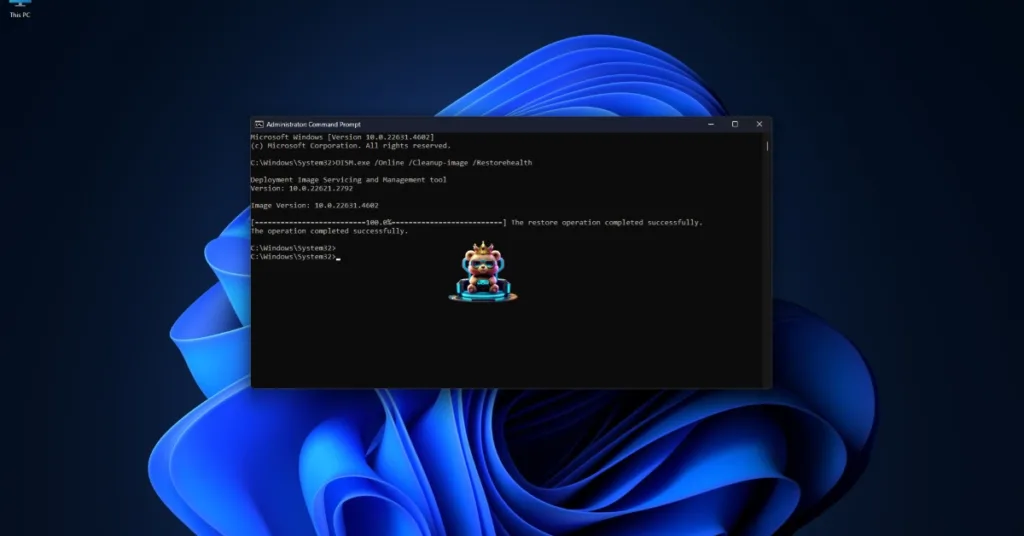
SFC and DISM are built-in Windows tools that detect and repair any missing or corrupt system files. Here is how you can run these tools to fix the Mewgenics not launching issue on your PC.
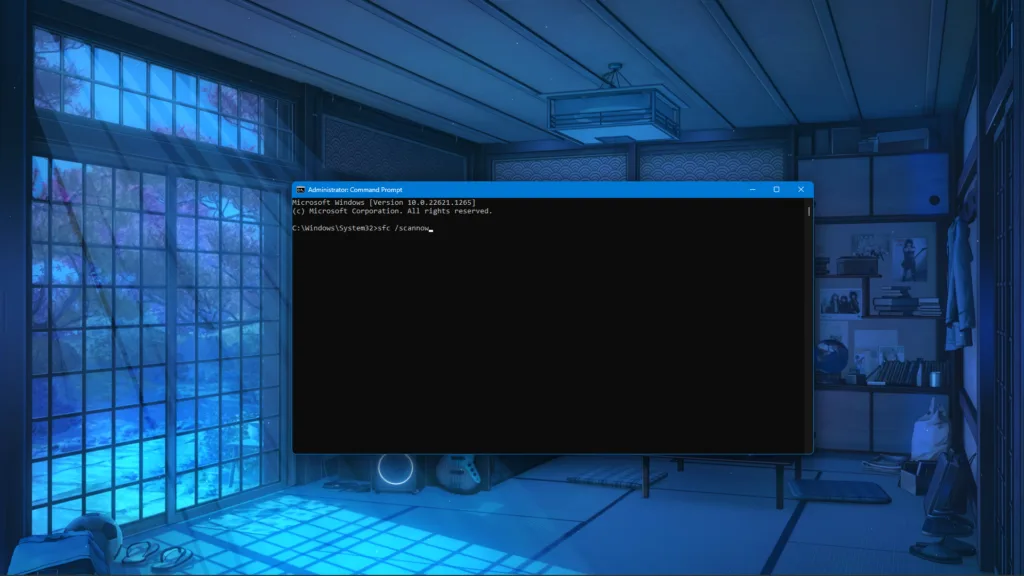
- Press the Windows key on your keyboard, type “cmd”, and run Command Prompt as an administrator.
- Type sfc /scannow and hit Enter.
- Windows will run a scan. Let it complete fully.
- After the first scan is complete, type DISM.exe /Online /Cleanup-image /Restorehealth and press Enter again.
- Let Windows complete this scan as well.
Install or Repair Visual C++ Components
- Go to the Steam Library and type “Steamworks” in the search bar.
- Right-click “Steamworks Common Redistributables” > Manage > click “Browse local files”.
- Open _CommonRedist\vcredist in the explorer window that opens on your screen.
- You will get a list of folders with names in years starting from 2010.
- Open each folder one by one and run the VC_redis for both x64 and x86 versions.
- Repair or install Visual C++ Redistributables.


These fixes will resolve the Mewgenics stuck at loading and not launching issues on your Windows PC. If you are facing errors and issues while playing other games on PC and handhelds, head to our hub of commonly occurring PC errors and their fixes.