Publisher Devolver Digital has made a name for itself for publishing creative indie games, and Quarantine Zone: The Last Check is its latest one. The developers opted for Unreal Engine 5 (UE5) to realize their vision for the game. While UE5 is a scalable engine, it is also known for crashes and other errors in PC games. So, it comes as no surprise that Quarantine Zone: The Last Check is crashing for a lot of PC users. I have compiled a list of fixes that will resolve the crash issue in Quarantine Zone: The Last Check on your Windows PC.
Confirmed Fixes for Quarantine Zone: The Last Check Keeps Crashing on PC
According to PC players, the game is crashing randomly during gameplay or crashing at startup without any error message. For some PC users, Quarantine Zone: The Last Check is crashing with a Fatal Error, or a message pops up telling them to downgrade their GPU driver.
There are multiple reasons why the game is crashing during gameplay or failing to launch, like compatibility issues with DirectX 12, a corrupt shader cache, the game not using the dedicated graphics card, and more. The following fixes will resolve the Quarantine Zone: The Last Check crash issue on your Windows PC.
Fix #1 – Run Quarantine Zone: The Last Check With DirectX 11 (Confirmed Fix)
The game requires DirectX 12 to run on PC, and doesn’t officially support DirectX 11. However, if you are experiencing Quarantine Zone: The Last Check crashing at startup, followed by a message to downgrade your GPU driver, it is because of the DX12.
PC users confirm that they fixed the startup crash by forcing Quarantine Zone: The Last Check to use DirectX 11. Here is how you can run the game with DX11 for the Steam and Game Pass versions:
- Right-click Quarantine Zone: The Last Check in your Steam library and select “properties”.
- In the “General” tab, type -dx11 under LAUNCH OPTIONS.
- Launch the Quarantine Zone and it will play without crashing.

If you are playing the Xbox Game Pass version of the game on your PC, then follow these steps to fix the crashes:
- Right-click Quarantine Zone: The Last Check in the Xbox App and select the “Manage” option.
- Go to the “Files” tab, and click the “Browse” button.
- A new Explorer window will open containing game files.
- Right-click the QZSim.exe file and create a desktop shortcut for it.
- After that, right-click the desktop shortcut and click “properties”.
- Add -dx11 at the end of the Target path.
- Play Quarantine Zone: The Last Check and the startup crashes are fixed.
Fix #2 – Ensure Quarantine Zone: The Last Check is Running on Dedicated Graphics Hardware
If you are playing the game on a gaming laptop, then the iGPU (integrated graphics card) is the reason for Quarantine Zone: The Last Check crashing at startup.
Gaming laptops utilize both the iGPU and the discrete NVIDIA or AMD graphics card to save power. The OS switches between the two depending on rendering load. In the case of Quarantine Zone: The Last Check, the OS isn’t switching to the dedicated GPU, which is crashing the game at launch.
You can fix the startup crashes in Quarantine Zone: The Last Check by forcing the game to run on the dedicated NVIDIA or AMD graphics hardware. Here is how you can apply the fix:
- Go to Windows 10/11 settings, go to System, click Display, and go to Graphics.
- Select “Quarantine Zone: The Last Check” from the apps and programs list. Click on Options.
- Select the “High Performance” option and save the changes.
- Launch Warframe, and it will launch without crashing at startup.


Fix #3 – Update BIOS or Reduce Performance Core Ratio (Intel 13th and 14th Gen CPUs)
If you are using an Intel 13th or 14th Gen Raptor Lake CPU, then it is the reason Quarantine Zone: The Last Check keeps crashing on your PC. These CPUs have well-documented overvoltage issues, which specifically cause errors and crashes in games that use Unreal Engine 5.
Even oodle confirmed that Intel 13th and 14th Gen CPUs are the reason for various crashes and errors in Unreal Engine games, like the Out of Video Memory error.
To fix the crashes in Quarantine Zone: The Last Check, you need to update your motherboard’s BIOS, as the latest ones contain the microcode that resolves the overvoltage issue.
Reduce Performance Core Ratio
If updating the BIOS doesn’t fix the random crashes in the Quarantine Zone: The Last Check, then the damage to the CPU is permanent. In that case, you’ll need to reduce the Performance Core ratio of your Intel 13th or 14th Gen CPU to fix the crashes.
- Download and install Intel Extreme Tuning Utility.
- Open the application and set the Performance Core ratio to 53x (If 53x doesn’t fix the crash, reduce it to 50x).
- Continue playing Quarantine Zone, and the crashes are fixed.
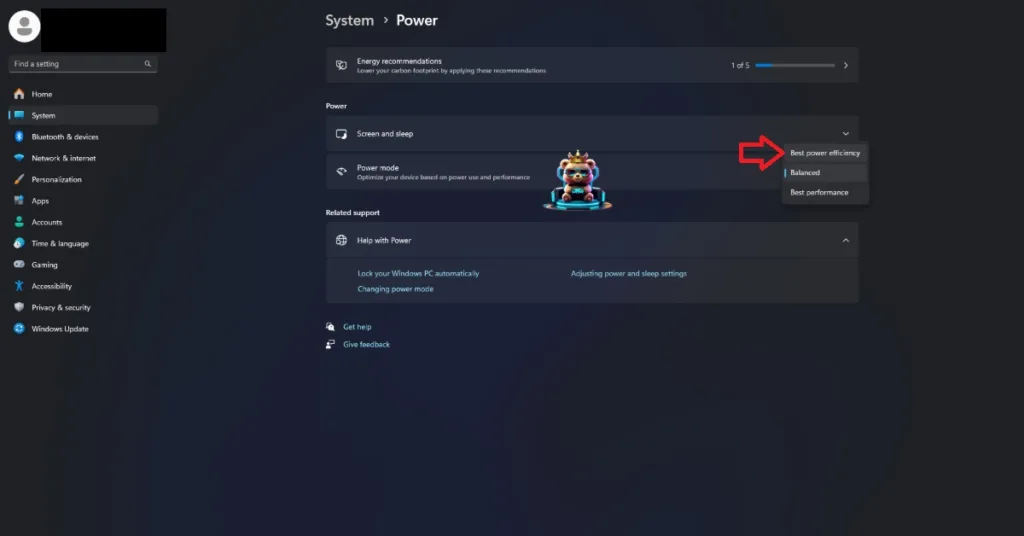
If you don’t want to tweak the Performance Core Ratio to fix the crashes, then you can use the Power Efficiency mode on Windows to fix it.
- Open Windows settings, select System, and go to Power.
- Select “Best Power Efficiency” for Power Mode.
Fix #4 – Run Quarantine Zone: The Last Check as an Administrator
Lack of administrative rights is the reason Quarantine Zone: The Last Check is crashing at startup on your PC. To fix these startup crashes, run the game as an administrator. Here is how you can run Quarantine Zone: The Last Check as an administrator:
- Right-click Quarantine Zone: The Last Check in your Steam library > Manage > click the “Browse local files” option.
- A new Explorer window will appear, containing game files.
- Right-click the executable and select “properties”.
- Go to the “Compatibility” tab and check the “Run this program as an administrator” option.
- Launch Quarantine Zone: The Last Check and the startup crashes will be fixed.


Fix #5 – Play Quarantine Zone: The Last Check With an FPS Limit
If you are playing Quarantine Zone: The Last Check on a high refresh rate display or in general playing at an unlocked FPS, it is the reason for the random freezes and crashes on your PC.
Playing games at high FPS not only makes the gameplay feel smooth, but it also reduces input latency, which is especially helpful in multiplayer games. However, it also puts the GPU and CPU under a lot of stress, which results in games crashing during gameplay.
To fix the Quarantine Zone: The Last Check crashes on your PC, limit the game’s max framerate. Lowering the FPS reduces the GPU and CPU load, which results in stable gameplay performance. You can limit the game’s FPS either through the in-game FPS limiter or through the NVDIIA App.
In-Game FPS Limiter
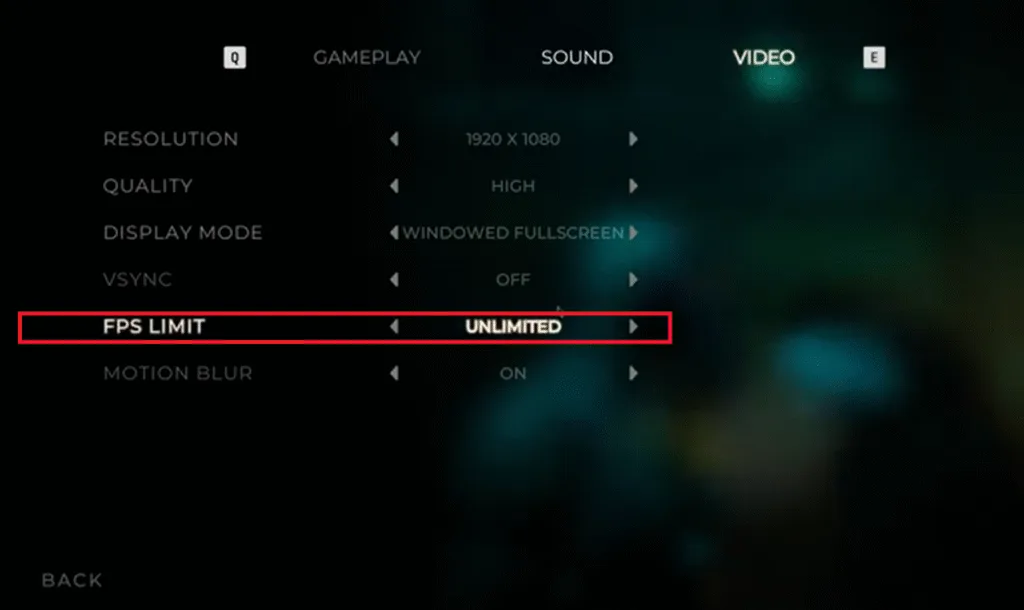
- Launch Quarantine Zone: The Last Check and open the Settings.
- Navigate to the Video tab.
- In the FPS Limit option, choose a lower value.
- Continue playing Quarantine Zone, and the in-game crashes are now fixed.
NVIDIA App FPS Limiter
For a more granular control over the FPS, you can use the NVIDIA App’s FPS limiter. This is recommended for those who have to Varaible Refresh Rate (VRR) display.
- Open the Nvidia App and select the “Graphics” tab.
- Select “Quarantine Zone: The Last Check” from the list of games.
- Scroll down the options and click on “Max Frame Rate”.
- Turn it on and set a lower FPS value for it.
- Apply the change, continue playing Quarantine Zone: The Last Check, and it won’t crash again.
Unless you are playing Quarantine Zone: The Last Check on a Gsync or Freesync display, the frame rate value should be 1/2, 1/3, or 1/4th of your display refresh rate, otherwise, the game will feel jittery. This only applies if you have V-Sync enabled on a fixed refresh rate monitor.
Fix #6 – Increase Shader Cache Size
The majority of modern game engines use shaders for their visuals and performance, and Unreal Engine 5 (UE5) is no exception. However, UE5 is what comes to mind when shaders are discussed, and not for a good reason. The engine is notorious for shader compilation and traversal stutters on PC.
However, the shader cache is the reason for the Quarantine Zone: The Last Check in-game crash issue. To fix the crashes, you need to recompile the game’s shaders and increase the cache size. Here is how you can increase the shader cache size and recompile Quarantine Zone: The Last Check’s shaders to fix the gameplay crashes on your PC:
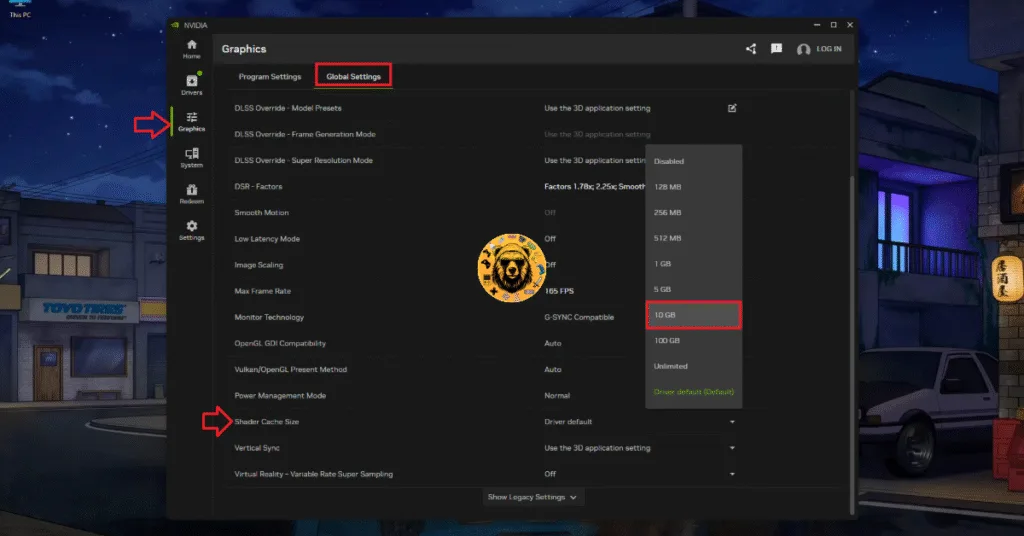
- Open the NVIDIA App and go to the “Graphics” tab.
- Click the “Global Settings” tab.
- Scroll down to the “Shader Cache Size” setting.
- Select the “Disable” option, and restart your PC.
- Go back to the “Shader Cache Size” setting and select 10 GB or a higher value.
- Play Quarantine Zone: The Last Check and it will recompile its shaders.
- Continue playing the game, and the crashes are fixed.
Fix #7 – Repair System Files and Visual C++ Components
Missing or corrupt System Files and Visual C++ components are causing the startup crashes in Quarantine Zone: The Last Check. Microsoft frequently rolls out updates for its Windows OS, which can damage or delete system files and components. To fix the crash at startup issue in Quarantine Zone: The Last Check, repair System Files and Visual C++ Components.
Run DISM and SFC Scans
Windows has built-in tools that can detect missing or corrupt system components and download or replace them. Run DISM and SFC scans to repair System Files, and the startup crashes will be fixed. Here is how you can run the scans:
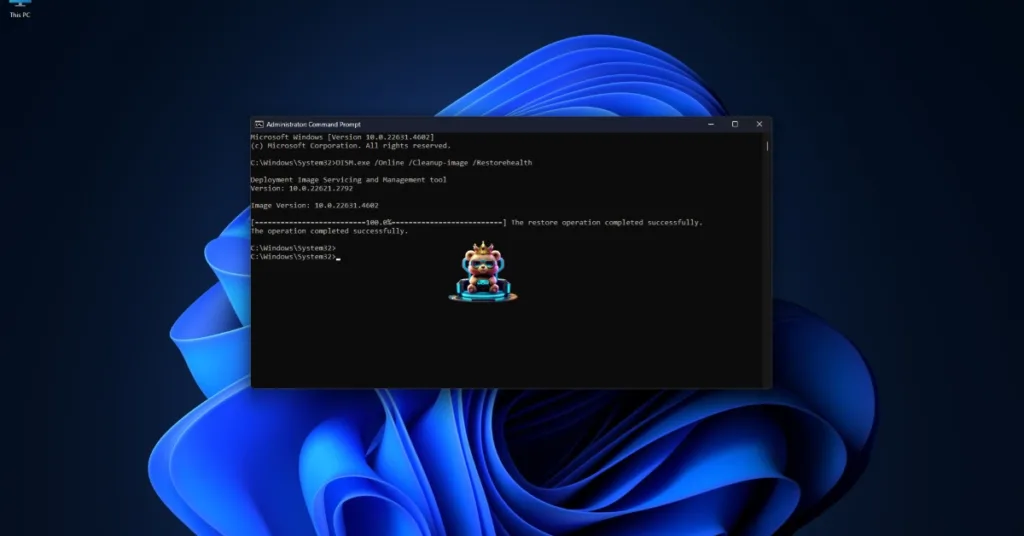
- Press the Windows key on your keyboard, type “cmd”, and run Command Prompt as an administrator.
- Type sfc /scannow and hit Enter.
- Windows will run a scan. Let it complete fully.
- After the first scan is complete, type DISM.exe /Online /Cleanup-image /Restorehealth and press Enter again.
- Let Windows complete this scan as well.
Install or Repair Visual C++ Components
Visual C++ is a necessary install to run games on Windows. This is why Steam downloads Steamworks packages, a collection of prerequisite software for games, when installing them. Install or repair the missing or damaged Visual C++ components to fix the Quarantine Zone: The Last Check startup crashes on your PC.
- Go to the Steam Library and type “Steamworks” in the search bar.
- Right-click “Steamworks Common Redistributables” > Manage > click “Browse local files”.
- Open _CommonRedist\vcredist in the explorer window that opens on your screen.
- You will get a list of folders with names in years starting from 2010.
- Open each folder one by one and run the VC_redis for both x64 and x86 versions.
- Repair or install Visual C++ Redistributables.


That is all for our Quarantine Zone: The Last Check fixes for the in-game and startup crashes on your Windows PC. If you are facing errors and issues while playing other games on PC and handhelds, head to our hub of commonly occurring PC errors and their fixes.