

Quarantine Zone: The Last Check is a checkpoint simulation game, and it’s already off to a great start. Players seem to be loving it, just not the issues. Reports claim that the game is crashing to the desktop with a Fatal Error. As it’s a newly released game, it’s pretty normal for it to have problems. If you are also struggling with fatal error crashes while trying to play Quarantine Zone: The Last, these fixes will help.
Quarantine Zone: The Last Check Fatal Error Crash Fix
It looks like the errors are different for players. Some get it at startup; some get it in-game. This is probably something related to your GPU, though the cause is unknown. Worry not, as in this guide, I have compiled some fixes that should fix the Fatal error while playing Quarantine Zone: The Last Check on your PC.
Fix #1 – Roll Back AMD GPU Driver (Confirmed Fix)
After getting several complaints from AMD users, the developers suggested that they downgrade their drivers. This has seemed to work for a lot of players on Steam. If you are experiencing the Fatal Error crash on your PC while playing Quarantine Zone: The Last, downgrade your AMD GPU drivers, and you will be good to go.
Fix #2 – Run Quarantine Zone: The Last Check In Windows Compatibility Mode
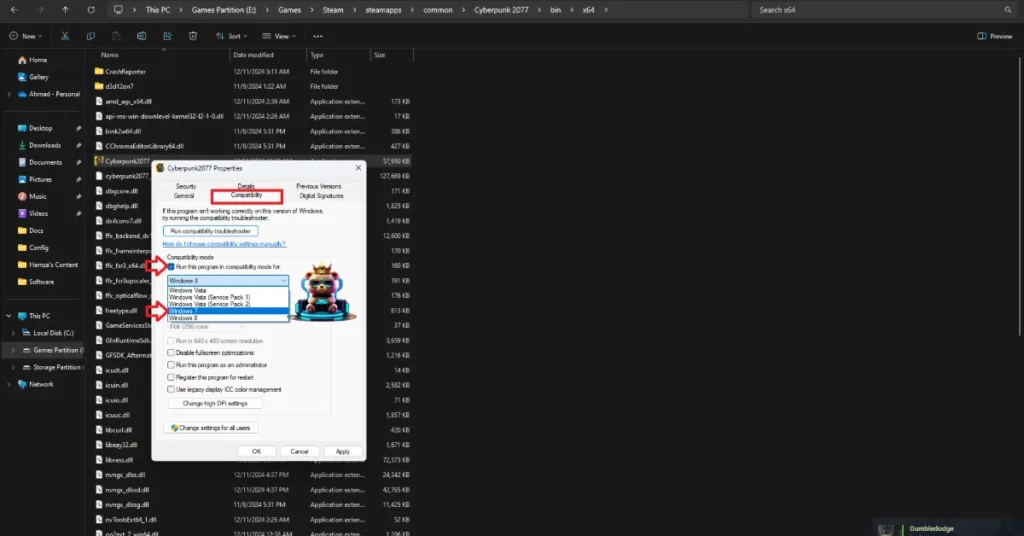
If the issue persists, then I suggest you try running Quarantine Zone: The Last Check in Compatibility Mode. The process is not complicated at all. Let’s take a look at how to do that:
- Right-click on Quarantine Zone: The Last Check in your Steam library > Manage > click “Browse local files” option.
- An Explorer window will open containing Quarantine Zone gae files.
- Right-click on Quarantine Zone: The Last Check’s executable file.
- Select Properties and navigate to the Compatibility tab.
- Check the box for “Run this program in compatibility mode for.”
- Select Windows 7 or 8 from the drop-down menu.
- Launch Quarantine Zone: The Last Check, and you won’t experience the Fatal error crash, neither on startup, nor in-game.

Fix #3 – Rebuild Quarantine Zone: The Last Check Shader Cache and Increase Cache Size
Shader compilation can sometimes get pretty bad for Unreal Engine games. Clearing the shader cache and increasing its size has helped several players to fix the Fatal error and will definitely fix the issue for you. Follow my lead:
- In the Nvidia Control Panel, click on Manage 3D Settings from the left menu.
- Go to Global settings, and find the “Shader cache size” setting.
- Select Disable and apply the changes.
- Restart your PC and return to the Shader cache size settings.
- Select 10GB or a higher option.
- Apply the changes, launch Quarantine Zone: The Last Check, and it will take some time to recompile the shaders.
- After that, the fatal error crash will be fixed on your PC.

Fix #4 – Limit Quarantine Zone: The Last Check’s Max FPS
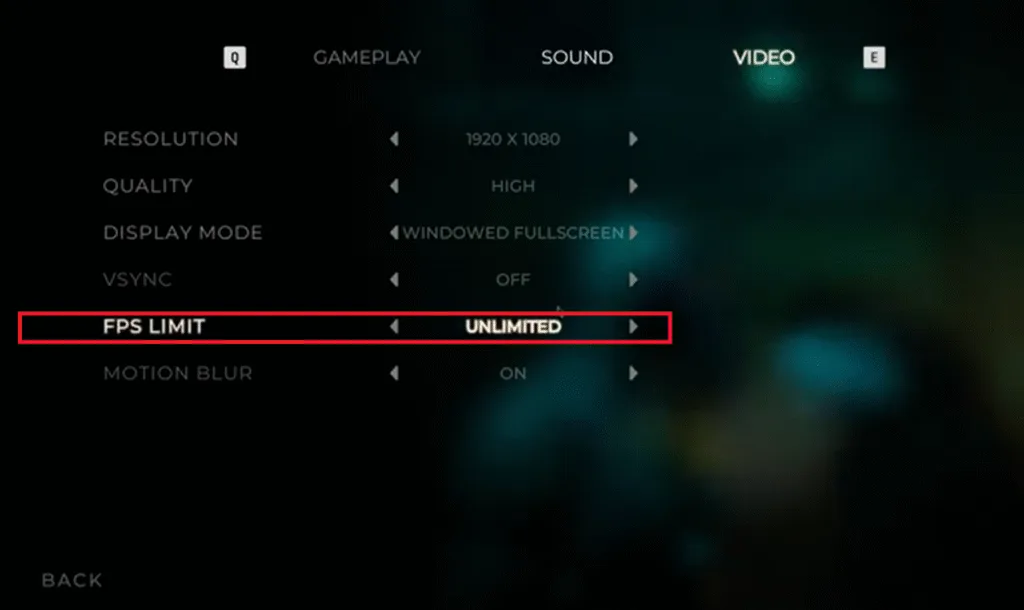
Playing the Quarantine Zone: The Last with an unlocked FPS has stressed out your PC’s components, resulting in the game constantly crashing on your PC with the Fatal error. You will have to limit the game’s max FPS. I’ll take you through the process:
Through Nvidia’s Control Panel:
- Open the Nvidia Control Panel and navigate to “Manage 3D Settings.”
- Click on “Program Settings” and choose Quarantine Zone: The Last Check.
- Scroll down and enable the Max Frame Rate option.
- Select a lower FPS than your current one.
- Launch Quarantine Zone: The Last Check and the Fatal error crash will be gone.

Through the In-Game Settings:
- Launch Quarantine Zone: The Last Check and open the Settings.
- Navigate to the Video tab.
- In the FPS Limit option, choose a lower value.
- Apply the changes, continue playing Quarantine Zone: The Last Check, and the Fatal Error crash is fixed.
Fix #5 – Ensure Your Graphics Card Isn’t Overclocked
Overclocking a component indeed boosts its performance, but at the cost of more load. If your GPU is overclocked, that is putting a lot of stress on it, causing Quarantine Zone: The Last Check to keep crashing on your PC with a Fatal error. To fix this, revert your GPU to its default settings. However, chances are that your GPU is already factory-overclocked by Nvidia’s AIB partners like Zotac, GigaByte, ASUS, etc.
The game runs on the Unreal Engine 5, which is sensitive to changes in Memory and GPU clocks. To fix the Fatal crash, you will have to make sure that your GPU is running on Nvidia’s recommended clock speeds, for which you will have to enable Debug Mode. Here’s how to do that:
- Open the Nvidia Control Panel and click the “Help” button in the top menu.
- Choose the Debug Mode option.
- Launch Quarantine Zone: The Last Check and the Fatal error will be fixed.

Fix#6 – Change Windows Timeout Detection and Recovery Settings
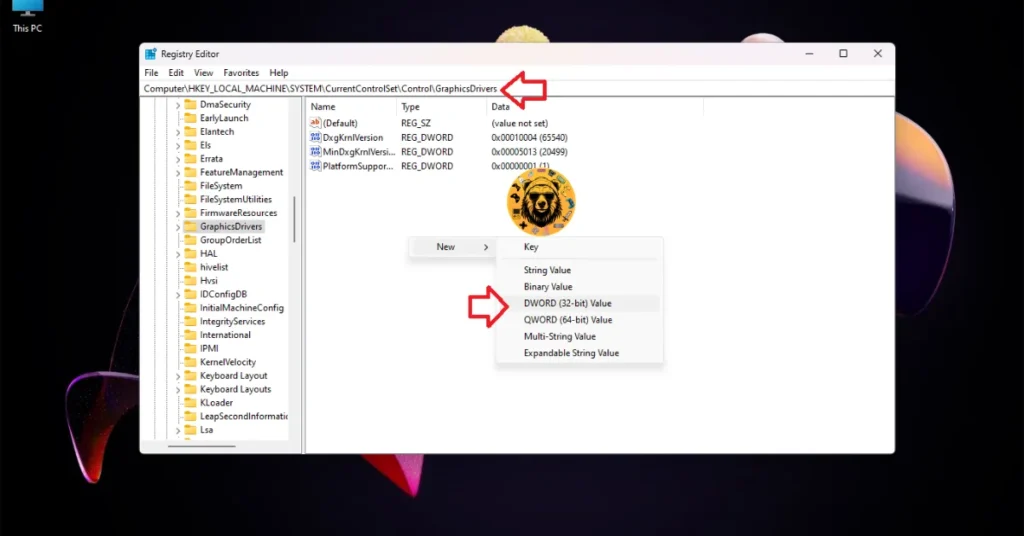
Windows TDR (Timeout Detection and Recovery) is a pretty useful feature that detects when your GPU is unresponsive. If it is, then the feature resets the graphics driver to prevent the entire system from becoming unresponsive. However, sometimes it bugs out and shuts the GPU driver down, and that’s probably the reason why Quarantine Zone: The Last keeps crashing on your PC with the Fatal error. You will have to change the Windows TDR settings to ensure it resets the GPU driver instead of shutting it down. Here’s how to do that:
- Open “regedit” on your PC, and ensure it’s running as an administrator.
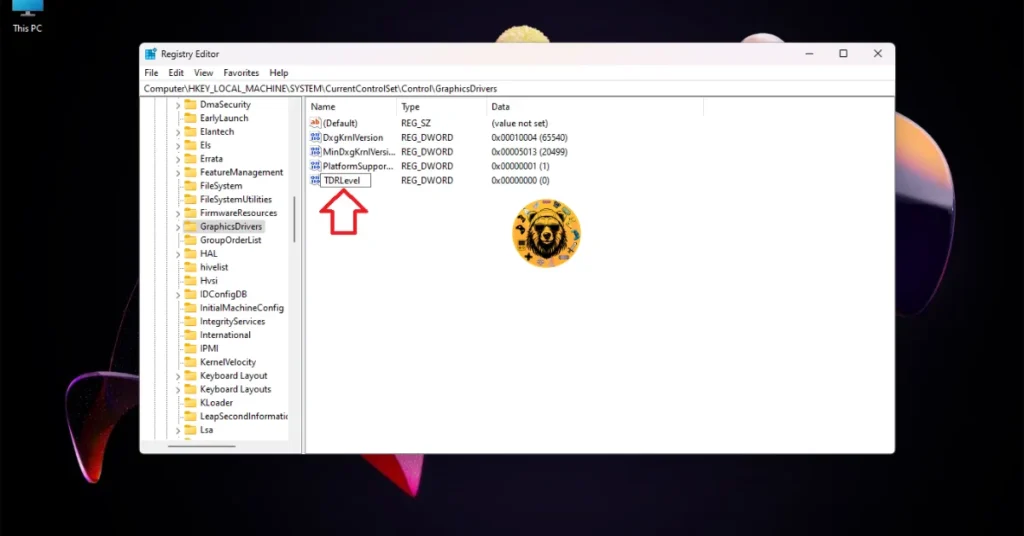
- Make your way to HKEY_LOCAL_MACHINE> SYSTEM> CurrentControlSet> Control> GraphicsDrivers.
- In the blank space, right-click in the right panel and hover your mouse cursor over “New.”
- Select the “DWORD (32-bit) Value” option, and name the file “TdrLevel.”
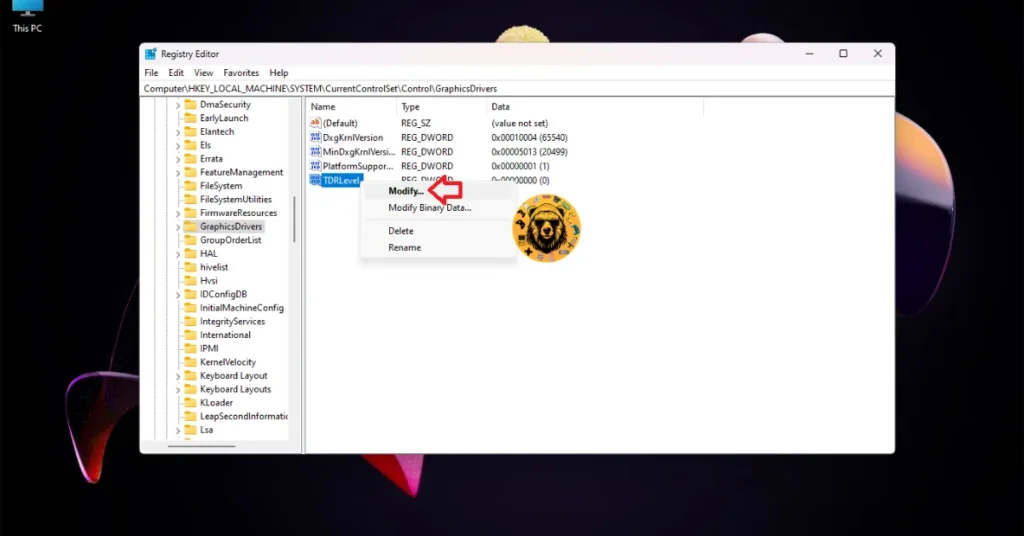
- Right-click that file and select Modify.
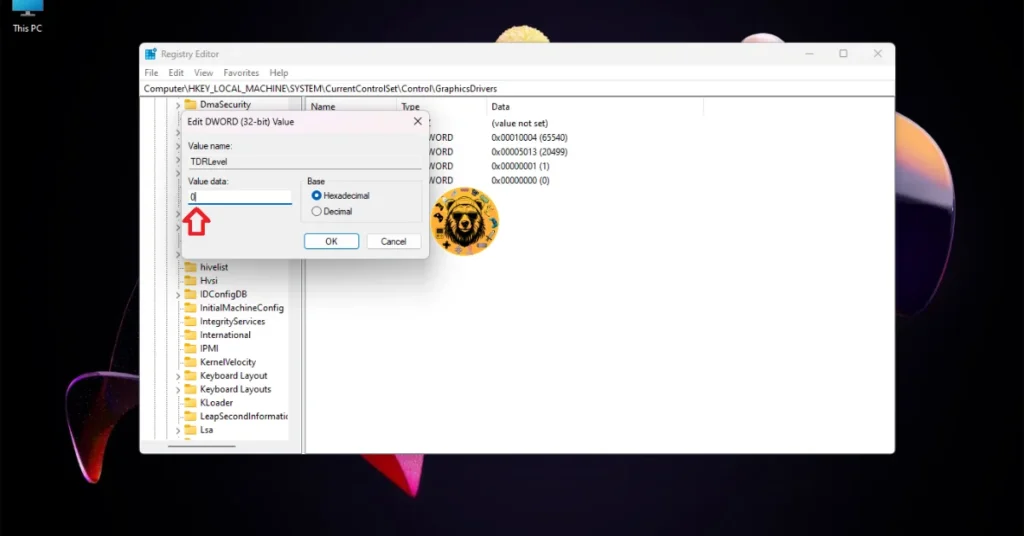
- Make sure that the value is under “Value data” and restart your PC.
- Play Quarantine Zone: The Last Check, and it won’t crash with the Fatal error.
Fix #7: Run the Game on DX 11 (Confirmed Fix)
Running Quarantine Zone: The Last Check on DX 11 has worked for some players on Steam, and hopefully fixes the Fatal error on your PC. The process is pretty easy, follow my lead:
- Open your Steam Library, then right-click Quarantine Zone: The Last Check.
- Select Properties and type -dx11 in the Launch Options.
- If that doesn’t fix the issue for you, then try putting -dx12.
- After that, Quarantine Zone: The Last Check Fatal error crash will be fixed.
And that’s all for this Quarantine Zone: The Last Check guide on how to fix the Fatal error crash on PC. I hope that these fixes worked for you. If there’s room for any improvement, then feel free to let me know in the comments section. If you are facing errors and issues while playing other games on PC and handhelds, head to our hub of commonly occurring PC errors and their fixes.




I am curious to find out what blog system you happen to be using?
I’m experiencing some minor security problems with
my latest website and I would like to find something more safeguarded.
Do you have any recommendations?
Hi, Neat post. There’s a problem with your website in internet explorer, would test this… IE still is the market leader and a large portion of people will miss your excellent writing because of this problem.
Thanks for another informative web site. Where else may just I am getting that type of information written in such an ideal method? I have a mission that I’m simply now running on, and I have been on the glance out for such information.
Awsome article and right to the point. I don’t know if this is in fact the best place to ask but do you folks have any thoughts on where to employ some professional writers? Thanks in advance 🙂
Hey there, I think your site might be having browser compatibility issues.
When I look at your blog site in Opera, it looks fine
but when opening in Internet Explorer, it has some overlapping.
I just wanted to give you a quick heads up! Other then that, awesome blog!
Hello there! Do you use Twitter? I’d like to follow you
if that would be okay. I’m definitely enjoying your blog and look forward to new updates.