REANIMAL has launched with a lukewarm reception, especially on PC, as many players are experiencing Unreal Engine LowLevelFatalError crashes. However, for some players, REANIMAL is crashing to the desktop randomly while playing, or at specific spots in the game, and no error message pops up. I have compiled fixes that will resolve the REANIMAL crash issue on your Windows PC.
REANIMAL Crashing on PC Fixed
As per feedback from PC players, the game is crashing to the desktop with no error message. For some players, REANIMAL keeps crashing during the orphanage sequence when the PIG appears. The following fixes will resolve the gameplay crash issue on your PC.
Fix #1 – Force DirectX 11 (Confirmed Fix)
For those of you experiencing REANIMAL crashing at specific points, such as in the orphanage when the Pig appears, then forcing the game to run with DirectX 11 with fix the crashes. PC users confirm that forcing REANIMAL to run with DX11 fixes the issue. Here is how you can force the game to run with DirectX 11:
- Right-click REANIMAL in your Steam library and select the “properties” option.
- In the “General” tab, paste -dx11 under “LAUNCH OPTIONS”, and close the Window.
- Play REANIMAL, and you’ll be able to complete the sequence without crashing the game.
- Once you complete the gameplay section that is causing the crashes, you can remove the -dx11 command.

You might experience worse performance with DirectX 11. You’ll have to force through the gameplay sequence to avoid crashes. After that, you can remove the -dx11 command to fix the performance.
Fix #2 – Reduce GPU Load
If you are playing REANIMAL at Ultra graphics settings, then it is the reason the game is crashing on your PC, as the GPU is unable to handle the game’s graphical load. To fix the crashes, lower the graphics settings.
If you don’t want to compromise the game’s visuals, then you can lower the game’s maximum framerate to fix the crashes. Lowering the FPS will reduce the GPU and CPU load, which in turn fixes the gameplay crashes. You can use the game’s in-game FPS limiter to cap the FPS and fix the crashes.

Fix #3 – Use CUDA – Sysmem Fallback Policy (NVIDIA)
Your graphics card’s VRAM is possibly the reason REANIMAL keeps crashing on your PC. Since REANIMAL uses Unreal Engine 5, which is known for its Out of Video Memory error, the game is causing your GPU’s video memory to overflow.
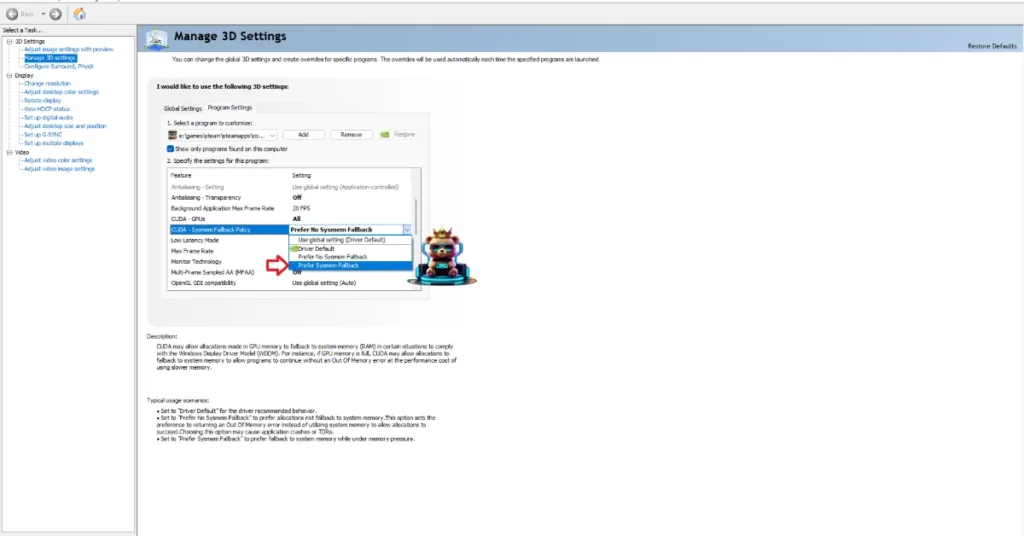
This VRAM overflow is the reason for the gameplay crashes, and you can fix them by enabling the “CUDA – Sysmem Fallback Policy” setting in the NVIDIA Control Panel. Here is how you can enable the CUDA–Sysmem Fallback Policy to fix REANIMAL crashes on your PC:
- Open the NVIDIA Control Panel and click the “Manage 3D Settings” option from the left menu.
- Go to the “Program settings” tab.
- Select “REANIMAL” from the drop-down menu.
- Scroll down to the “CUDA – Sysmem Fallback Policy” setting, select the “Prefer Sysmem Fallback” option, and apply the changes.
- Continue playing REANIMAL and the crashes are now fixed.
Fix #4 – Rebuild REANIMAL’s Shaders and Increase Shader Cache Size
Being an Unreal Engine game, REANIMAL relies heavily on shaders. However, the game compiles its shaders in a cache during gameplay, which is the reason for shader compilation stutters and crashes. The cache size for the game’s shader isn’t enough, which is crashing REANIMAL on your PC.
You can fix the gameplay crashes in REANIMAL by clearing the shader cache and increasing its size. Here is how you can apply the fix:
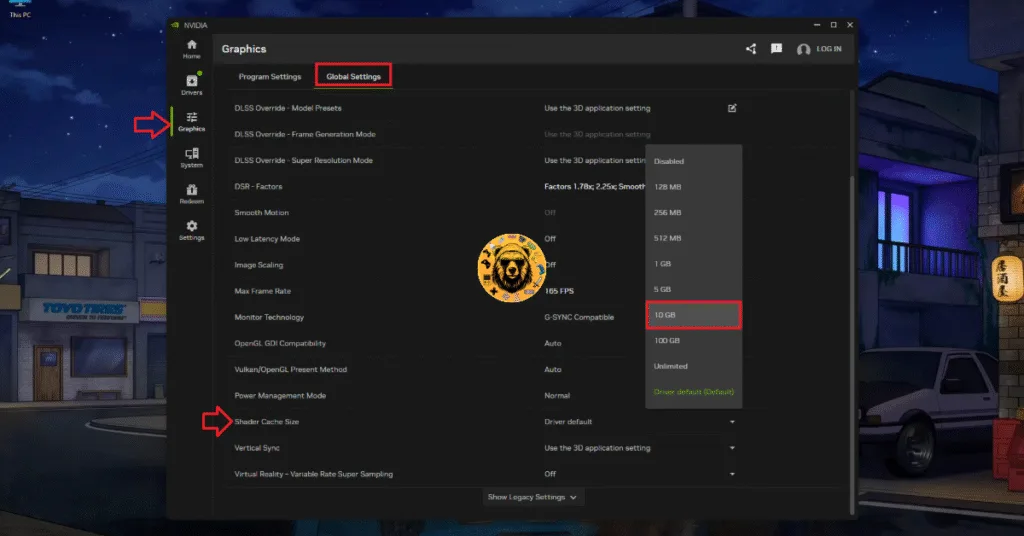
- Open the NVIDIA App and go to the “Graphics” tab.
- Go to the “Global Settings” tab.
- Scroll down and find the “Shader Cache Size” setting, and select the “Disable” option for it.
- Restart your PC.
- Go back to the “Shader Cache Size” setting and select 10GB or a higher value.
- Continue playing REANIMAL and it won’t crash again on your PC.
That is all for our REANIMAL fixes for the random and specific gameplay crashes on your PC. If you are facing errors and issues while playing other games on PC and handhelds, head to our hub of commonly occurring PC errors and their fixes.