Resident Evil Requiem is the 9th main line installament in the long-running franchise. Running on Capcpm’s proprietary RE Engine, the game looks incredible, especially as it features path tracing on PC. However, Capcom’s previous games running on RE Engine, like Monster Hunter Wilds and Dragon’s Dogma 2, PC users are experiencing Fatal D3D errors in Resident Evil 9 (RE9) and the White Texture issue. Here, I have compiled verified fixes that will resolve the Fatal D3D Error crashes in Resident Evil Requiem on your Windows PC.
Verified Fixes for Resident Evil 9 Requiem Fatal Error Crashes on PC
PC players report that Resident Evil 9 keeps crashing and displays one of the following Fatal D3D Error messages:
Fatal D3D Error (24, DXGI_Error_DEVICE_REMOVED, 0x887a0005)
OR
Fatal D3D Error (4, E_ACCESSDENIED, 0x80070005)
OR
Fatal D3D error (6, E_OUTOFMEMORY, 0x8007000e)
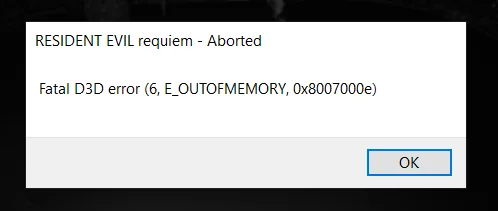
As stated, Resident Evil Requiem isn’t the first Capcom game to experience these crashes on PC, as Dragon’s Dogma 2 and Monster Hunter Wilds crashed on PCs with the same Fatal D3D error message. There are multiple reasons why you are experiencing these Fatal Error crashes, like using an overclocked graphics card, compatibility issues with the GPU driver, and more. The following fixes will resolve the Fatal D3D Error crashes in Resident Evil Requiem on your PC.
Fix #1 – Ensure Stock GPU Clocks (Community Verified)
Overclocking your hardware to get more performance in games is one of the many advantages that PC has over consoles. However, overclocking can make gaming an unstable experience, as games start to crash randomly during gameplay.
If you have overclocked your graphics card, it is crashing Resident Evil Requiem with the Fatal D3D Device Removed error. You can fix this error by reverting the graphics card to its default clock and voltage settings. PC users confirm that lowering the graphics card’s memory clock fixed the Fatal D3D Device Removed error in Resident Evil 9.
However, I understand that most of you have not overclocked your graphics cards, but that doesn’t mean they aren’t overclocked or using higher clocks and voltages. Most graphics cards from NVIDIA or AMD AIB partners, like MSI, AUSUS, and Zotac, use higher GPU and Memory clocks and even voltages.
These higher clocks are the reason the game is crashing on your PC with the Fatal D3D Error. You can fix Fatal D3D DXGI Device Removed crashes in Resident Evil Requiem by forcing your graphics card to use its stock clocks and voltages.
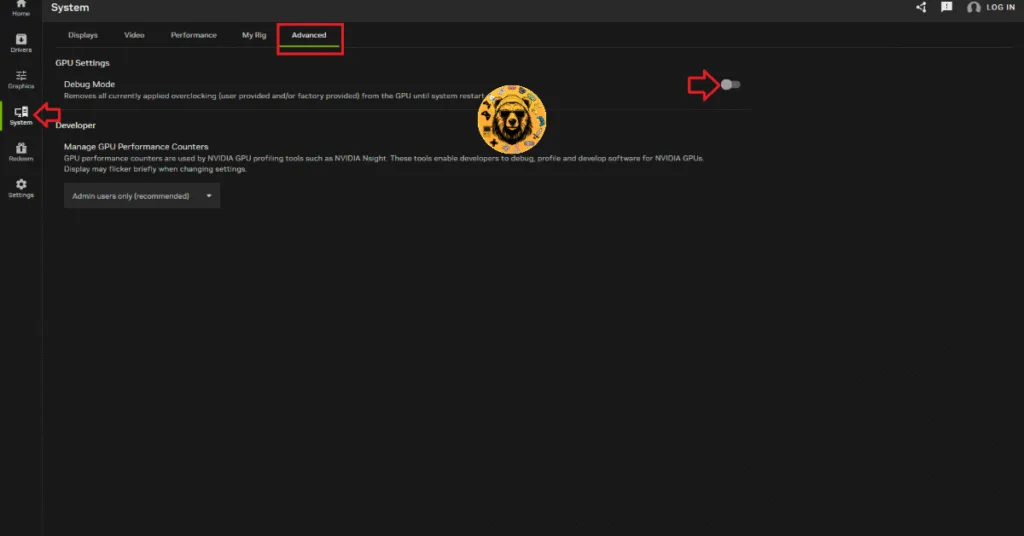
For NVIDIA graphics cards, you can enable the Debug Mode using the NVIDIA App or Control Panel to force the graphics card to use its recommended GPU and Memory clocks. Here is how you can enable the Debug Mode:
- Open the NVIDIA App and go to the “System” tab.
- Go to the “Advanced” tab.
- Turn on the “Debud Mode” option.
- Continue playing Resident Evil 9, and the Fatal D3D DXGI Device Removed error is fixed.
For AMD graphics cards, you’ll have to manually undersock them to their recommended GPU clock.
- Look up the reference GPU clock of your graphics card model online.
- Open AMD’s Adrenalin Software.
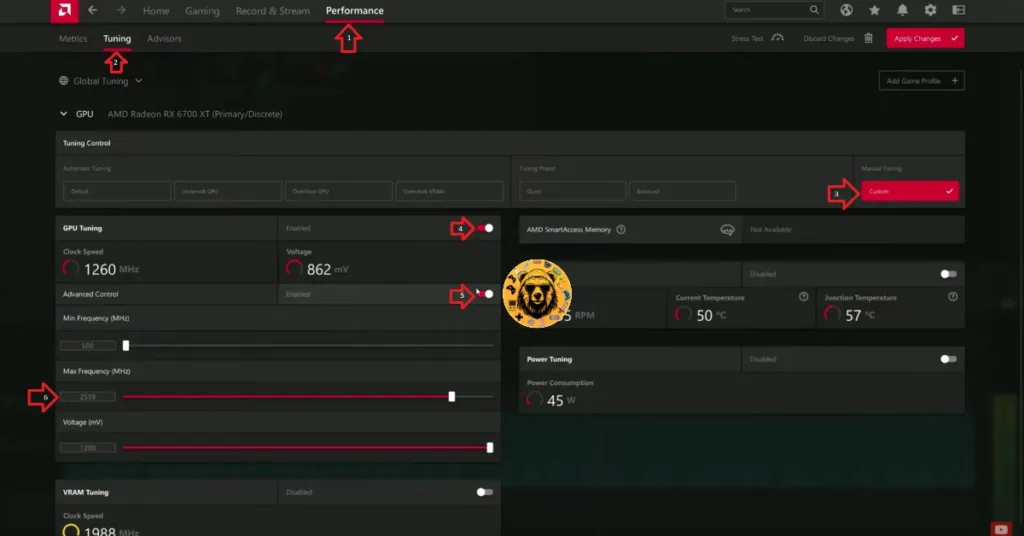
- Go to the “Performance” tab and select the “Tuning” tab.
- Here you will see “Custom” under “Manual Tuning”, click it. Turn on “GPU Tuning” and “Advanced Control”.
- Three sliders: Minimum Frequency, Maximum Frequency, and Voltage will appear on your screen.
- You only have to tweak the Maximum Frequency slider.
- Move the slider slightly to the left to lower and click the “Apply Changes” button. (Use the reference GPU clock that you find online.)
- Continue playing Resident Evil Requiem and the Fatal Error crashes are fixed.
Fix #2 – Clean Install Compatible GPU Driver (Community Verified)
For a lot of PC players, Resident Evil Requiem is crashing at startup with the Fatal D3D ACCESSDENIED 0x80070005 error. This particular crash is being caused by your GPU driver. The driver is either outdated or the installed version has compatibility issues.
You can fix the Fatal D3D ACCESSDENIED 0x80070005 crash in Resident Evil 9 Requiem by updating or reinstalling the GPU driver. In either case, do a clean installation so that settings from the previous driver won’t interfere with the new one. PC users confirm that installing Adrenalin 26.2.2 fixed the RE9 Fatal D3D Error on their PC.
Fix #3 – Lower Resident Evil Requiem’s Graphics Settings
Your current graphics settings are crashing Resident Evil 9 with the Fatal D3D DXGI Device Removed error. You are likely running the game on settings that are too much for your graphics card or its VRAM to handle.
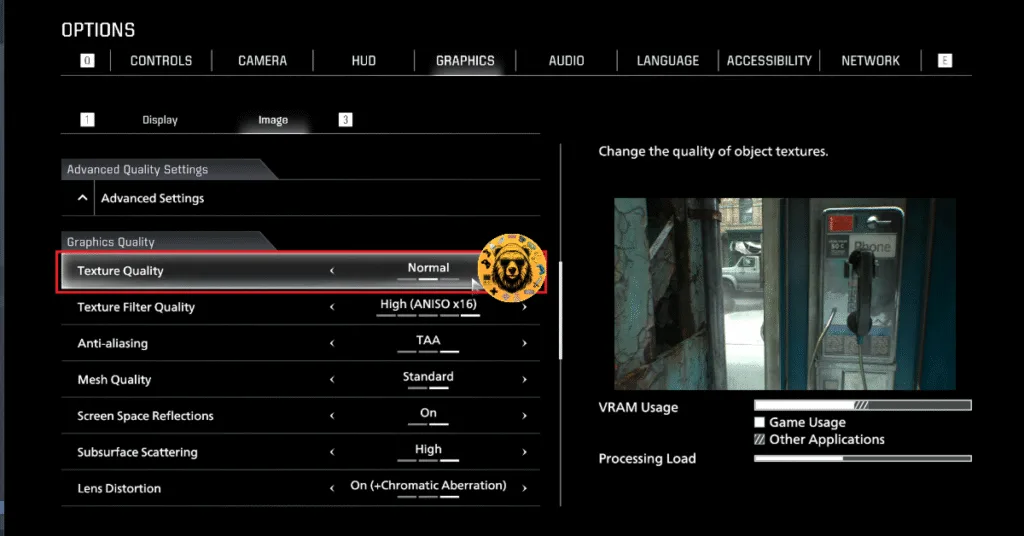
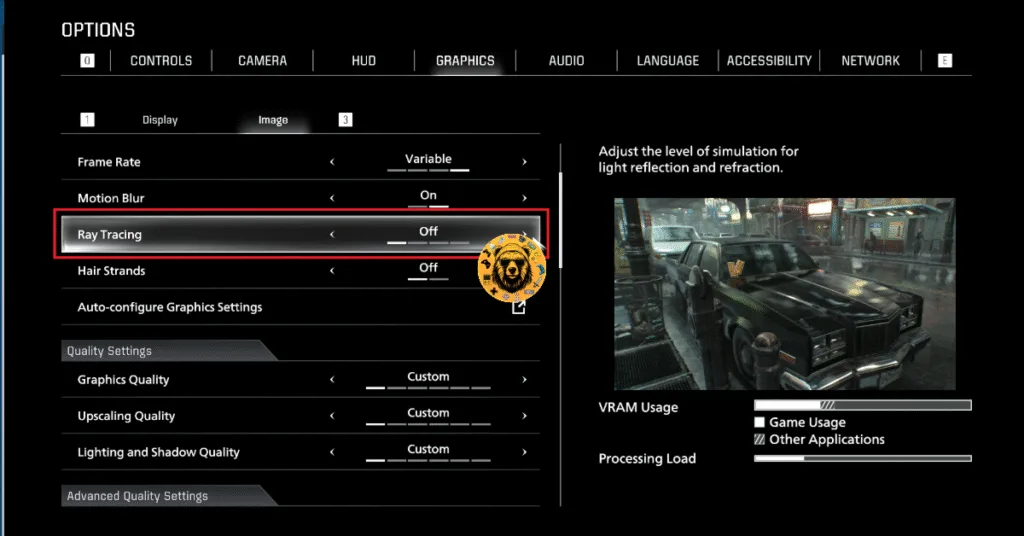
You can fix the Fatal D3D DXGI Device Removed crashes in Resident Evil Requiem by lowering certain graphics settings like Texture Quality and Ray Tracing, as it reduces the VRAM usage. As per community feedback, lowering the Texture Quality and Ray Tracing settings in RE9 fixes the DXGI Error Device Removed Fatal Error crashes. Here is how you can adjust these settings:
- Open the settings menu on RE Requiem.
- Go to the “Graphics” tab.
- Open the “Image” tab.
- Scroll down and click on “Advanced Settings“.
- Lower the “Texture Quality” setting under “Graphics Quality”.
- Apply the changes, and continue playing Resident Evil 9, and the Fatal D3D Error is fixed.
Fix #4 – Adjust DLSS Super Resolution and Frame Generation Settings (Community Verified)
NVIDIA’s Deep Learning Super Sampling (DLSS) is crashing Resident Evil Requiem on your PC and displays the Fatal D3D ACCESSDENIED 0x80070005 error. You can fix the error by turning it off, if enabled, or turning it on, if disabled.
PC users report that disabling DLSS Super Resolution and Frame Generation fixes the Fatal D3D ACCESSDENIED 0x80070005 error in Resident Evil 9, while others report that adjusting their settings through the config file fixes the error. Here is how you can change DLSS Super Resolution and Frame Generation settings:
- Open the settings menu on RE Requiem.
- Go to the “Graphics” tab.
- Open the “Image” tab.
- Scroll down and click on “Advanced Settings“.
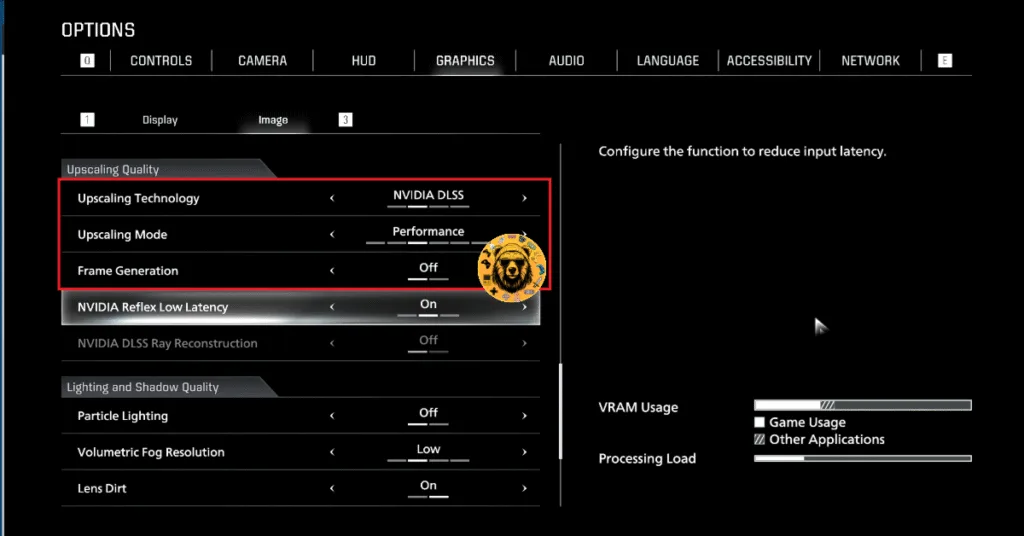
- Scroll down to “Upscaling Quality” settings.
- Adjust your DLSS settings and apply the changes.
- Continue playing RE9 Requiem and the Fatal D3D crashes are fixed.
If Resident Evil 9 is crashing at startup, then you won’t be able to change the DLSS and Frame Generation settings, which means you won’t be able to fix the Fatal D3D Error. In that case, you can change DLSS settings through the game’s config files to fix the Fatal D3D ACCESSDENIED 0x80070005 error in Resident Evil 9. Here is how you can access and change the config file:
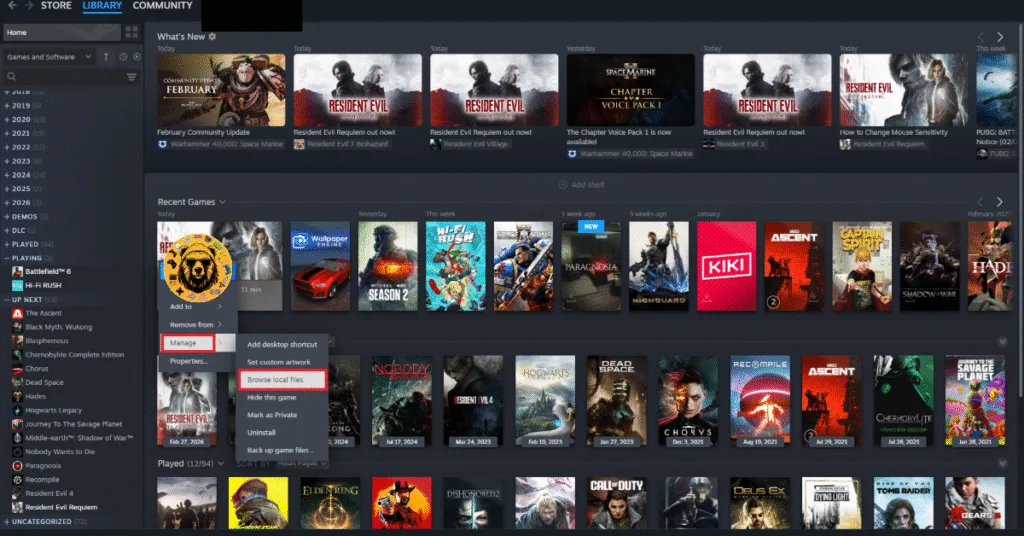
- Right-click Resident Evil Requiem in your Steam library > Manage > Browse local files.
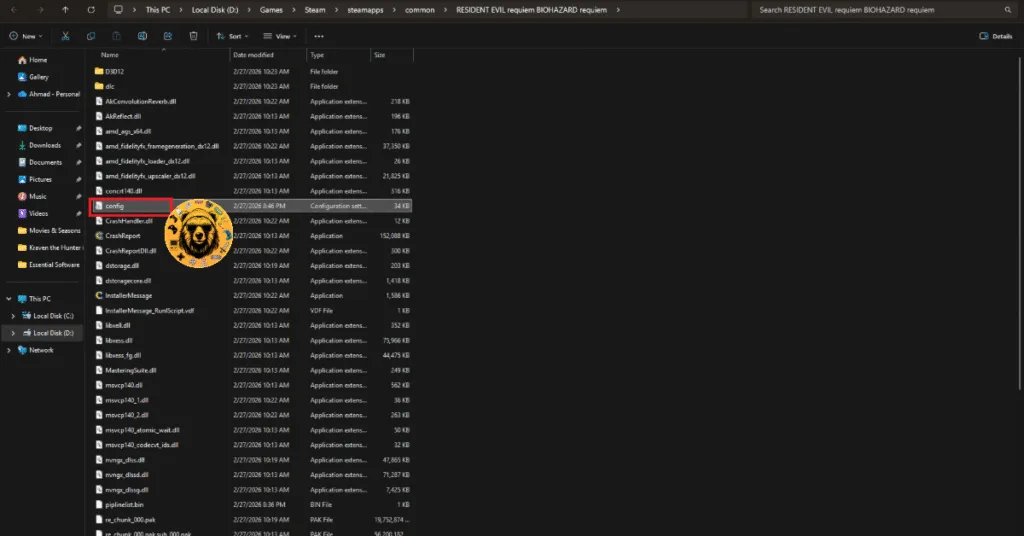
- A new window will open containing RE9’s game files.
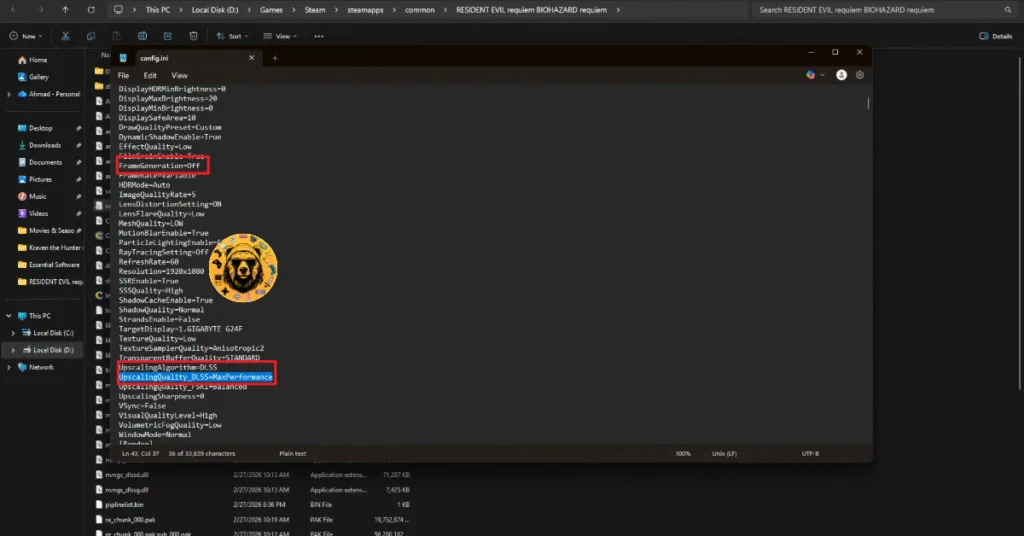
- Open the “config” file, and make the following changes:
FrameGeneration=DLSS 2x
UpscalingAlgorithm=DLSS
UpscalingQuality_DLSS=MaxQuality - Save the changes, and launch the game.
- Fatal D3D ACCESSDENIED Error is now fixed.
Fix #5 – Disable NVIDIA Reflex and Vsync (Confirmed Fix)
Reflex is a NVIDIA-exclusive tech that reduces input latency in games, which is useful if you are using NVIDIA DLSS Frame Generation. However, NVIDIA Reflex is the reason RE9 is crashing on your PC with the Fatal D3D ACCESSDENIED 0x80070005 error. You can fix this Resident Evil Requiem Fatal Error by disabling NVIDIA Reflex and Vsync.
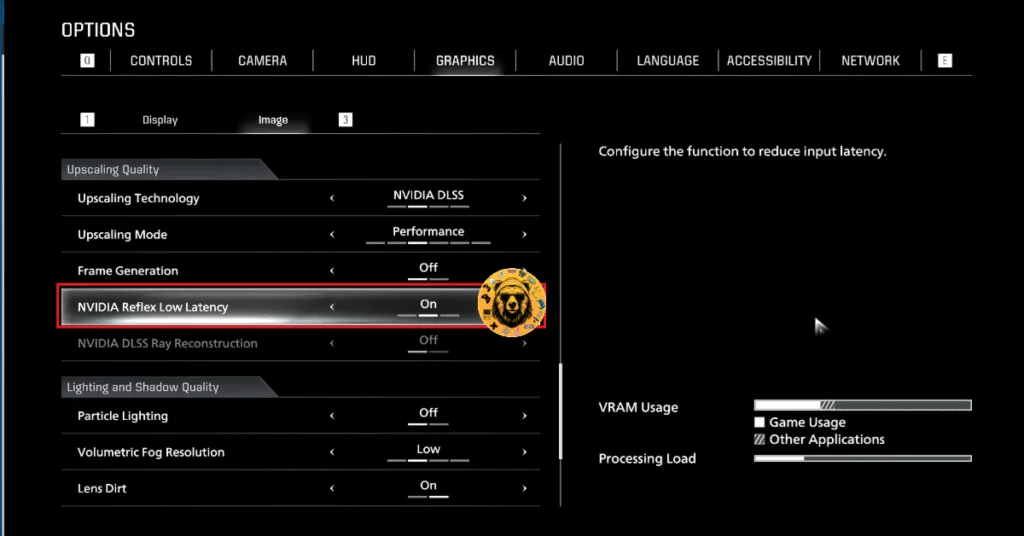
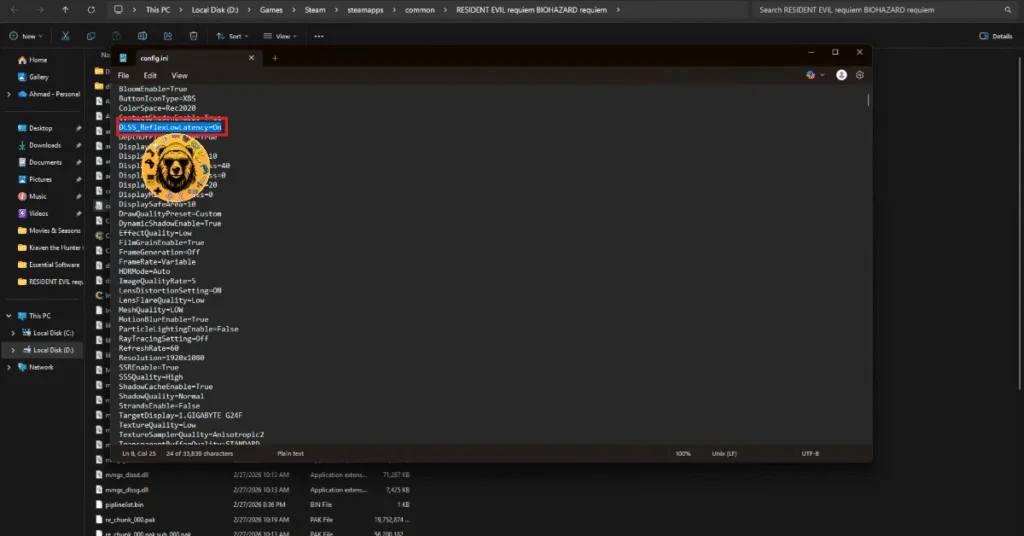
If the game is crashing at startup and displaying the Fatal D3D ACCESSDENIED 0x80070005 error, then you’ll have to disable NVIDIA Reflex by tweaking the game’s config file. Here is how you can do it:
- Right-click Resident Evil Requiem in your Steam library > Manage > Browse local files.
- A new window will open containing RE9’s game files.
- Open the “config” file, and make the following changes:
DLSS_ReflexLowLatency (off)
VSync (false) - Save the changes and close the file.
- Launch Resident Evil 9, and the Fatal D3D crashes are fixed.
Fix #6 – Disable Background Applications (Confirmed Fix)
If you are running background applications when you launch Resident Evil 9, they are the reason for the Fatal D3D Error E_ACCESSDENIED 0x8007005 crashes on your PC. You can fix these crashes in RE Requiem by disabling all background apps, like Discord or any app that can interfere with the game. Reddit users confirm that disabling background apps fixed the Resident Evil Requiem Fatal D3D Error on their PCs.
There you have it, our Resident Evil 9 fixes for the Fatal D3D Errors on your Windows PC. If you are experiencing errors and crashes in games, also see our fixes hub for commonly occurring errors for PC and handhelds.