Released in January 2026, StarRupture is an early access game developed by Creepy Jar. Running on Unreal Engine 5, it provides a unique and challenging experience for players. Players’ experience with Unreal Engine 5 isn’t that good, as games running on it often trouble them with different errors and crashes. StarRupture is no exception either, as players are experiencing a Fatal error crash while trying to play it. Here is a compilation of fixes that will resolve the Fatal Error crashes on your Windows PC.
5 Proven Ways to Fix StarRupture Fatal Error Crash on PC
The recent patch for the game is what got players frustrated, as it doesn’t come with any fixes for the game’s issues. Many players are experiencing the Fatal Error crashes while trying to play StarRupture. The error message seems to be different for players. Some players get the following error message:
Fatal error!
Unhandled Exception: EXCEPTION_ACCESS_VIOLATION reading address 0x0000000000000000
However, some players seem to be getting this one instead:
“Fatal error: [File:D:\Perforce\Project_Release-EA-Hotfix0\Engine\Source\Runtime\RenderCore\Private\GlobalShader.cpp] [Line: 805]
Could not load section 1 (of 500) of the global shadermap.
Let’s take a look at how to fix the Fatal Error when trying to launch StarRupture.
Fix #1: Recompile StarRupture Shader Cache
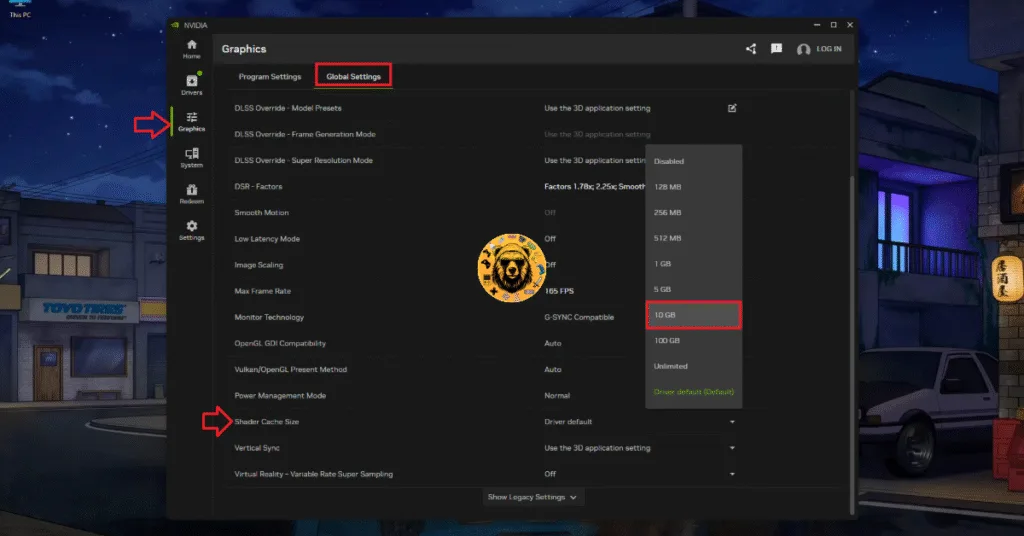
A pretty common fix for both in-game and startup crashes is to delete the game’s shader cache and let it recompile. To fix StarRupture crashing on your PC with the Fatal Error, you will have to delete the shader cache, increase its size, and launch the game again to let it recompile. Here’s how to do that:
- In the Nvidia App, go to the Graphics tab> Global Settings.
- Scroll down to the Shader Cache Size settings and select the Disable option.
- Restart your PC and backtrack to the Shader Cache Size setting.
- Select 10 GB or a higher value.
- Launch StarRupture and let it compile shaders.
- After that, you won’t experience the Fatal error crash again.
Fix #2: Revert RAM Overclock
Playing StarRupture on overclocked RAM? There you have it, the cause of the Fatal error while trying to play the game. Overclocked components can indeed give you a performance boost, but they usually become the cause of several issues and errors.
If you haven’t overclocked the RAM manually, you are likely using XMP or EXPO settings in the BIOS. You will have to disable XMP or EXPO, depending on your CPU, to fix the Fatal Error crashes on your PC. Follow my lead:
- Open your Windows Settings and go to the Windows Update tab.
- In the Advanced Options setting, click on Recovery.
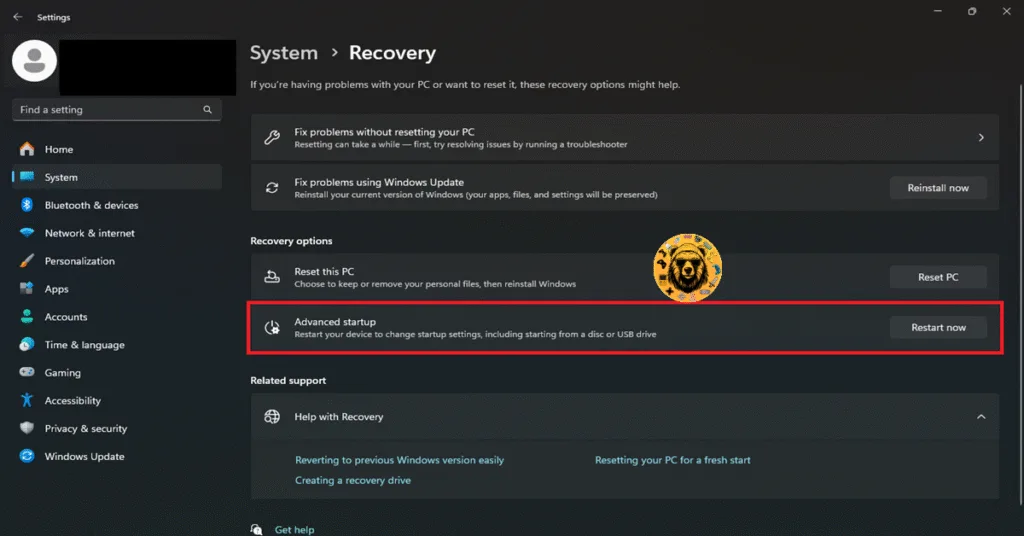
- Click the Restart Now button, wait for your PC to restart, and select Troubleshoot.
- Click Advanced Options and select the “UEFI firmware settings” option.
- After your PC restarts, it will boot into BIOS.
- To switch your BIOS from EZ Mode to Advanced Mode, press F7.
- Navigate to the OC (Overclocking) or Extreme Tweaker tab and look for the XMP Profile or EXPO Profile settings.
- Disable the setting and press F10 to save the changes.
- Leave the BIOS and wait for your PC to restart.
- Once it does, launch StarRupture, and it won’t crash on your PC with the Fatal error.
Fix #3: Revert GPU overclock
Just like the RAM, an overclocked GPU can become the root cause for several issues and errors, in our case, being the Fatal error. If you have overclocked your GPU, then revert it to the default settings to fix the issue.
But, even if your GPU is not manually overclocked by you, it’s most likely overclocked by Nvidia’s AIB partners like Zotac, ASUS, GigaByte, etc. These GPUs are running on high clock speeds, causing your games to crash. You will have to enable debug mode to ensure that your GPU is running on Nvidia’s recommended clock speeds. I’ll take you through the process:
- Open Nvidia’s Control Panel and click “Help” in the top menu.
- Select Debug Mode and enable it.
- Launch StarRupture, and the Fatal error will be gone.

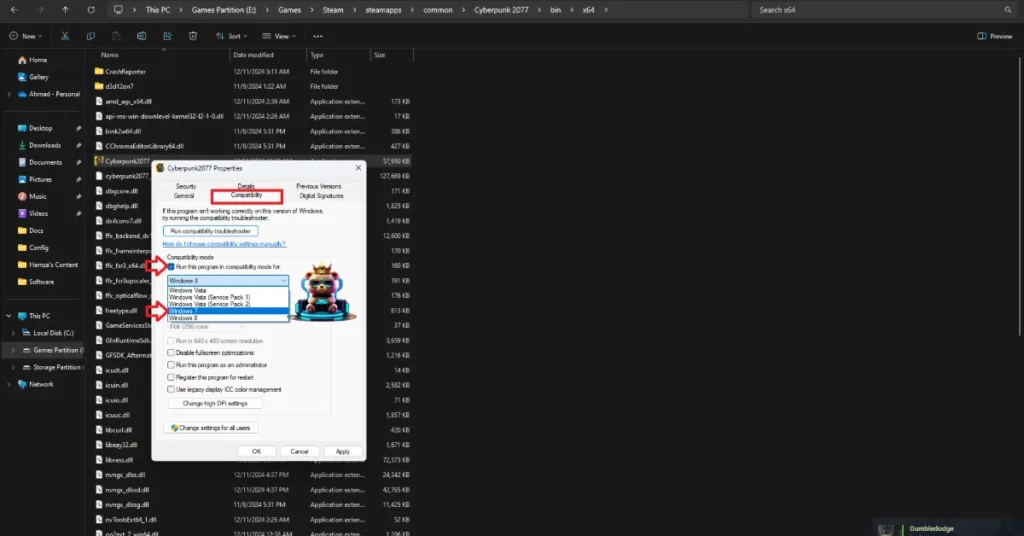
Fix #4: Run StarRupture in Windows 7 or 8 Compatibility Mode
Have you tried running the game in Windows 7 or 8 Compatibility Mode? If not, then do that, as it can fix the Fatal Error on your PC while trying to play the game. Here’s how you can run StarRupture in Windows 7 or 8 Compatibility mode:
- Right-click StarRupture in your Steam library, hover the cursor over “Manage”, and click the “Browse local files” option.
- A new window will open containing StarRupture’s game files.
- Right-click StarRupture’s executable file (.exe file).
- In the context menu, click on Properties.
- In the Properties window, find and click on the Compatibility tab.
- Check the box next to Run this program in compatibility mode for: and select Windows 7 or 8.
- Click Apply and then OK to save your settings.
- Launch StarRupture, and the Fatal error crash will be gone.


Fix #5: Limit StarRupture Framerate
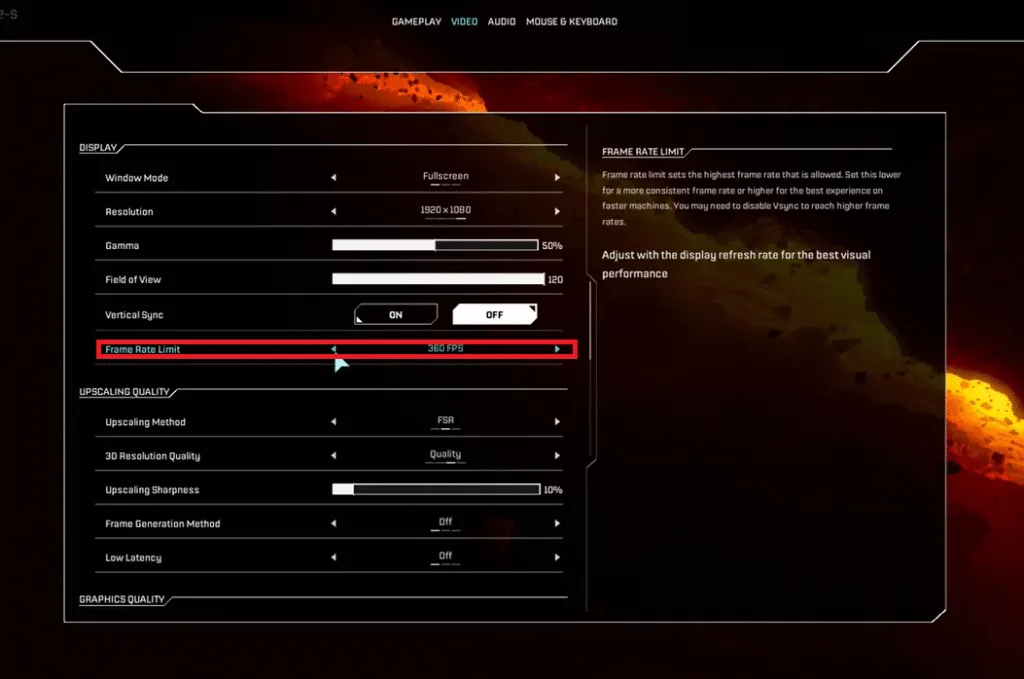
Are you playing StarRupture on an unlocked FPS? If so, that’s why it is crashing on your PC with a fatal error. Unlocked FPS may look good, but they put a lot of stress on your PC’s hardware. You will have to limit the game’s FPS to fix the Fatal Error crash. Here’s how to do that:
Through the In-Game Settings:
- Launch StarRupture and click on Options.
- In the Video tab, locate the Frame Rate Limit option.
- Set it to something lower than your current one.
Through Nvidia Control Panel:
- Open the Nvidia Control Panel > Manage 3D Settings > Program Settings, then choose StarRupture.
- Scroll down and enable the Max Frame Rate option.
- Select a suitable framerate.
- Launch StarRupture, and it won’t crash on your PC during gameplay.

And that’s how to fix the Fatal error crash while trying to play StarRupture. The patches are good, but they don’t fix the issues with the game. I hope that the developers actually listen to their community and fix the errors. I hope that this guide has helped you. If you are experiencing errors and crashes in games, also see our fixes hub for commonly occurring errors for PC and handhelds.