
The PC release of Stellar Blade has been a successful one. Additionally, it is an optimized game that scales well across various PC configurations. Despite that, PC users are experiencing errors and crashes with it, such as the game not launching or encountering the “LowLevelFatalError” error at startup. I have compiled a list of fixes that will resolve the Stellar Blade not launching and the “LowLevelFatalError” error on your Windows PC.
Working Fixes For Stellar Blade LowLevelFatalError
According to PC users, Stellar Blade keeps on crashing at startup. For some users, the game does not show any error, for others, they get the following LowLevelFatalError message:
The UE4-SB Game has crashed and will close
LowLevelFatalError [File:Unknown] [Line: 1021]
Tried to create a Gfx Pipeline State without Vertex Shader
Not every LowLevelFatalError message is the same. Some players even experience the error message in the image below:

There are multiple reasons Stellar Blade is crashing at startup on your PC, like a lack of administrative rights, compatibility issues with Windows, the game not using the dedicated graphics hardware, and more. The following fixes will resolve the Stellar Blade crashes on startup and the “LowLevelFatalError” on your PC.
Fix #1 – Run Stellar Blade as an Administrator
The reason Stellar Blade isn’t launching on your PC is that it either lacks administrative rights or you are using an account that doesn’t have admin rights. To fix the crash at startup issue with the game, run the game as an administrator. Here is how you can run Stellar Blade as an administrator:
- Right-click Stellar Blade in your Steam library > Manage > click the “Browse local files” option.
- A new explorer window will open containing game files.
- Right-click the game’s executable and select the “properties” options.
- In the new window, go to the “Compatibility” tab.
- Check the “Run this program as an administrator” and apply the changes.
- Play Stellar Blade, and it’ll launch without crashing.


Fix #2 – Run Stellar Blade in Windows Compatibility Mode
Microsoft frequently rolls out updates for its Windows OS. These updates bring new features, but often create new issues. One of the issues is the compatibility problems.
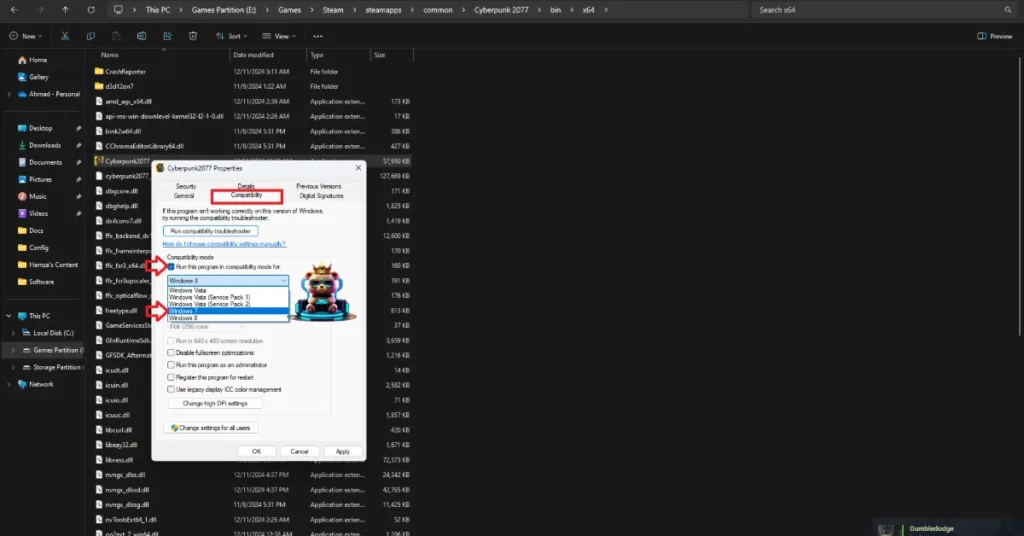
Stellar Blade is crashing on startup with the “LowLevelFatalError” error due to it having compatibility issues with your current Windows 11 or 10 version. You can fix the error by running the game in Windows 7 or 8 compatibility mode. Here is how you can run the game in Windows compatibility mode:
- Open Steam Library and right-click Stellar Blade > Manage > click “Browse local files”.
- This will open a new Windows Explorer window containing the game files.
- Right-click the game’s executable and click properties.
- Click the “Compatibility” tab and check the option “Run this program in compatibility mode for”. Click the dropdown button below this option and select Windows 7 or 8 (try both options one by one).
- Launch the game, and the LowLevelFatalError crash at startup issue is now fixed.

Fix #4 – Ensure Stellar Blade Uses the Dedicated Graphics Hardware
Stellar Blade is not launching on your gaming laptop, due to the integrated GPU (iGPU). Gaming laptops utilize both the iGPU and a dedicated graphics card, as Windows switches between the two depending on load. However, it sometimes doesn’t switch to the dedicated AMD or NVIDIA graphics card, which prevents the game from launching. Some of you might be experiencing the Out of Video Memory crash because of this.
You can fix the Stellar Blade crash at startup issue by forcing the game to use the dedicated GPU. Here is how you can force the dedicated GPU:
- Open Windows 11/10 Settings.
- Navigate to System > Display > Graphics.
- Select “Stellar Blade” from the list of installed programs.
- Click on Options.
- Check the “High Performance” option and save the changes.
- Launch Stellar Blade, and the startup crashes are now fixed.


Fix #5 – Clear NVIDIA Shader Cache and Increase Shader Cache
Stellar Blade uses Unreal Engine 4 to render its beautiful visuals. The engine relies on shaders for its visuals and performance, like many other game engines. However, the default shader cache size set by the GPU driver isn’t enough for Stellar Blade, which crashes the game at startup and displays the “LowLevelFatalError” error.
You can fix the error by cleaning the NVIDIA shader cache and increasing its size. Here is how you can clear the cache and increase its size:
- Open the Nvidia Control Panel.
- Go to the “Manage 3D Settings” tab.
- Click on the “Global settings” tab.
- Select the “Shader cache size” option and select the “Disabled” option.
- Apply the changes and restart your PC.
- Open the NVIDIA Control Panel, go to the “Shader cache size” option, and select “10 GB” or a higher value.
- Play Stellar Blade, and the Low Level Fatal Error crashes are now fixed.

Fix #6- Increase Virtual Memory
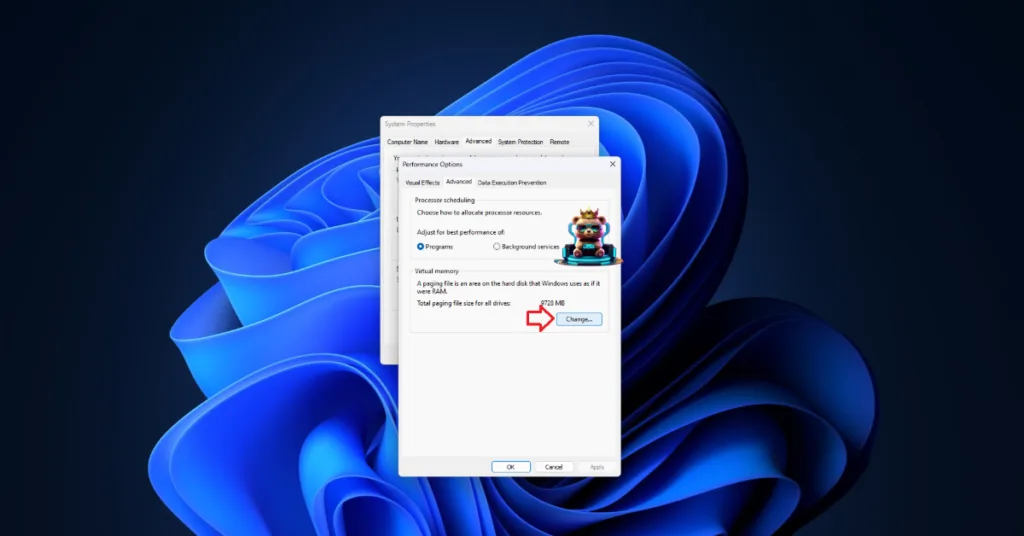
By default, Windows OS manages the virtual memory. However, the OS isn’t always accurate when it comes to how much virtual memory should be reserved, which is crashing Stellar Blade with the “LowLevelFatalError” error. You can fix the error by manually increasing the virtual memory. Here is how you can increase it:
- Open Windows Settings > System > About > Advanced System Settings.
- Click “Settings” under Performance, and go to the Advanced tab in Performance Options.
- Click on “Change” under Virtual memory.
- Uncheck “Automatically manage paging file size for all drives.”
- Select the drive with at least 32 GB of available space.
- Check the Custom size option.
- Input ‘16,384’ for the Initial size and ‘32,768’ for the Maximum size and press OK.
- Restart your PC, launch Stellar Blade, and the Low Level Fatal Error is now fixed.



Fix #7 – Install Missing Visual C++ Components and Repair System Files
Visual C++ components are necessary to run games or some other applications on Windows. You are experiencing startup crashes or the Stellar Blade not launching issue because you are missing or have damaged Visual C++ components or system files. To fix the issue, install and repair Visual C++ components and run SFC and DISM scans.
Run Visual C++ Redistributables Installers
Here is how you can install or repair Visual C++ components:
- Go to the Steam Library and type “Steamworks” in the search bar.
- Right-click “Steamworks Common Redistributables” > Manage > click “Browse local files”.
- Open _CommonRedist\vcredist in the explorer window that opens on your screen.
- You will get a list of folders with names in years starting from 2010.
- Open each folder one by one and run the VC_redis for both x64 and x86 versions.
- Repair or install Visual C++ Redistributables.
- Restart your PC, launch Stellar Blade, and the startup crash issue is fixed.


Helpful Tip: Steam deletes installers after a certain time, and you might find some folders empty. In that case, you can manually download installers for Visual C++ Redistributables and install them. Ensure that you download and install both x86 and x64 versions.

Run SFC and DISM Scans to Repair System Files
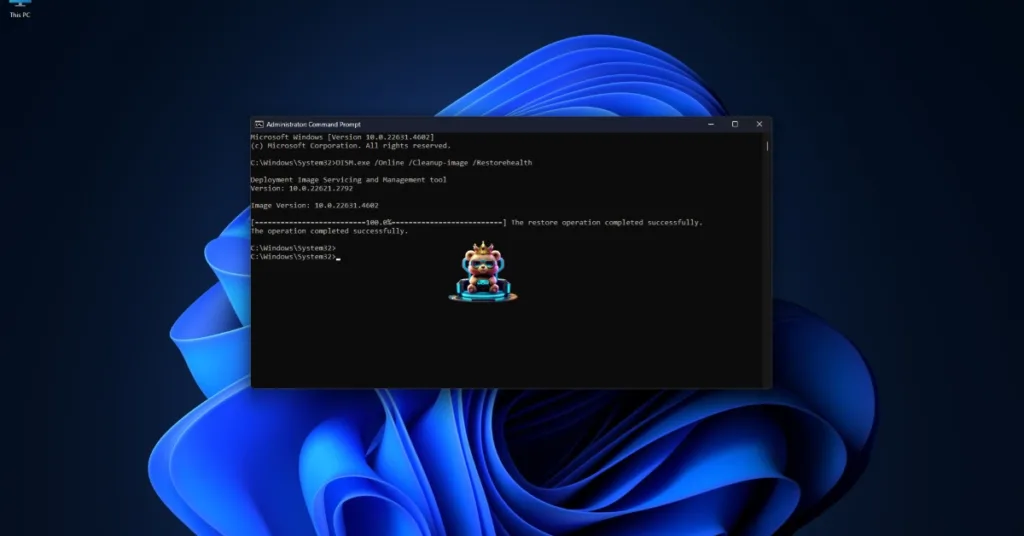
Follow the steps below to run the SFC and DISM scans to fix the Stellar Blade not launching issue on your PC.
- Open Command Prompt (CMD) and run it as an administrator.
- Type sfc /scannow and press Enter. Let the scan complete.
- Once the SFC scan is complete, type DISM.exe /Online /Cleanup-image /Restorehealth and press Enter.
- Let the scan complete.
- Play Stellar Blade, and it’ll launch without any issue.
That is all for our fixes for the LowLevelFatalError crash at startup and Stellar Blade not launching on PC. If you are experiencing errors and crashes in other games, also see our fixes hub for commonly occurring errors for PC and handhelds.