The Out of Video Memory error has almost become synonymous with Unreal Engine 5, as almost every PC game using the engine has experienced it. Games like Inzoi, Titan Quest 2, WUCHANG: Fallen Feathers, Dune Awakening, Avowed, and more crashed with the “Out of Video Memory” error for a lot of PC users. Now, The Outer Worlds 2 has joined the list of UE5 games crashing with the “Out of Video Memory” error. I have compiled a list of fixes that will resolve the Out of Video Memory crashes in The Outer Worlds 2.
Ways to Fix Out Of Memory Crashes in The Outer Worlds 2 on PC
PC users report that The Outer Worlds 2 crashes while compiling shaders or during gameplay and displays the Out of Video Memory error. There are multiple reasons for the game to crash with this particular error message, like the shader cache size is small for The Outer Worlds 2, the game isn’t using the discrete graphics hardware, and more. The following fixes will resolve the Out of Memory crash in The Outer Worlds 2 on your Windows PC.
Fix #1 – Ensure The Outer Worlds 2 is Using the Dedicated Graphics Hardware
By default, gaming laptops utilize both the integrated GPU (iGPU) and dedicated graphics card to save power. Windows switches between the two GPUs depending on the rendering load. However, the OS sometimes doesn’t switch the GPU, which results in game crashes.
The reason you are experiencing the Out of Video Memory crash in Outer Worlds 2 is that the game isn’t using the discrete graphics hardware. Force The Other Worlds 2 to use the discrete graphics card to fix the Out of Video Memory crashes. Here is how you can apply the fix:
- Open Windows settings, go to System, select Display, and go to Graphics.
- Look for “The Outer Worlds 2” in the list of apps and programs and select it.
- Click on “Options” and check the “High Performance” option. Save the changes.
- Play the Outer Worlds 2 and the Out of Memory crash is now fixed.


Fix #2 – Clear NVIDIA Shader Cache and Increase Its Size
Shaders play an important role in rendering visuals in Unreal Engine 5 games. Since The Outer Worlds 2 is using the UE5 engine, it relies heavily on shaders, and it compiles or generates shaders in a cache when you first launch the game. However, a lot of PC users report that The Outer Worlds 2 keeps crashing on their PC during shader compilation and displays the Out of Video Memory error.
You can fix the Out of Memory crashes by clearing the NVIDIA shader cache and increasing its size. This will allow The Outer Worlds 2 to compile shaders without crashing. Here is how you can clear the cache and increase its size on your PC:
- Open the NVIDIA Control Panel and click the “Manage 3D Settings” option from the left menu.
- Go to the “Global settings” tab.
- Scroll down to the “Shader cache size” setting and select the “Disable” value.
- Apply the changes and restart your PC.
- Go back to the “Shader cache size” setting and select 10 GB or a bigger value.
- Apply the changes, launch The Outer Worlds 2, the shaders will compile without crashing, and the Out of Memory error is now fixed.

Fix #3 – Use CUDA – Sysmem Fallback Policy For The Outer Worlds 2 (NVIDIA)
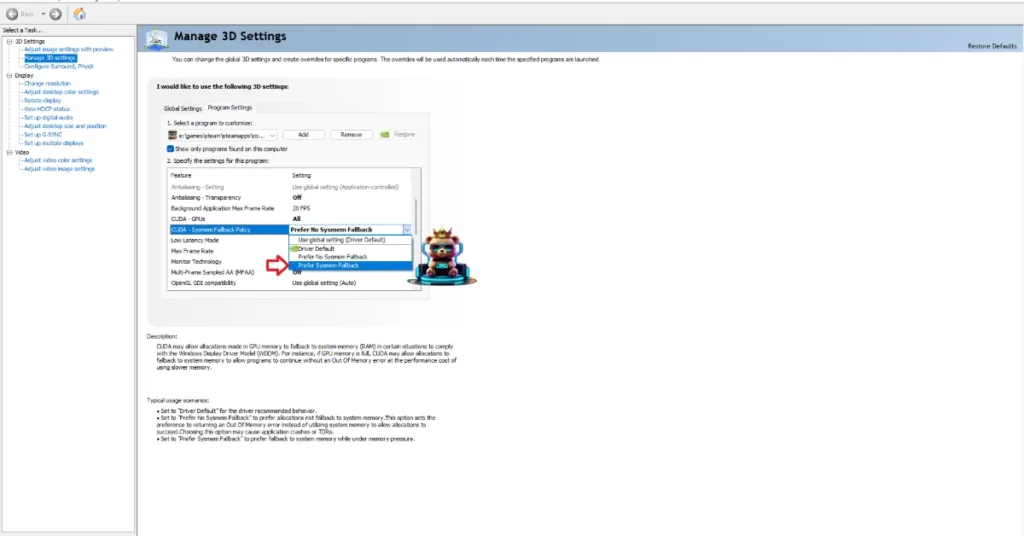
Sysmem Fallback Policy is a NVIDIA graphics card exclusive setting that NVIDIA introduced to fix the Out of Video Memory errors. To fix the “Out of Video Memory” crashes in The Outer Worlds 2 on your PC, enable the “CUDA – Sysmem Fallback Policy” setting in the NVIDIA Control Panel. Here is how you can apply this fix:
- Open the NVIDIA Control Panel and click the “Manage 3D Settings” option from the left menu.
- Go to the “Program settings” tab.
- Select “The Outer Worlds 2” from the drop-down menu.
- Scroll down to the “CUDA – Sysmem Fallback Policy” setting, select the “Prefer Sysmem Fallback” option, and apply the changes.
- Play The Outer Worlds 2 and the Out of Memory crash is fixed.
Fix #4 – Ensure Your Graphics Card Is Using Stock Clocks
The GPU and Memory clocks of your graphics card can cause crashes during gameplay or compiling shaders. Some game engines, like Unreal Engine 5 and Frostbite, are sensitive to clock speeds. If you have overclocked your graphics card, it is the reason The Outer Worlds 2 is crashing on your PC and displays the Out of Video Memory error. To fix these crashes, revert your graphics card to its default GPU and Memory clocks.
Even if you have not overclocked the graphics card, it is still very likely that it is using higher GPU and Memory clocks. Most graphics cards from NVIDIA and AMD AIB partners have higher clock speeds than their reference models. These higher clocks are the reason The Outer Worlds 2 keeps crashing on your PC.
To fix this issue, you need to force your graphics card to use its reference GPU and Memory clocks. For NVIDIA graphics cards, you can do that by enabling the Debug Mode through the NVIDIA Control Panel.
Open the NVIDIA Control Panel, click the “Help” button from the top menu, and select the “Debug Mode” option. This will force the graphics card to use its reference clocks, which reduces the GPU load and fixes the Out of Video Memory crashes. You can disable the Debug Mode at any time you want.

Fix #5 – Update BIOS (Intel 13th and 14th Generation CPU)
UE5 games and Intel Raptor Lake CPU are a match made in heaven. When combined, they result in crashes, primarily due to the CPU. Intel 13th and 14th-generation CPUs are known for their technical issues, which are the main cause of Unreal Engine games crashing to the desktop with the LowLevelFatalError and Out of Video Memory errors.
Oodle has confirmed that these CPUs cause Out of Video Memory crashes in Unreal Engine games. If you are using an Intel 13th or 14th Generation CPU, it is the reason The Outer Worlds 2 is crashing on your PC and displays the Out of Video Memory error. You can fix this error by updating your motherboard’s BIOS, which fixes the overvolt issue for Intel Raptor Lake CPUs, which in turn fixes the Out of Video Memory error on your PC.
There you have it, our The Outer Worlds 2 fixes for the Out of Video Memory crashes on your Windows PC. If you are experiencing errors and crashes in games, also see our fixes hub for commonly occurring errors for PC.