Vampire: The Masquerade – Bloodlines 2 didn’t live up to the fans’ expectations, but it is by no means a bad game. Developer Chinese Room opted for Unreal Engine 5 (UE5) to render Seattle’s nightlife. However, the PC version of the game is experiencing errors and crashes, partly thanks to UE5, like Unhandled Exception crashes on startup or Bloodlines 2 failing to launch. Aside from these issues, PC users report Bloodliens 2 crash during gameplay, and I have compiled a list of fixes that will resolve these gameplay crashes on your Windows PC.
6 Ways to Fix Bloodlines 2 Keeps Crashing on PC
PC users report that Bloodlines 2 keeps on crashing randomly while playing. These gameplay crashes are occurring due to multiple reasons, such as unlocked frame rate, usual Unreal Engine 5 issues, in-game overlays interfering with the game, and more. The following fixes will resolve the Vampire: The Masquerade – Bloodlines 2 in-game crash issue on your Windows PC.
Fix #1 – Revert Key Remapping
One of the many reasons that is crashing Bloodliens 2 for many PC users is Key Remapping. Some PC users change key bindings to what better suits them. However, the rebinding is the reason for the gameplay crashes you are experiencing. Revert the key bindings to their default, and the crashes will be fixed.
Fix #2 – Turn off All Active In-Game Overlays
Almost every gaming-related PC app or tool comes with an in-game overlay, which allows gamers to access app features or chat with friends without closing or minimizing the game. While useful, these overlays can interfere with the game and cause it to randomly freeze and crash while playing.
Considering the state of Unreal Engine 5 games on PC, it is possible that in-game overlays on your PC are crashing Bloodlines 2. To fix these gameplay crashes, disable all active in-game overlays for apps like Steam, Discord, and NVIDIA App. Here is how you can disable in-game overlays on your PC to fix the Bloodlines 2 in-game crash issue:
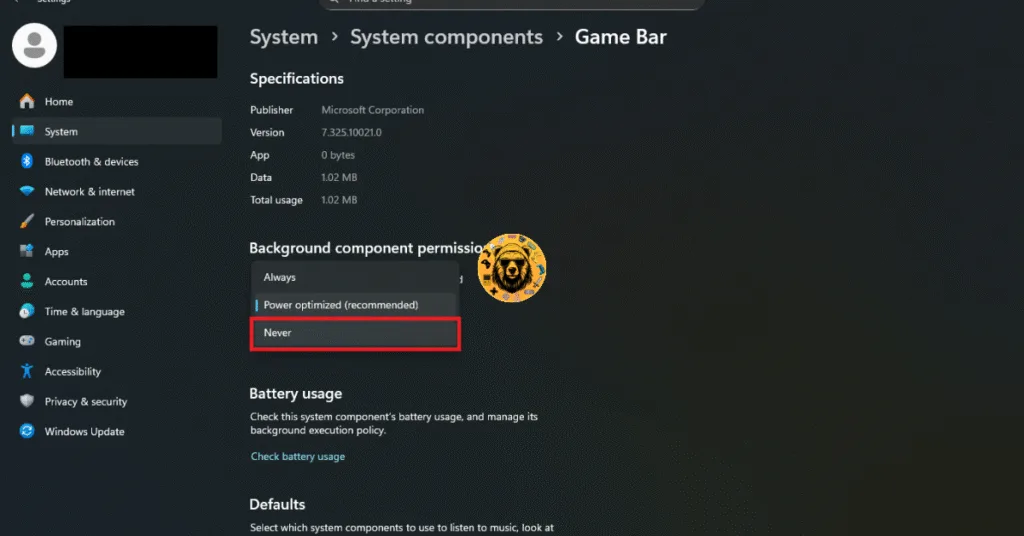
How to Disable Windows Game Bar?
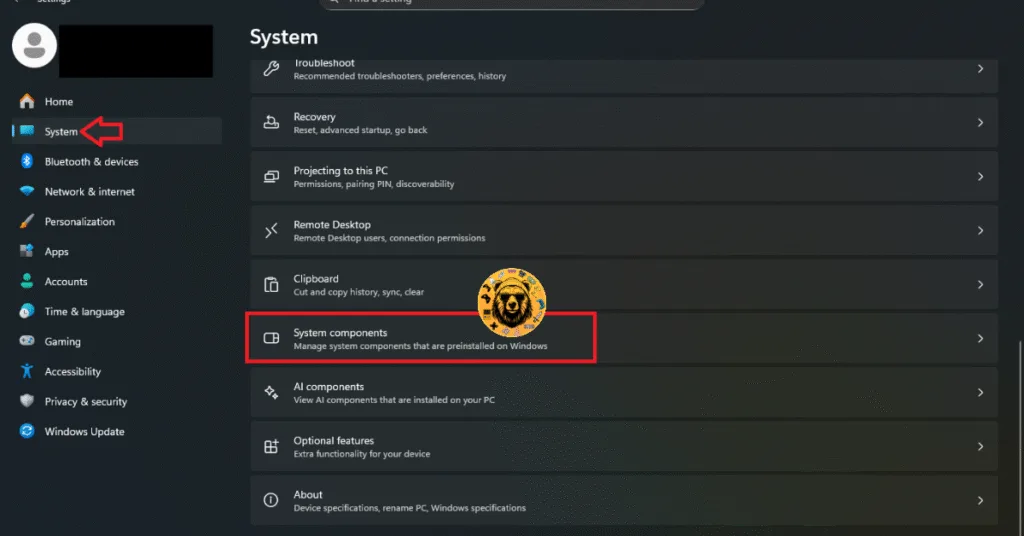
- Open Windows Settings.
- Go to the “System” tab.
- Scroll down and click the “System components” setting.
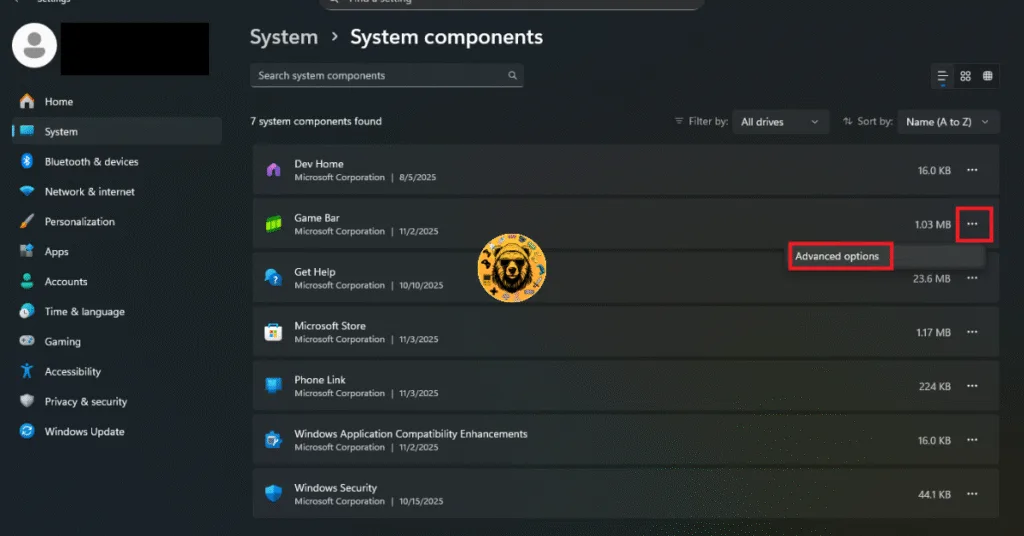
- Click the three dots in front of the “Game Bar” option and select “Advanced options”.
- Under “Let this system component run in background” select the “Never” option.
- For good measure, also click the “Terminate” button.
- This will disable Game Bar on your Windows 11 PC.
How to Disable Discord Overlay?
- Go to User Settings and open the Game Overlay tab.
- Turn off the “Enable In-game overlay” options.
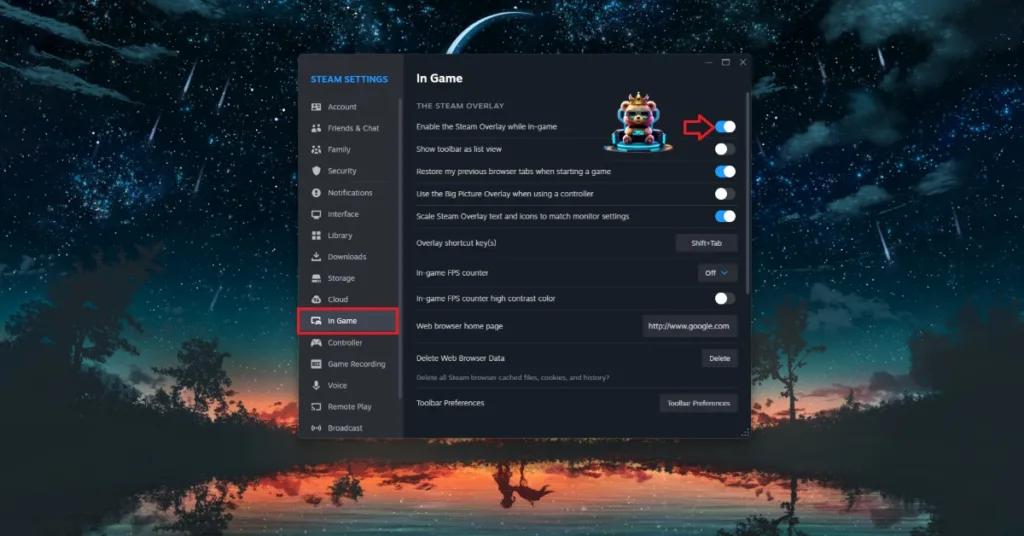
How to Disable Steam Overlay?
- Open Steam settings and go to the In-Game tab.
- Uncheck “Enable the Steam overlay while in-game” and press OK.
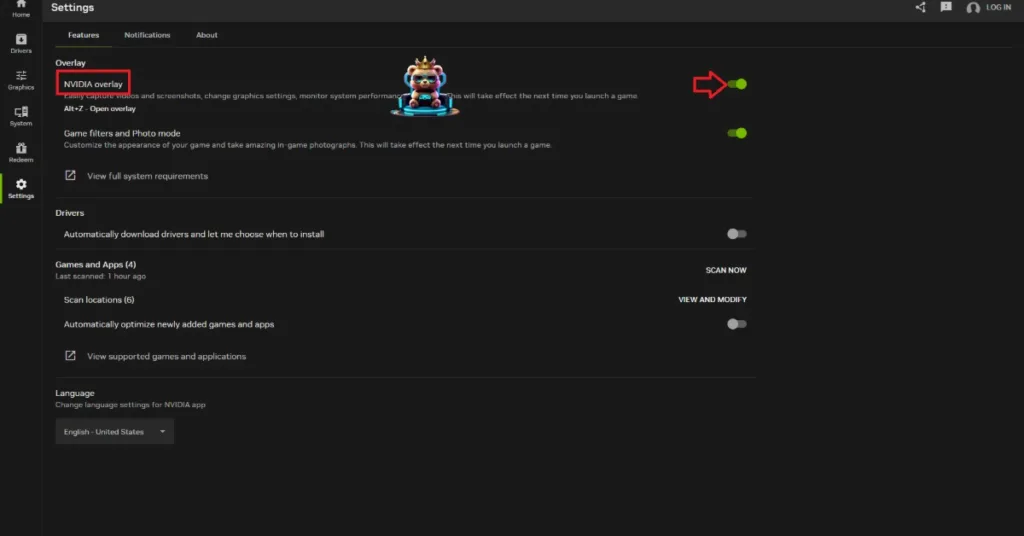
How to Disable NVIDIA App Overlay?
- Open the Nvidia App and open Settings.
- Go to the “Features” tab.
- Disable “Nvidia Overlay”.
Fix #3 – Use Sysmem Fallback Policy for Bloodlines 2 (NVIDIA)
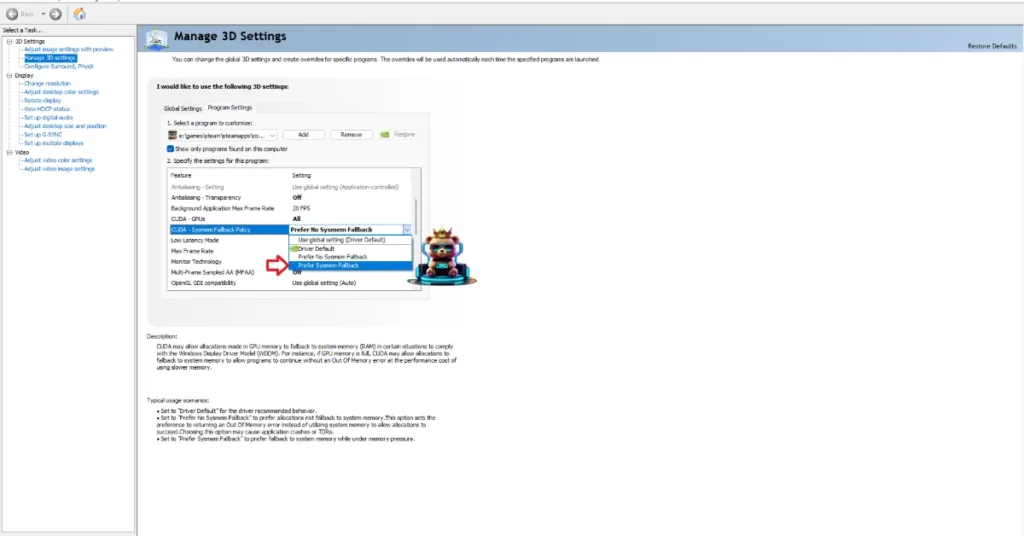
Some PC users are experiencing the Out of Video Memory error after Bloodliens 2 crashes. This is a common Unreal Engine 5 error that has plagued almost every PC game using the engine. You can fix these Bloodlines 2 in-game crashes by enabling the “CUDA – Sysmem Fallback Policy” setting in the NVIDIA Control Panel. Here is how you can enable it:
- Open the NVIDIA Control Panel and click the “Manage 3D Settings” option from the left menu.
- Go to the “Program settings” tab.
- Select “Vampire: The Masquerade – Bloodlines 2” from the drop-down menu.
- Scroll down to the “CUDA – Sysmem Fallback Policy” setting, select the “Prefer Sysmem Fallback” option, and apply the changes.
- Play Bloodlines 2 and the crashes are now fixed.
Fix #4 – Clear NVIDIA Shader Cache and Increase its Size
PC gaming tech enthusiasts among you are well-versed in how bad the shader compilation situation is for most Unreal Engine 5 games on PC. The engine relies heavily on shaders for its performance and visuals. Since Bloodlines 2 used UE5 to render the streets of Seattle, it is crashing due to the shader cache on your PC.
Some PC users even get the “LowLevelFatalError Failed to Decompress Shaders” error when Vampire: The Masquerade – Bloodlines 2 crashes. You can fix these crashes by clearing the NVIDIA shader cache, increasing the cache size, and recompiling shaders in Bloodlines 2. Here is how you can apply the fix:
- Open the NVIDIA Control Panel, click the “Manage 3D settings” option from the left menu.
- Go to the “Program settings” tab and select “Vampire: The Masquerade – Bloodlines 2” from the drop-down menu.
- Find the “Shader cache size” setting, select the “Disable” option, and apply the changes.
- Restart your PC, go back to the “Shader cache size” setting, and select 10GB or higher value.
- Apply the changes, play Bloodlines 2, and it’ll recompile shaders.
- The in-game crashes are now fixed on your PC.

Fix #5 – Play Bloodlines 2 With an FPS Cap
Playing games at an unlocked framerate is a little bit different experience than playing at 60 FPS. Not only does the gameplay feel smooth, but the input latency is also reduced, which allows players to react quickly to in-game combat and other events.
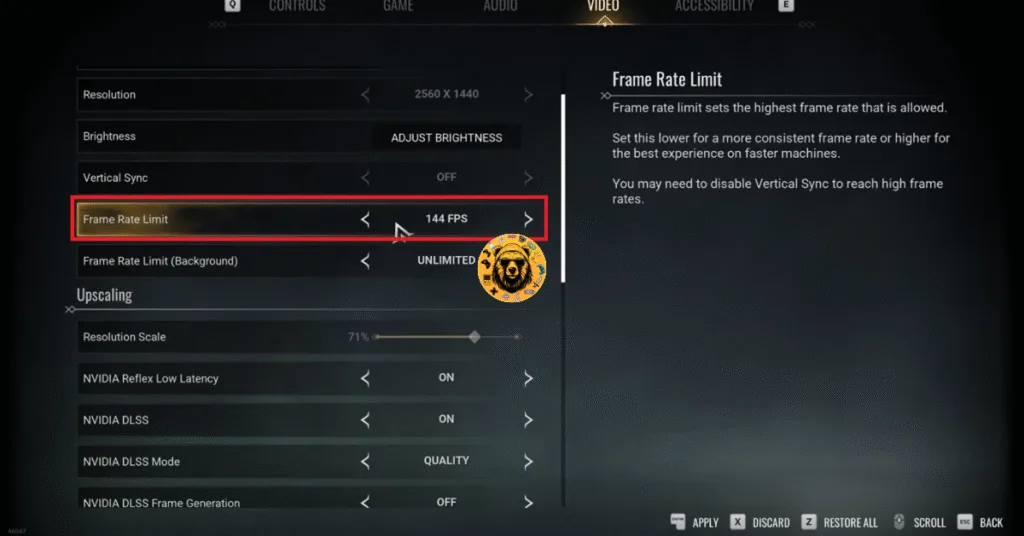
However, an unlocked framerate puts the GPU and CPU under a lot of stress, which results in games crashing to the desktop during gameplay. If you are playing Vampire: The Masquerade – Bloodlines 2 at a high or an unlocked framerate, it is the reason the game is crashing. You can fix the Bloodlines 2 in-game crash issue by limiting the game’s max FPS. Here is how you can do it:
- Open the settings menu in Bloodlines 2.
- Go to the “Video” tab, find the “Frame Rate Limit” setting.
- Select a lower FPS value and apply the changes.
- Continue playing Vampire: The Masquerade – Bloodlines 2, and the gameplay crash issue is fixed.
Fix #6 – Revert Graphics Card Overclock
If you have overclocked your graphics card to squeeze more performance out of it, it is the reason for crashes in Bloodlines 2. Revert the graphics card to its default GPU and Memory clocks to fix Bloodlines 2 in-game crashes on your PC.
Even if you have not overclocked your graphics card, it is still using higher GPU and Memory clocks than its reference model. Most graphics cards from NVIDIA and AMD AIB partners do this, and these higher clocks are the reason Bloodlines 2 keeps crashing on your PC.
You can fix these crashes by forcing the graphics card to use its reference clocks. For NVIDIA graphics cards, you can easily do it by enabling the Debug Mode through the NVIDIA Control Panel. As for AMD graphics cards, you’ll have to manually underclock the GPU, as there is no setting in the Adrenalin Software that would offer the same effect as the Debug Mode.
Here is how you can enable the Debug Mode to fix the Vampire: The Masquerade – Bloodlines 2 crashes on your PC:
- Open the NVIDIA Control Panel.
- Click the “Help” button in the top menu.
- Select the “Debug Mode” option.
- Continue playing Bloodlines 2, and it won’t crash again.
Note: You can revert these changes any time you want.

That is all for our Vampire: The Masquerade – Bloodlines 2 fixes for crashes on your Windows PC. If you are facing errors and issues while playing other games on PC and handhelds, head to our hub of commonly occurring PC errors and their fixes.