Warframe is a free-to-play game that keeps on giving, which explains the strong support from its community. Since the game scales on various gaming devices, one can safely assume that it is an optimized game. However, with so many PC configurations in the market, there are bound to be PC players experiencing crashes and other issues, like the Warframe not launching issue. I have compiled a list of fixes that will resolve the Warframe not launching issue on your Windows PC.
Warframe Crashing at Startup Fixes That’ll Help
PC users report that Warframe does not launch when they click the play button. For some PC users, the game launches but crashes instantly. There are multiple reasons why you are experiencing the startup crashes on your PC, like Warframe not having administrative rights, the game not using dedicated graphics hardware, and more. The following fixes will resolve the Warframe fails to launch issue on your PC.
Fix #1 – Run Warframe and Its Launcher as an Administrator (Verified Fix)
Lack of administrative rights for Warframe is the reason the game fails to launch. To fix the Warframe not launching issue on your PC, run the game as an administrator. PC users confirm that running Warframe and its launcher as an administrator fixes the game not launching issue.
Here is how you can run the game as an administrator to fix the Warframe startup crashes:
- Right-click Warframe in your Steam library, hover the cursor over “Manage”, and select the “Browse local files” option.
- A new Explorer Window will open containing Warframe’s game files.
- Right-click the “Warframe.x64.exe” file and select “properties”.
- Go to the “Compatibility” tab in the new small window, and check the “Run this program as an administrator” option.
- Play Warframe and it will launch without crashing.


Fix #2 – Ensure You are Using 64-Bit Windows
Warframe originally launched in 2013 and has come a long way since then. With the continuous updates to the game, the OS requirements for it have changed. Since 2018, Warframe no longer supports 32-bit Windows. To play the game, you needa 64-bit Windows OS.
If you are playing Warframe on a 32-Bit OS, it is the reason the game is not launching on your PC. Update your OS to the 64-bit version to fix the issue.
Fix #3 – Update Windows
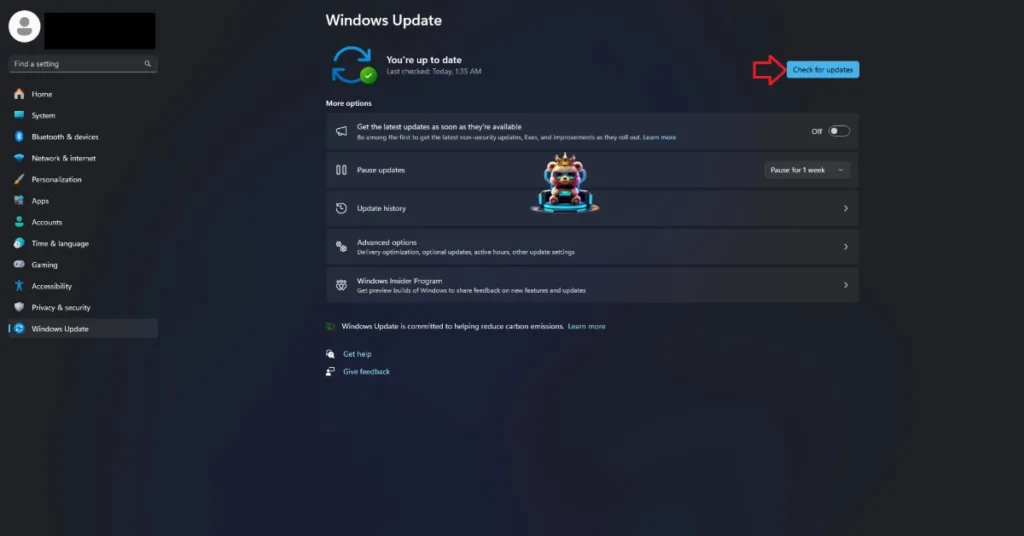
Warframe is a game that keeps on evolving with new updates and expansions. For a game that keeps getting so many updates, the OS version requirement changes after a while. Since some PC users tend to pause their Windows updates, the old OS version is crashing Warframe on your PC at startup. To fix the startup crashes, update your Windows OS to the latest version. Here is how you can update your OS:
- Open Windows Settings.
- Go to the “Windows Update” tab.
- Click the “Check for Updates” or “Resume Update” button.
- Download and install all available updates.
- Restart your PC, if required.
- Launch Warframe, and the startup crashes are fixed.
Fix #4 – Ensure Warframe is Running on Dedicated Graphics Card
Those of you experiencing the Warframe not launching or crashing at startup issue on a gaming laptop, the culprit might be your integrated GPU (iGPU). Gaming laptops utilize both the iGPU and dedicated NVIDIA or AMD graphics hardware. The OS switches between the two OS depending on rendering load.
However, in some cases, the OS doesn’t switch to the dedicated graphics card, which is the reason Warframe keeps crashing on your laptop. To fix these startup crashes, ensure that the game is using the discrete NVIDIA or AMD graphics hardware. Here is how you can apply the fix:
- Go to Windows 10/11 settings, go to System, click Display, and go to Graphics.
- Select “Warframe” from the apps and programs list. Click on Options.
- Select the “High Performance” option and save the changes.
- Launch Warframe, and it will launch without crashing at startup.


Fix #5 – Repair System Files and Install Missing Visual C++ Components
Missing or damaged System and Visual C++ components are the reason Warframe keeps crashing at startup on your PC. You can fix the issue by repairing or installing these components.
Install or Repair Visual C++ Components
- Go to the Steam Library and type “Steamworks” in the search bar.
- Right-click “Steamworks Common Redistributables” > Manage > click “Browse local files”.
- Open _CommonRedist\vcredist in the explorer window that opens on your screen.
- You will get a list of folders with names in years starting from 2010.
- Open each folder one by one and run the VC_redis for both x64 and x86 versions.
- Repair or install Visual C++ Redistributables.
- Play Warframe and the startup crashes are fixed


You might find some folders empty for Visual C++ installers, as Steam deletes installers after a certain time. In that case, you can manually download installers for Visual C++ Redistributables and install them. Ensure that you download and install both x86 and x64 versions.

Run DISM and SFC Scans
- Press the Windows key on your keyboard, type “cmd”, and run Command Prompt as an administrator.
- Type sfc /scannow and hit Enter.
- Windows will run a scan. Let it complete fully.
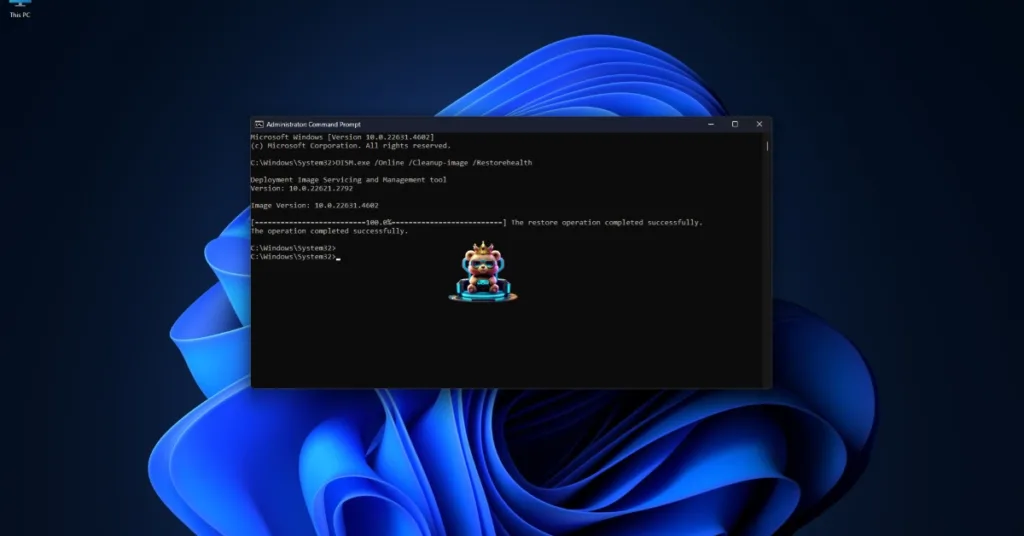
- After the first scan is complete, type DISM.exe /Online /Cleanup-image /Restorehealth and press Enter again.
- Let Windows complete this scan as well.
- Play Warframe and it will launch without crashing.
That is all for our Warframe fixes for the game not launching issue on your Windows PC. If you are facing errors and issues while playing other games on PC and handhelds, head to our hub of commonly occurring PC errors and their fixes.