Running on the Evolution Engine, Warframe is a free-to-play online shooter that has been standing strong since its initial launch. The game itself is pretty fun in both PVP and PVE modes. On top of that, the game scales well across different PC configurations, meaning it’s a well-optimized game for low-end PCs as well. No game is perfect, and this one also has its fair share of issues, like gameplay crashes. If you are experiencing Warframe in-game crash issue, then this guide is all you need.
5 Ways to Fix Warframe Keeps Crashing on PC
According to several PC users, the game randomly crashes after playing for some time. This can be due to various reasons, such as incompatible GPU drivers, unlocked frame rate, or if you are using higher graphics settings than your PC can handle. The following are the fixes I have compiled that will resolve the in-game crashes in Warframe on your Windows PC.
Fix #1 – Clean Install GPU Driver (Confirmed Fix)

Reports claim that Warframe crashes on PC after playing for some time. It can be due to incompatible or corrupt GPU drivers. To fix the issue, clean install your GPU drivers. This fix has been verified by several PC users and will work for you as well. Follow my lead:
- Install your current GPU driver from Nvidia’s official website and run the setup.
- Among the installation options, choose Custom and hit Next.
- Check “Perform a clean installation” and hit Next.
- After that, your GPU driver will have a clean install, and the Warframe in-game crashes will be fixed.
Fix #2 – Use Optimized Graphics Settings
Playing the game on high graphics can be fun, but that is putting a heavy load on your GPU, which is causing Warframe to crash on your Windows PC. You will need to use some optimized graphics settings that your system can handle. You can either do it the hard way, which is to mess with different settings in-game, or you can have it the easy way, which is the Nvidia App. Follow my lead:
- Open the Nvidia App on your PC and navigate to the Graphics section.
- Select Warframe and click Optimize.
- This will run Warframe with graphics settings that are optimized for your PC, and the in-game crashes will be fixed.

Fix #3 – Limit Warframe’s Max Framerate
Who wouldn’t want to enjoy a game on an unlocked frame rate? Several players do this, and there’s nothing wrong with it if you have a high-end system. However, this puts a ton of load on your computer’s hardware, resulting in Warframe crashing on your PC. To fix this, you will have to limit the game’s framerate. There are two ways to do that: the game’s settings or the Nvidia App.
Use Warframe’s In-Game FPS Limiter

Here’s how to limit Warframe’s FPS through in-game settings:
- Open Warframe and navigate to the Display section.
- In the Max Framerate option, pick the framerate that is lower than your current one.
- Launch Warframe, and it should run without crashing.
Use NVIDIA’s FPS Limiter
If you decide to do it from the game’s menu, then you will only have some specific values. But for more precision, we choose Nvidia’s Control Panel. Here’s what to do:
- Open the Nvidia Control Panel and head to “Manage 3D Settings.”
- Click on “Program Settings” and choose Warhammer.
- Scroll down and enable Max Frame Rate.
- Now, just select a suitable framerate and launch Warhammer to enjoy a crash-free experience.

Fix #4 – Use Stock GPU and Memory Clocks for your Graphics Card
If you have overclocked your GPU, then that’s probably the reason why Warhammer is crashing on your Windows PC. Running on your GPU on high memory clocks puts a load on it, which often becomes the cause of several crashes. Just revert your GPU to its default settings, and the problem will be fixed.
However, chances are that your GPU is factory overclocked by Nvidia’s AIB partners, such as Zotac, Gigabyte, ASUS, etc. This means that your GPU is already running on higher clock speeds. To ensure that your GPU is running at its default clock speeds, you need to enable debug mode. This ensures that your GPU is running on Nvidia’s recommended clock speeds. Here’s how to enable it:
- Open the Nvidia Control Panel and click “Help” in the top menu.
- Select Debug Mode and enable it.
- Now, your GPU is running on Nvidia’s recommended clock speeds, and the Warhammer in-game crashes are fixed.

Fix #5 – Change Windows TDR Settings to Reset GPU Driver
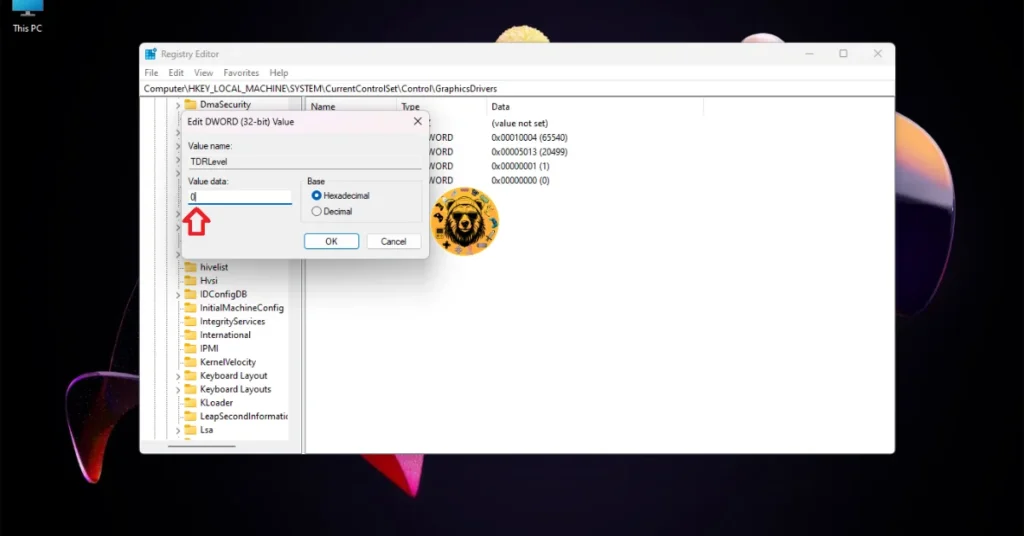
TDR or Timeout Detection and Recovery is a Windows feature that is responsible for resetting the graphics card when it stops working correctly. A pretty useful feature, but it can sometimes make errors and cause our games to crash. What happens is that it sometimes falsely detects unresponsiveness from the GPU driver, and instead of resetting it, TDR completely turns it off. In your case, this is the reason why Warframe is crashing in-game. To fix it, you will have to change Windows TDR settings to Reset GPU Driver. Here’s how you can do that:
- In the Windows Search bar, type “regedit” and run it as an administrator.
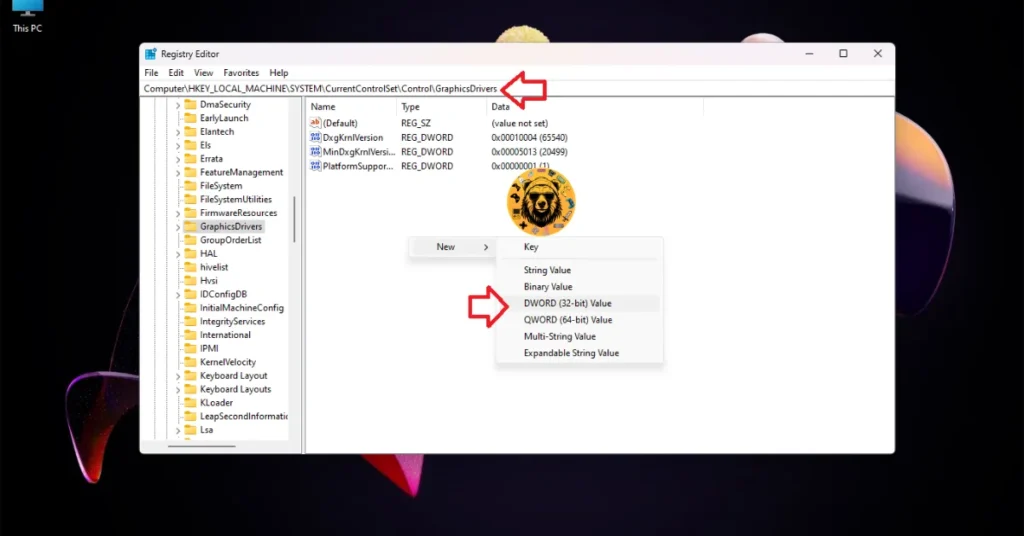
- Navigate to “HKEY_LOCAL_MACHINE -> SYSTEM -> CurrentControlSet -> Control -> GraphicsDrivers”.
- See the blank space in the right panel? Right-click there and hover your mouse cursor over “New.”
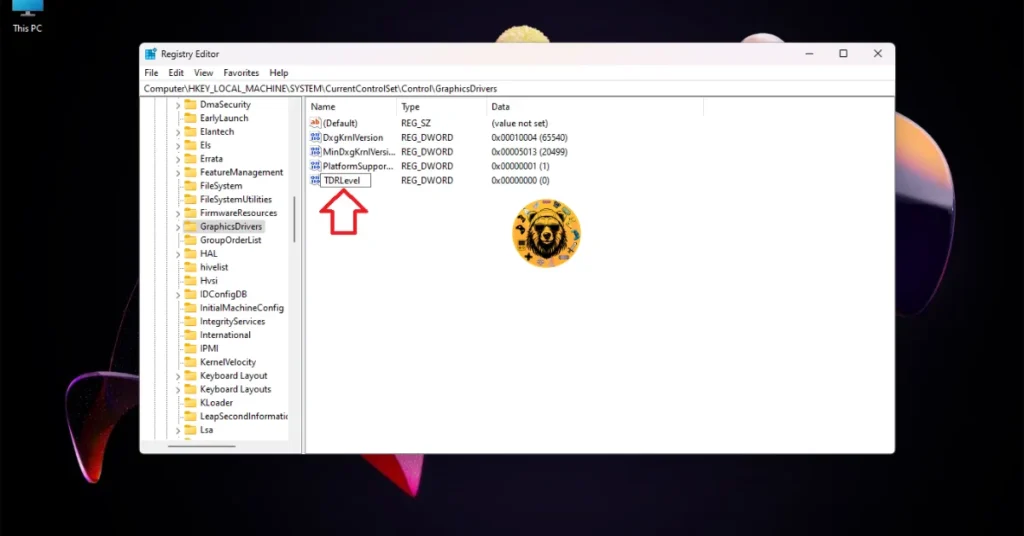
- Select the “DWORD (32-bit) Value” option, and name the file TdrLevel.
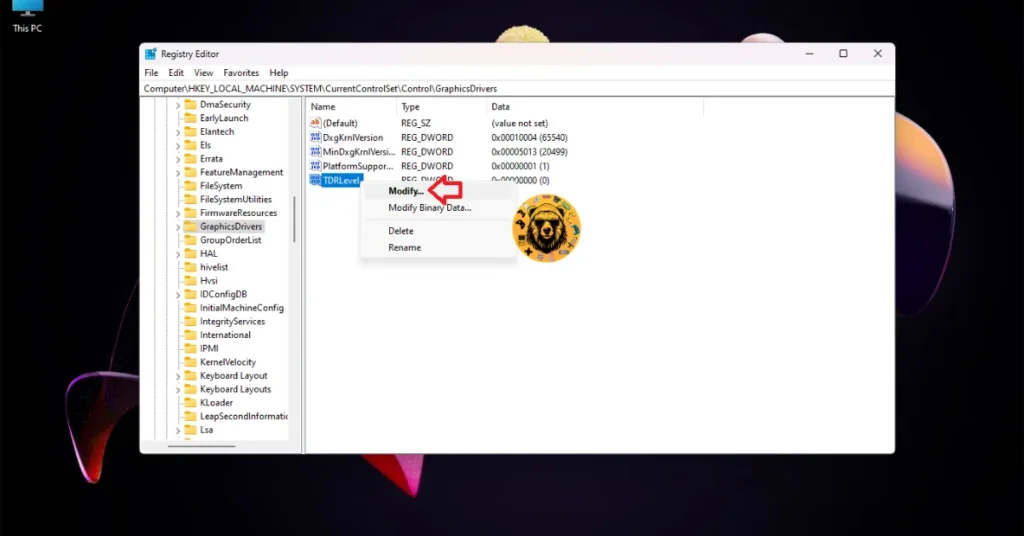
- After right-clicking the “TdrLevel” file, you will need to select Modify.
- Under “Value date”, make sure that the value is 0.
- Restart your PC, launch Warframe, and the in-game crash is fixed.
That is all for our Warframe fixes for the in-game crash issue on your PC. If you are facing errors and issues while playing other games on PC and handhelds, head to our hub of commonly occurring PC errors and their fixes.