Where Winds Meet is a free-to-play action RPG that players can play with their friends or solo. Surprisingly, the game has a heavy focus on story and single-player experience. The game uses the Messiah Engine to render its beautiful open world and also scales well across different devices. Despite that, PC users report that Where Winds Meet is crashing on their PCs, even on high-end ones, and no error message pops up. I have compiled a list of fixes that will resolve the in-game crash issue in Where Winds Meet on your Windows PC.
4 Ways to Fix Where Winds Meet Keeps Crashing on PC
As per reports from PC players, Where Winds Meet is crashing randomly while playing, and no error message pops up. There are multiple reasons for Where Winds Meet to crash on your PC like that, such as playing at an unlocked frame rate, an overclocked graphics card, Timeout Detection and Recovery shutting down the GPU driver, and more. The following fixes will resolve the Where Winds Meet in-game crash issue on your Windows PC.
Fix #1 – Verify Game Files (Confirmed Fix)
For most PC users, Where Winds Meet started to crash after the intro, following a recent update. This is due to some game files being damaged or removed during the update. PC players confirm that verifying the integrity of game files fixes the crashes during or after the intro cutscene. Here is how you can verify game files to fix the crashes in Where Winds Meet:
- Right-click Where Winds Meet in your Steam library and click the “properties” option.
- Go to the “Installed Files” tab and click the “Verify integrity of game files” button.
- Let Steam run its scan. Some files will be downloaded if they are missing or damaged.
- After that, continue playing Where Winds Meet, and the crashes are fixed.

Fix #2 – Play Where Winds Meet With a Capped Frame Rate
Playing Where Winds Meet at a high or unlocked FPS can be beneficial in gameplay, as the reduced input latency allows players to quickly dodge or attack bosses and opponents. However, playing the game at a high FPS puts the GPU and CPU under a lot of load, which is crashing Where Winds Meet during gameplay on your PC.
You can fix these crashes by limiting Where Winds Meet’s max frame rate, as it will lower the GPU and CPU load. There are two ways you can limit the game FPS, using the in-game FPS limiter or the NVIDIA App frame rate limiter. Here is how you can limit Where Winds Meet’s FPS using both methods:
Use Where Winds Meet’s In-Game FPS Limit
- Open the game’s settings menu and go to the “Display” tab.
- Disable the “V-Sync” option, as the FPS limiter won’t work with it.
- Select the “FPS Limit” setting and set a lower FPS value.
- Apply the changes, continue playing Where Winds Meet, and the gameplay crashes are fixed.
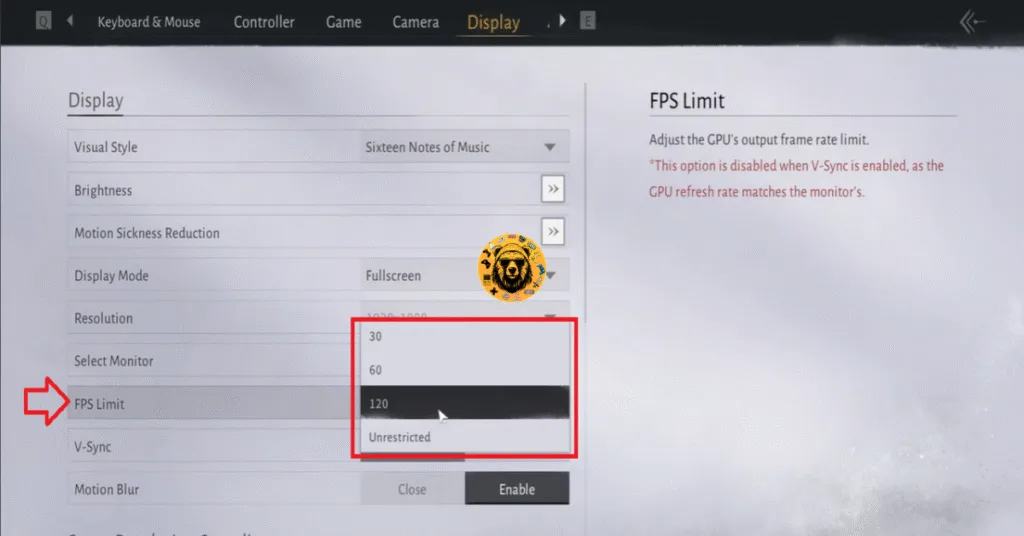
Since you’ll disabling V-Sync in Where Winds Meet to use the FPS limiter, you might experience screen tearing during gameplay. This applies if you don’t have a Variable Refresh Rate (VRR) display.
Use NVIDIA App or Limit Where Winds Meet’s Frame Rate
The in-game FPS limiter for Where Winds Meet offers limited frame rate options. If you have a high refresh rate or Variable Refresh Rate display, you can use the NVIDIA App’s FPS limiter for a more granular control over the game’s frame rate. Here is how you can use the NVIDIA App frame rate limiter to fix crashes in Where Winds Meet:
- Open the Nvidia App and go to the “Graphics” tab.
- Select “Where Winds Meet” from the list of games.
- Scroll down the options and click on the “Max Frame Rate” setting.
- Turn it on, set a lower value for it, and apply changes.
- Play Where Winds Meet and the crashes are now fixed.
Unless you are playing Where Winds Meet on a Variable Reresh Rate, aka Gsync or Freesync, display, the frame rate value should be 1/2, 1/3, or 1/4th of your display refresh rate, otherwise, the game will feel jittery. This only applies if you have V-Sync enabled on a fixed refresh rate monitor.
Fix #3 – Override Windows Timeout Detection and Recovery Settings
Timeout Detection and Recovery (TDR) is a feature in Windows OS that detects issues with the GPU driver and recovers it. However, in some cases, this feature shuts down the GPU driver instead of resetting it when it detects a driver stall. This is why Where Winds Meet is crashing on your PC, and you can fix these crashes by changing the Windows TDR setting, so that it resets the GPU driver instead of shutting it down.
Here is how you can change Windows TDR to fix gameplay crashes in Where Winds Meet:
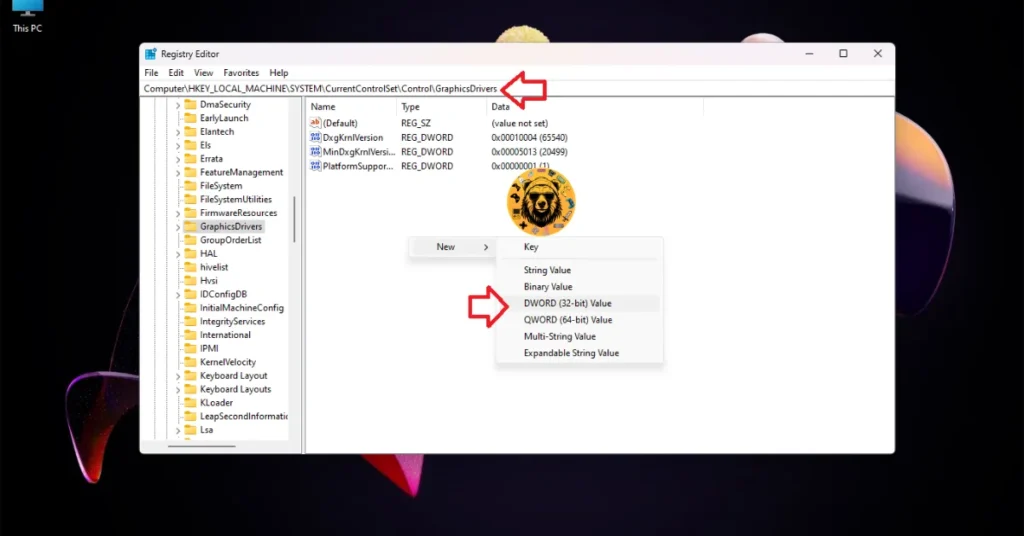
- Open “regedit” and run it as an administrator.
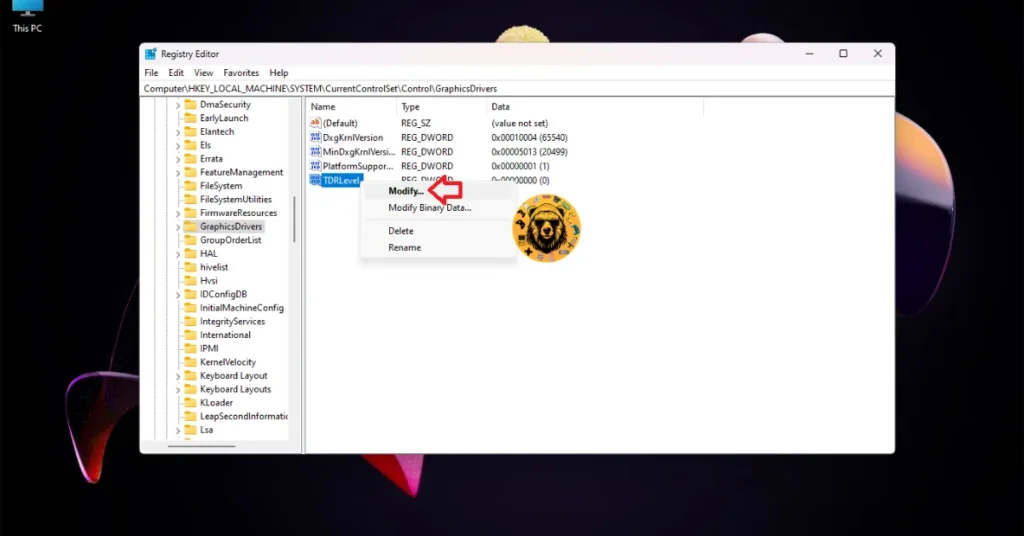
- Go to “HKEY_LOCAL_MACHINE -> SYSTEM -> CurrentControlSet -> Control -> GraphicsDrivers”.
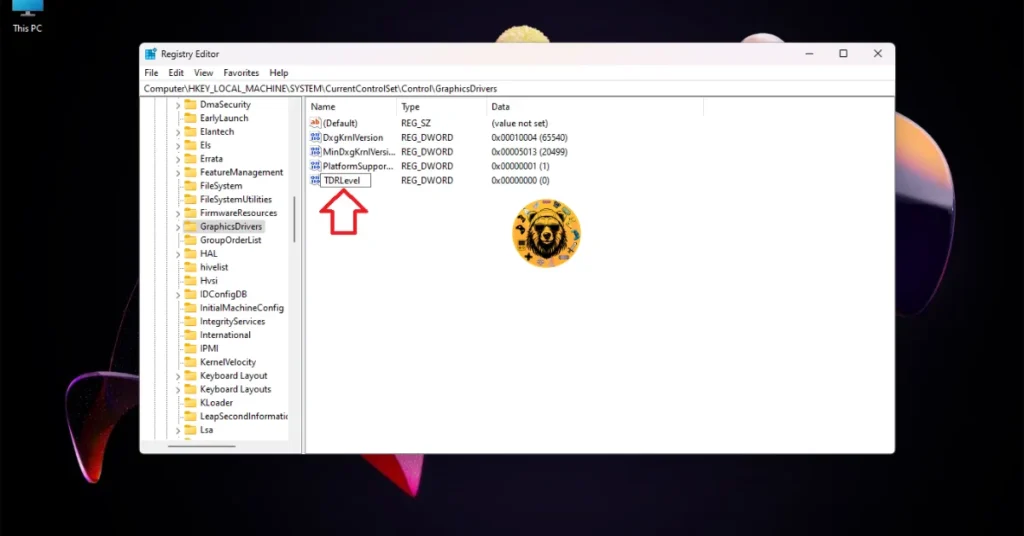
- Right-click in the right panel in the blank space, hover the mouse cursor over “New”, select the “DWORD (32-bit) Value” option, and name the file TdrLevel.
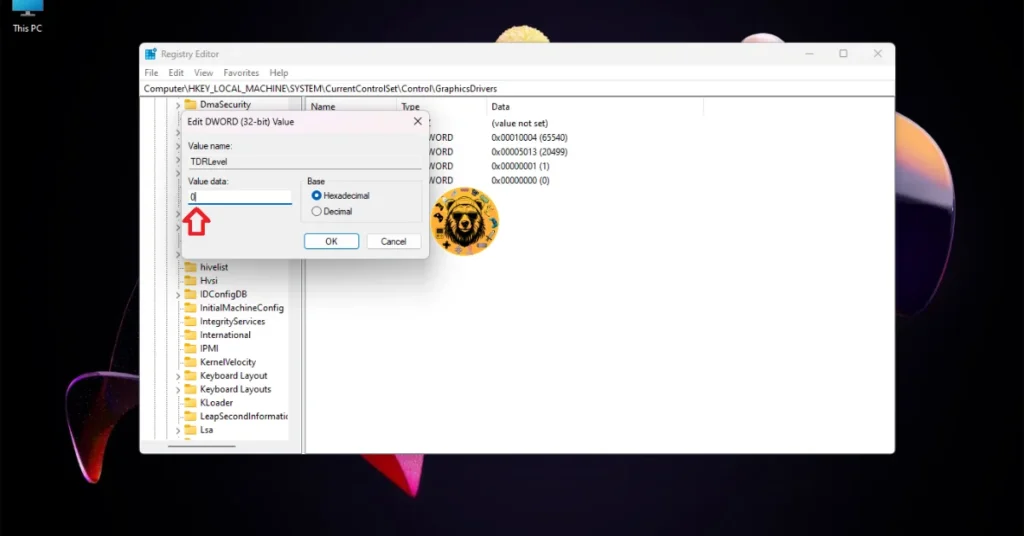
- Right-click the “TdrLevel” file and select Modify.
- Confirm that the value is 0 under “Value data”.
- Restart your PC.
Fix #4 – Ensure Your Graphics Card is Using Stock Clocks
Overclocking can get you more gameplay performance, but it also makes gaming an unstable experience, as games start to crash during gameplay.
If you have overclocked your graphics card, it is the reason Where Winds Meet keeps crashing on your PC. You can fix the in-game crash issue in the game by reverting your graphics card to its default GPU and Memory clocks.
That is all for our Where Winds Meet fixes for the in-game crash issue on your Windows PC. If you are facing errors and issues while playing other games on PC and handhelds, head to our hub of commonly occurring PC errors and their fixes.