WWE 2K26 released with a great reception from critics but saw a lukewarm reception from players. Aside from the quality of the game itself, PC players are experiencing random gameplay crashes and freezes with the game. I have compiled a list of fixes that will resolve the WWE 2K26 in-game crash and random freezing issues on your Windows PC.
WWE 2K26 Freezing and Crashing on PC Fixed
For some players, the game crashes without any error, but some reports claim that the game freezes and then crashes with the following error message:
WHEA_UNCORRECTABLE_ERROR
This could be due to a hardware issue, like overclocked RAM or GPU. If not, then there’s probably a game issue. This WWE 2K26 guide is all you need to fix in-game crashes and freezing.
Fix #1: Disable Memory Integrity (Confirmed Fix)
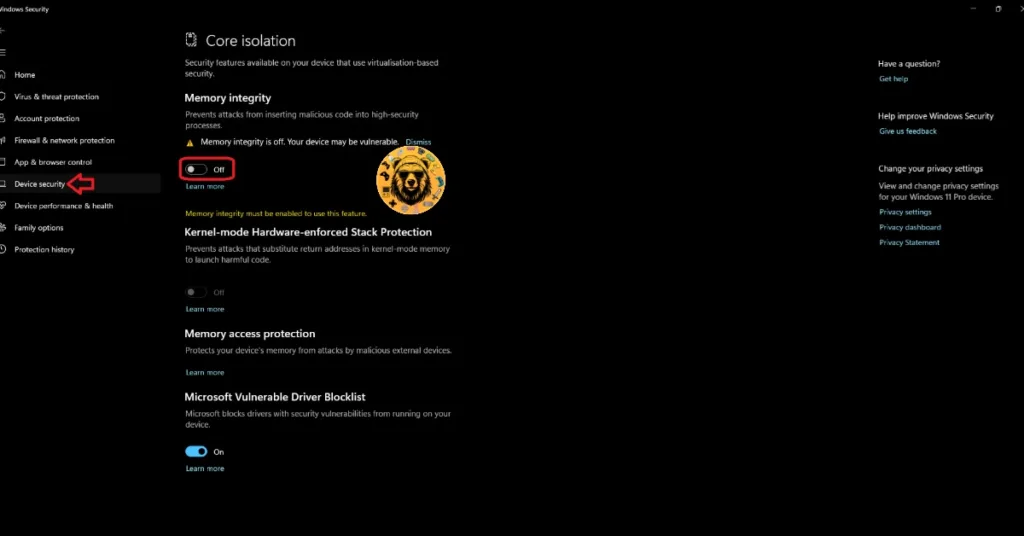
The Memory Integrity feature of Windows Security is the reason WWE 2K26 is freezing and crashing on your PC. You can fix these gameplay freezes and crashes by disabling Memory Integrity. PC users confirm that disabling this feature fixed the random freezes and crashes in WWE 2K26. Here’s what to do:
- In your Windows Search bar, type Windows Security and hit Enter.
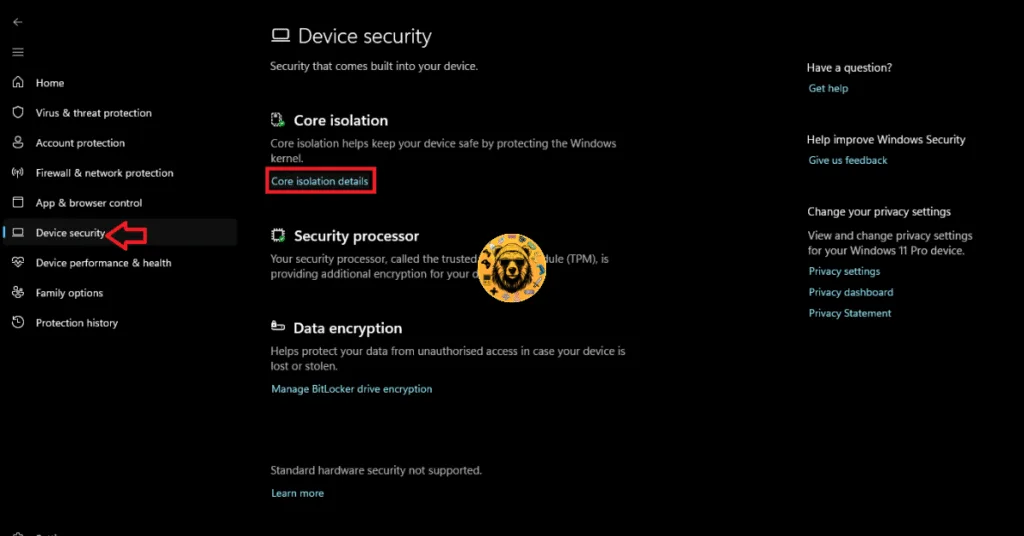
- Click on the “Device Security” tab and select “Core isolation details” under the Core isolation section.
- Toggle Memory integrity to Off.
- Restart your PC and launch WWE 2K26 to enjoy a smooth experience.
Fix #2: Disable XMP/EXPO
The reason why WWE 2K26 is crashing on your Windows PC is overclocked RAM. Although this can give you a great performance boost, it is often the cause of several issues, in this case, the game is crashing. You will have to disable XMP/EXPO in your BIOS to fix the WWE 2K26 crashes on your PC. I’ll take you through the process.
- Open your Windows Settings> System> Recovery> Restart Now.
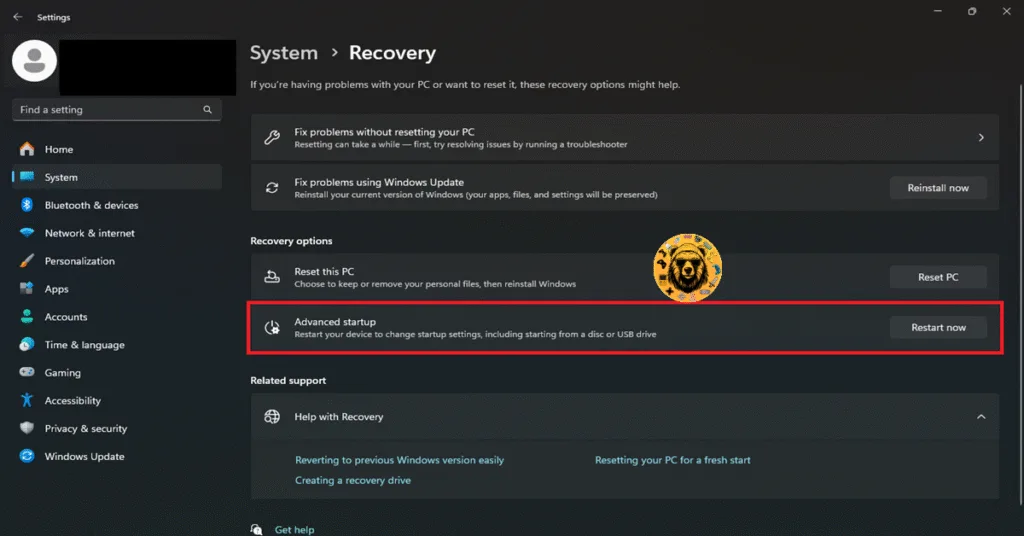
- Wait for your PC to restart and choose Troubleshoot.
- Select the “UEFI firmware settings” option in the Advanced Options.
- Let your PC boot into the BIOS.
- Press F7 and switch your BIOS from EZ Mode to Advanced Mode.
- Look for the OC (Overclocking) or Extreme Tweaker tab and find XMP Profile or EXPO Profile settings.
- Disable it and press F10 to save the changes.
- Exit the BIOS and wait for your PC to start.
- Once that’s done, launch WWE 2K26 on your PC, and it won’t freeze or crash.
Fix #3: Disable GPU Overclock
Just like the RAM, an overclocked GPU can sometimes become the root cause of several issues and errors. That’s the reason why WWE 2K26 is crashing and freezing on your PC. Revert your GPU to its default settings, and you will be good to go.
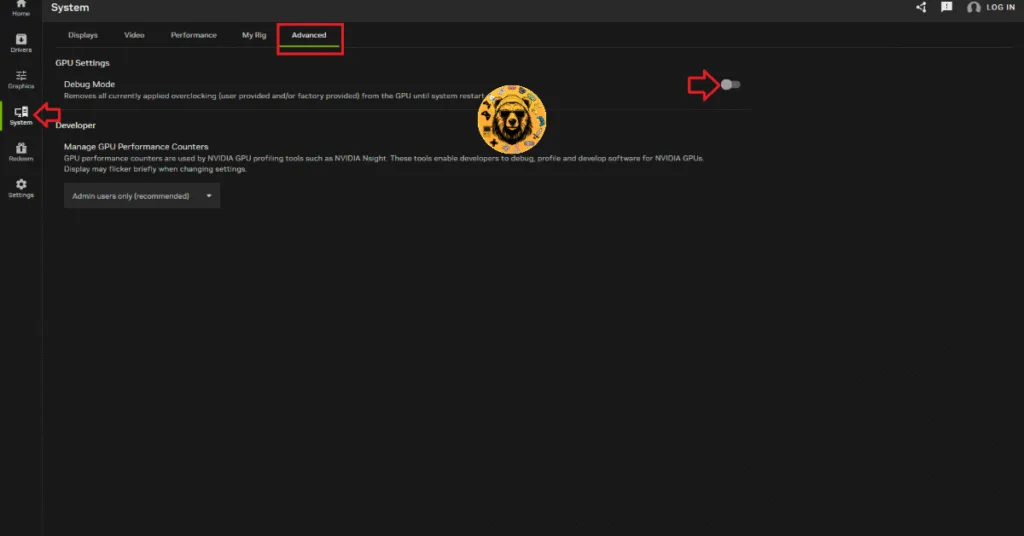
However, chances are your GPU is already factory-overclocked by Nvidia or AMD AIB partners, like ASUS, GigaByte, Zotac, etc. These GPUs are already running on higher memory clocks for better performance. You will have to enable Debug Mode to ensure that your GPU is running on Nvidia’s recommended clock speeds. Here’s how to do that:
- Open the NVIDIA app.
- Navigate to the “System” tab and click the “Advanced” tab.
- Turn on Debug Mode and restart your PC.
- Launch WWE 2K26 and the crashes are fixed.
You can also do this through the Nvidia Control Panel.
- Open the Nvidia Control Panel.
- Click on Help in the top menu.
- Select Debug Mode and enable it.
- Play WWE 2K26, and the game should run without any issues.

Fix #4: Limit WWE 2K26’s Max Frame Rate
Playing the game on an unlocked FPS? That’s pretty fun and all, but not when it puts a lot of stress on your components and causes your games to crash. You will have to limit the game’s max frame rate to avoid crashes and freezing. Here’s how to do that:
Through the In-Game Settings:
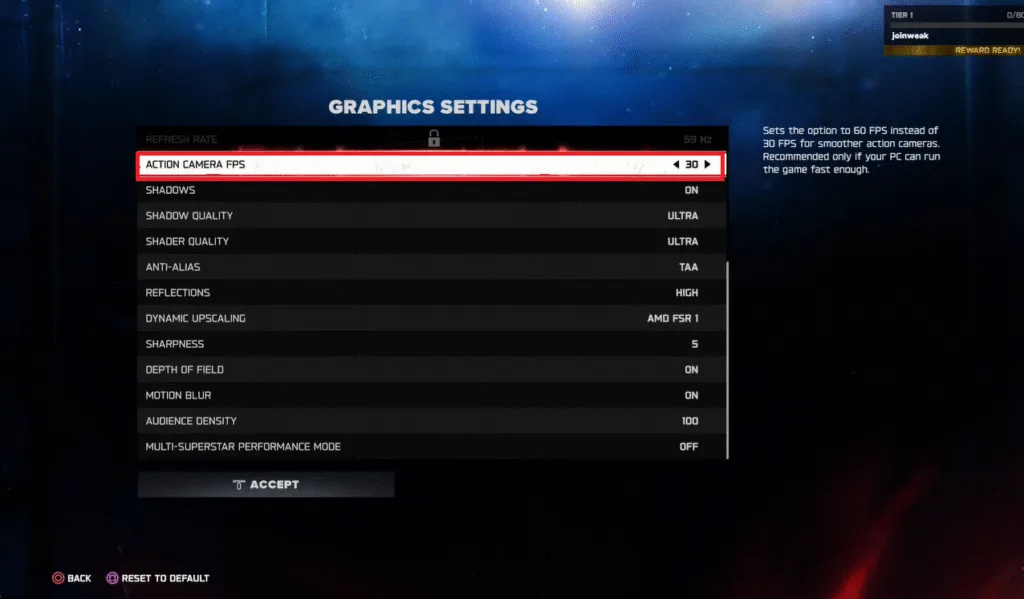
- Open WWE 2K26 in-game settings.
- In Graphic Settings, head to Action Camera FPS.
- Choose a suitable framerate (preferably something low).
Through the Nvidia Control Panel:

- In the Nvidia Control Panel, navigate to “Manage 3d Settings.”
- Click on “Program Settings” and choose WWE 2K26.
- Scroll down a little bit and enable Max Frame Rate.
- Select your desired framerate and play WWE 2K26 to enjoy a crash-free experience.
That’s how you can fix WWE 2K26 crashing and freezing on your PC. If you are experiencing errors and crashes in games, also see our fixes hub for commonly occurring errors for PC and handhelds.