Assassin’s Creed Black Flag Resynced has launched with critical acclaim for PC and consoles. The remake brings the 2013 original to modern consoles with the latest Anvil Engine and all the bells and whistles a PC game is expected to have. This means DLSS support for NVIDIA RTX GPUs. While the DLSS is boosting performance in the AC Black Flag remake, there is a bug that prevents the upscaler from using the correct preset. Here is how you can fix the DLSS preset bug in Assassin’s Creed Black Flag Resynced.
DLSS Fix for Assassin’s Creed Black Flag Resynced
For reference, Black Flag Resynced should use the DLSS 4.0 or 4.5 presets, depending on the quality setting you use. But that’s not the case, as the game isn’t using DLSS 4.5 or 4.0, which makes AC Black Flag Resynced look noticeably blurry even with the DLSS Quality preset.
To fix this, you need to force the correct DLSS preset using the NVIDIA App. Here is how you can fix the DLSS preset in the game:
- Open the NVIDIA App and open the “Graphics” tab.
- Select “Assassin’s Creed Black Flag Resynced” from the list of games.
- Find the “DLSS Override – Model Presets” setting under “Driver Settings” and click on it.
- You can select specific presets, like Preset K, M, or L for DLSS Quality, Performance, or Ultra Performance, respectively.
- Alternatively, click the Recommend button, and NVIDIA App will force the correct DLSS preset when you play AC Black Flag Resynced.
- Play the Black Flag Remake, and you’ll notice that image quality has improved noticeably.
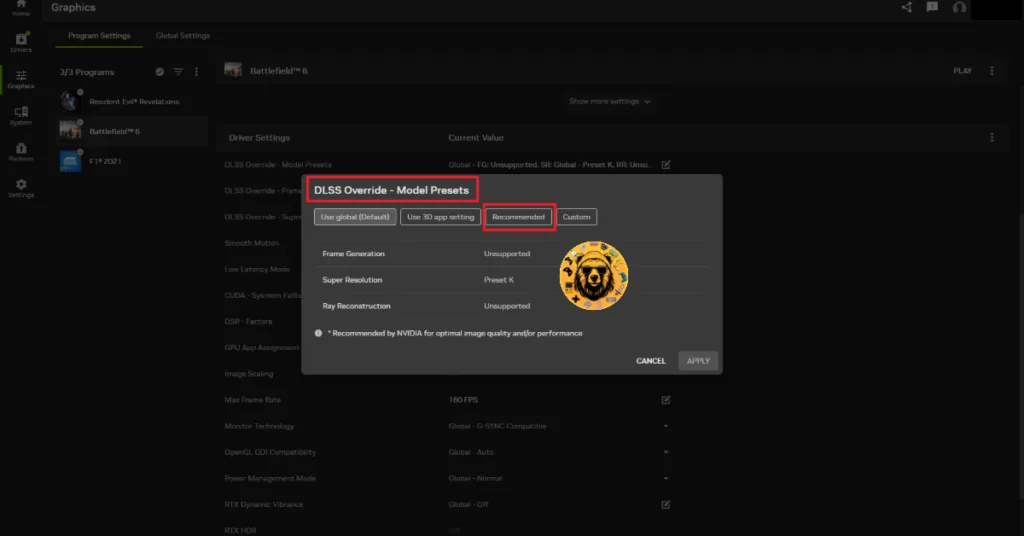
Note: Preset K is ideal if you are using the DLSS Quality setting. Presets M and L are ideal for Performance and Ultra Performance settings.
If you want to ensure that the game is using the correct DLSS preset, you can check it through the NVIDIA App overlay. Ensure NVIDIA Overlay is enabled in the app. Launch Black Flag Resynced > press “Alt +Z” > click “Statistics” > change “Statistics View” to DLSS. The overlay will display which preset is currently in use. If the preset is K, L, or M, then the fix is working. If not, then the game is using an old DLSS model.
However, that’s not the end of the issue the game has with DLSS. Turns out, DLSS Balanced and Performance presets don’t upscale to the correct resolution and produce a noticeably blurry image. At the time of writing, the Balanced preset upscales to 80% of the native resolution, and the Performance preset upscales to 70% of the native resolution.
To ensure DLSS is upscaling to full resolution in AC Black Flag Resynced, use custom upscaler quality.
- Go to Settings > Display > Upscaler.
- Set the “Upscaler Quality” setting to Custom.
- For the “Balanced” preset, manually set “Min Dynamic Resolution – 34%”, “Max Dynamic Resolution – 34%”, and “Resolution Scale – 100%”.
- For the “Performance” preset, manually set “Min Dynamic Resolution – 25%”, “Max Dynamic Resolution – 25%”, and “Resolution Scale – 100%”.
- Apply the changes.
- Play AC Black Flag Resynced, and the DLSS will upscale to full resolution instead of downscaling it.
There you have it, our fix for the Black Flag Resynced DLSS issue on PC. If you are facing errors and issues while playing other games on PC and handhelds, head to our hub of commonly occurring PC errors and their fixes.