PRAGMATA is a brand new IP from Capcom, who has been on quite a streak with back-to-back incredible games like Dragon’s Dogma 2 and Resident Evil Requiem. Another similarity Pragmata shares with other Captom titles is the RE Engine, which also means it experiences the same issues on PC as the other games. PC users report that Pragmata is crashing during gameplay or cutscenes and displays the Fatal D3D Error. We have compiled a list of fixes that will resolve the Fatal D3D DXGI Device Removed crash in PRAGMATA on your PC.
Working Fixes for Pragmata Fatal D3D DXGI DEVICE REMOVED Crash
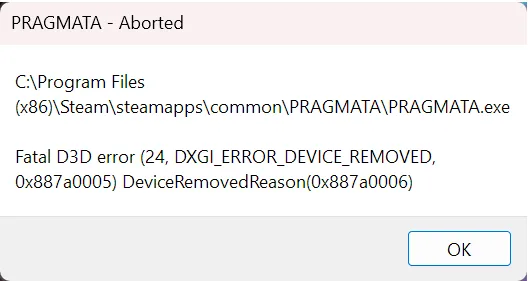
As per PC user feedback, PRAMGATA keeps crashing randomly on PC and displays the following error messages:
PRAGMATA – ABORTED
Fatal D3D error (24, DXGI_ERROR_DEVICE_REMOVED, 0x887a005) DeviceRemovedReason(0x887a005)
PRAGMATA – ABORTED
FATAL D3D (6, E_OUTOFMEMORY, 0X8007000e)
PRAGMATA – ABORTED
Fatal D3D Error (4, E_ACCESSDENIED, 0x80070005)
There are multiple reasons why you are experiencing this crash, it could be due to driver issues or the game is putting too much load on the GPU. The following fixes will resolve the Fatal D3D crashes on your PC.
Fix #1 – Disable Path Tracing (Confirm Fix)
PRAGMATA is a path tracing showcase on PC, as it not only makes the game look better, but it also performs better compared to other games with path tracing. However, Path Tracing is still a very resource-heavy graphics feature and is crashing PRAGMATA on your PC with the Fatal D3D error.
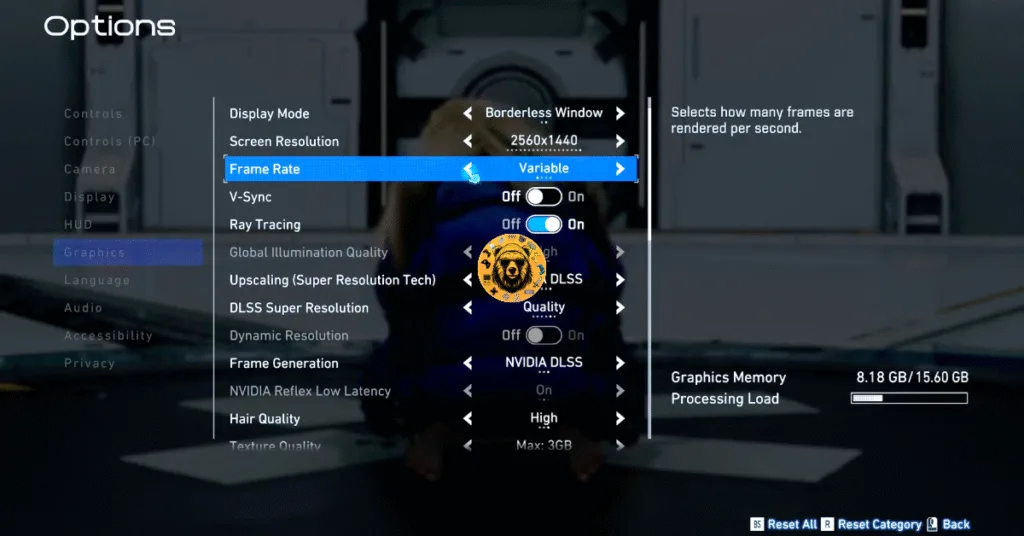
You can fix the Fatal D3D crash in the game by disabling Path Tracing in the graphics options. Doing this will reduce the GPU and CPU load, which fixes the crashes.
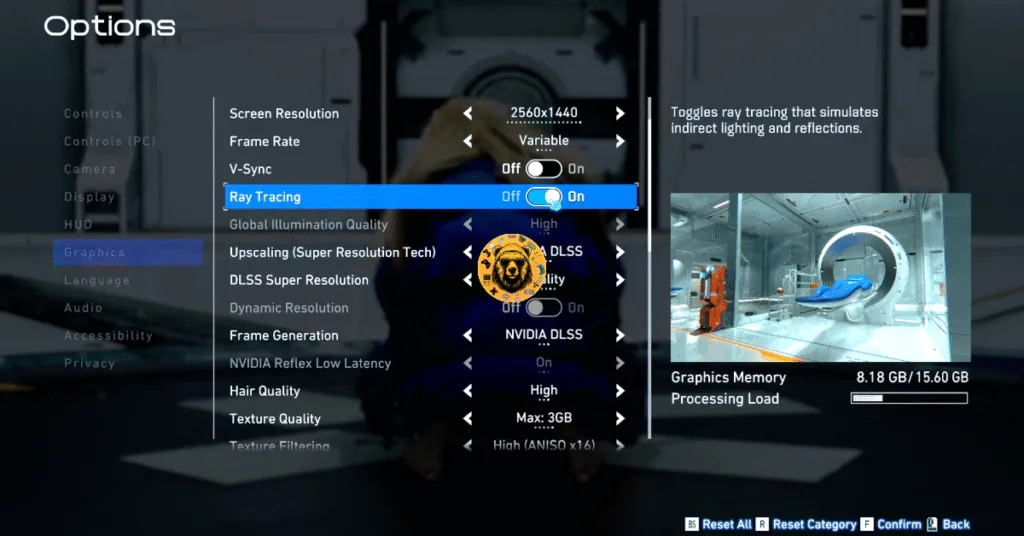
- Open PRAGMATA’s options menu.
- Go to the Graphics tab.
- Turn off the “Ray Tracing” setting.
- Continue playing PRAGMATA and the Fatal D3D crash is fixed.
Fix #2 – Ensure Your Graphics Card isn’t Overclocked
PC gaming has its advantages over consoles. Not only does it allow you to adjust the graphics settings and play games at higher FPS, but it also allows users to overclock their hardware to squeeze more performance. However, overclocking can result in unstable gaming performance as games often start crashing during gameplay.
If you have overclocked your graphics card, it is the reason PRAGMATA keeps crashing on your PC and displays the DXGI DEVICE REMOVED Fatal D3D error. You can fix the Fatal D3D Error by reverting your graphics card to its stock clock speed and voltages.
However, even if you haven’t overclocked the graphics card yourself, it is likely factory overclocked. Most graphics cards from NVIDIA and AMD AIB partners, like Zotac or ASUS, feature higher clocks and voltages than their respective reference models.
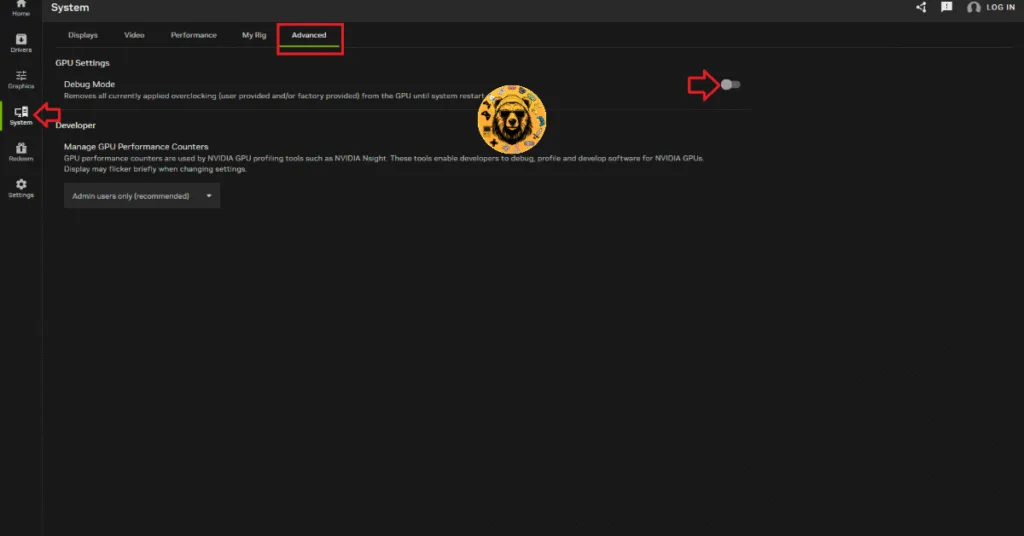
These higher clocks and voltages are crashing PRAGMATA on your Windows PC and displaying the Fatal D3D Error. Fix the error by forcing your graphics card to use its stock clocks. For NVIDIA GPU users, you can do it by enabling the Debug Mode.
- Open the NVIDIA App.
- Go to the “System” tab.
- Click the “Advanced” tab.
- Enable the “Debug Mode”.
- After that, play PRAGMATA, and the Fatal D3D crashes are fixed.
Fix #3 – Force GPU Driver Reset (Timeout Detection and Recovery)
The GPU driver is causing PRAGMATA to crash on your PC with the Fatal D3D DXGI DEVICE REMOVED error. However, the driver itself is not at fault; it’s the Timeout Detection and Recovery (TDR) that shuts down the driver instead of resetting it.
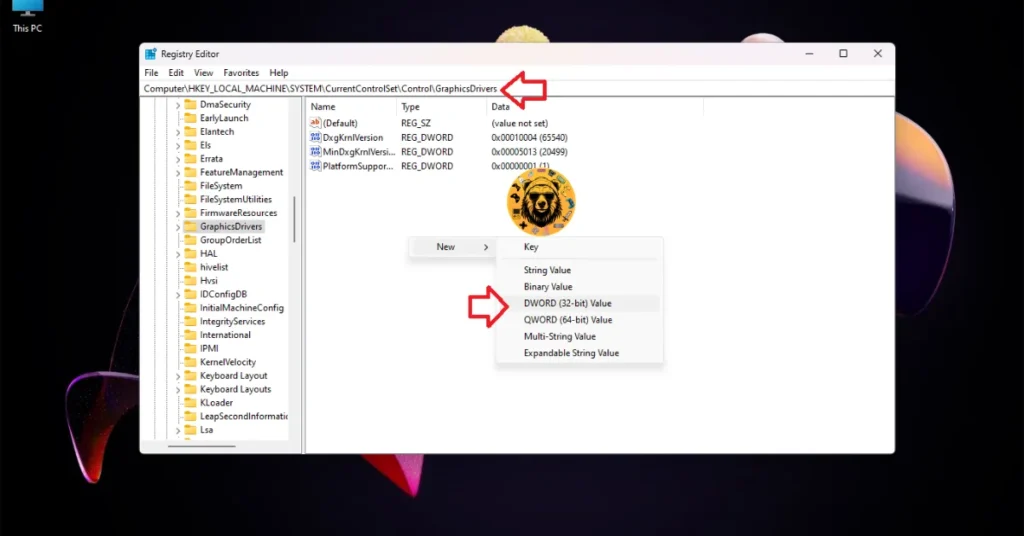
Windows TDR detects issues with the GPU driver and tries to recover it. However, in some cases, TDR shuts down the driver instead of resetting it. This is the reason for the Fatal D3D Error crashes on your PC while playing Pragmata. You can fix the error by tweaking Windows TDR, so it resets the driver instead of shutting it down. Here is how you can tweak it:
- Open “regedit” and run it as an administrator.
- Go to “HKEY_LOCAL_MACHINE -> SYSTEM -> CurrentControlSet -> Control -> GraphicsDrivers”.
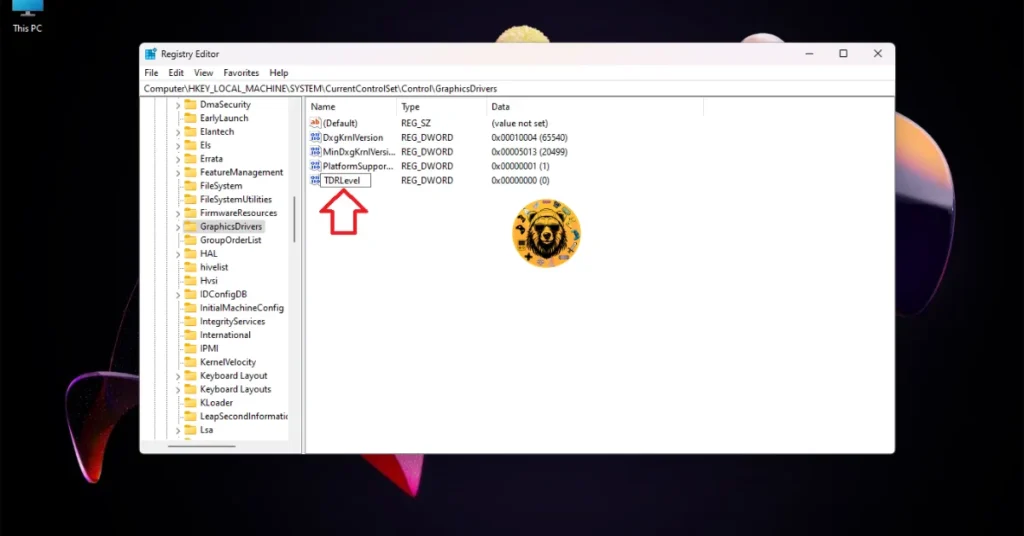
- Right-click in the right panel in the blank space, hover the mouse cursor over “New”, select the “DWORD (32-bit) Value” option, and name the file TdrLevel.
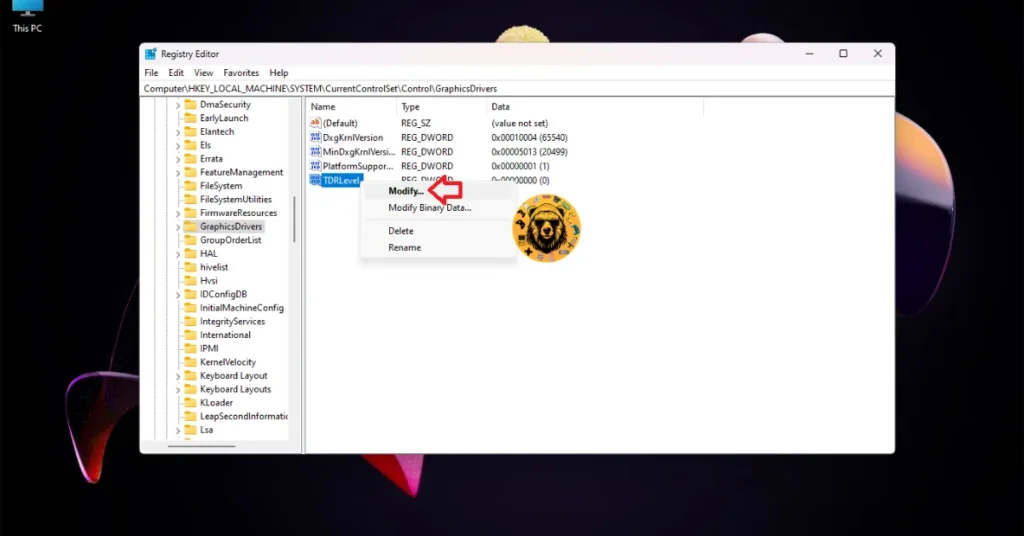
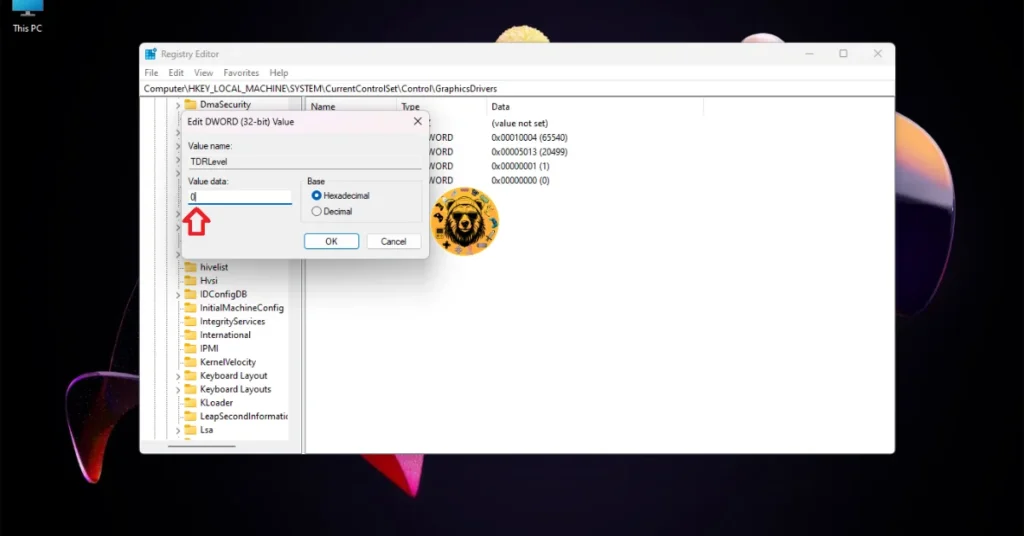
- Right-click the “TdrLevel” file and select Modify.
- Confirm that the value is 0 under “Value data”.
- Restart your PC.
- Continue playing Pragmata, and the Fatal D3D 0x887A0006 error is fixed.
Fix #4 – Play PRAGMATA with an FPS Limit
Playing games at a high FPS has its perks. Not only is the gameplay smooth, but it’s also responsive due to low input latency. However, playing games at high or unlocked FPS puts the GPU and CPU under a lot of stress, which results in games crashing during gameplay.
If you are playing PRAGAMTA at a high or unlocked FPS, it is the reason for the Fatal D3D crashes on your PC. You can fix these crashes by limiting the game’s max frame rate, as it reduces the GPU and CPU load.
- Open PRAGMATA’s options menu.
- Go to the Graphics tab.
- Use the “Frame Rate” setting to set a lower FPS value.
- Continue playing the game, and the Fatal D3D crash is fixed.
There you have it, our fixes for PRAGMATA Fatal D3D Error crashes on Windows PC. If you are experiencing errors and crashes in games, also see our fixes hub for commonly occurring errors for PC and handhelds.